Building steps in the Flow
Once you’ve created the Connections needed to enable communication between your third-party applications and OneTeg, you can create steps to execute the actions needed for your solution.
The first step depends on how the Flow will be executed. There are three ways to execute Flows:
-
Event-Driven (Triggered): Run via Webhooks/Event Calls, which enable the flow to execute when a trigger is sent to it. This must be started with a Webhook connection.
-
Scheduled: Run by setting up a start time and schedule period for the Flow to be executed.
-
Manually: Run by manually executing the Flow.
Building an Event-Driven Flow (Webhook)
OneTeg offers the ability to trigger flows using webhooks, also known as event calls. If your flow needs to react to an external trigger, you must first create a Flow with the Webhook Connector and save it. The steps are as follows:
-
Step 1: Add the Webhook Connector as the first step of your flow.
-
Step 2: Save the flow immediately.
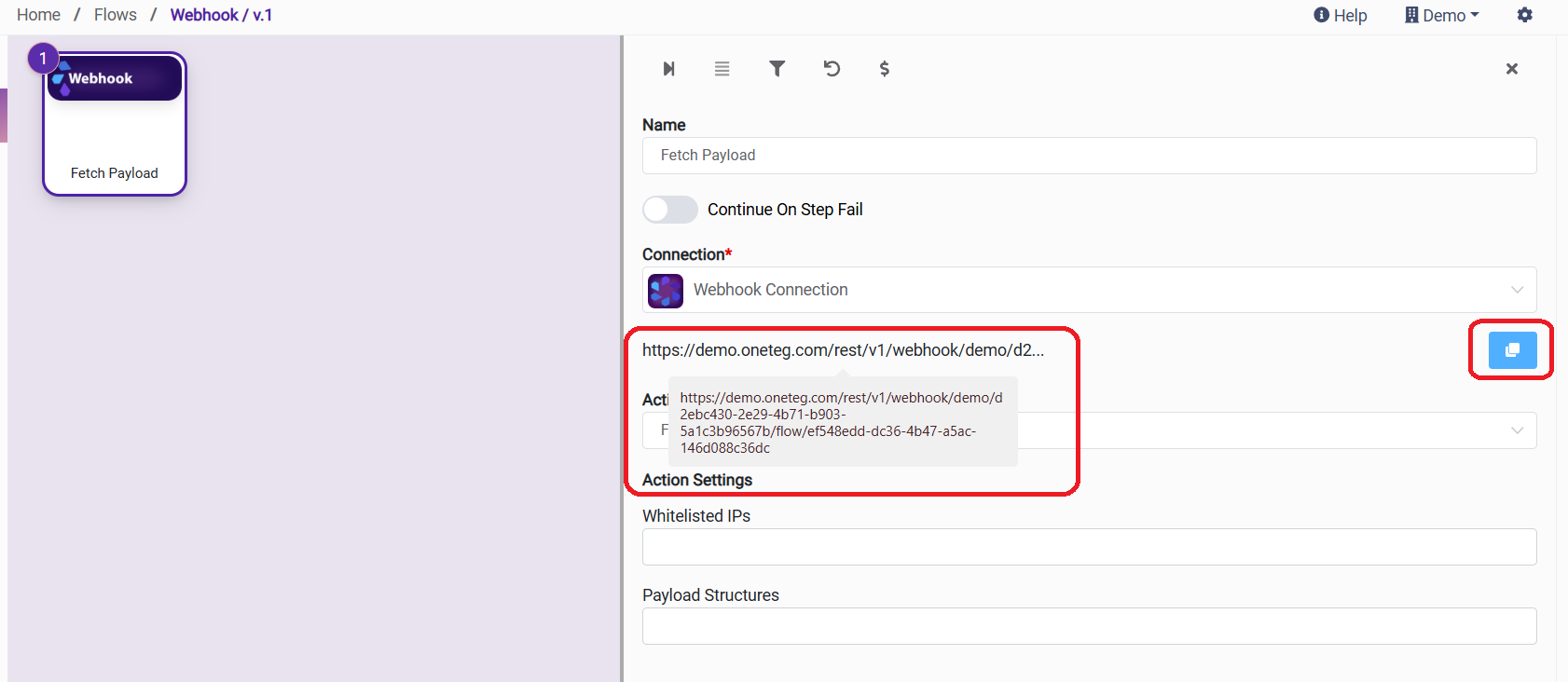
Note: OneTeg will not generate a unique Webhook URL until the flow is saved for the first time.
-
Step 3: Copy the generated URL from the Webhook Connector and paste it into your originating system's event settings.
-
Step 4: Continue adding subsequent steps into your flow to carry out the desired action.
-
Step 5: Activate the Flow using the toggle on the Detail panel or Flow List. The Flow runs when triggered by the Event.
Building Scheduled Flows
-
Step 1: Add your connectors and steps needed.
-
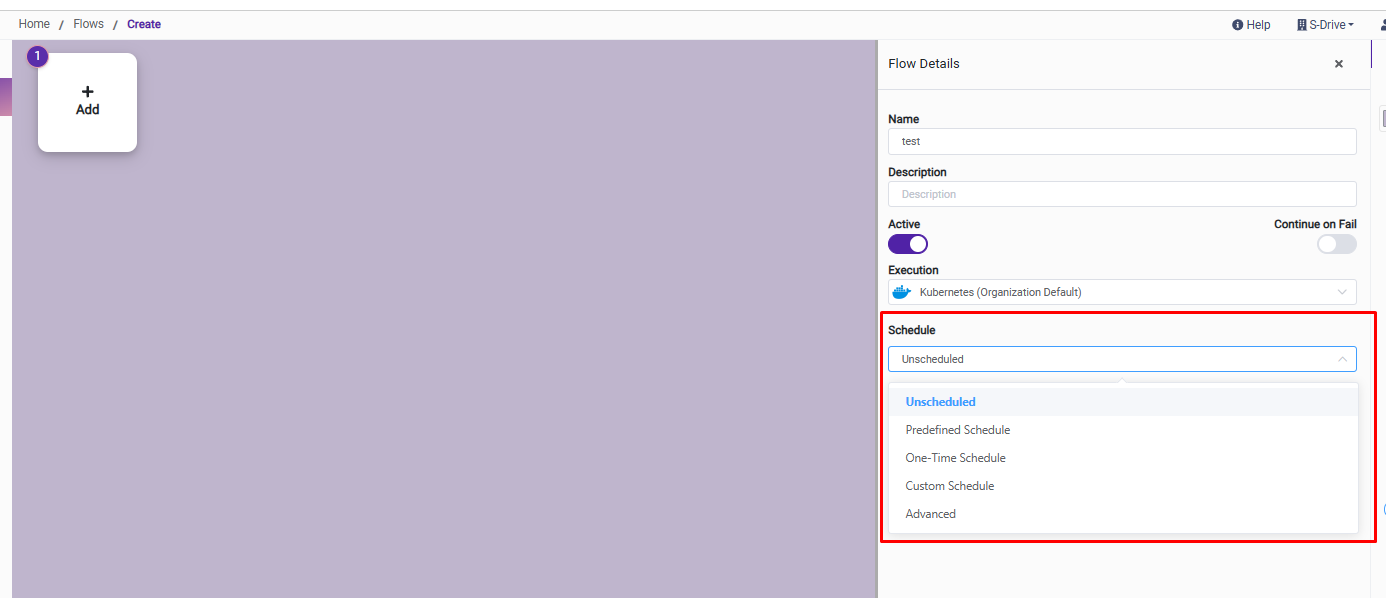
Step 2: If you wish to schedule the Flow at this time, click on the schedule drop-down menu and choose an appropriate option. It can also be scheduled later.
-
Step 3: Activate the Flow using the toggle on the Detail panel or Flow List. The Flow runs on the designated schedule.
-
Step 4: Schedule the flow to run
Options to select for Scheduling OneTeg flows are:-
Predefined: Runs at one of the set interval options provided (e.g., every hour).
-
One-Time: A specific date and time for a single execution.
-
Custom: Detailed frequency settings (e.g., specific days of the week).
-
Advanced: Uses a Cron expression to determine the interval
-
For each option, you’ll select the start date and time zone. Depending on the option you choose, there will be other details to configure.
Manual Override: Even if scheduled, you can trigger these anytime using the Run button on the Flows page or within the Flow Editor.
Building Manual Flows
-
Step1: Add your connectors and steps needed.
-
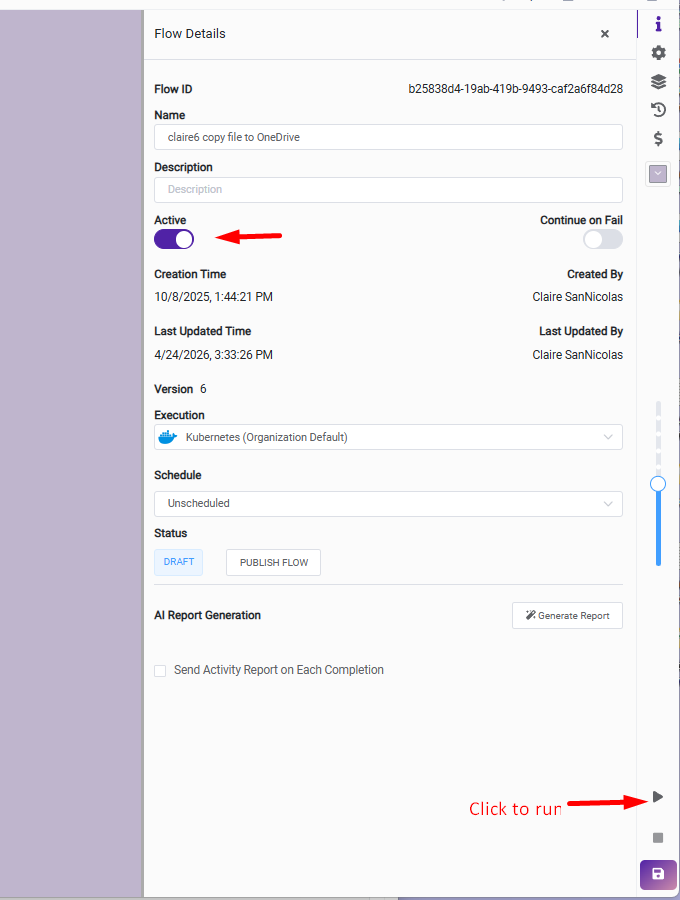
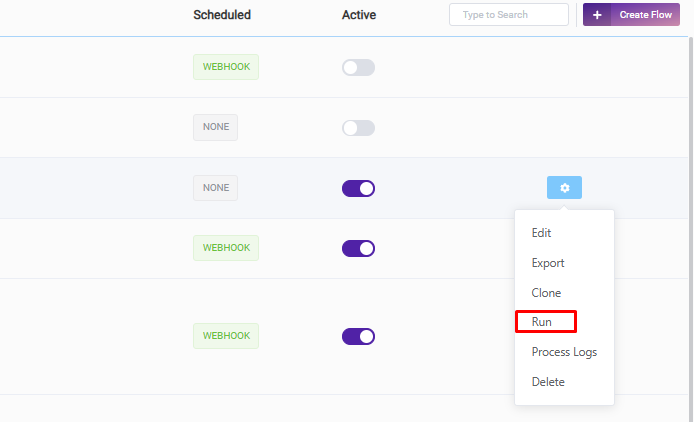
Step2: Activate the Flow and run, either from the Flow Detail panel or from the Flow List using the gear wheel next to the Flow.