
Flows are managed from the Flow List page.
Click Flows in the OneTeg sidebar to see the Flow List.
This page allows you to
-
See information about the flow
-
Edit the name and description
-
Activate or deactivate the Flow
-
Take actions on the Flow: Edit, Export, Clone, Run access Process Logs, Delete
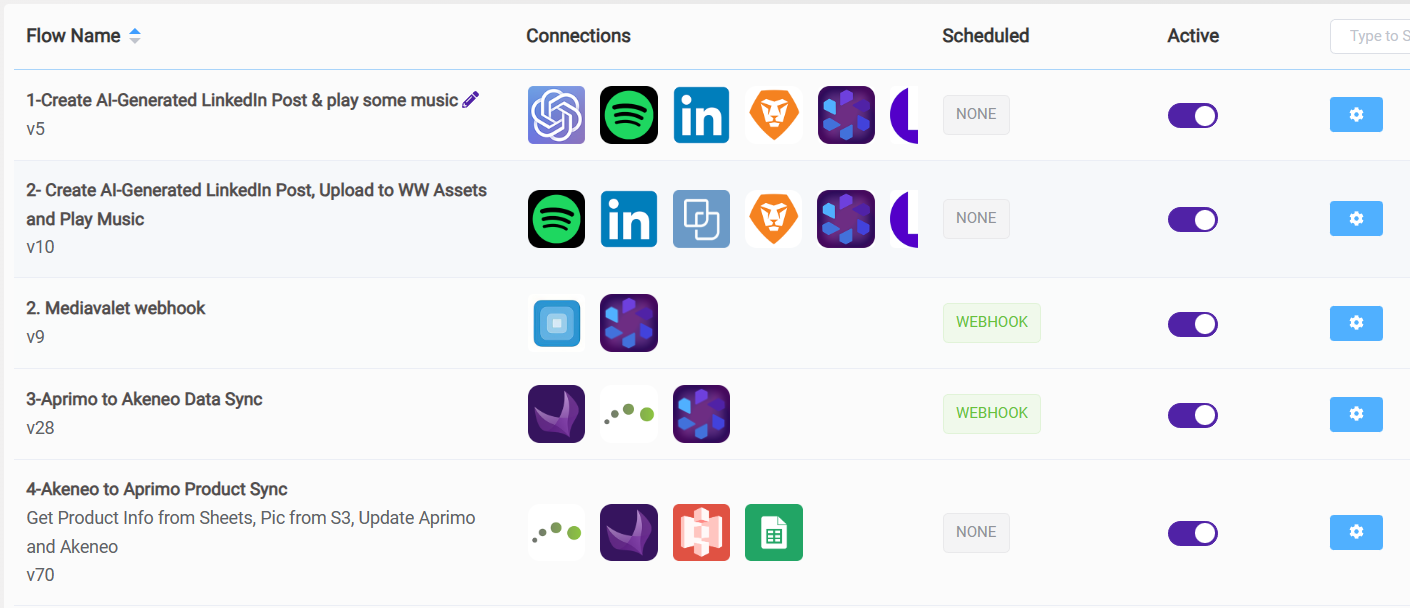
The flow listing page displays the following information in order, along the columns:
-
Flow Name
-
Flow Description
-
Flow Version
-
Connections
-
Scheduled
-
Active/Inactive toggle
-
Settings Dropdown
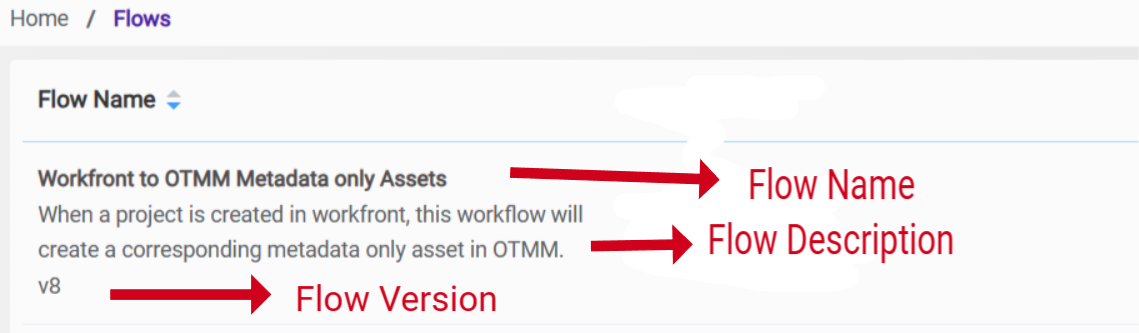
Flow Name, Flow Description, Flow Version
Please note that the following information is provided in the Flow Name column: Flow Name, Flow Description, and Flow Version.
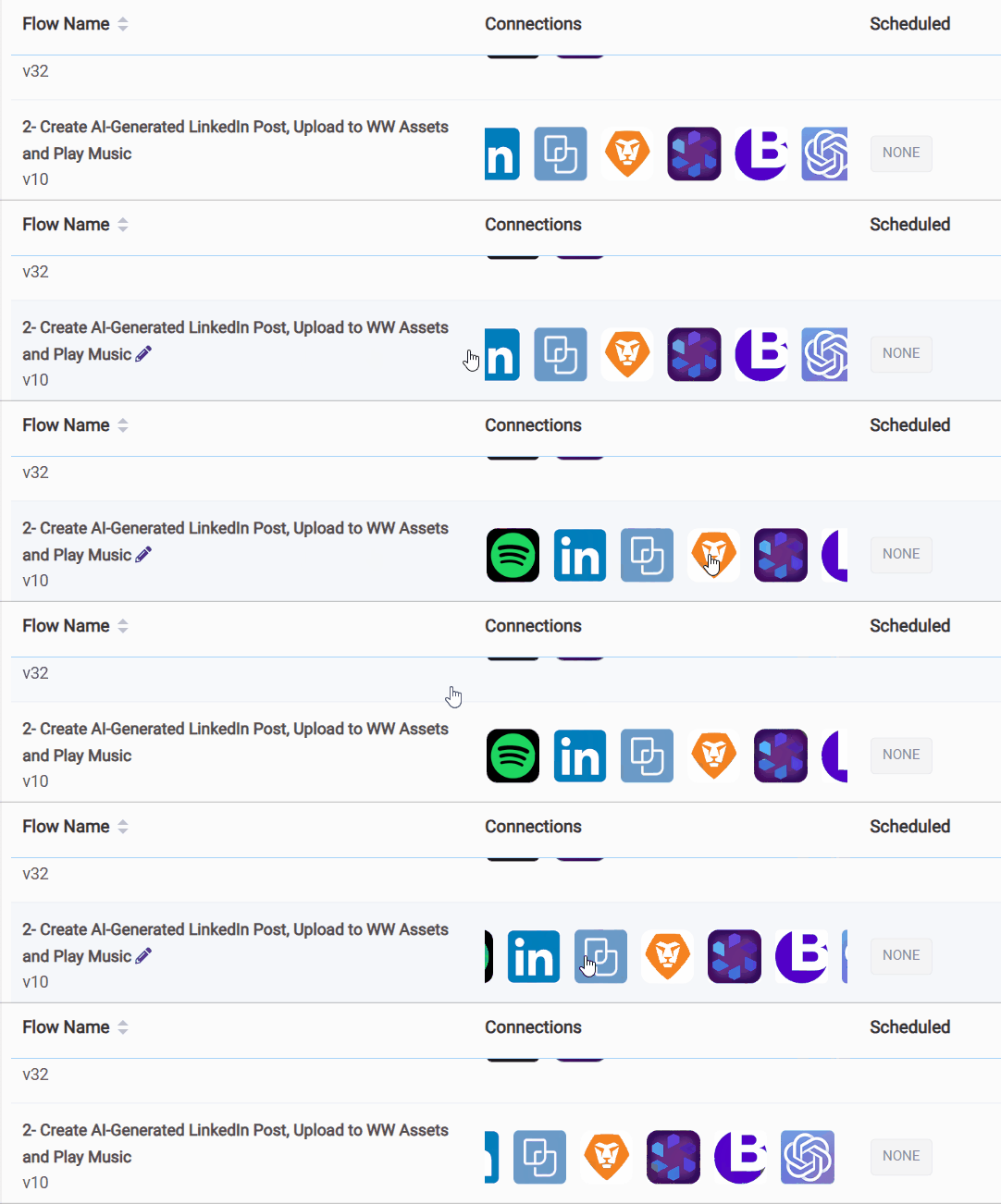
The flow name and description can be amended directly from the flow listing page using the inline edit icon, located at the end of the flow name.

Connections
The Connection column displays all of the connections utilized in the flow, accompanied by their respective logos.
Schedule
There are three ways to initialize a flow, as shown in this area.
-
The flow can be initiated manually (the scheduled area will show NONE).
-
Alternatively, the flow can be triggered by a webhook (the scheduled area will show WEBHOOK).
-
Finally, the flow can have a predetermined start time that was configured during or after flow creation (the scheduled area will show the next run time with its date and time).
The schedule area is fully explained under the Flow Functions heading.
Active
The Active column allows users to manage the on/off state of the flow. It can be switched between active and inactive via the toggle.
Flow Settings
In this settings field, users are able to perform the following actions:
-
Edit
-
Export
-
Clone
-
Run
-
Process Log
-
Delete
Edit
This redirects users to the page where they can edit flows. Please refer to the section entitled "Flow Editing Page" for further details on this topic.
Export
The Export function enables the user to transfer the selected flow to a different organization, which should already be open.
See How to Export Flows for more details
Clone
In contrast to export, the clone function creates a copy of the flow within the same organization, appending "CLONE" + date and time information to the name.

See How to Clone a Flow for more details
Run
It is possible to consider the Run and Stop actions together. The 'Run' function is used to initiate the flow, while the 'Stop' function is used to halt it. If the flow is not initiated, the "Stop" function is disabled. Similarly, if the flow is already in progress, the "Run" function is disabled.
See How to Run or Stop a Flow for more details
Process Log
The process log records the current status of the workflow. If this is accessed before the workflow has begun, it will be empty.
Please refer to the Troubleshooting Steps / FAQ section for more details about Process Logs.
Delete
The delete function is used to remove the flow from the system.
Please note that once a flow has been deleted, it cannot be reinstated.