
1. General Information
ClickUp is a cloud-based productivity and project management platform that brings tasks, documents, goals, time tracking, dashboards, and automations together in a single workspace. Teams across industries use it to plan projects, assign and track work, and coordinate collaboration. The ClickUp API (v2) provides programmatic access to ClickUp data such as Workspaces, Spaces, Folders, Lists, tasks, comments, and custom fields.
The OneTeg ClickUp Connector integrates with the ClickUp API, enabling users to read and manage tasks and project data directly from OneTeg automation workflows. This connector authenticates using an API Key — a ClickUp personal API token.
A ClickUp personal API token begins with “pk_” and never expires, so no manual token refresh is required. Any ClickUp account member with edit permissions can generate a token under Settings → ClickUp API.
2. Connect ClickUp to OneTeg
The connector authenticates with a ClickUp personal API token. Follow the steps below to generate the token you will enter into OneTeg.
Step 1 - Log in to ClickUp
Log in to your ClickUp account in a web browser.
Step 2 - Open the ClickUp API Settings
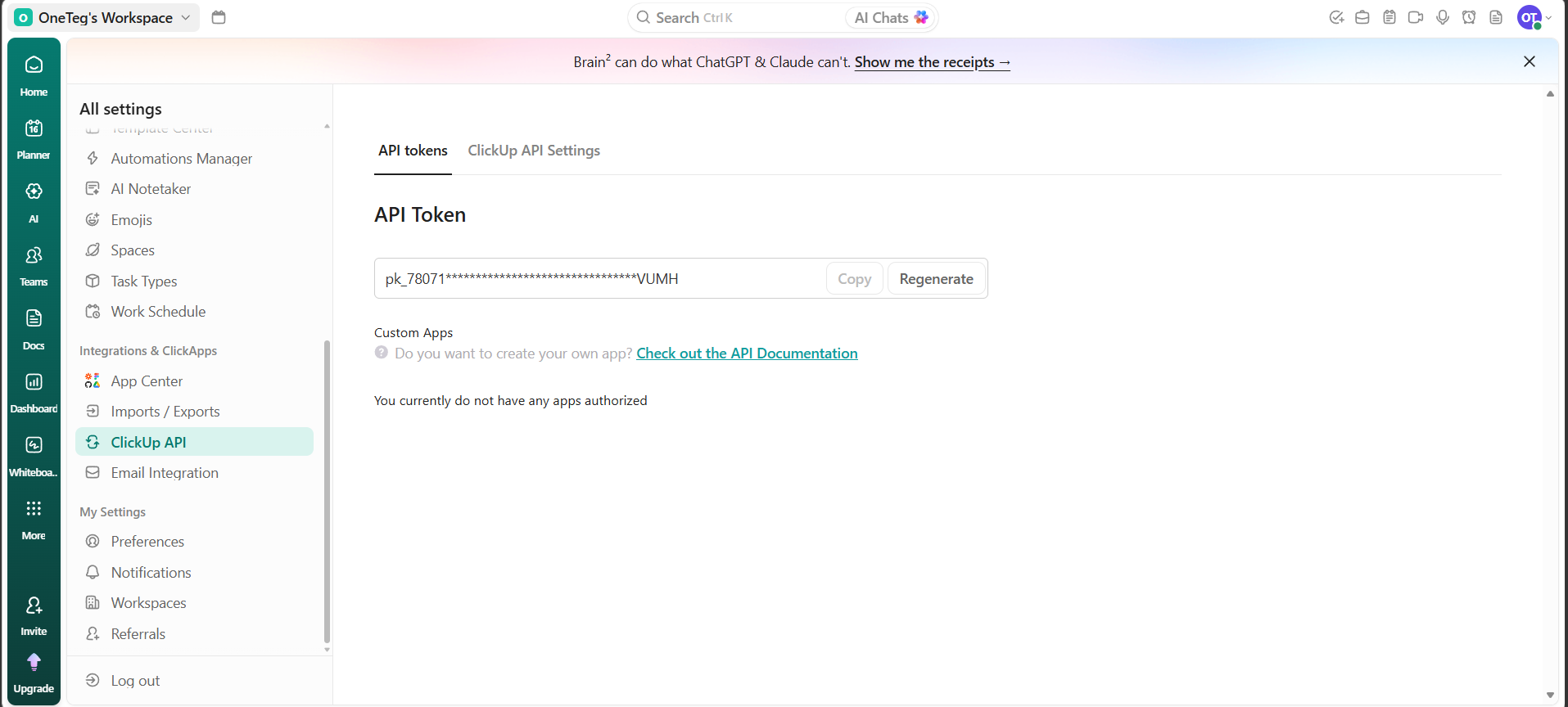
Click your avatar in the upper-right corner and select Settings. In the sidebar, under the Integrations & ClickApps section, click ClickUp API, then open the API tokens tab.
Step 3 - Generate and Copy the API Token
In the API Token section, click Generate to create a personal API token. If a token has already been created for your account, it is shown here instead. Click Copy to copy it, or Regenerate to replace it with a new one. The token begins with pk_. Keep it secure, you will paste it into OneTeg in the next step.
3. Connection Settings and Configuration for OneTeg
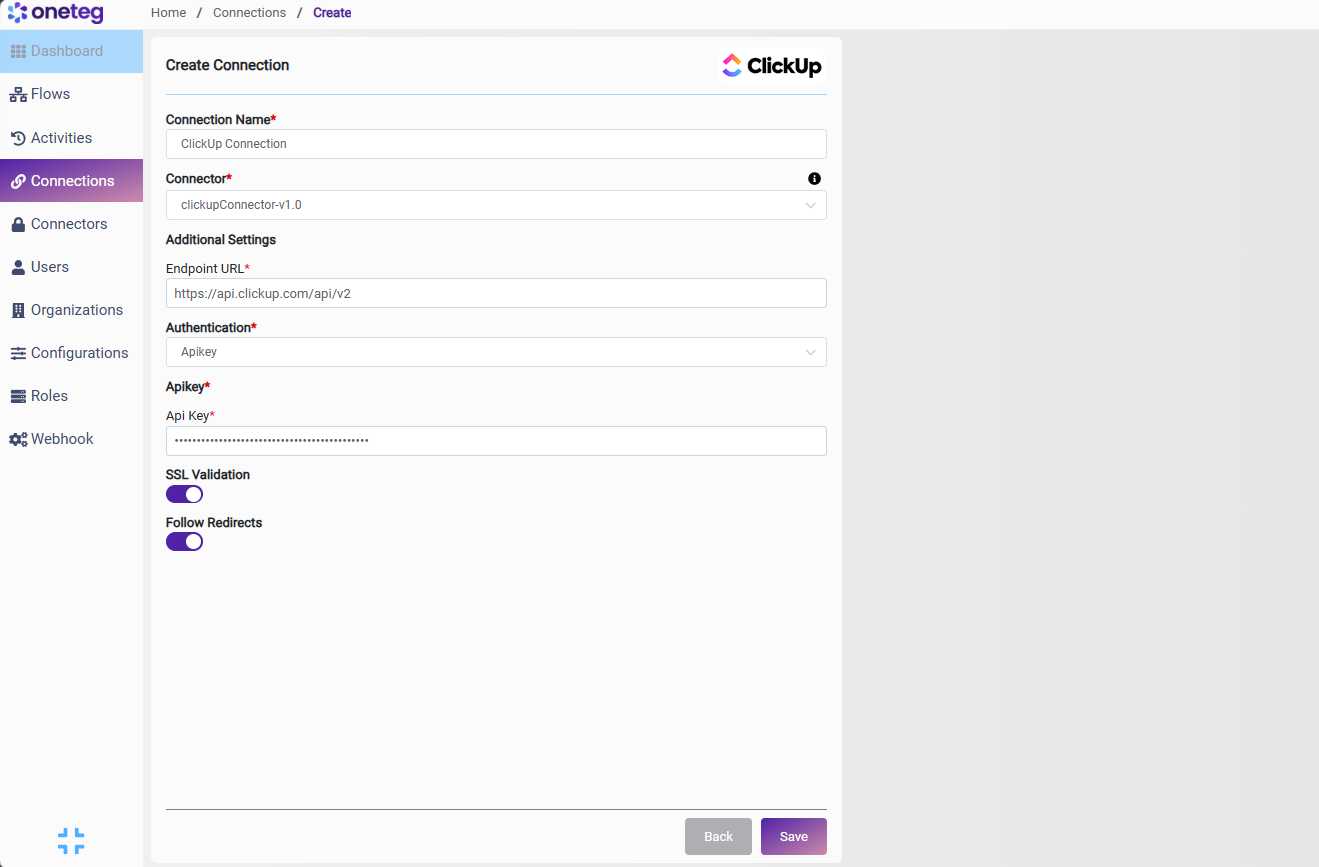
In OneTeg, navigate to Connections and create a new connection using the ClickUp Connector. Enter the settings below.
|
Settings Parameters |
Value / Sample Value |
Description |
Required (Y/N) |
|
Connection Name |
ClickUp Connection |
Choose a name for your Connection |
Y |
|
Connector |
clickupConnector-v1.0 |
Auto-populated once the ClickUp Connector is selected |
Y |
|
Endpoint URL |
The base URL of the ClickUp API |
Y |
|
|
Authentication |
Apikey |
Select Apikey as the authentication method |
Y |
|
Api Key |
Your ClickUp personal API token (pk_…) |
The personal API token generated in ClickUp under Settings → ClickUp API, used in the Authorization header to authenticate requests |
Y |
4. Supported ClickUp Actions and Options
For the full list of supported endpoints, parameters, and options, see the page below: