
1. General Information
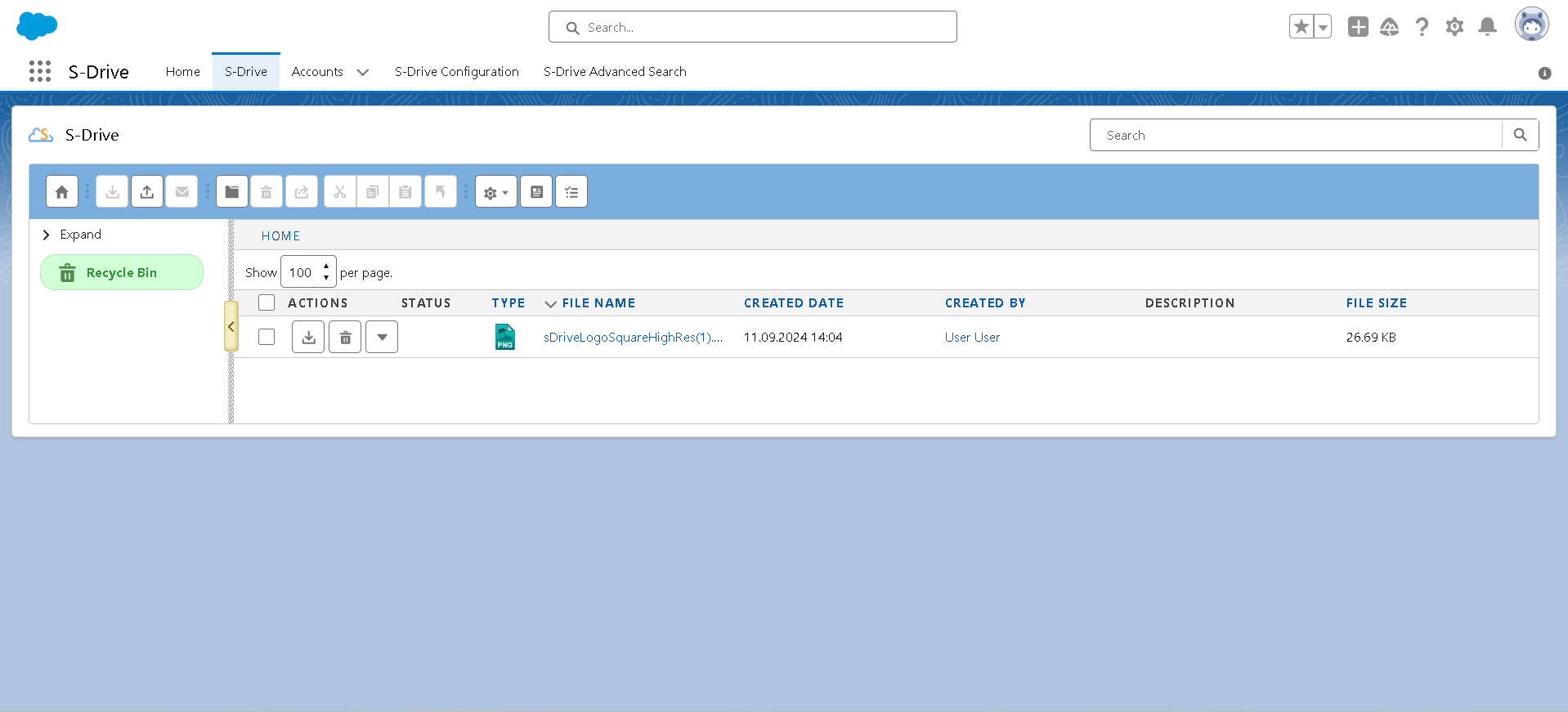
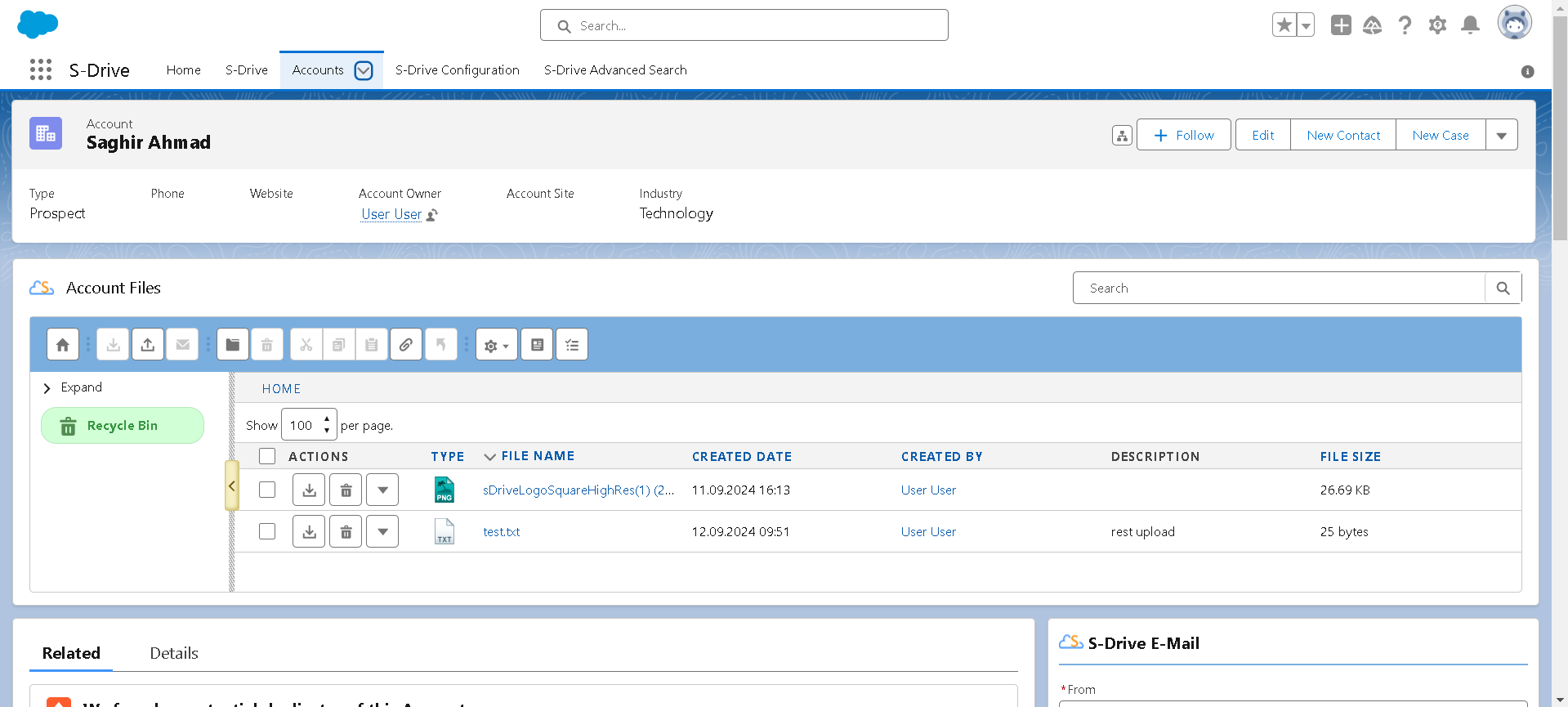
SDrive is a Salesforce-native application that provides enhanced file storage, sharing, and management capabilities. It is designed to overcome Salesforce's native file storage limitations by allowing users to store files in external storage locations like Amazon S3, Google Drive, or SharePoint, while still managing and accessing them directly within Salesforce.
2. Authentication
Before creating your S-Drive Connection in OneTeg, you’ll need to create an External Client App or a Connected App in Salesforce.
Option 1: Create an External Client App in Salesforce (recommended)
External client apps enable a third-party application to integrate with Salesforce using APIs and security protocols. Salesforce introduced these to replace Salesforce Connected Apps. To use a Connected App instead, see S-Drive Connector v1.0 | Creating Connected App in the next section )
-
Go to Setup->External Client App Manager
-
Click the New External Client App button
-
Give the app a name and contact email
-
On the API (Enable OAuth Settings), check the Enable OAuth box
-
In the App Settings section
-
Click Consumer Key and Secret Key. Leave that tab open or copy the values, as you’ll need them later
-
For the Callback URL, enter https://<tenant name>.oneteg.com/ where <tenant name> is your tenant name
-
For OAuth Scopes, choose “Full Access (full)”
-
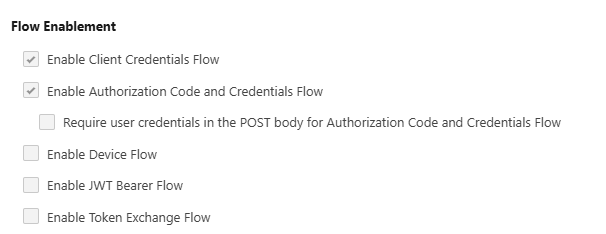
Under Flow Enablement
-
Check Enable Client Credentials Flow
-
Check Enable Authorization Code and Credentials Flow
-
-
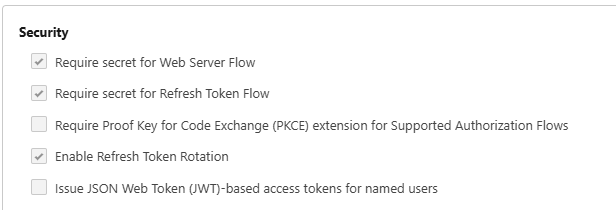
Under Security
-
Check Require secret for Web Server Flow
-
Check Require secret for Refresh Token Flow
-
UNCHECK Require Proof Key for Code Exchange (PKCE) extension for Supported Authorization Flows
-
Check Enable Refresh Token Rotation
-
-
-
Click Create
-
In the app, under the Policy Tab, click Edit
-
Under OAuth Flows and External Client App Enhancements, check Enable Client Credentials Flow
-
Under App Authorization, choose Refresh token is valid until revoked, and Relax IP Restrictions
-
Save
-
Option 2: Creating Connected App
A Connected App in Salesforce is a framework that allows external applications to integrate with Salesforce securely. It facilitates communication between Salesforce and third-party applications by providing a way to authenticate, authorize, and interact with Salesforce data and services. Salesforce recommends using External Client Apps instead. See S-Drive Connector v1.0 | Option 1: Create an External Client App in Salesforce (recommended)
-
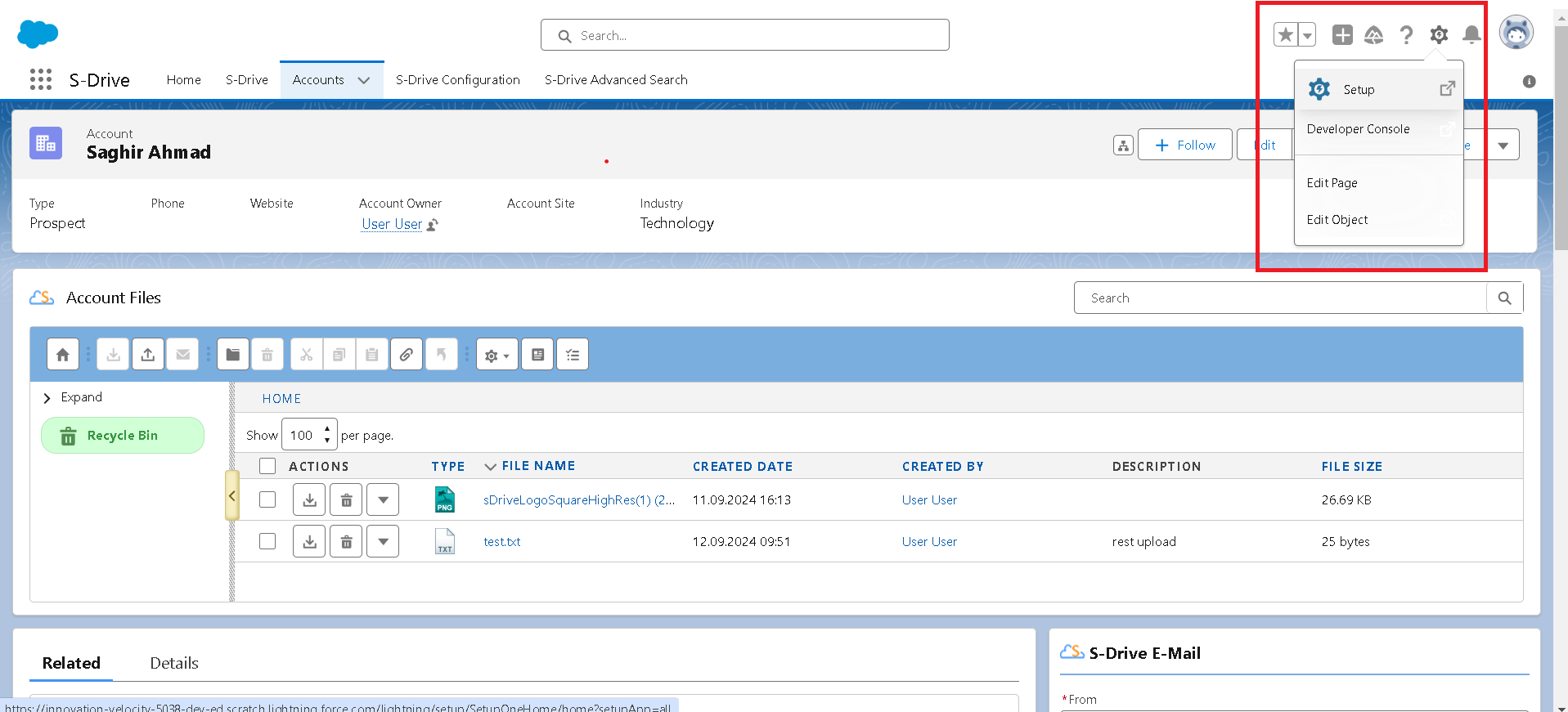
Go to Setup
-
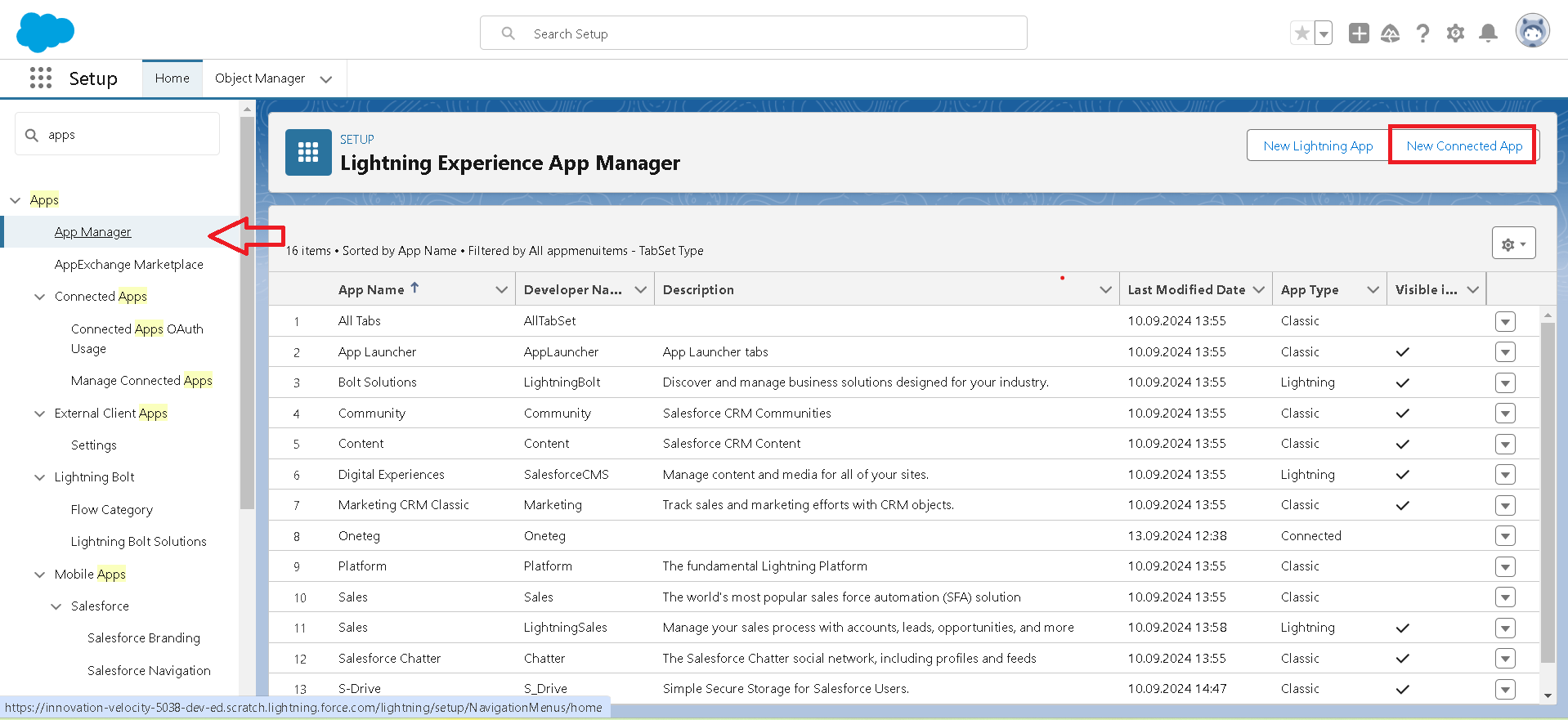
In search box on left side search for App Manager and click button New Connected App on the right corner.
-
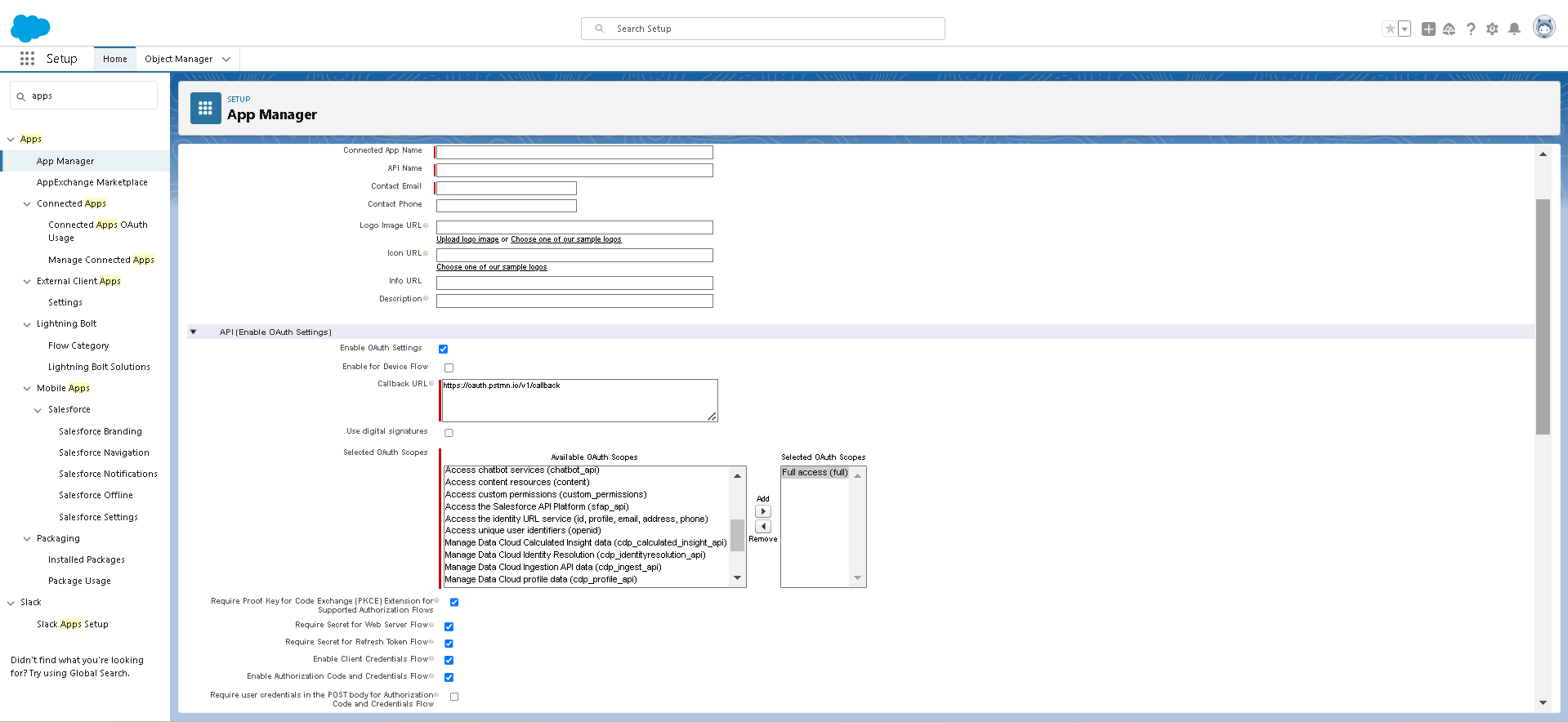
Enter relevant details. Tick mark Enable OAuth Settings button in API (Enable OAuth Settings) to add Callback urls and Scopes.
Note : Do not forget to mark
|
Enable Client Credentials Flow |
|
|---|---|
|
1 |
Enable Authorization Code and Credentials Flow |
-
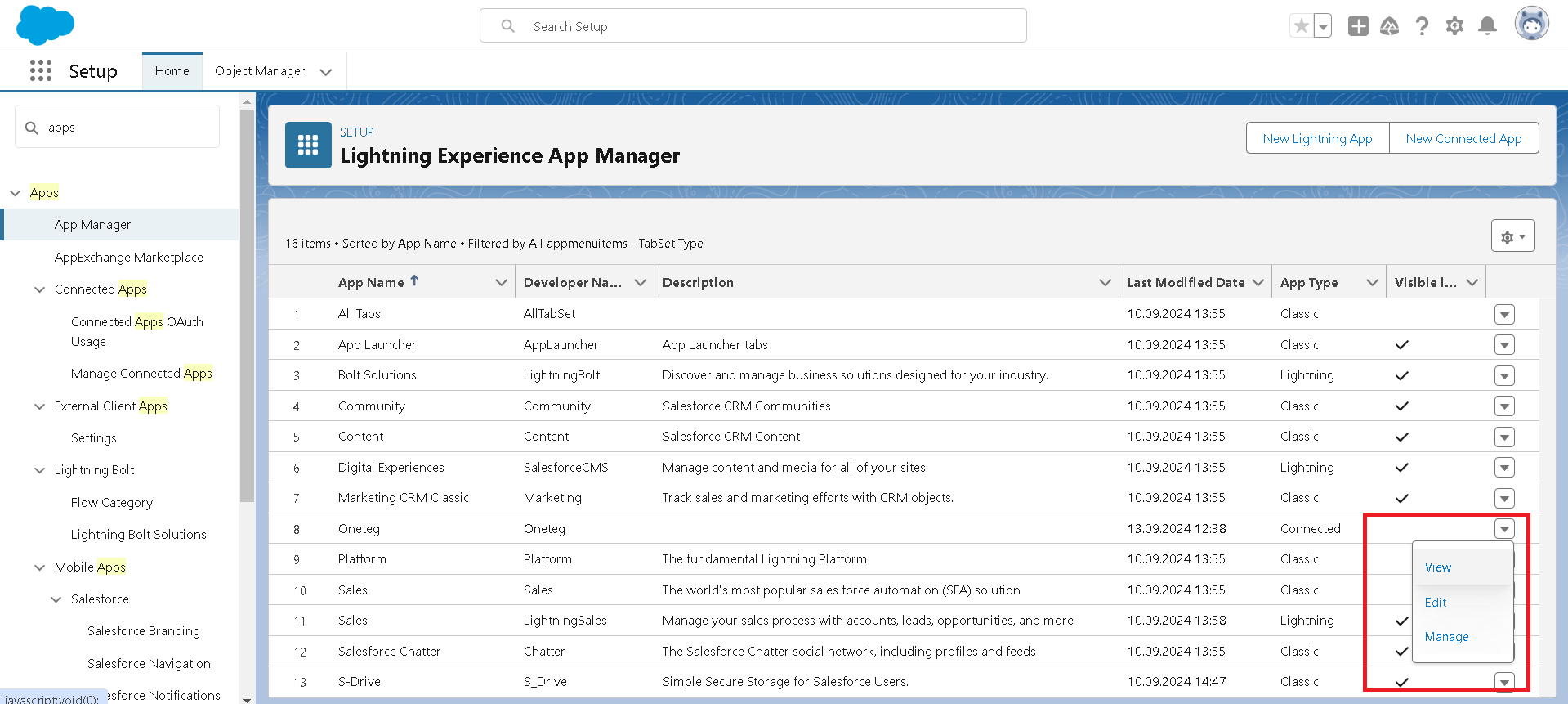
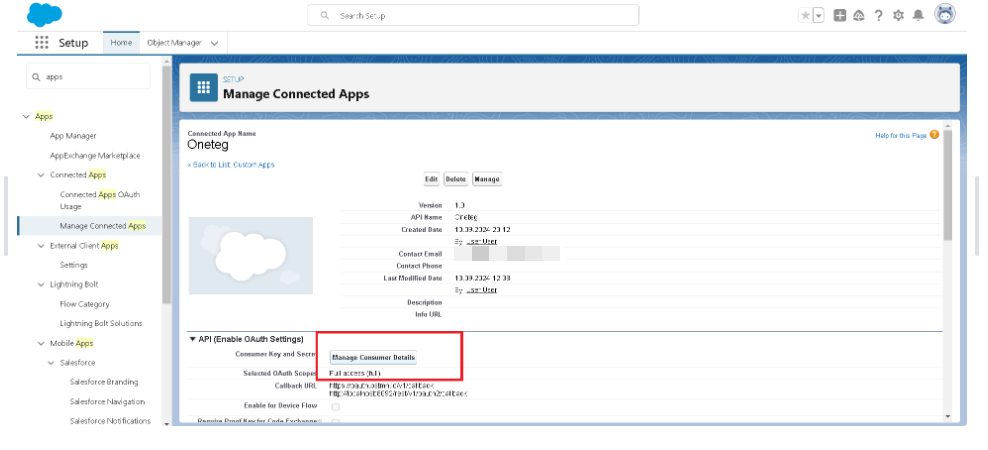
Go to App Manager again and click the drop down button to View clientId and Secret of the app created.
-
Click Manage Consumer Details button to view clientId and Secret
3. Create an S-Drive Connection in OneTeg
Create a Connection for S-Drive in your Salesforce org.
-
In OneTeg, go to Connections
-
Click +Create Connection
-
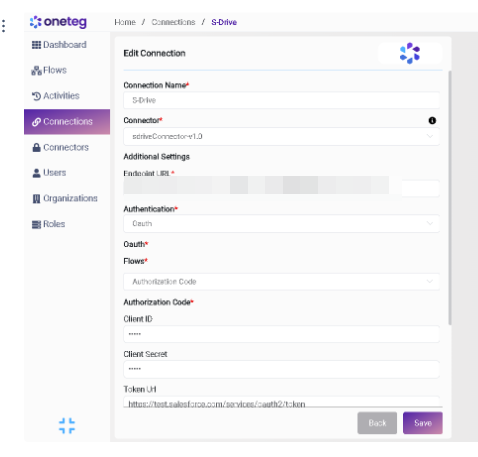
Fill in the fields as shown in the table below
-
Click Save and follow the prompts to enter your Salesforce credentials and allow access
|
Settings Parameters |
Value |
Description |
Required (Y/N) |
Default Value |
|---|---|---|---|---|
|
Connection Name |
The name you want this connector to be called |
Connector Name |
Y |
|
|
Connector |
S-Drive Connector |
The connector used for this connection |
Y |
|
|
Endpoint URL |
|
Endpoint required for performing CRUD
|
Y |
|
|
Authentication |
OAuth |
Type of authentication |
Y |
Oauth |
|
Flows |
Authorization Code |
|
Y |
|
|
Client Id |
{client_id} |
Consumer Key from the External Client App or Connected app in Step 2 |
Y |
|
|
Client Secret |
{client_secret} |
Consumer Secret from the External Client App or Connected App in Step 2 |
Y |
|
|
Token URL |
|
Y |
|
|
|
Authorization Url
|
|
Y |
|
|
|
Scopes |
none |
|
|
none |
4. Connector Actions and Tests
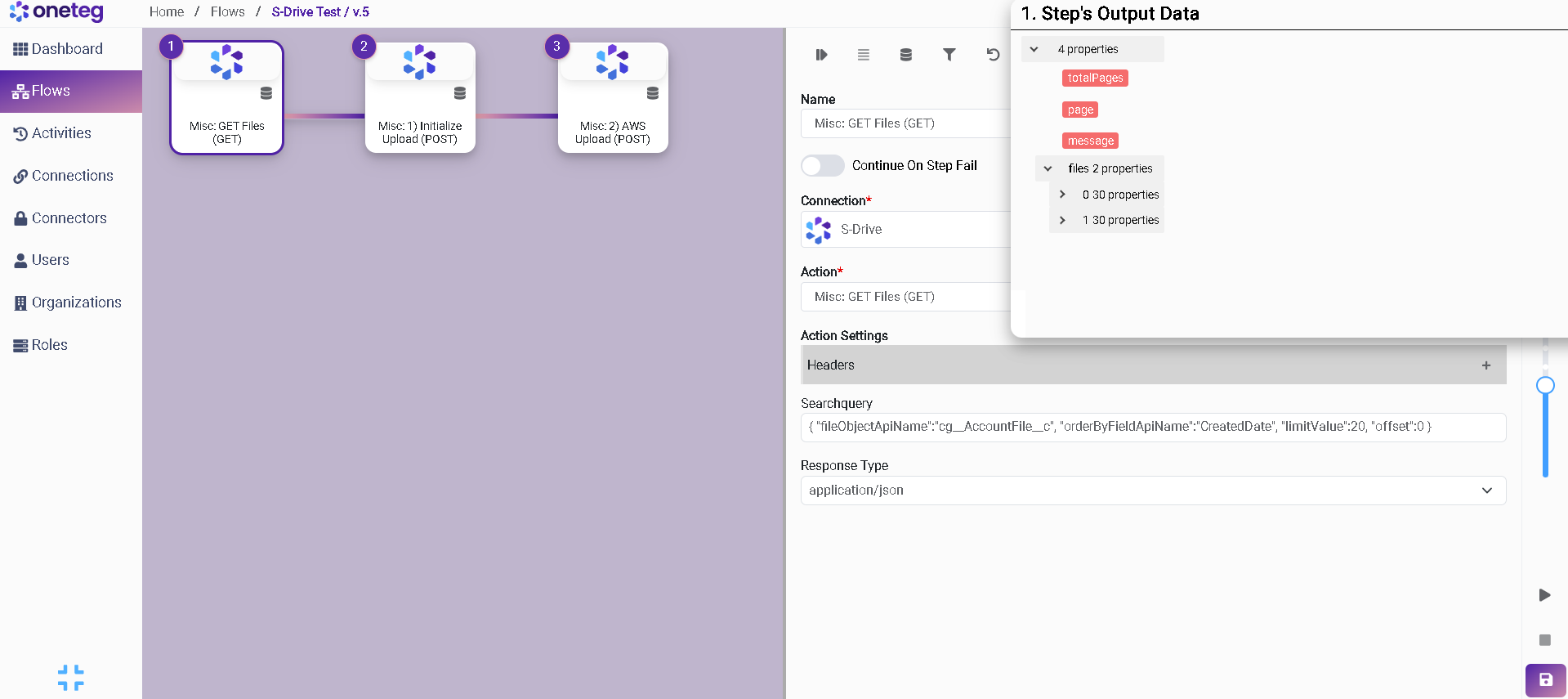
1. Misc: GET Files (GET)
|
Action Name / Method |
Misc: GET Files (GET) |
|---|---|
|
Action Description |
This action is used to retrieve all files for an SObject.
|
|
Test Case |
This action is used to retrieve all files for an SObject.
|
|
Request Body Name |
Paramenter |
2. Misc: Create Folder as S3Object (POST)
|
Action Name / Method |
Misc: Create Folder as S3Object (POST) |
|---|---|
|
Action Description |
This action is used to create a folder on S-Drive Tab (S3Object)
|
|
Action Settings |
Headers |
|
Content Type |
application/json |
|
Response Type |
application/json |
|
Options:
|
Name of folder you’d like to create |
|
cg Lock State C |
false or leave blank |
|
cg Checked Out By |
leave blank |
|
cg Content Type C |
Folder (must be capital F) |
|
cg Is Latest Version C |
Toggle on |
|
cg File Size in Bytes C |
0 |
|
cg Wip C |
toggle off |