
1. General Information
OpenText Core DAM is a multi-tenant SaaS solution for managing digital assets — storing, managing, and using a variety of assets including videos, images, and documents. Its API is provided across three services, each with its own endpoint: the Content Storage Service (CSS) for uploading files to be attached to assets, the Content Management Service (CMS) for creating assets and folders, and the Digital Assets service for retrieving details of assets and folders.
The OneTeg OpenText Core DAM Connector integrates with these Core DAM APIs, enabling users to manage digital assets and metadata directly from OneTeg automation workflows. This connector supports two authentication options: OAuth Authorization Code and Bearer.
Because Core DAM exposes three services with separate endpoints, you typically create three OneTeg connections — one per endpoint (CSS, CMS, Digital Assets) — using the same Connector and the same credentials, changing only the Endpoint URL.
Core DAM authenticates via OpenText’s OAuth 2.0. The Client ID and Client Secret (the “Confidential Credentials”) come from an Extended App that you create in your OpenText Developer Organization. Both authentication options resolve to an OAuth access token sent as a Bearer token in the Authorization header.
2. Connect OpenText Core DAM to OneTeg
The OAuth flow uses Confidential Credentials created in your OpenText Developer Organization. Follow the steps below to create the app and obtain the credentials you will enter into OneTeg.
Step 1 - Access Core DAM
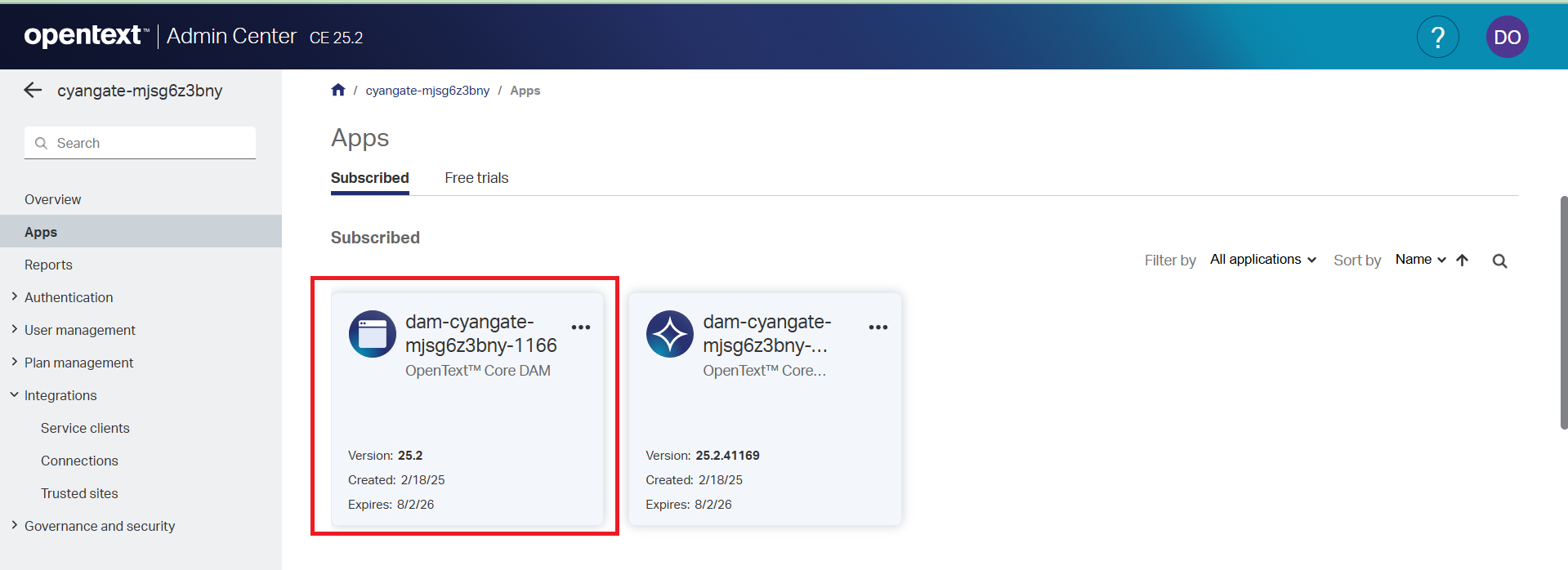
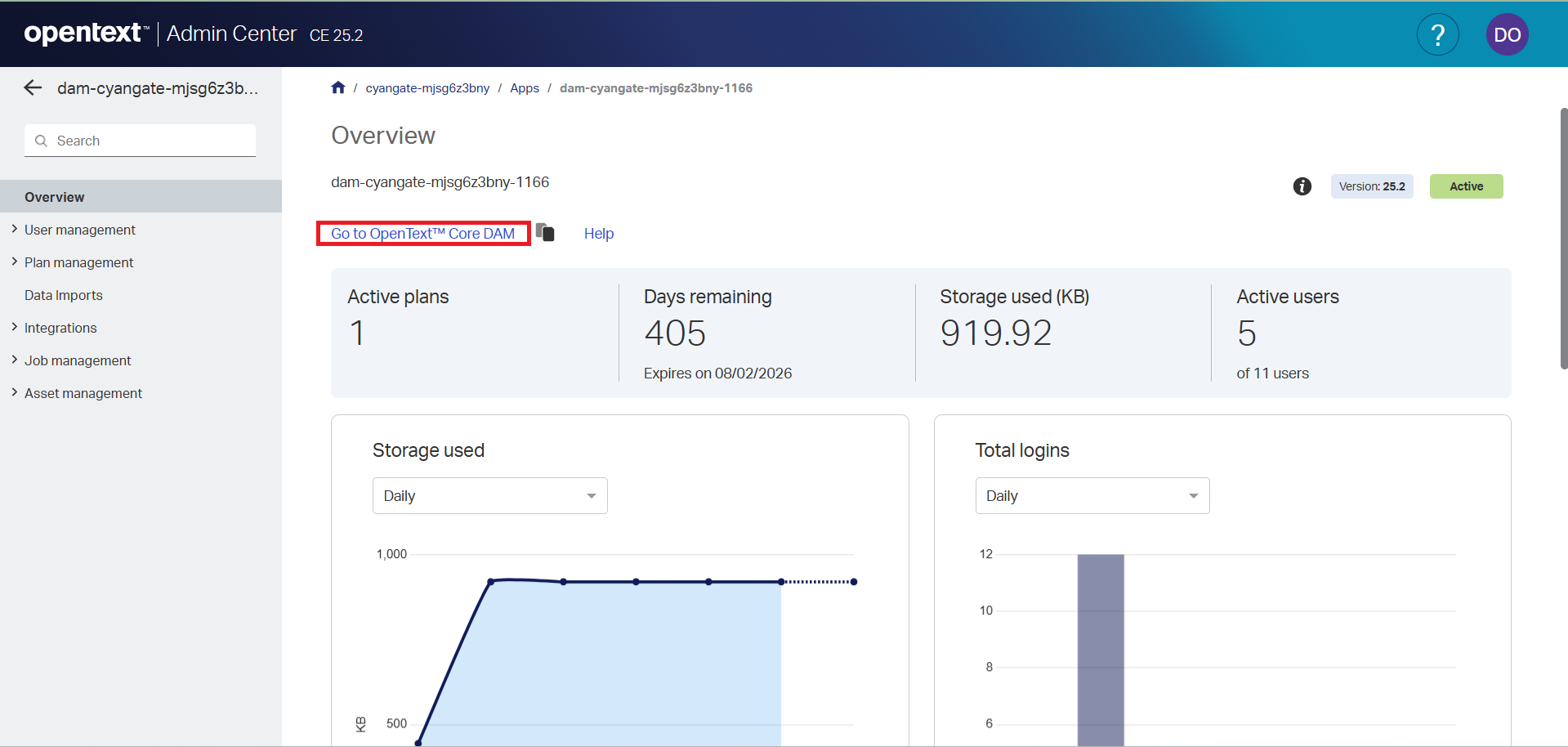
Sign in to your OpenText tenant (for example https://admin.us.opentext.com/tenants/{tenant-id} ) using valid credentials. In Apps, click OpenText Core DAM, then click Go to OpenText Core DAM to open it.
Step 2 - Open Your Developer Organization
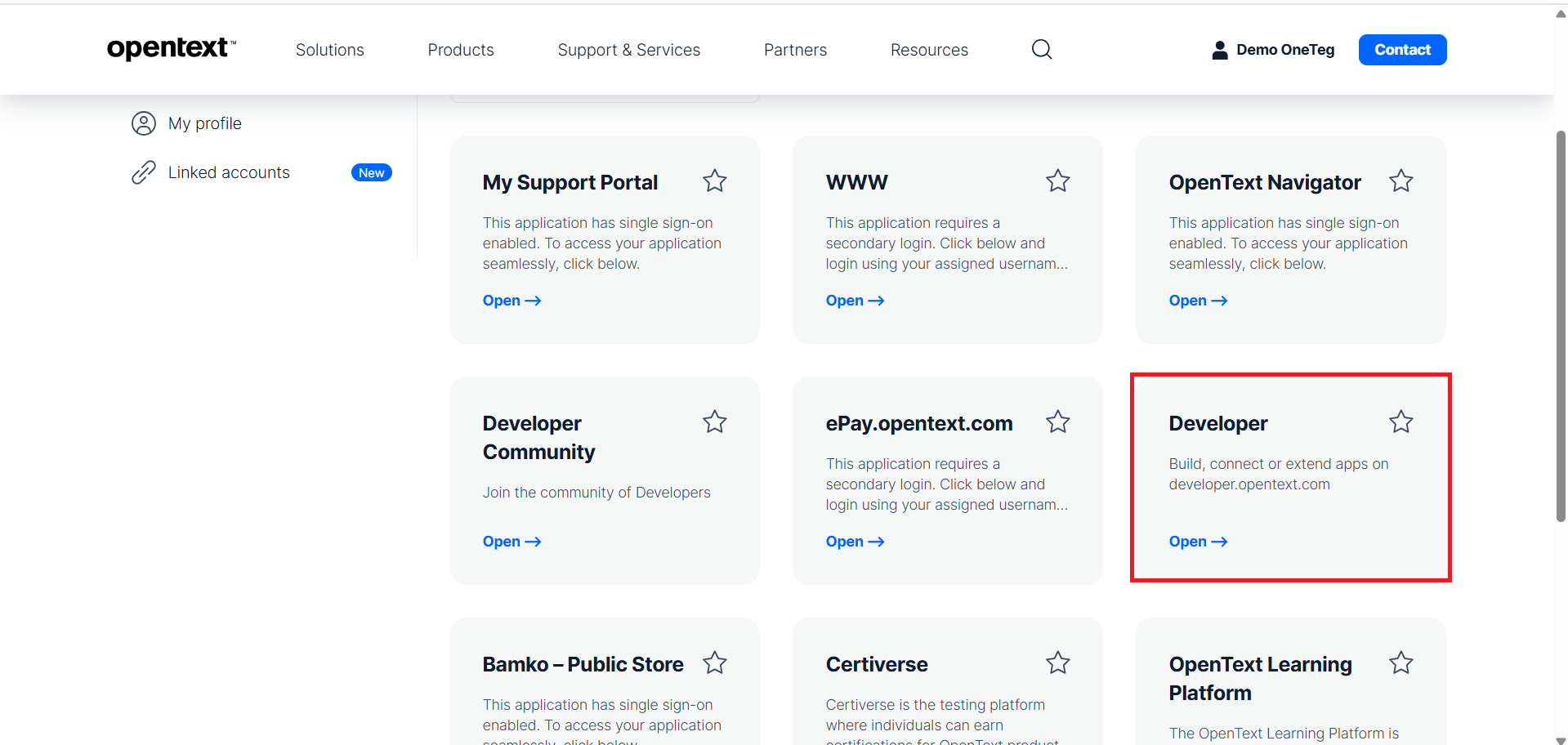
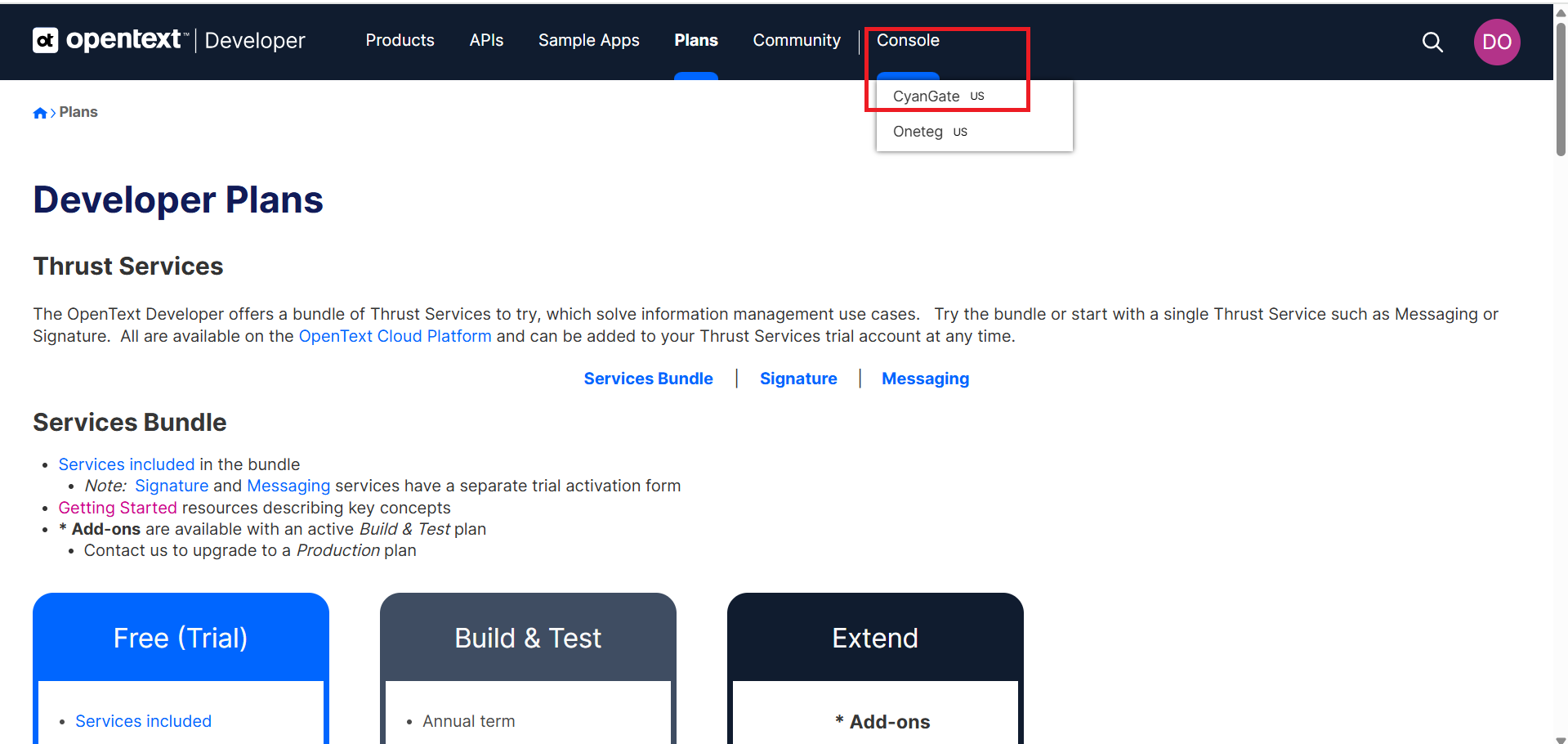
Go to https://ui.otiam.opentext.com/#/myApplications . Under My Applications, open Developer. On the next page, select the Organization that contains your OpenText Core DAM tenant to open the Developer Organization.
Step 3 - Create an Extended App
In the Developer Organization, go to Apps under App Management and click Add. On the popup, set “This is a managed app, based on an app definition” to false and click Next. Enter the Display name, App name, Version, and Description, then click Save. On the next screen, copy the Confidential Credentials (Client ID and Client Secret).
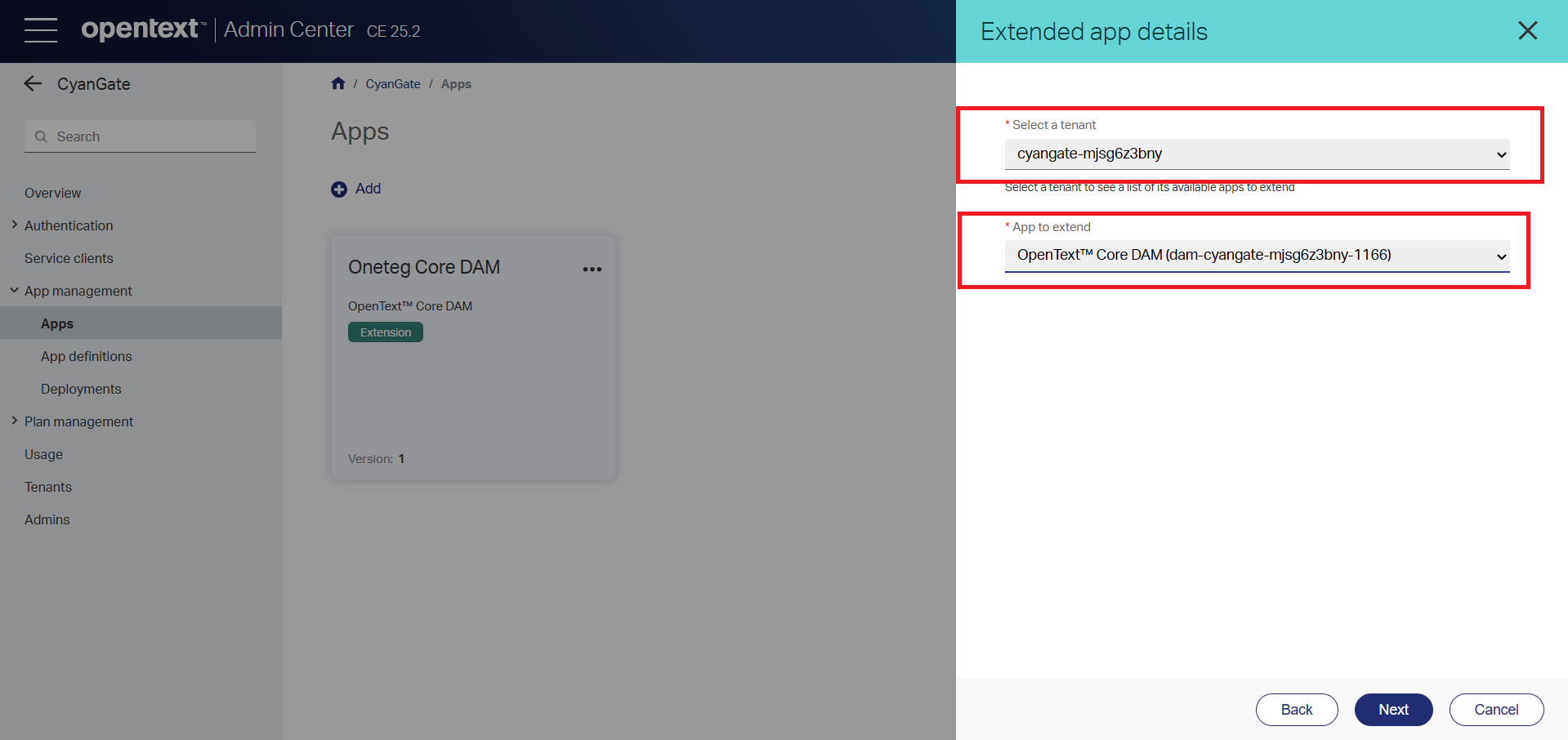
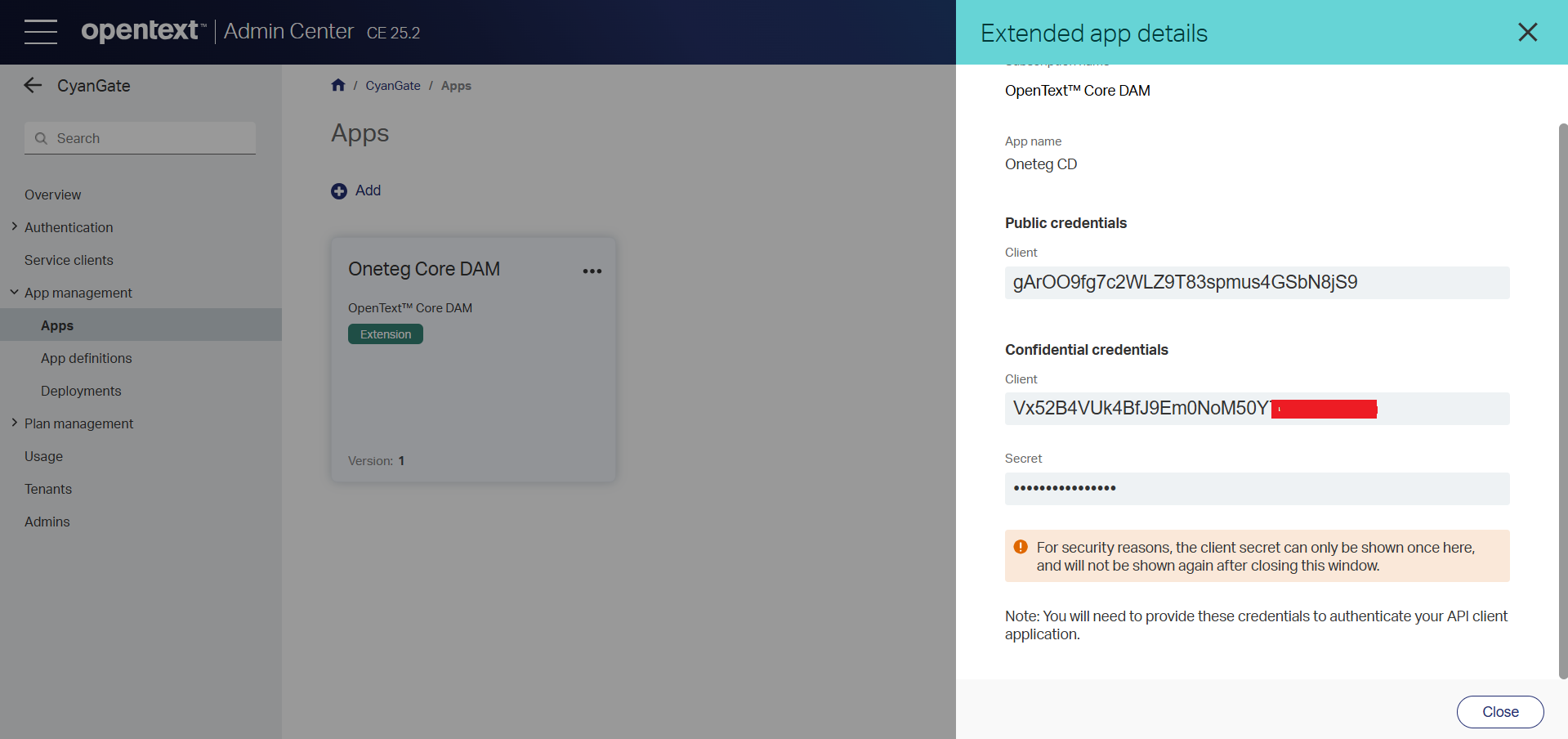
The Confidential Credentials are shown after the app is created — copy the Client ID and Client Secret immediately and store them securely. For the Authorization Code flow, also set the app’s redirect URI to the OneTeg OAuth callback URL (https://app.oneteg.com/rest/v1/oauth2/callback).
3. Connection Settings and Configuration for OneTeg
In OneTeg, navigate to Connections and create a new connection using the OpenText Core DAM Connector. Create one connection per Core DAM service endpoint you need (CSS, CMS, or Digital Assets), using the same authentication for each. Choose an authentication option below.
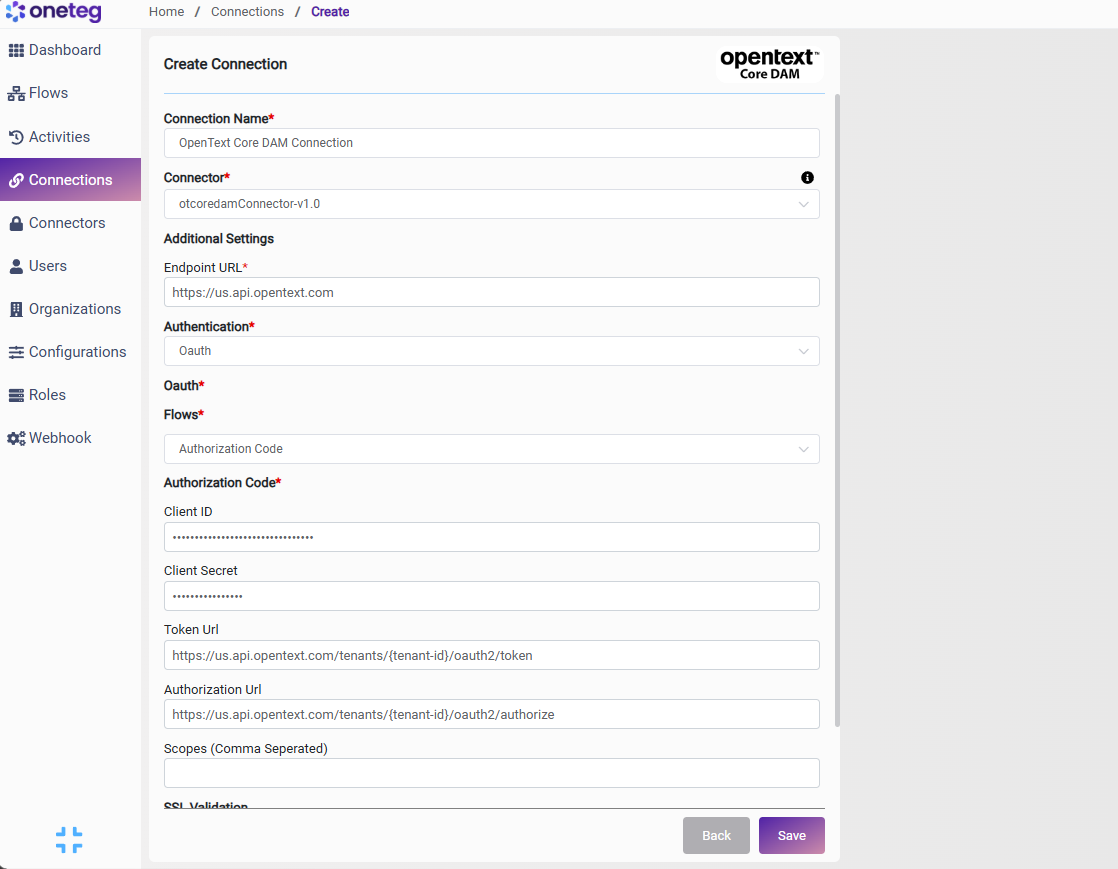
Option 1 — OAuth Authorization Code
|
Settings Parameters |
Value / Sample Value |
Description |
Required (Y/N) |
|
Connection Name |
OpenText Core DAM Connection |
Choose a name for your Connection |
Y |
|
Connector |
otcoredamConnector-v1.0 |
Auto-populated once the OpenText Core DAM Connector is selected |
Y |
|
Endpoint URL |
https://us.api.opentext.com |
One of the three Core DAM service endpoints, depending on the operation: CSS (uploads) https://css.us.api.opentext.com, CMS (assets and folders) https://us.api.opentext.com, or Digital Assets (asset and folder details) https://digitalassets.us.api.opentext.com. The us region reflects your OpenText data center |
Y |
|
Authentication |
Oauth |
Select Oauth as the authentication method |
Y |
|
Flows |
Authorization Code |
Select Authorization Code as the OAuth flow |
Y |
|
Client ID |
Your Confidential Credentials Client ID |
The Client ID from the Extended App’s Confidential Credentials (OpenText Developer Organization) |
Y |
|
Client Secret |
Your Confidential Credentials Client Secret |
The Client Secret from the Extended App’s Confidential Credentials |
Y |
|
Token Url |
https://us.api.opentext.com/tenants/{tenant-id}/oauth2/token |
The OpenText token endpoint for your tenant and data center; replace {tenant-id} with your tenant ID |
Y |
|
Authorization Url |
https://us.api.opentext.com/tenants/{tenant-id}/oauth2/authorize |
The OpenText authorization endpoint for your tenant |
Y |
|
Scopes |
(leave blank unless provided) |
Optional. Consult your OpenText Developer Organization for any required scopes |
N |
Option 2 — Bearer
|
Settings Parameters |
Value / Sample Value |
Description |
Required (Y/N) |
|
Connection Name |
OpenText Core DAM Connection |
Choose a name for your Connection |
Y |
|
Connector |
otcoredamConnector-v1.0 |
Auto-populated once the OpenText Core DAM Connector is selected |
Y |
|
Endpoint URL |
https://us.api.opentext.com |
One of the three Core DAM service endpoints, depending on the operation: CSS (uploads) https://css.us.api.opentext.com, CMS (assets and folders) https://us.api.opentext.com, or Digital Assets (asset and folder details) https://digitalassets.us.api.opentext.com. The us region reflects your OpenText data center |
Y |
|
Authentication |
Bearer |
Select Bearer as the authentication method |
Y |
|
token |
Your OpenText access token |
An OpenText OAuth 2.0 access token, sent as a Bearer token in the Authorization header |
Y |
Note that OpenText access tokens are short-lived (often around 15–30 minutes) — you will need to manually update the token when it expires, making this method less suitable for long-running automations.
4. Supported OpenText Core DAM Actions and Options
For the full list of supported endpoints, parameters, and options, see the page below: