
1. General Information
Log into https://console.cloud.google.com/ with any Google credential or create a new one from gmail.com.
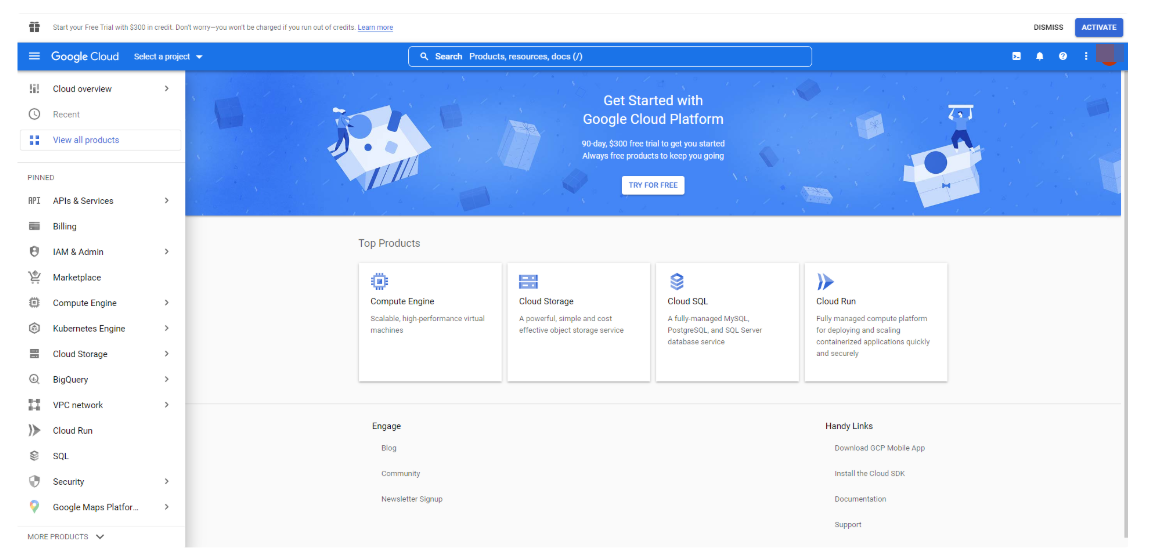
You will see the “Getting Started” page of your Google Cloud. If you haven’t worked on a project or if this is your first time opening a project, please click “Select a project” on the left-top of the page and select “New Project” from the new window. If there is already a project that you have worked on, we suggest you start a new one by following the steps below.
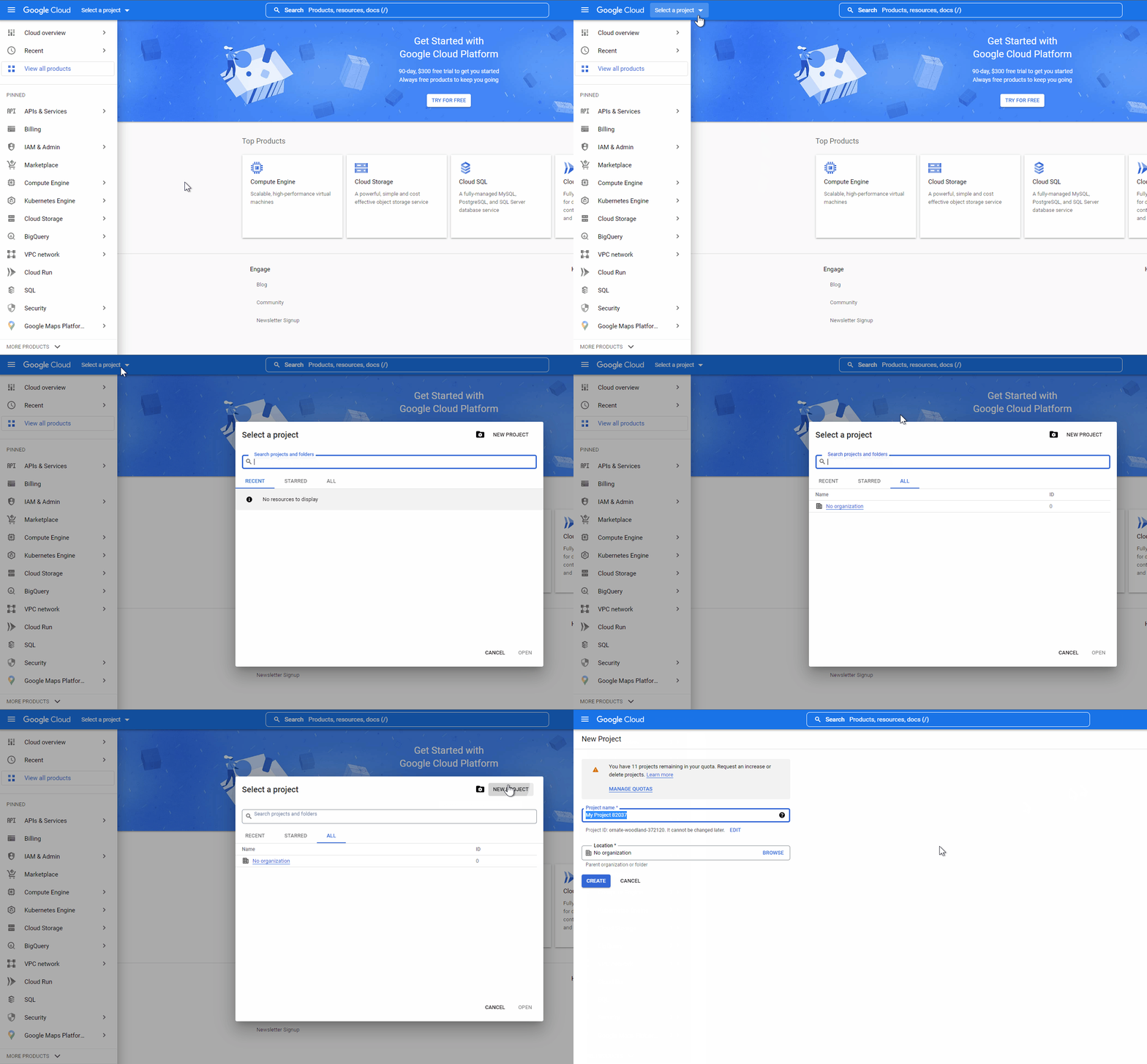
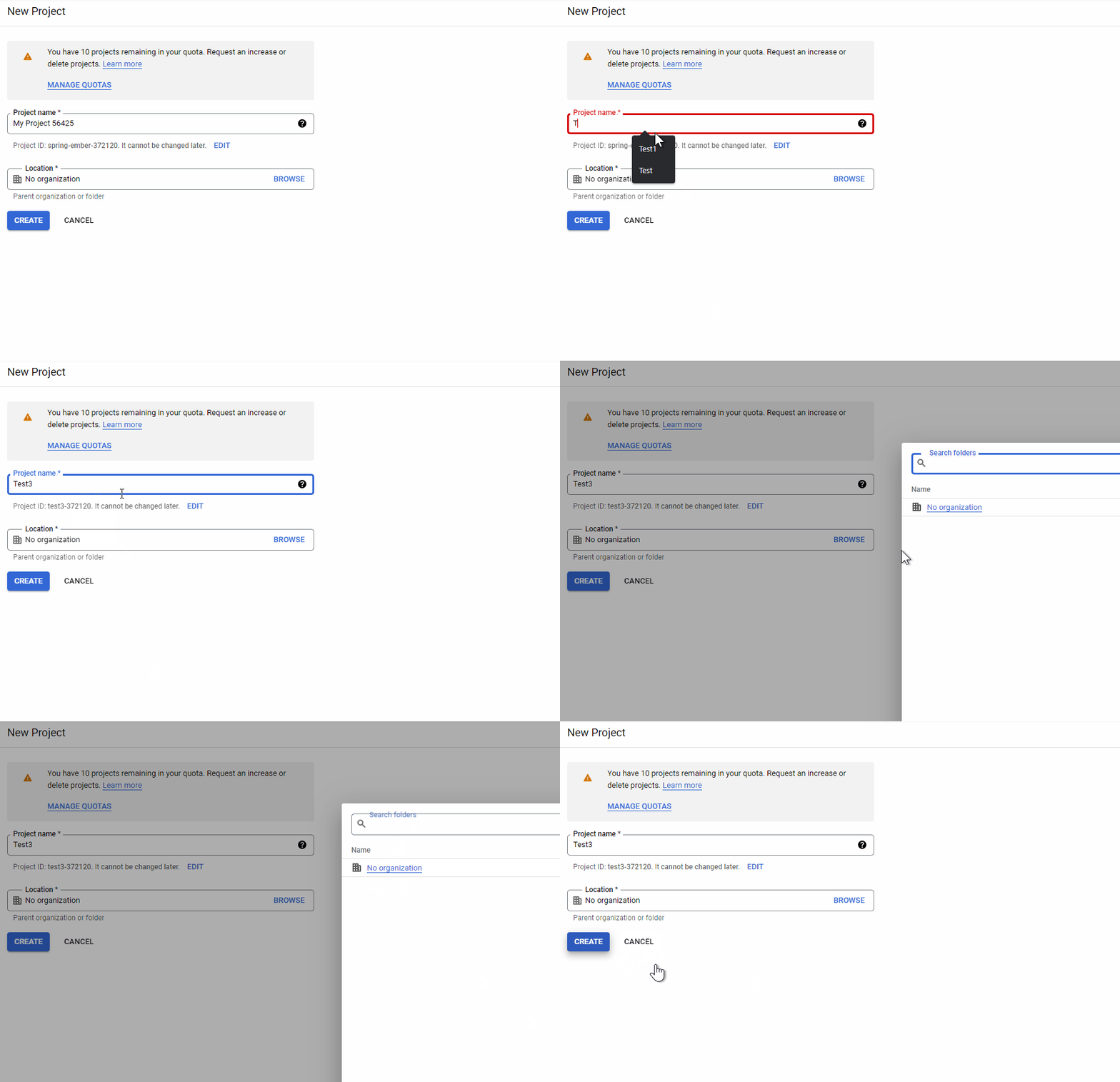
From the New Project page, enter the information to open a new project.
The project test name cannot be changed later. Also, you can add a Location to your new project or leave it in “No organization” This project name will be used during the Connection creation step of One Teg, this name will be the Application Name.
Click “Create” when you are ready to open a new project.
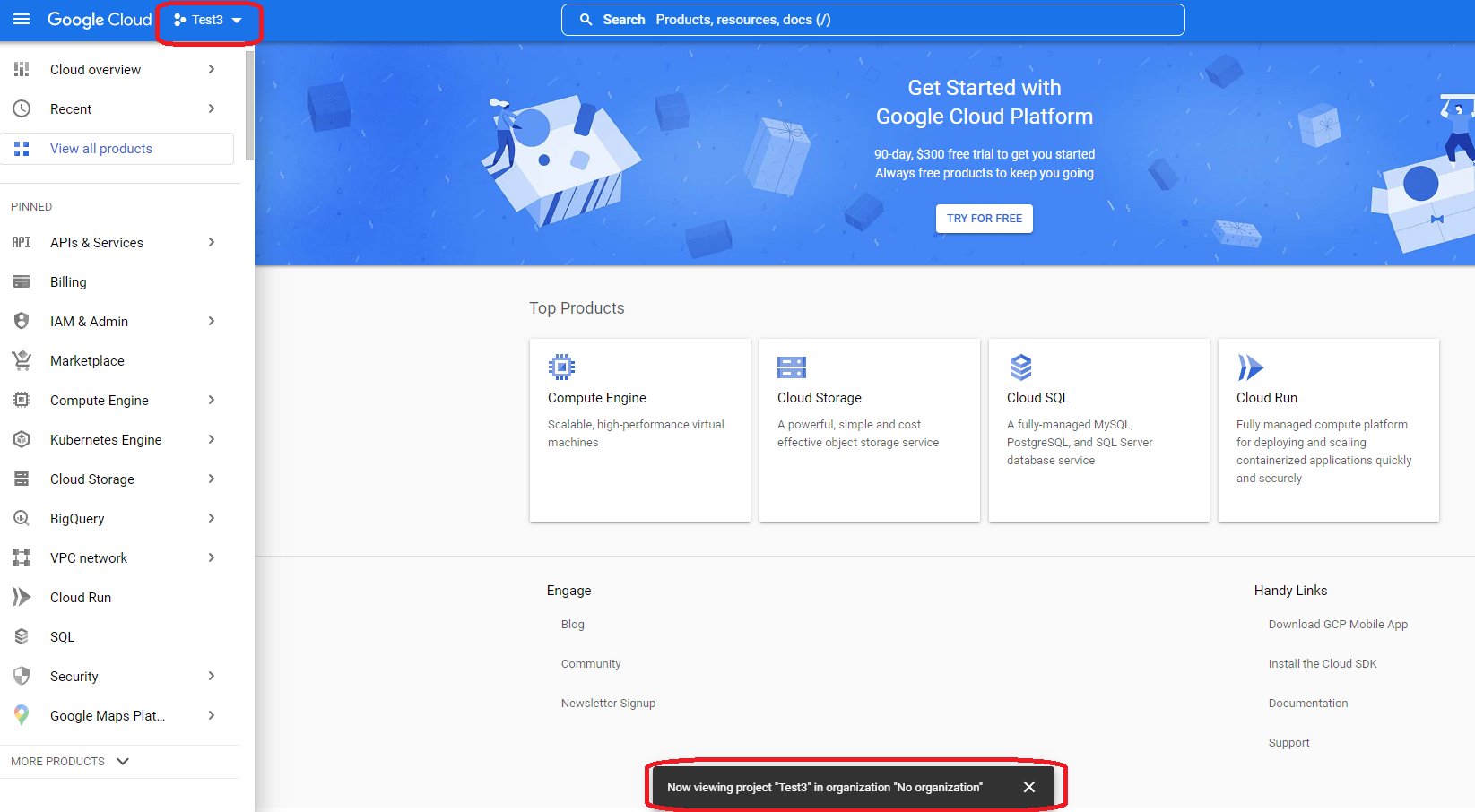
From the main page, select the newly opened project by selecting the top left “Select a project” button.
Be sure that the newly created project is selected.
We need to add a new credential. Select APIs & Services selection from the left menu table and select “Credentials”. From the new page, on the top side select “Create Credentials” and select “OAuth Client ID”
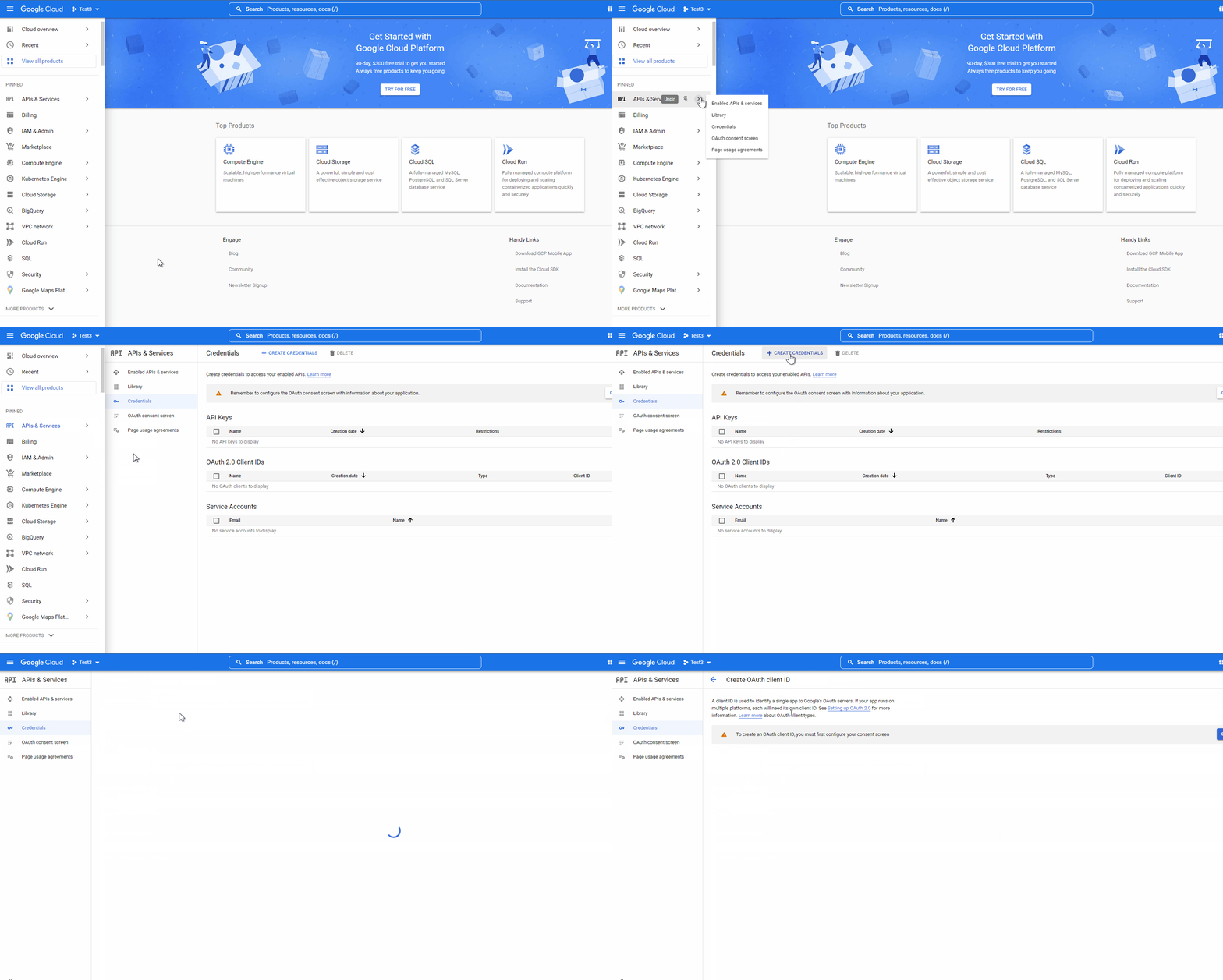
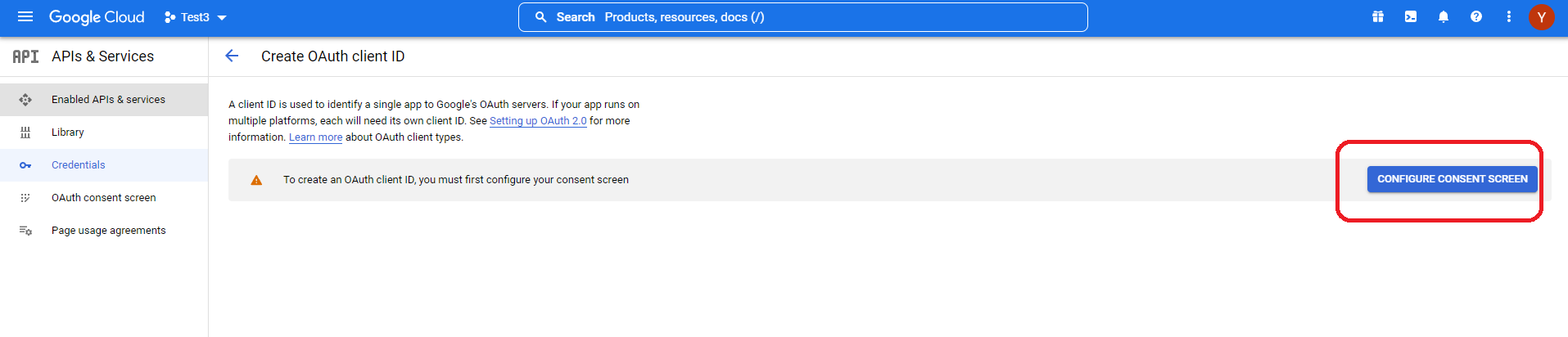
As the prompt, the “Consent Screen” needs to be configured. Press the “Consent Screen Options” on the right side of the screen.
Start by clicking “ Configure Consent Screen”, then select the “External” option and press “Create”.
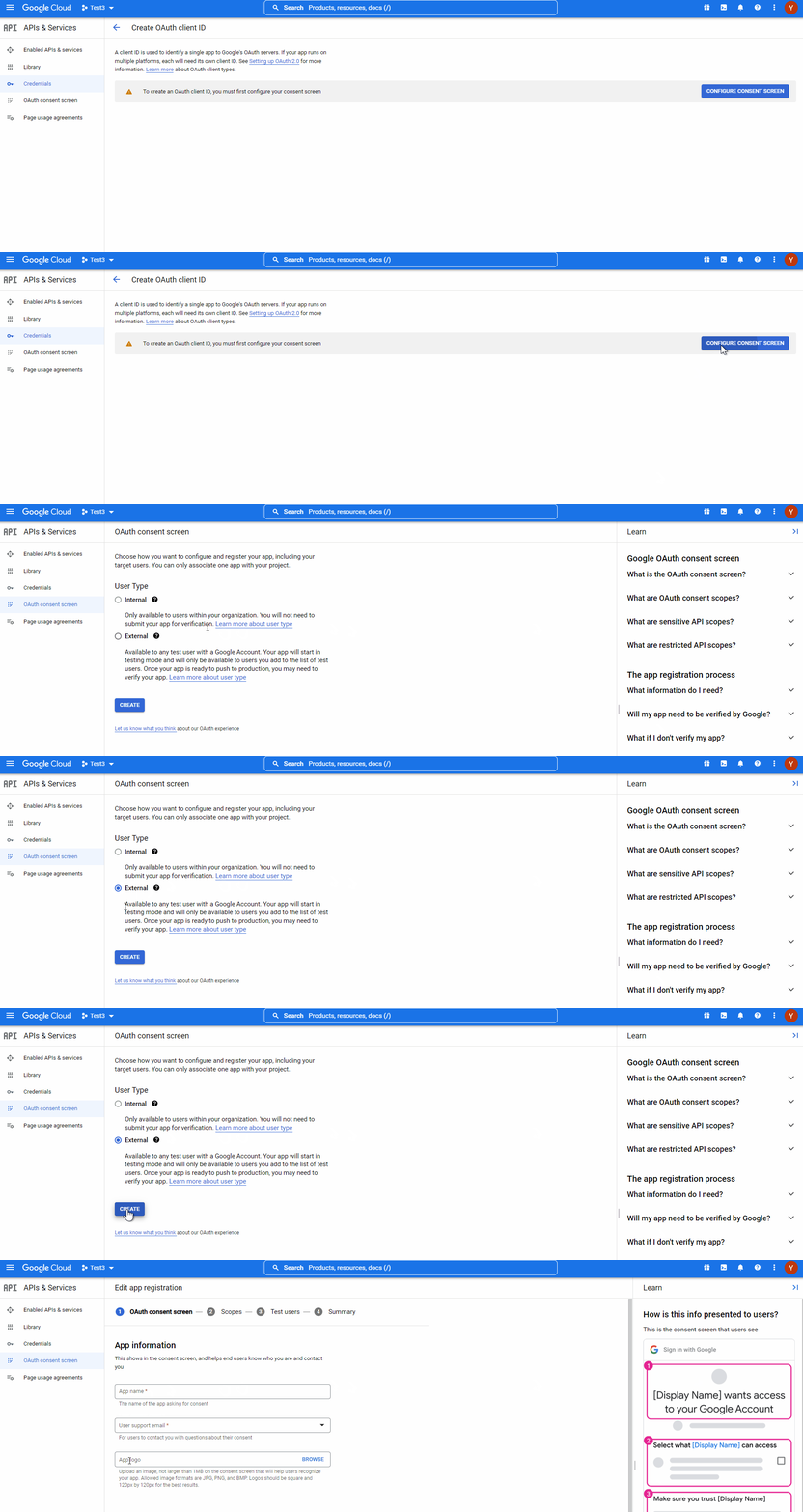
This new page lets you configure the App Registration and gives info about the info presented to the users.
First enter your App information, user support mail, App logo (if any), and other information you deem necessary. Please remember to add the “Developer Contact Information” mail address at the end of the first page. User support mail address will be selected as the same address the Google Account used to open this cloud space.
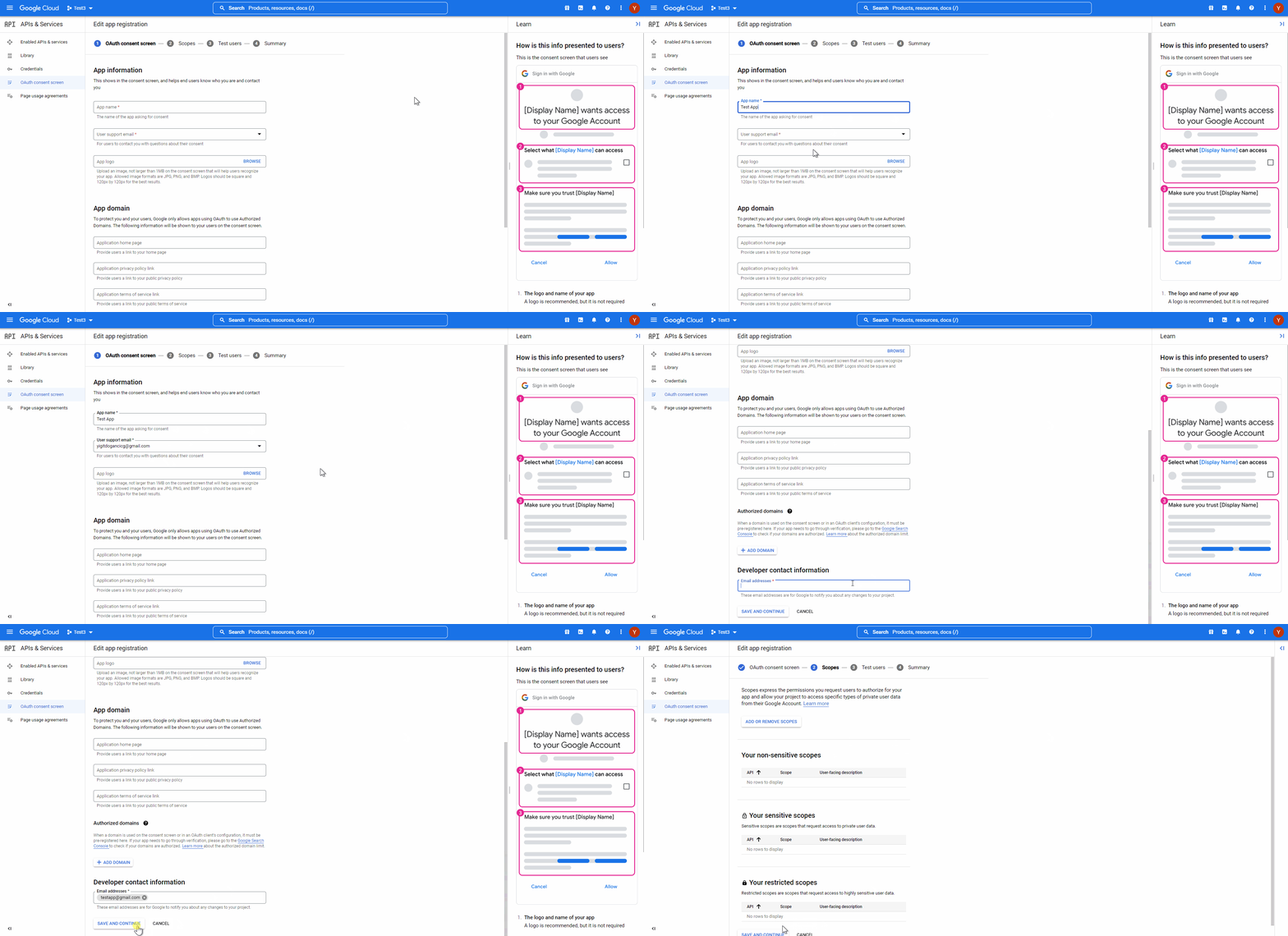
Press Save and Continue to proceed.
Adding Scopes:
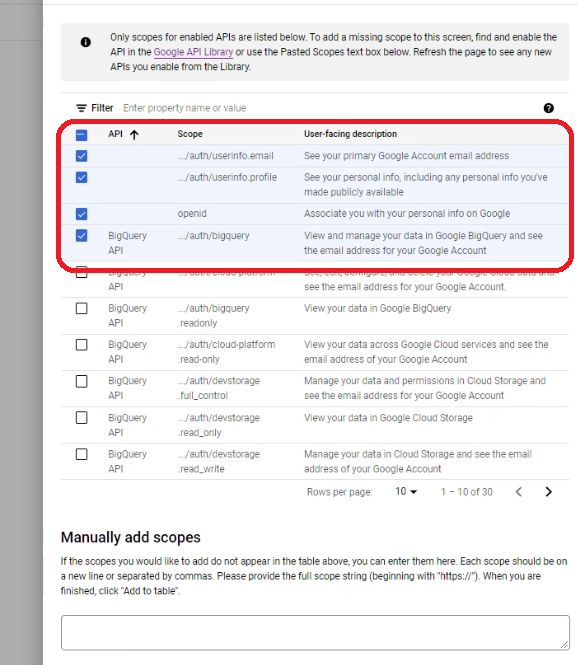
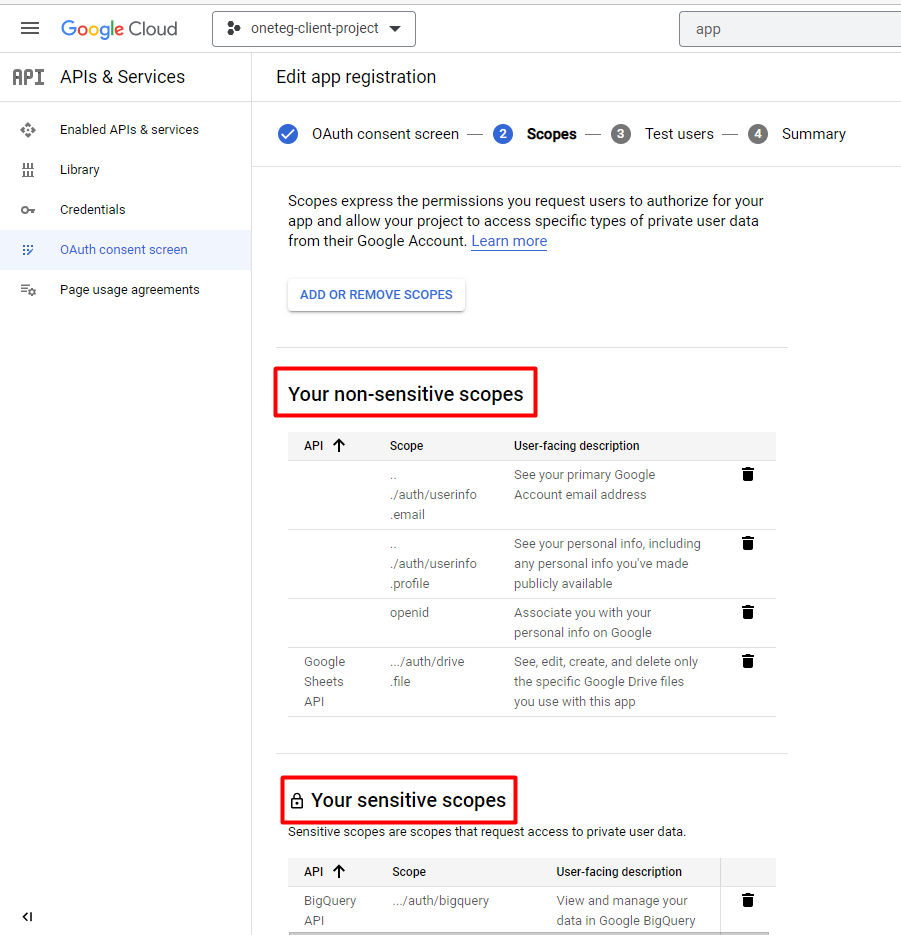
Add the following Scopes to your App:
auth/userinfo.email
auth/userinfo.profile
openid
BigQuery Api
On the Test users page, enter the user Gmail accounts that will have access to this test environment.
You can add multiple users using the “Add users” page. All users added must be a Google account.
When done, click save and continue. (This part is necessary)
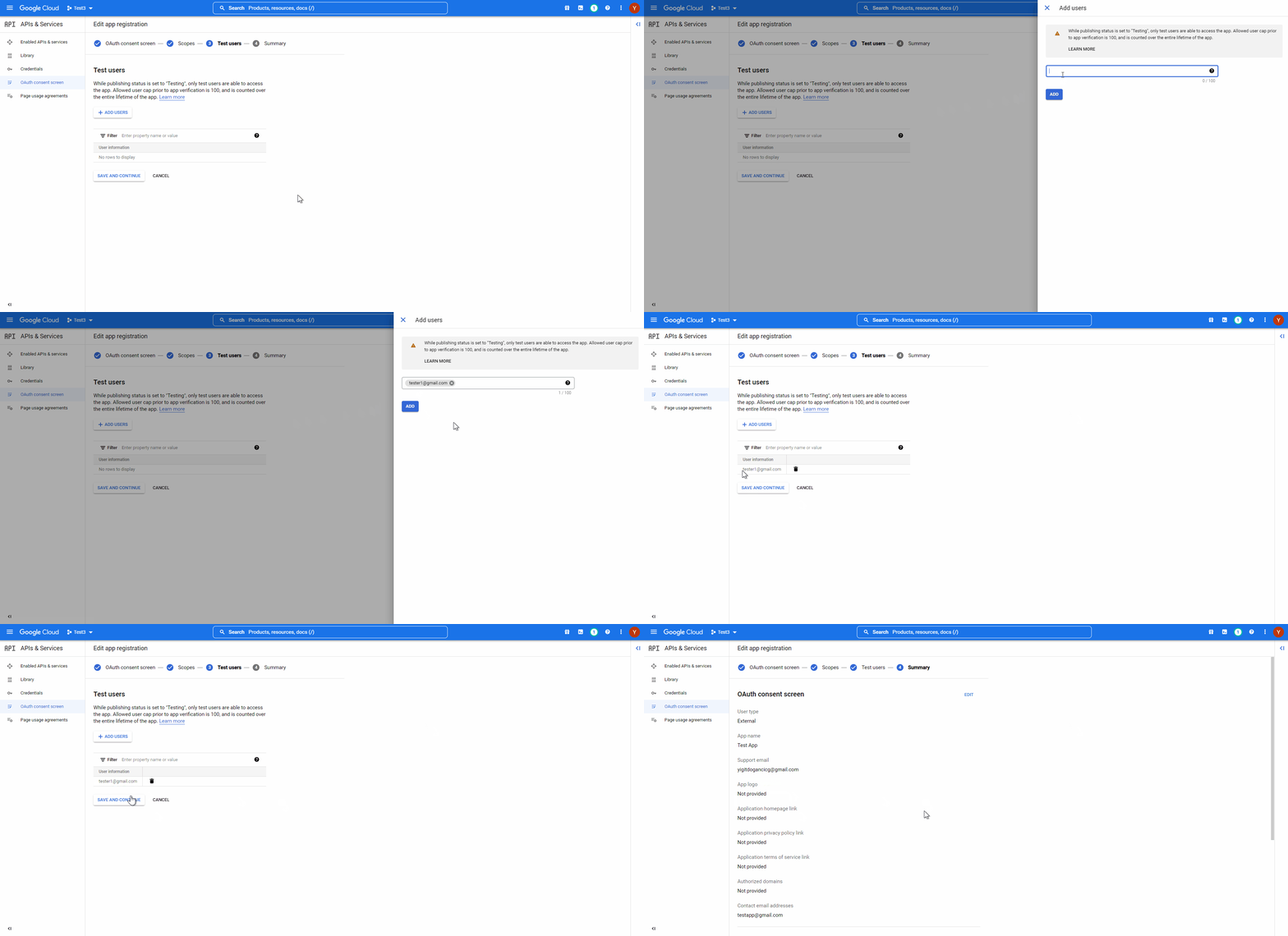
After clicking the “Save and Continue” button, the “Summary” page will open. At the very end of the page, click “Back to Dashboard”.
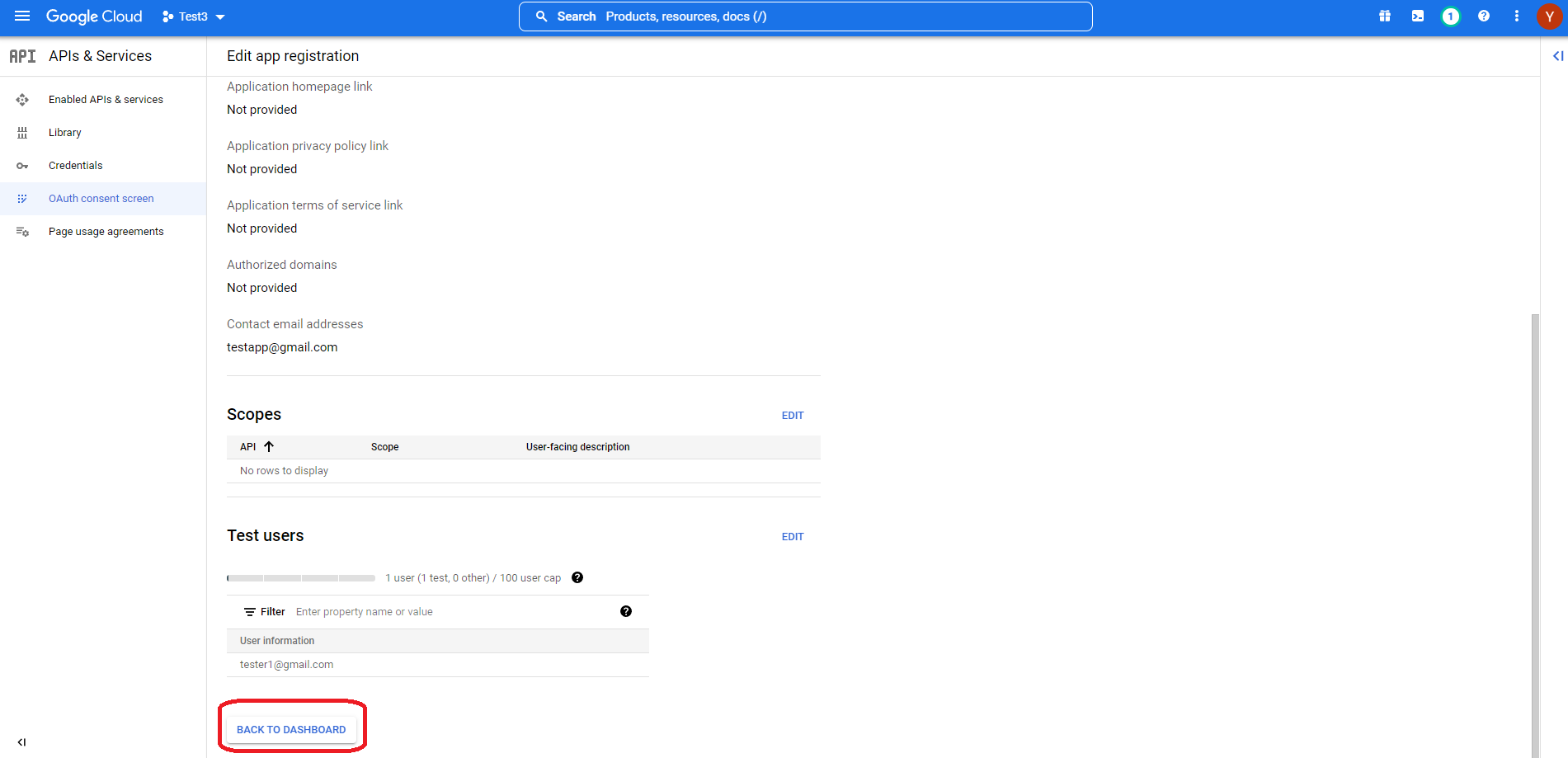
All the configurations you have done can be seen on this page.
Now we will add an “OAuth 2.0 Client ID”.
Start by opening up the “Navigation Menu” item from the top left side of the screen. Hover over the “APIs & Services” option and select “Credentials” from the left side menu, and select Crete Credentials from the top.
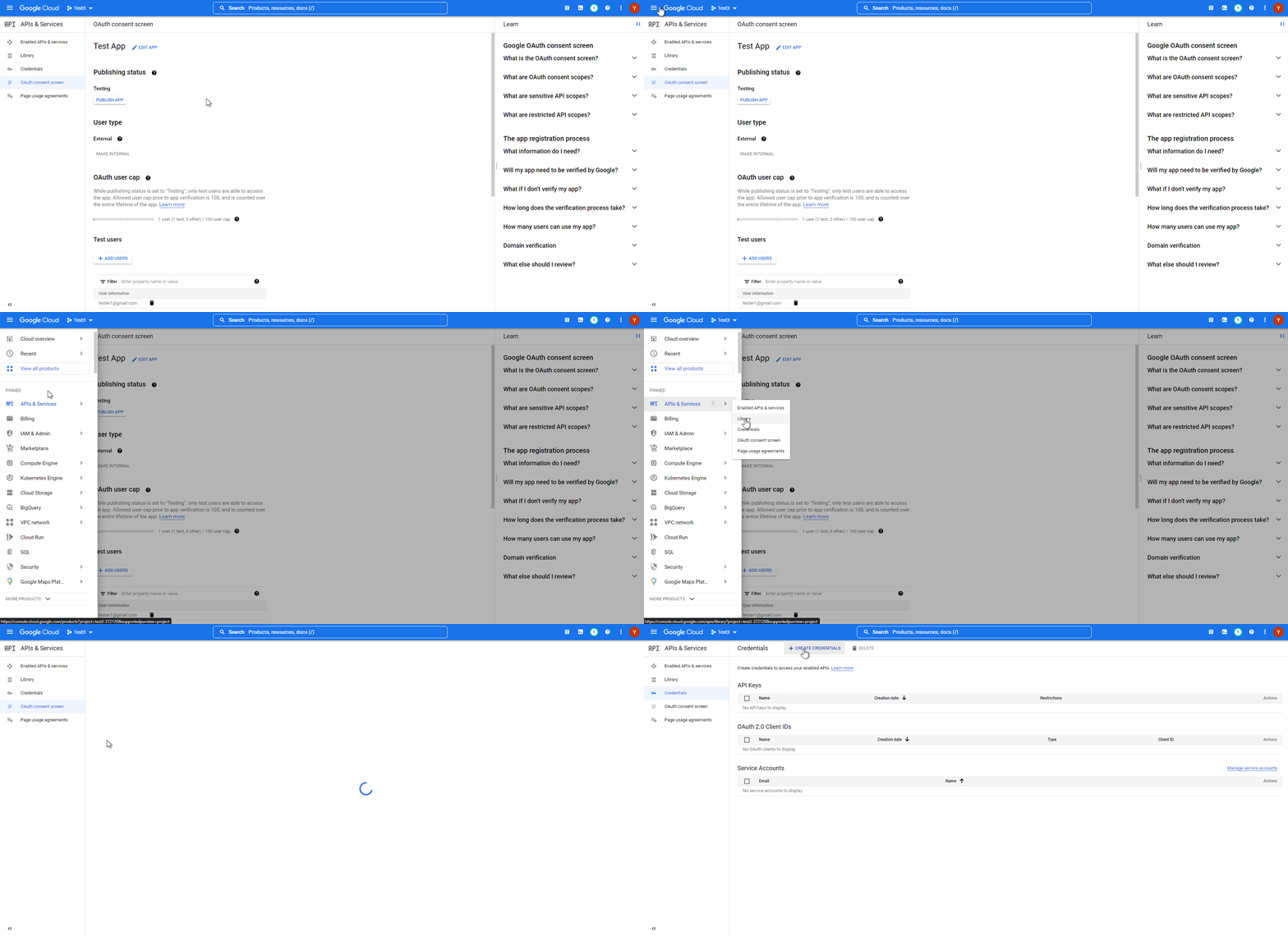
First select “OAuth Client”. Then select “Web Application”. Enter “ Name”, and click “ADD URI to Authorized Redirect URIs”
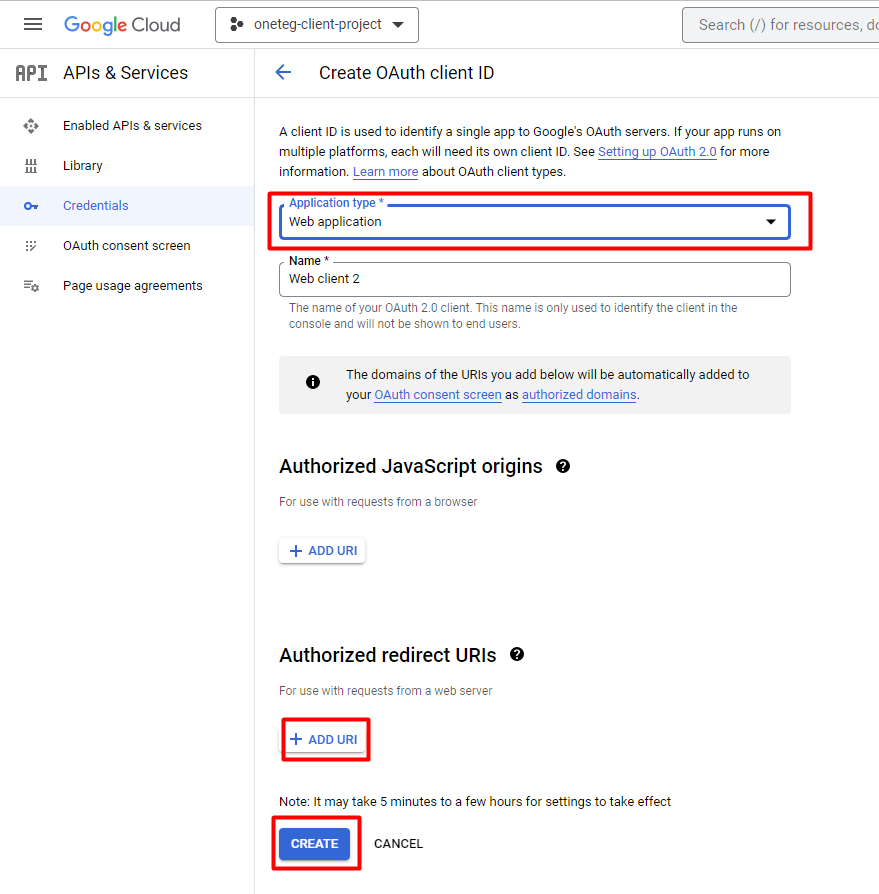
URI : Add URI that you will use.
After creating the application, now go to OAuth consent screen from the left navigation panel and set up all the required data.
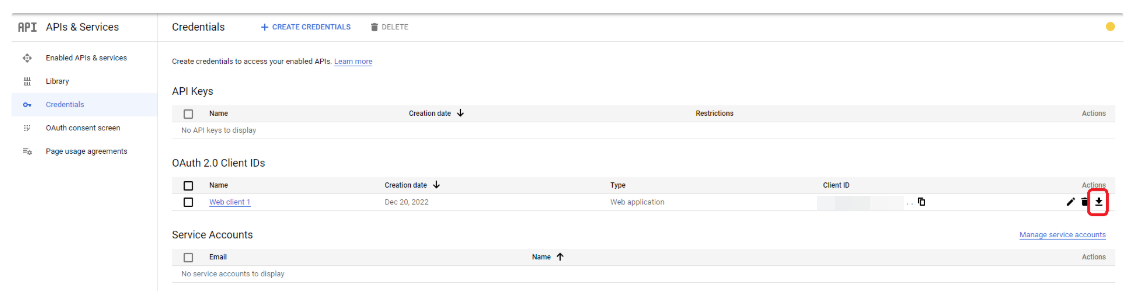
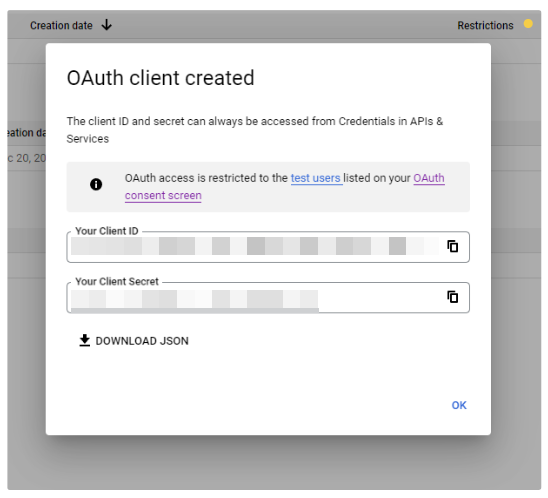
Now go to Credentials from the left panel and download the credentials.
2. Enable APIs and Services
In order to enable any APIs and services go to Enabled APIs and services from the left navigation panel and select ENABLE APIS AND SERVICES and add the required ones. Be sure the Cloud Storage, Cloud Storage API, Cloud Trace API, and Google Cloud APIs are enabled. Any enabled API name will be shown beneath the Traffic Area.
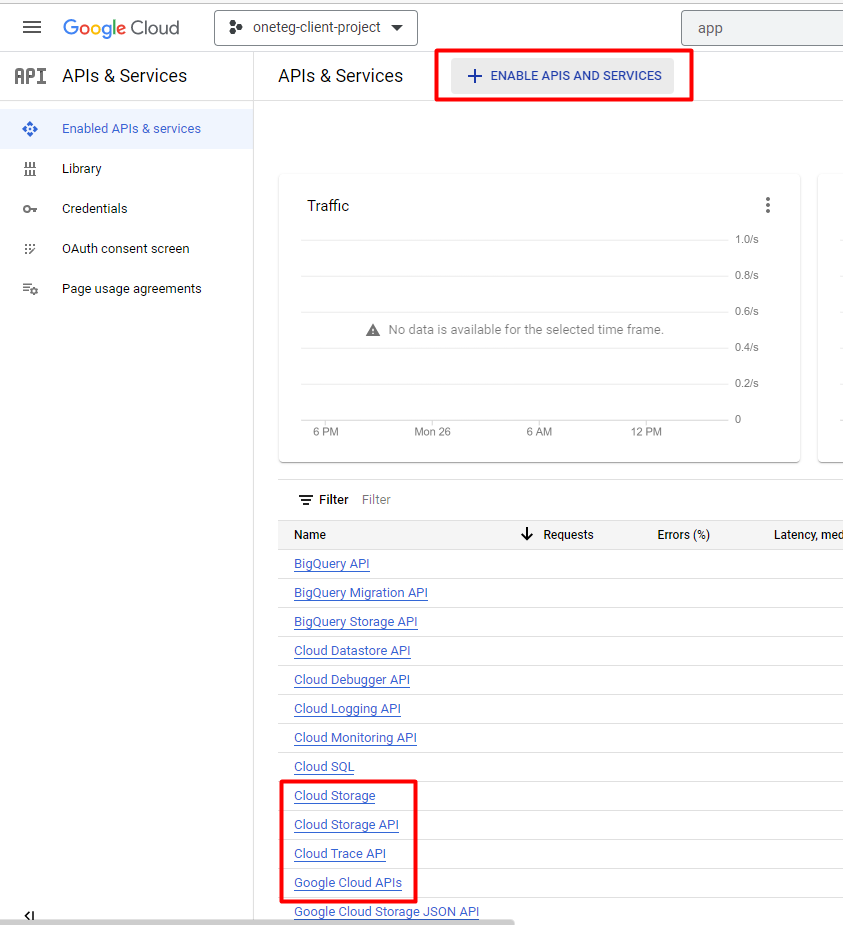
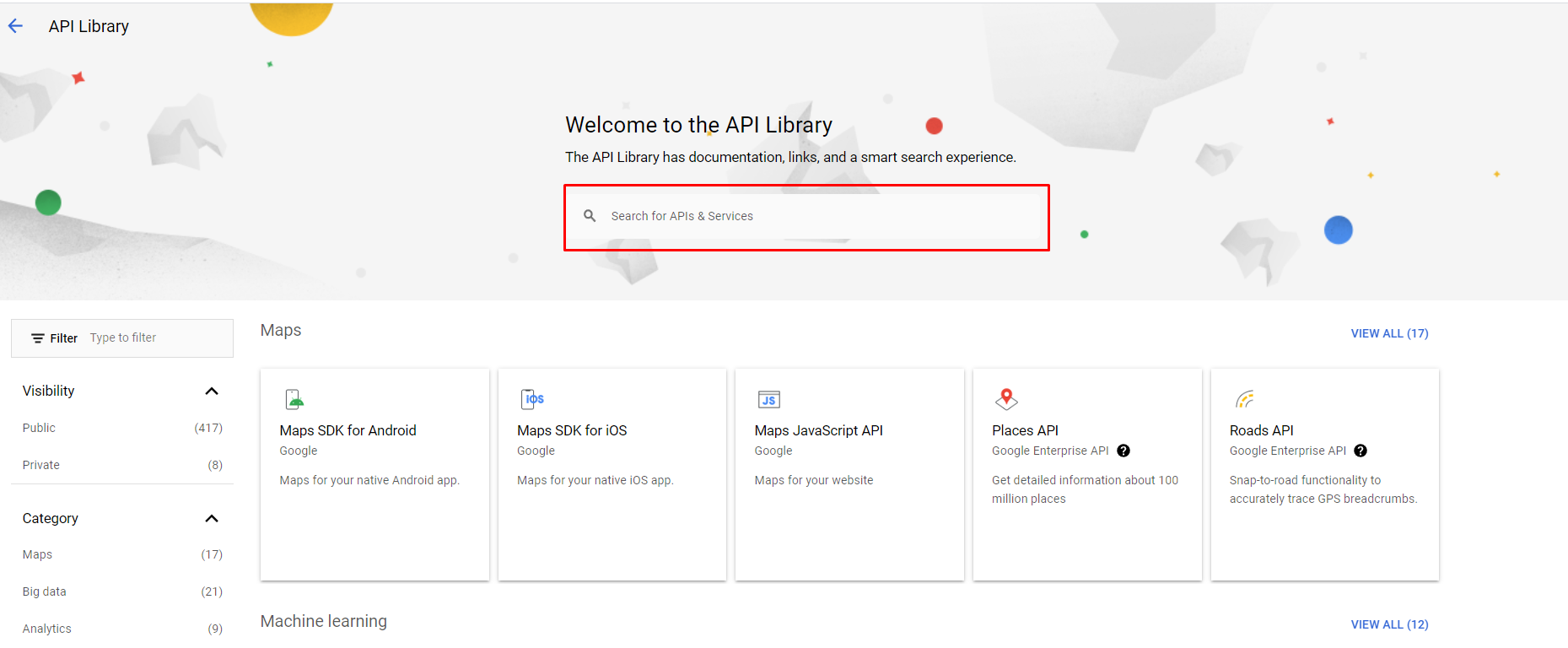
When you press Enable Api and services button, this will take you to the api library page. You can search for these apis from here and enable them.
You also need to add Google Sheets Api and enable it.
If you don't see your scopes, press add or remove scopes button, find and enable them.
3. Connector Action & Tests
|
Action Name / Method |
Create Asset |
||
|---|---|---|---|
|
Action Description |
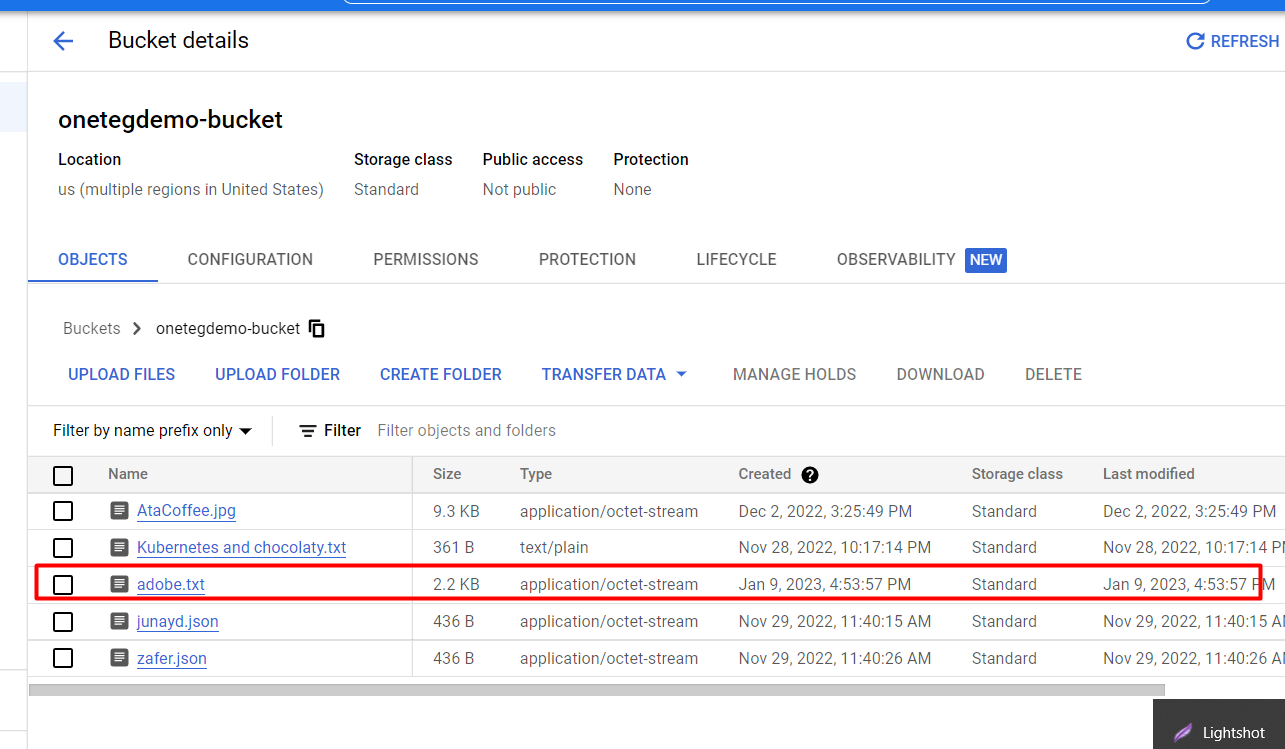
Create asset on Google Cloud Storage |
||
|
Test Case |
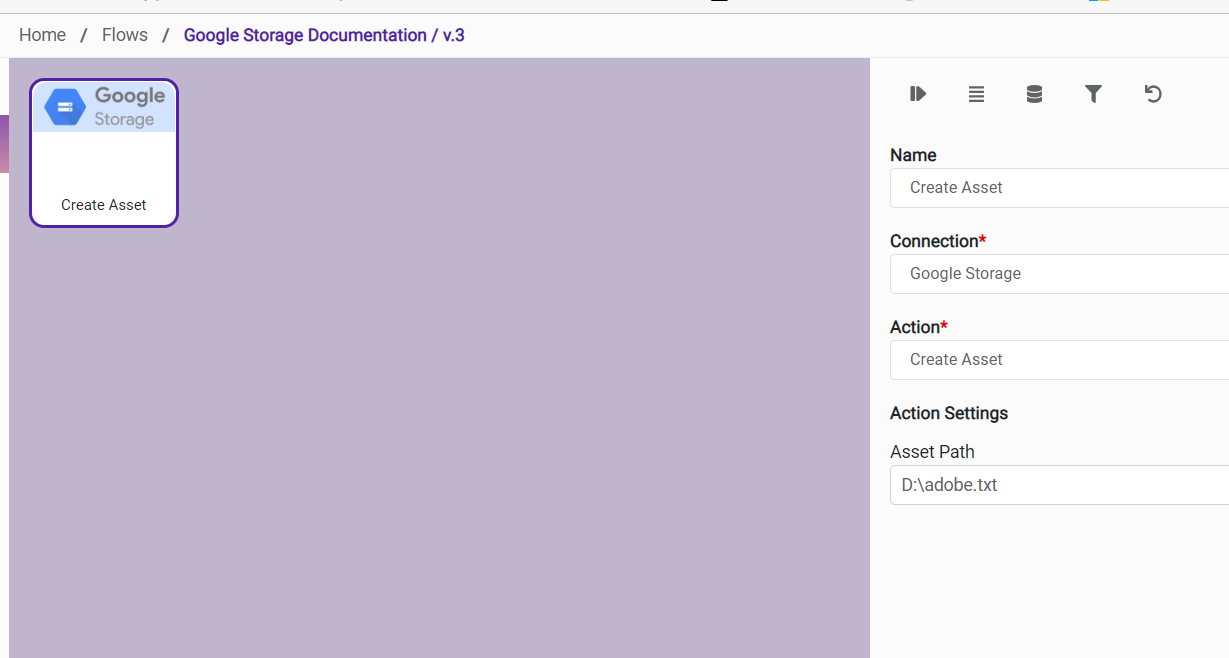
Create single asset on Google Cloud Storage |
||
|
Request Body Name |
Parameter |
Type |
Description (Example) |
|
|
Asset Path |
String |
File to be uploaded on Google Cloud Storage |
|
Action Name / Method |
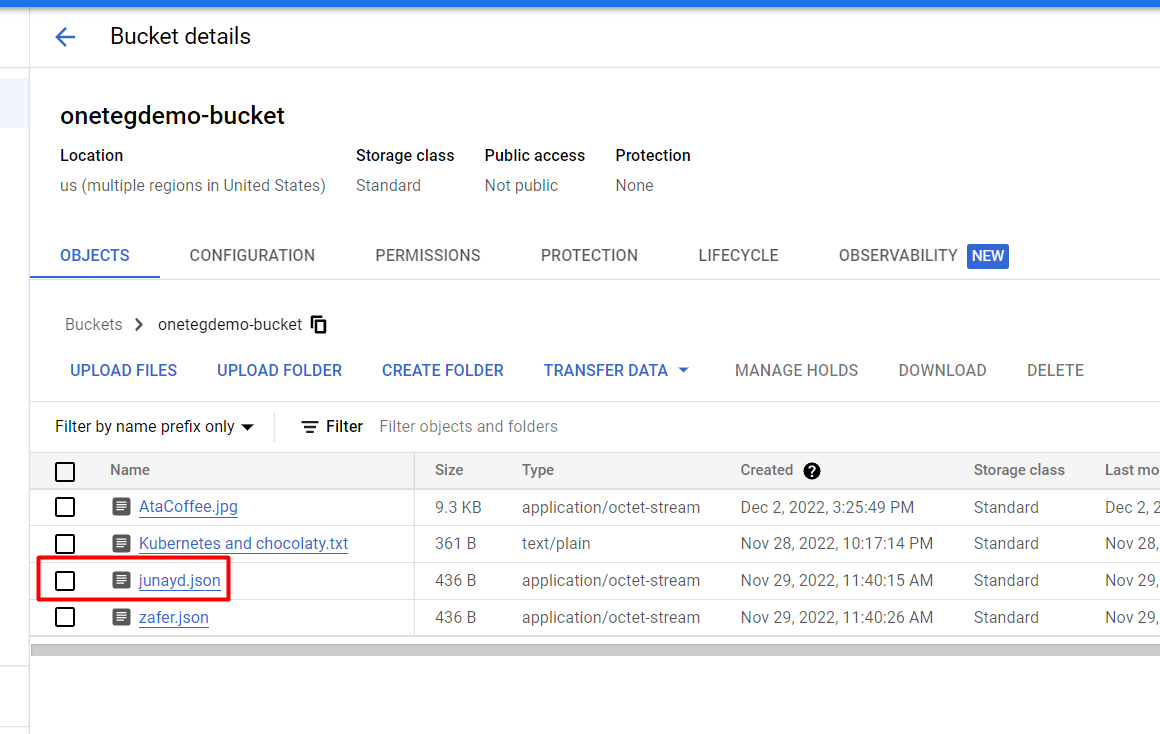
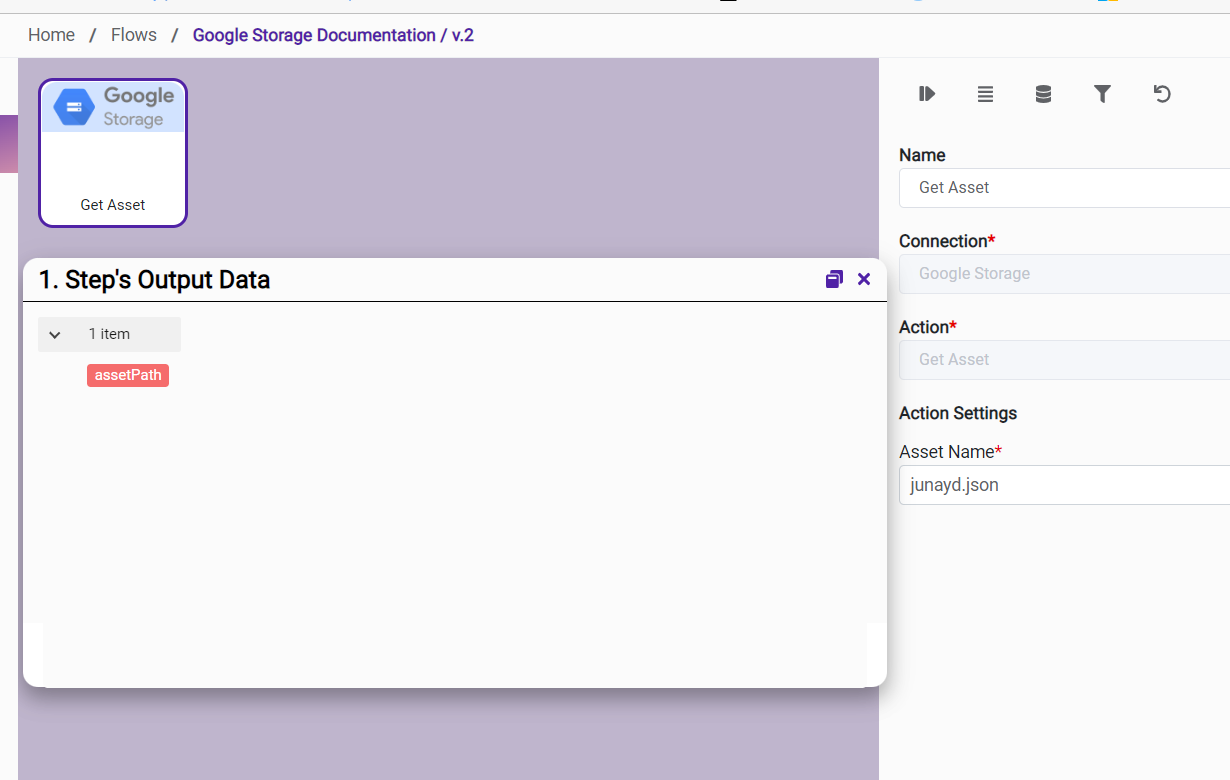
Get Asset |
||
|---|---|---|---|
|
Action Description |
Download asset from Google Cloud Storage |
||
|
Test Case |
Download asset from Google Cloud Storage to local env. |
||
|
Request Body Name |
Parameter |
Type |
Description (Example) |
|
|
Asset Path |
String |
File name to be downloaded from Google Cloud Storage |
|
Action Name / Method |
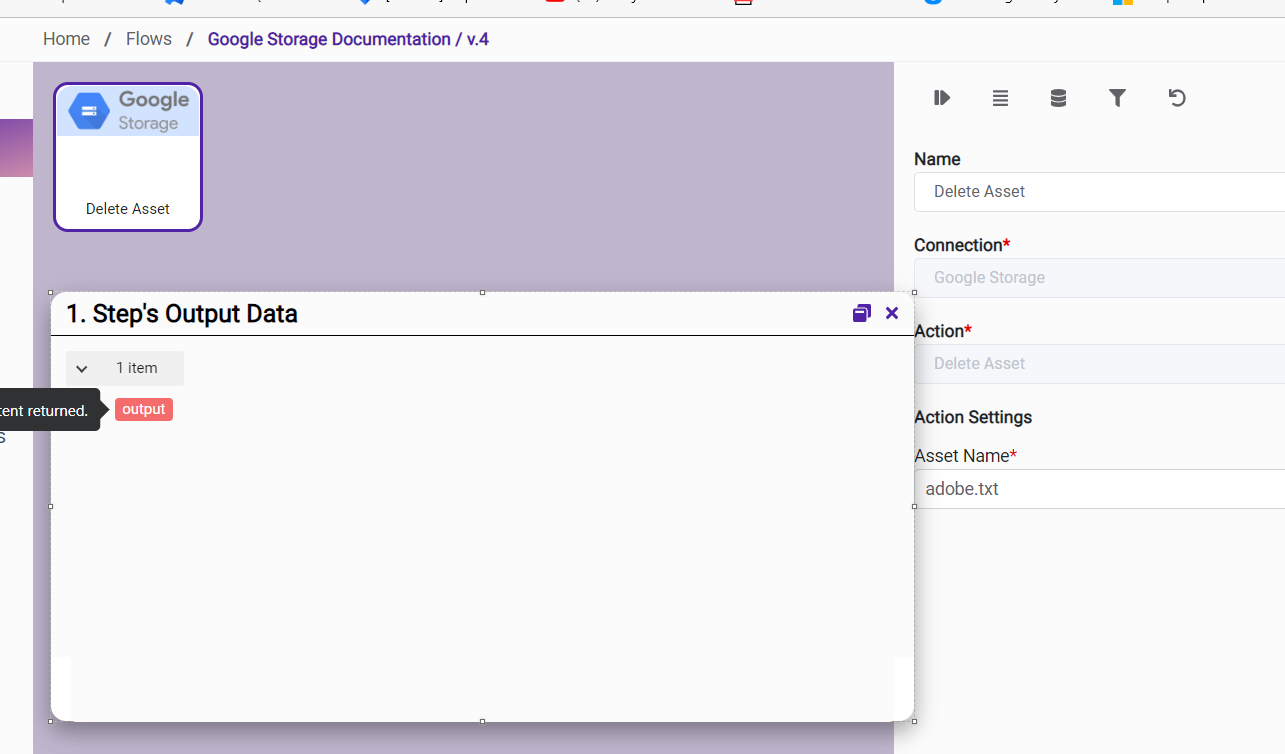
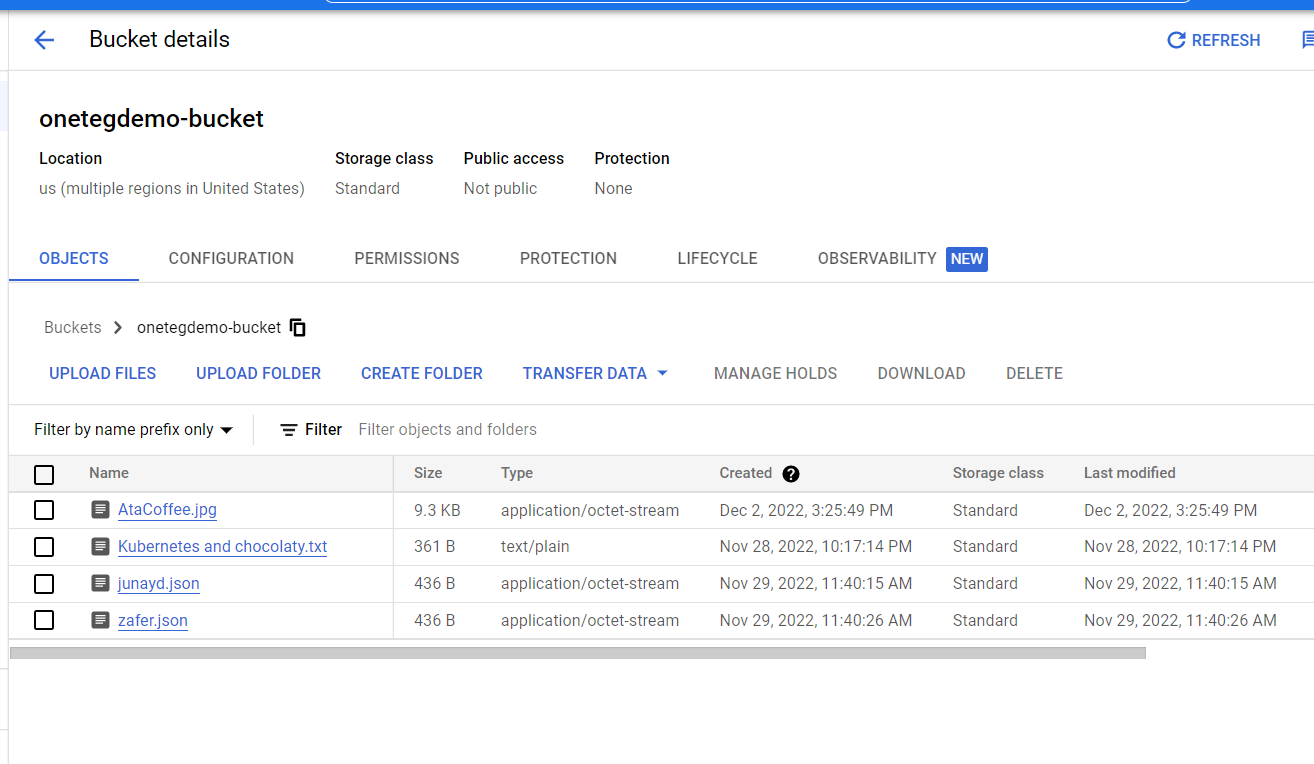
Delete Asset |
||
|---|---|---|---|
|
Action Description |
Delete asset on Google Cloud Storage |
||
|
Test Case |
Delete single asset on Google Cloud Storage |
||
|
Request Body Name |
Parameter |
Type |
Description (Example) |
|
|
Asset Name |
String |
File name to be deleted from Google Cloud Storage |
|
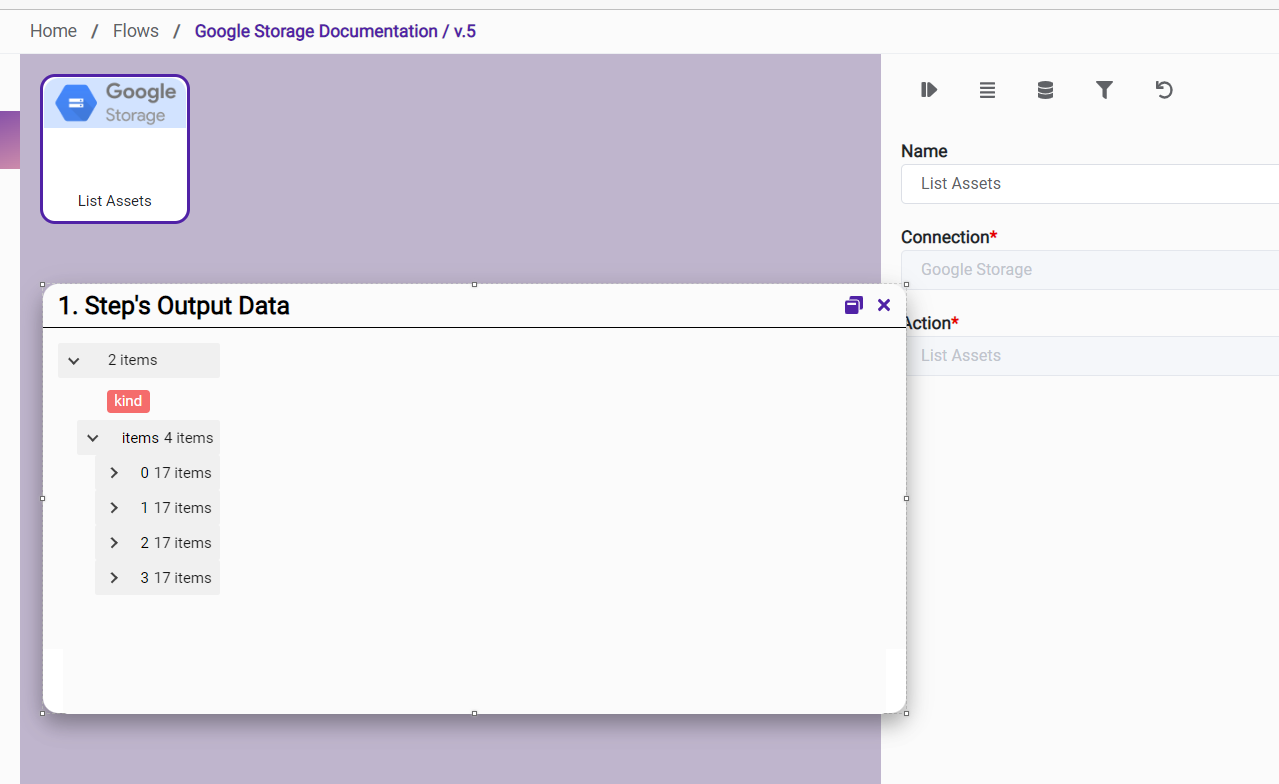
Action Name / Method |
List Assets |
||
|---|---|---|---|
|
Action Description |
Get data of all assets on Google Cloud Storage |
||
|
Test Case |
Get details of all the assets on Google Cloud Storage |
||
|
Request Body Name |
Parameter |
Type |
Description (Example) |
|
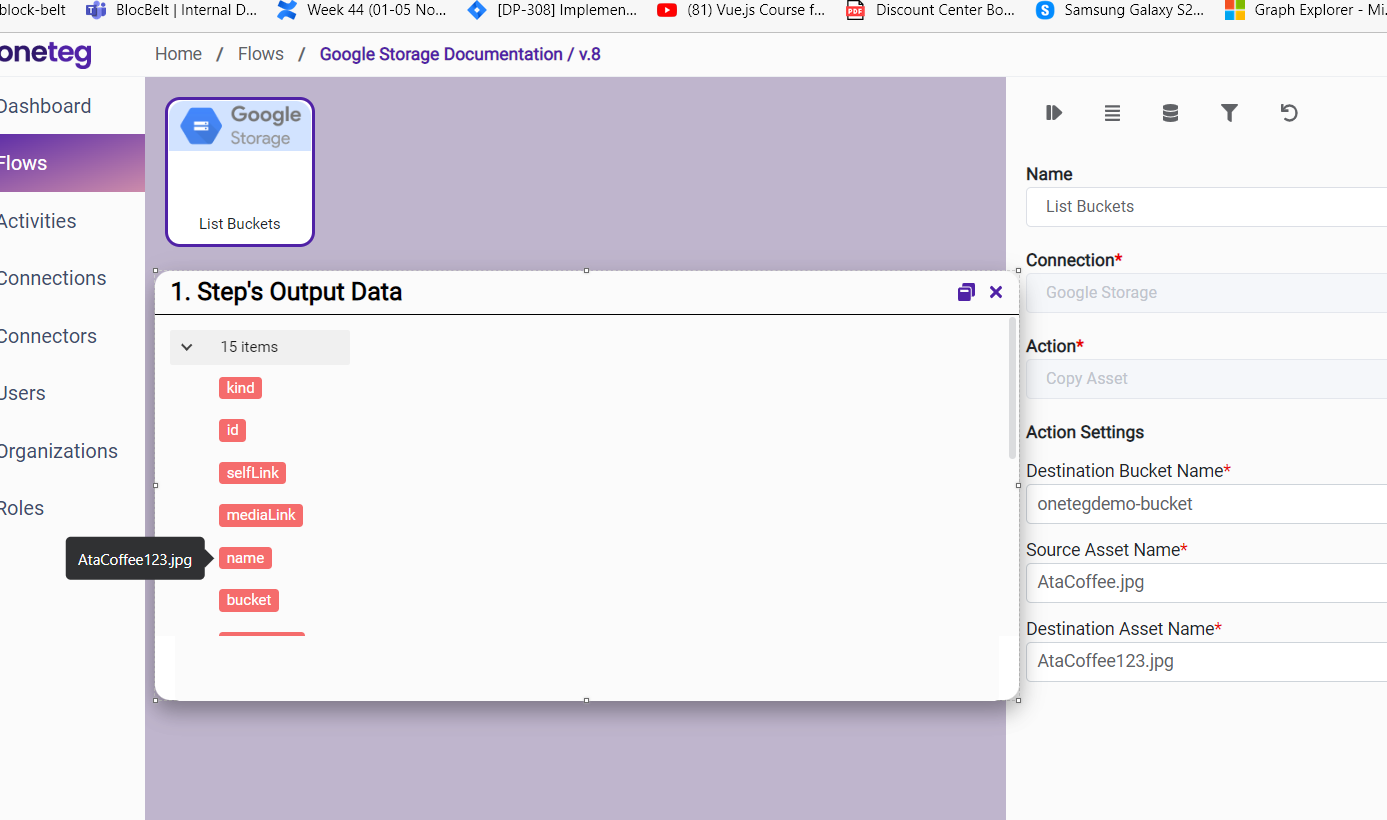
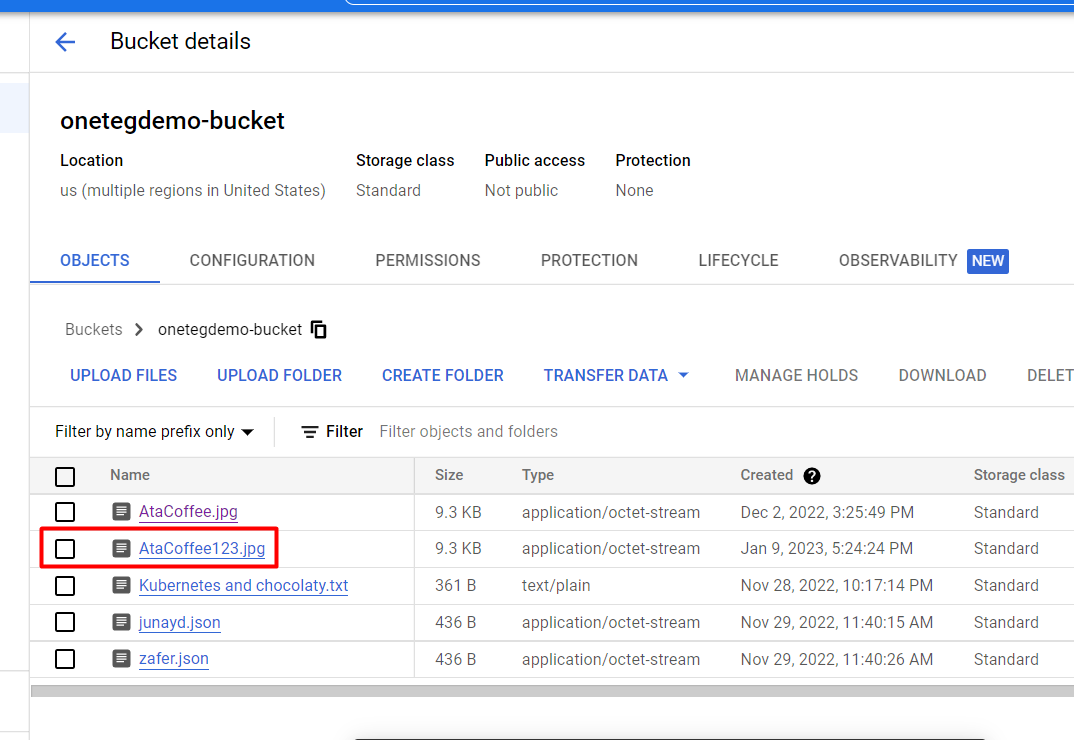
Action Name / Method |
Copy Asset |
||
|---|---|---|---|
|
Action Description |
Copy asset on Google Cloud Storage |
||
|
Test Case |
Copy different assets on Google Cloud Storage |
||
|
Request Body Name |
Parameter |
Type |
Description (Example) |
|
|
Destination Bucket Name |
String |
Bucket name (onetegtest) |
|
|
Source Asset Name |
String |
File name to be copied |
|
|
Destination Asset Name |
String |
Bucket name (onetegtest) |
|
Action Name / Method |
List Buckets |
||
|---|---|---|---|
|
Action Description |
List all the existing buckets |
||
|
Test Case |
List all the existing buckets of Google Cloud Storage |
||
|
Request Body Name |
Parameter |
Type |
Description (Example) |
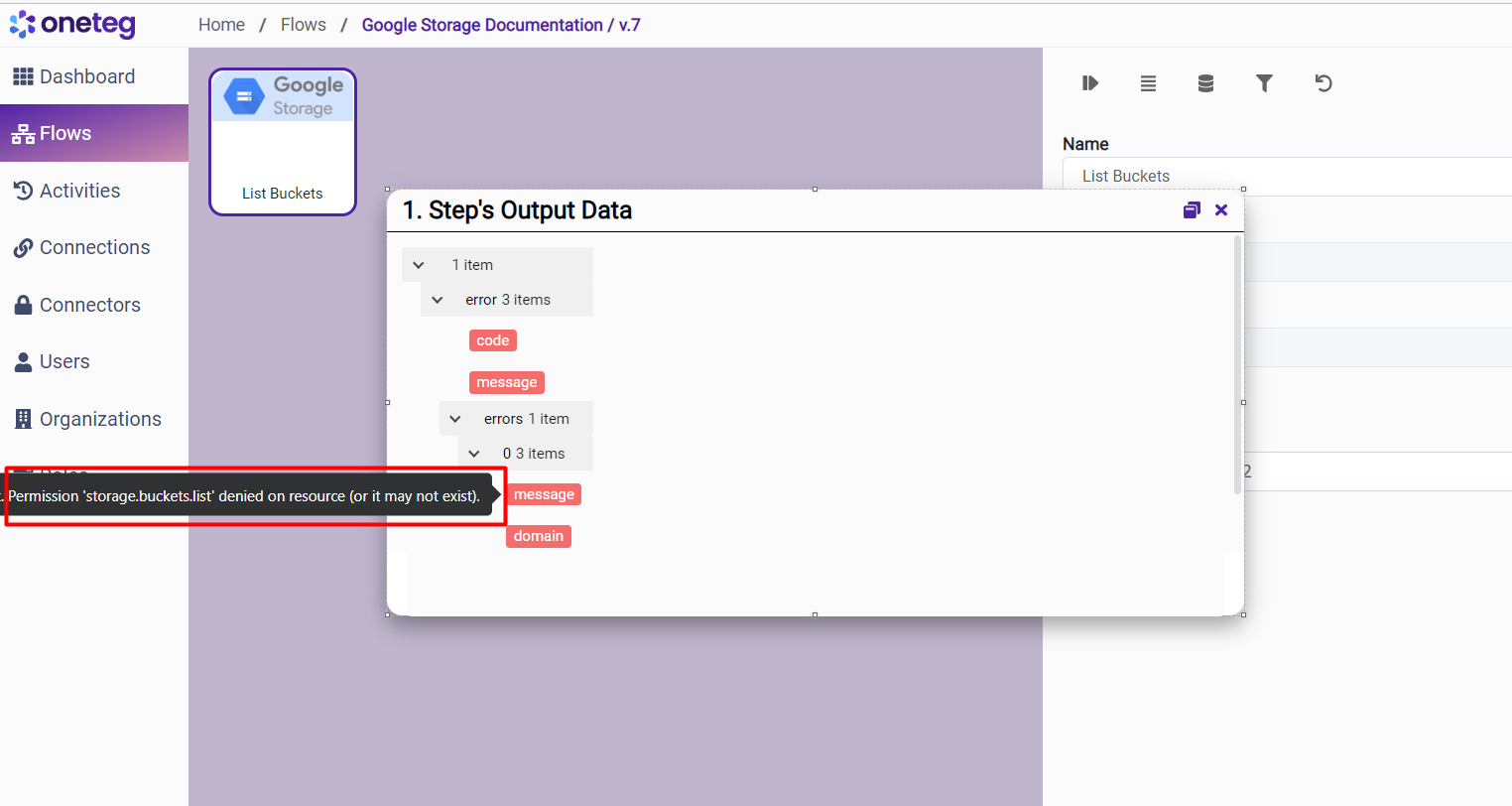
If no project found, then user will see this error:
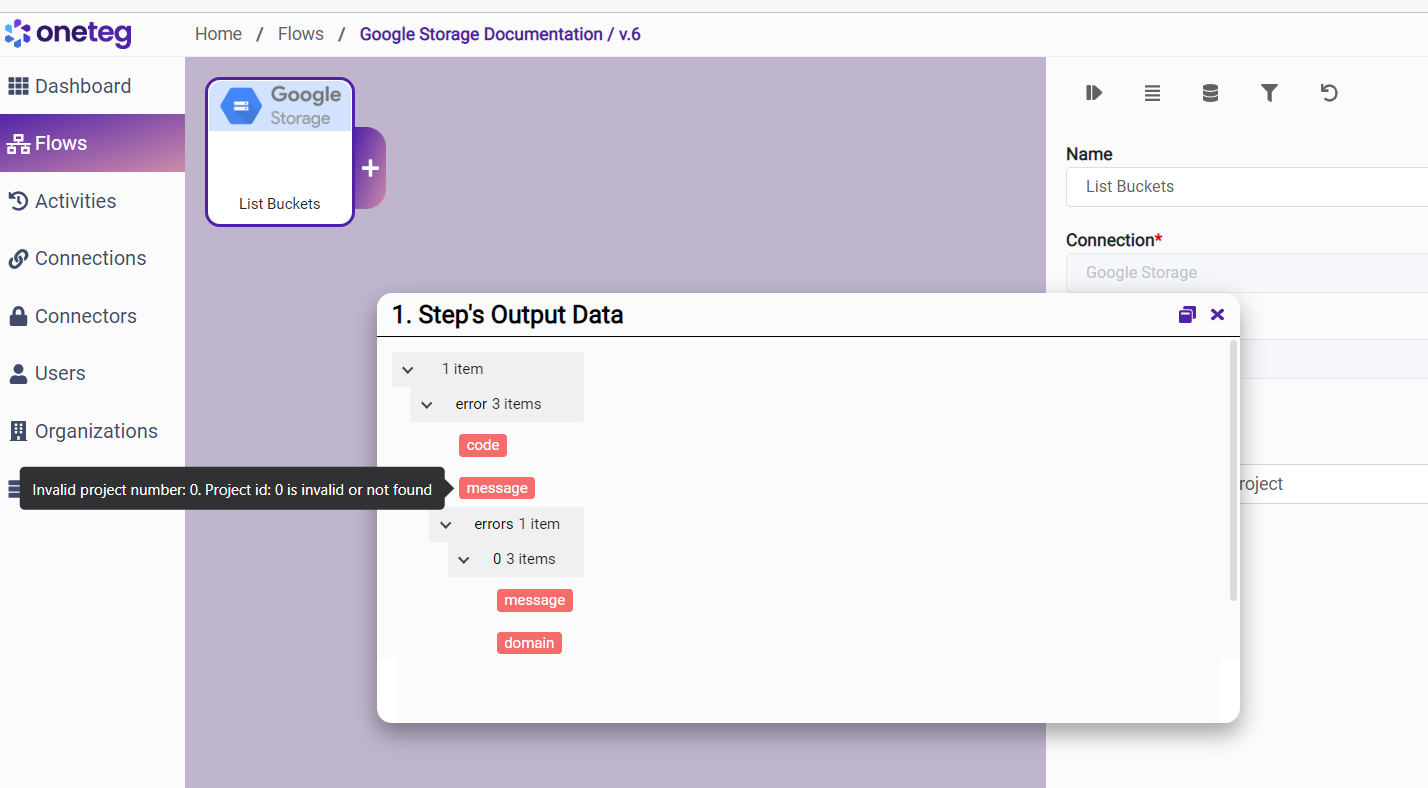
If there is no permission to see all the buckets:
4. Connection Settings and Configuration
|
Settings Parameters |
Value |
Description |
Required (Y/N) |
Default Value |
|---|
|
Settings Parameters |
Value |
Description |
Required (Y/N) |
Default Value |
|---|---|---|---|---|
|
Connector |
Google Storage |
Connector Name |
Y |
Google Storage |
|
Authentication |
OAUTH |
Authentication Type |
Y |
OAuth |
|
Client ID |
Application Client ID |
Client ID from Google Cloud Application for OAUTH credentials. |
Y |
- |
|
Client Secret |
Application Client Secret |
Client Secret from Google Cloud Application for OAUTH credentials. |
Y |
- |
|
Bucket Name |
Bucket Name |
Endpoint required for performing CRUD on Dropbox APIs. |
Y |
onetegdemo-bucket |