
1. General Information
SharePoint is Microsoft’s web-based collaboration and document management platform, part of Microsoft 365. Organizations use it to create sites, store and share files in document libraries, and manage lists and content. This connector accesses SharePoint through the Microsoft Graph API.
The OneTeg SharePoint Connector integrates with SharePoint via Microsoft Graph, enabling users to manage sites, libraries, and files directly from OneTeg automation workflows. This connector supports two authentication options: OAuth Authorization Code and Bearer.
This connector accesses SharePoint through Microsoft Graph using Azure AD (Microsoft Entra ID) OAuth 2.0. Both authentication options resolve to a Microsoft Graph access token, sent as a Bearer token in the Authorization header. The OAuth token and authorization endpoints use the fixed /organizations/ path, and the API base is https://graph.microsoft.com/v1.0.
2. Connect SharePoint to OneTeg
SharePoint uses the same Azure AD (Microsoft Entra ID) app registration process as other Microsoft connectors. For the full app-registration guide — creating the app, setting the redirect URI to the OneTeg OAuth callback URL, and generating a client secret — see the Microsoft Teams Connector. Only the SharePoint-specific API permissions are listed below.
Step 1 - Register an Azure AD Application
Follow the Microsoft Teams Connector guide to register an Azure AD application, set its redirect URI to the OneTeg OAuth callback URL (https://app.oneteg.com/rest/v1/oauth2/callback), and create a client secret. Note the Application (client) ID and client secret.
Step 2 - Add SharePoint API Permissions
In the app registration, under API permissions, add the following Microsoft Graph delegated permissions for SharePoint: Sites.Read.All, Sites.ReadWrite.All, Files.Read.All, Files.ReadWrite.All, plus User.Read and offline_access. Grant admin consent if your tenant requires it.
3. Connection Settings and Configuration for OneTeg
In OneTeg, navigate to Connections and create a new connection using the SharePoint Connector. Choose one of the authentication options below.
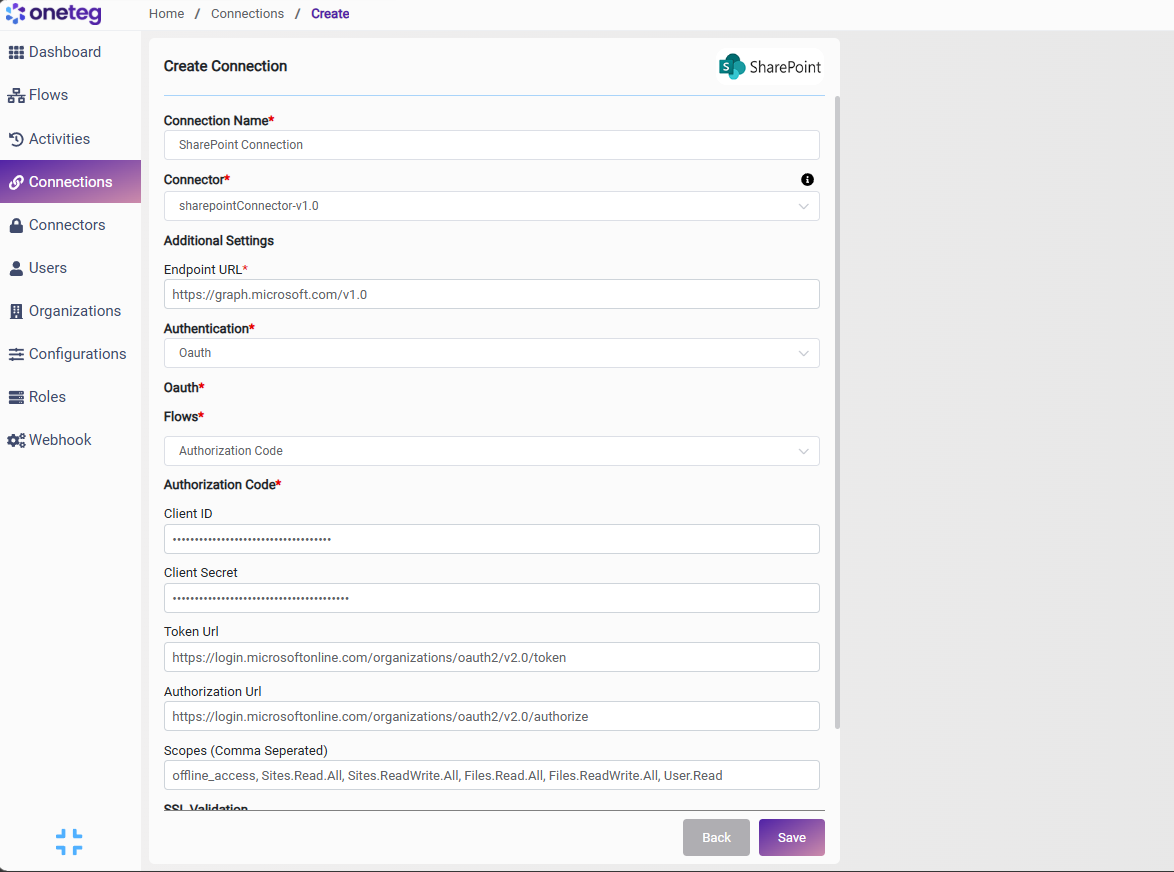
Option 1 — OAuth Authorization Code
|
Settings Parameters |
Value / Sample Value |
Description |
Required (Y/N) |
|
Connection Name |
SharePoint Connection |
Choose a name for your Connection |
Y |
|
Connector |
sharepointConnector-v1.0 |
Auto-populated once the SharePoint Connector is selected |
Y |
|
Endpoint URL |
The Microsoft Graph API base URL |
Y |
|
|
Authentication |
Oauth |
Select Oauth as the authentication method |
Y |
|
Flows |
Authorization Code |
Select Authorization Code as the OAuth flow |
Y |
|
Client ID |
Your Azure AD Application (client) ID |
The Application (client) ID of your Azure AD app registration |
Y |
|
Client Secret |
Your Azure AD client secret |
The client secret generated for your Azure AD app registration |
Y |
|
Token Url |
https://login.microsoftonline.com/organizations/oauth2/v2.0/token |
The Microsoft identity platform token endpoint (organizations path) |
Y |
|
Authorization Url |
https://login.microsoftonline.com/organizations/oauth2/v2.0/authorize |
The Microsoft identity platform authorization endpoint |
Y |
|
Scopes |
offline_access, Sites.Read.All, Sites.ReadWrite.All, Files.Read.All, Files.ReadWrite.All, User.Read |
The Microsoft Graph scopes to request; they must match the permissions on your app. Include offline_access to receive a refresh token |
N |
Option 2 — Bearer
|
Settings Parameters |
Value / Sample Value |
Description |
Required (Y/N) |
|
Connection Name |
SharePoint Connection |
Choose a name for your Connection |
Y |
|
Connector |
sharepointConnector-v1.0 |
Auto-populated once the SharePoint Connector is selected |
Y |
|
Endpoint URL |
The Microsoft Graph API base URL |
Y |
|
|
Authentication |
Bearer |
Select Bearer as the authentication method |
Y |
|
token |
Your Microsoft Graph access token |
A Microsoft Graph OAuth 2.0 access token, sent as a Bearer token in the Authorization header |
Y |
Note that Microsoft Graph access tokens expire after approximately 1 hour — you will need to manually update the token when it expires, making this method less suitable for long-running automations.
4. Supported SharePoint Actions and Options
For the full list of supported endpoints, parameters, and options, see the page below: