
1. General Information
Adobe Workfront is Adobe’s enterprise work management platform that helps organizations plan, execute, and deliver projects efficiently by connecting strategy to delivery. It is widely used by marketing, IT, and operations teams to centralize workflows, automate approvals, and measure outcomes across the enterprise.
2. Connect Adobe Workfront to OneTeg
Access the Workfront Portal by authenticating with the appropriate credentials designated for Asset Management.
Upon successful authentication, the user will be directed to the dashboard interface.
To configure OAuth settings and register callback URLs, please navigate to the OAuth application page located at Setup > System > OAuth2 Applications
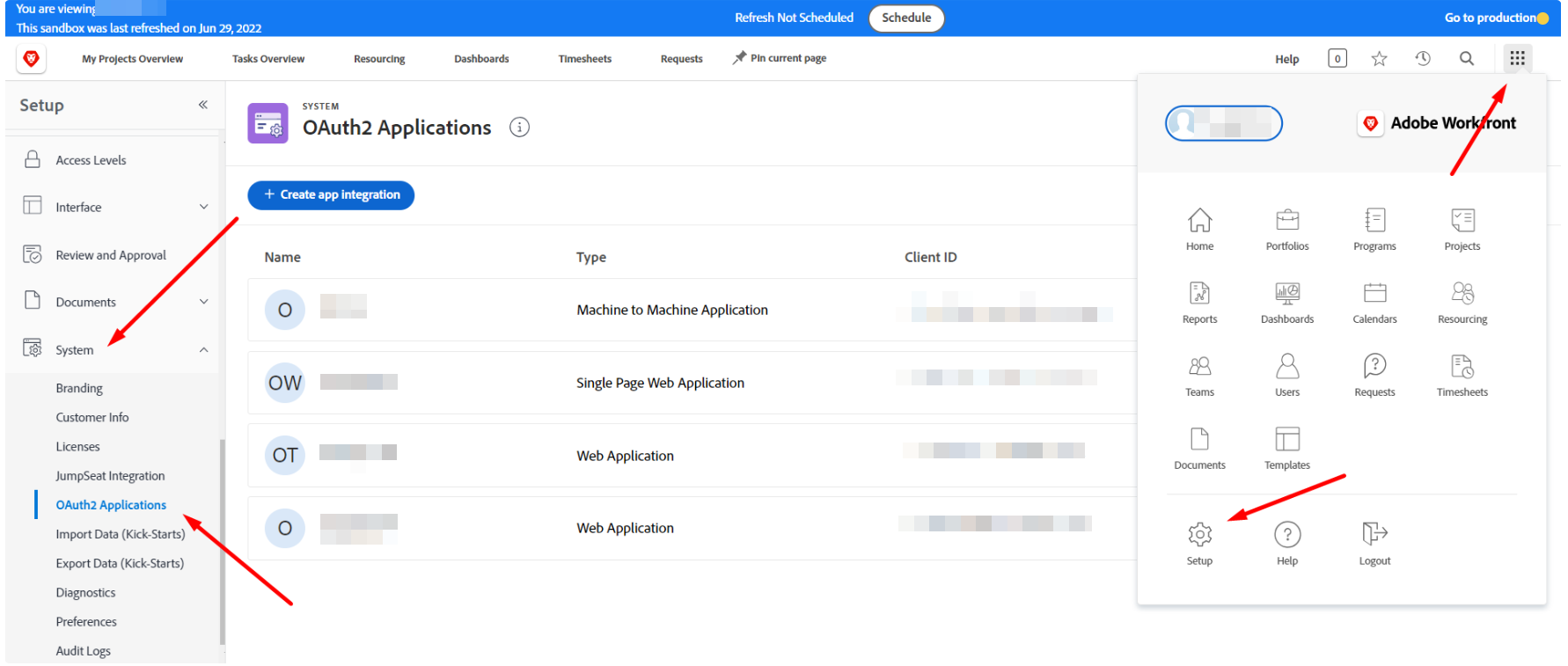
Select the Create app integration button to initiate the creation of a new application integration. Utilize the Client ID and Client Secret values within your OneTeg Connection configuration settings.
Additionally, it is imperative to configure the callback URL of your OneTeg system to enable the OneTeg connection functionality. For further assistance, please consult your designated OneTeg representative.
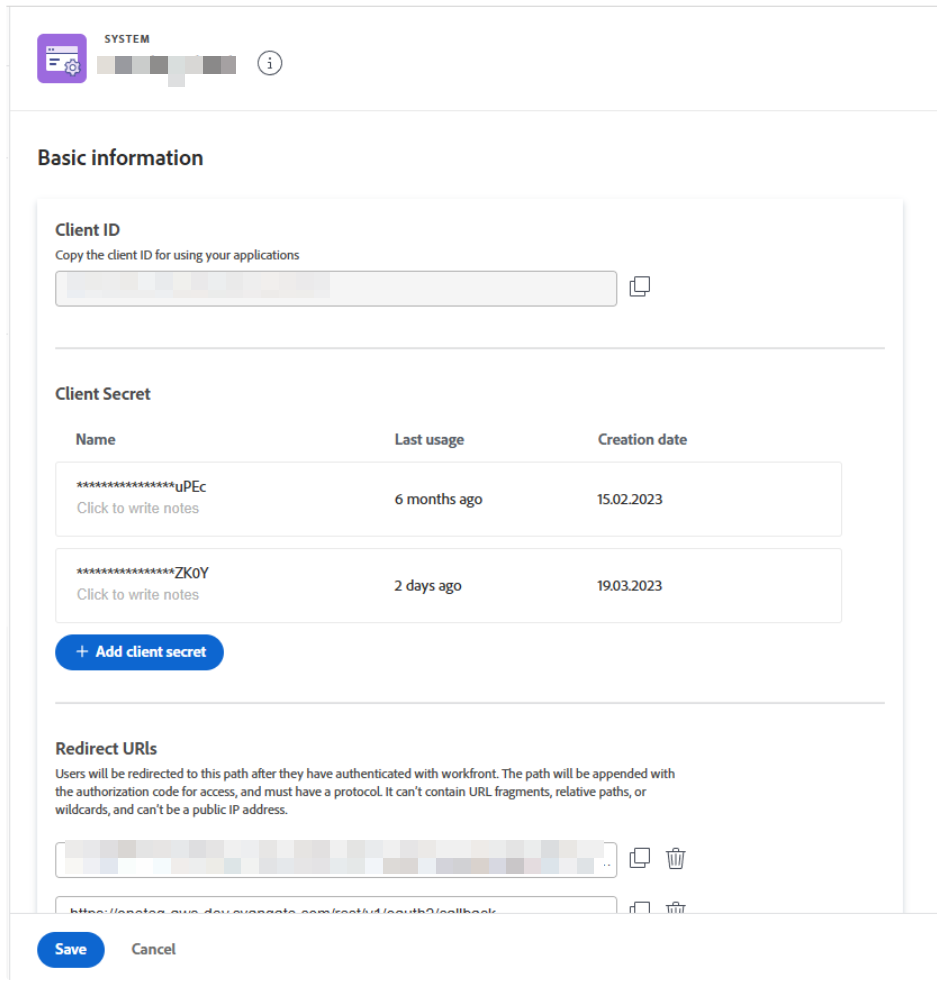
3. Connection Settings and Configuration for OneTeg
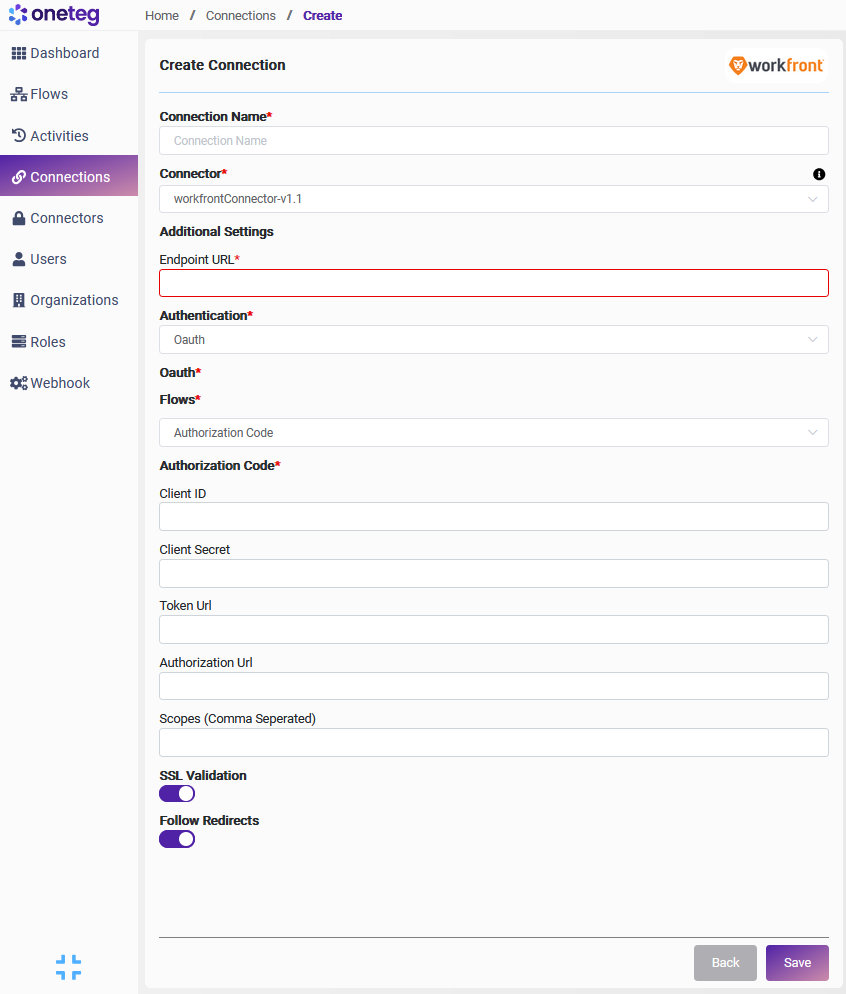
|
Settings Parameters |
Value / Sample Value |
Description |
Required (Y/N) |
|---|---|---|---|
|
Connection Name |
Workfront Connector |
Preferred Connection Designation |
Y |
|
Connector |
Workfront Connector |
Preferred Connector Designation |
Y |
|
Endpoint URL |
Workfront Website URL |
Endpoint required for performing CRUD operations |
Y |
|
Authentication |
OAuth / Authorization Code |
Type of authentication |
Y |
|
Client ID |
AbCDeFgh…. |
Client ID |
Y |
|
Client Secret |
x1y2Z3…. |
Client Secret |
Y |
|
Token URL |
https://<yourworkfronturl>/integrations/oauth2/api/v1/token |
Token URL |
Y |
|
Authorization URL |
https://yourworkfronturl/integrations/oauth2/authorize |
Authorization URL |
Y |
|
Scopes |
|
Scopes for connection |
N |