
1. General Information
Microsoft Dynamics 365 is a cloud-based suite of enterprise resource planning (ERP) and customer relationship management (CRM) applications. It integrates with Microsoft's broader ecosystem including Azure, Microsoft 365, Teams, and Power Platform, enabling organizations to manage sales, customer service, field service, finance, supply chain, marketing, and operations from a unified platform. The OneTeg MS Dynamics 365 Connector allows users to build automated workflows that interact with Dynamics 365 entities such as Accounts, Contacts, Leads, Opportunities, Cases, and more.
2. Connect MS Dynamics 365 to Oneteg
Authentication for the MS Dynamics 365 Connector uses OAuth 2.0 via Azure Active Directory (Azure AD). You will need to register an application in Azure AD and grant it the appropriate Dynamics 365 permissions before configuring the connector in OneTeg.
Step 1 - Register an App in Azure Active Directory
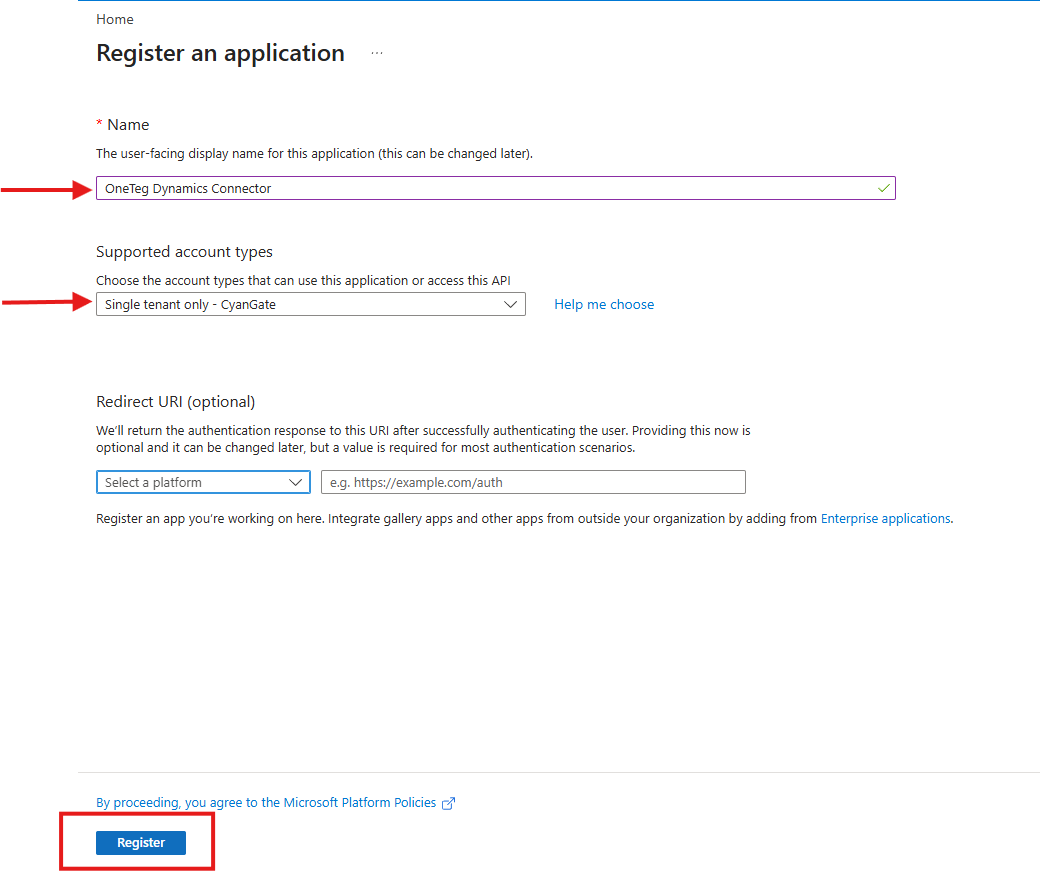
Log in to the Azure Portal with your administrator credentials. Navigate to Azure Active Directory → App Registrations and click New Registration.
Provide a name for your application (e.g., "OneTeg Dynamics Connector"), select the appropriate supported account type, and click Register.
Step 2 - Note Your Application (Client) ID and Tenant ID
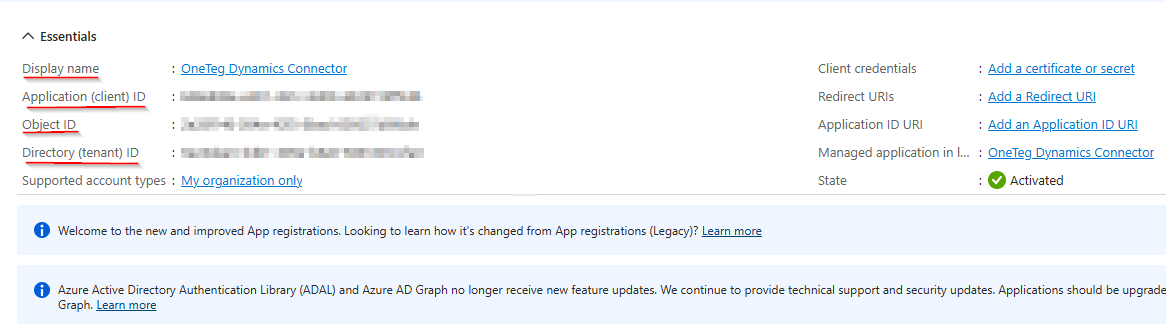
Once the app is registered, you will be redirected to the app's Overview page. Note the Application (Client) ID and the Directory (Tenant) ID are required when configuring the connector in OneTeg.
Step 3 - Create a Client Secret
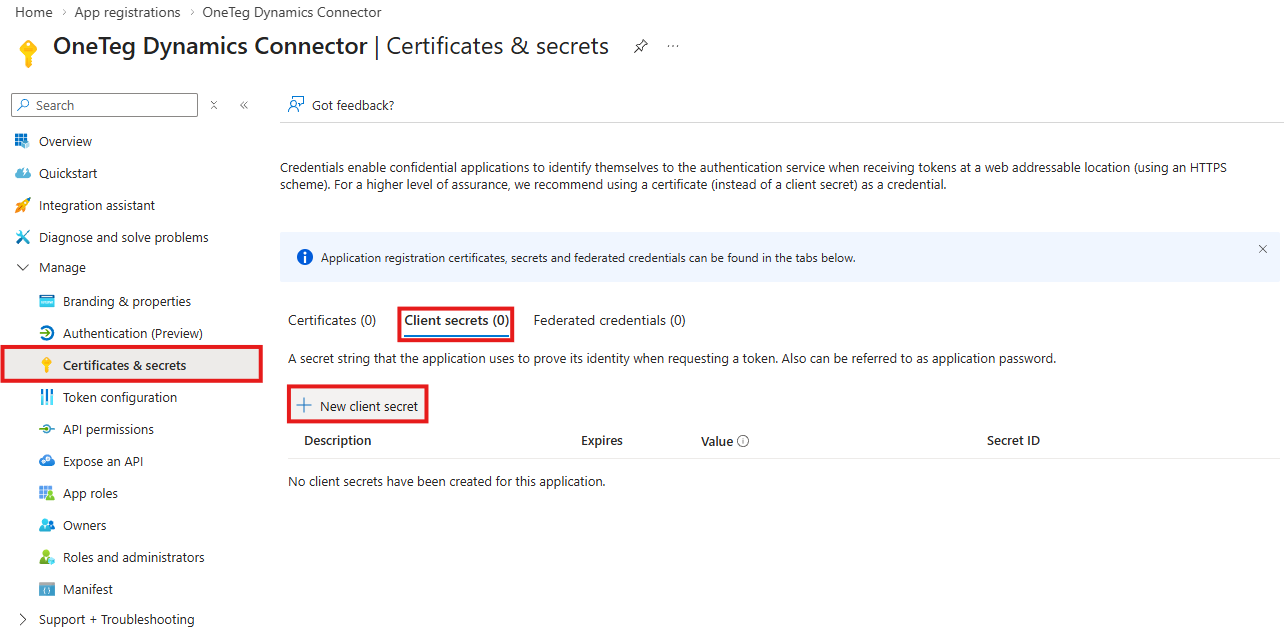
In the left navigation pane, go to Certificates & Secrets → Client Secrets and click New Client Secret. Enter a description and set an expiry period, then click Add. Copy the secret Value immediately — it will not be displayed again after you navigate away from this screen.
Step 4 - Grant API Permissions for Dynamics 365
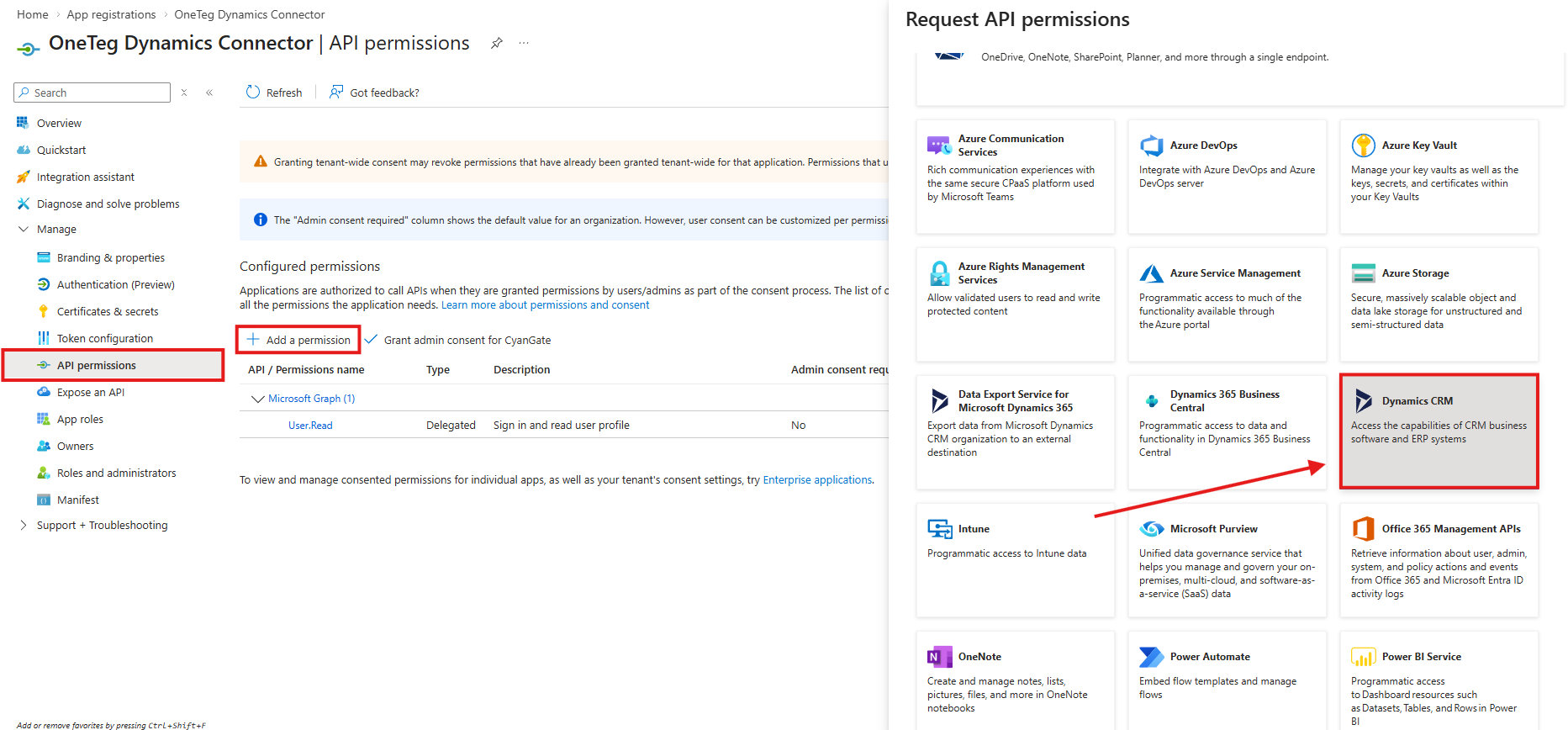
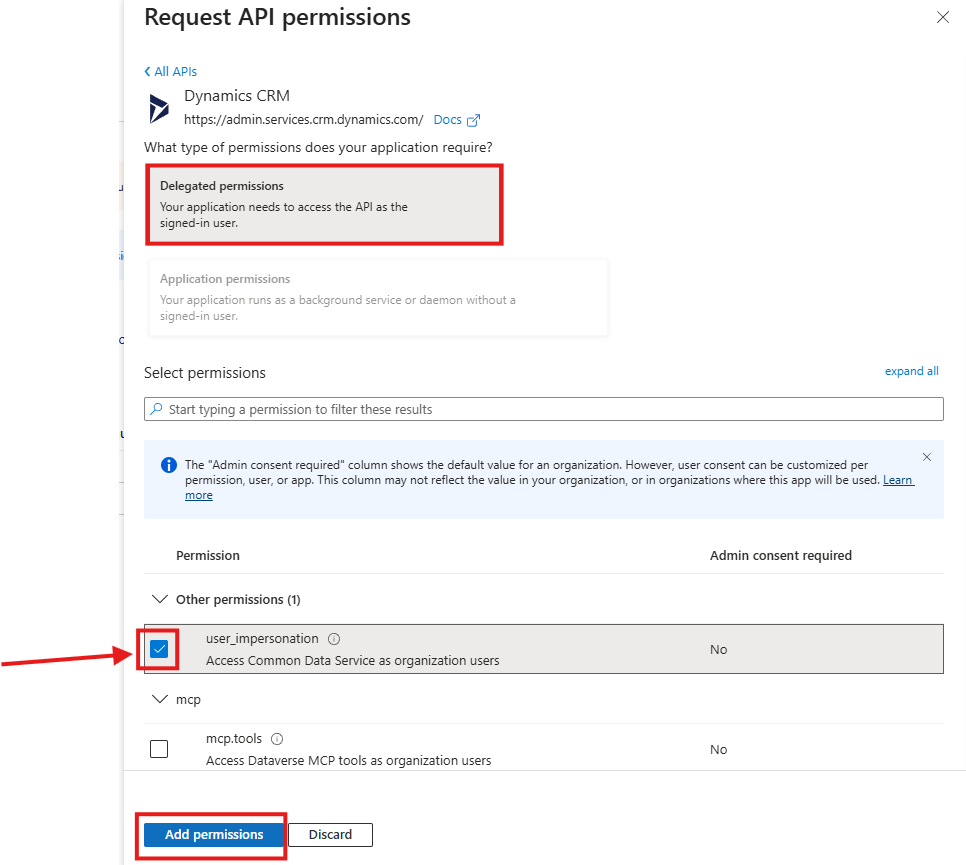
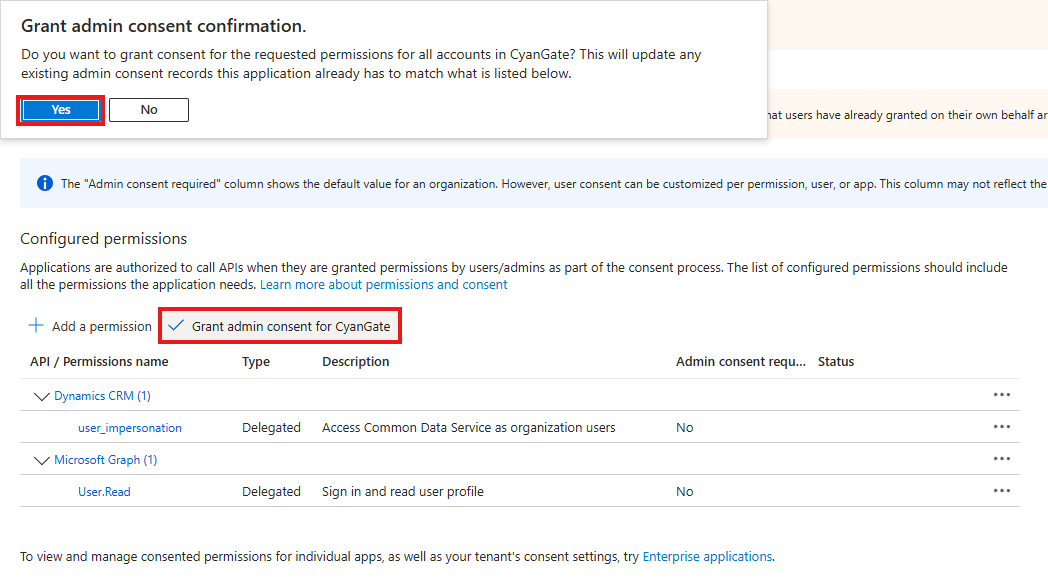
Navigate to API Permissions → Add a Permission → Dynamics CRM → Delegated Permissions, and select user_impersonation. Click Add Permissions, then click Grant Admin Consent for your tenant to authorize the app.
3. Connection Settings and Configuration for OneTeg
In OneTeg, navigate to Connections and create a new connection using the MS Dynamics 365 Connector. The connector supports two authentication methods: OAuth (Client Credentials) and Bearer Token. Choose the one that best fits your setup.
Option 1 — OAuth Authentication (Client Credentials)
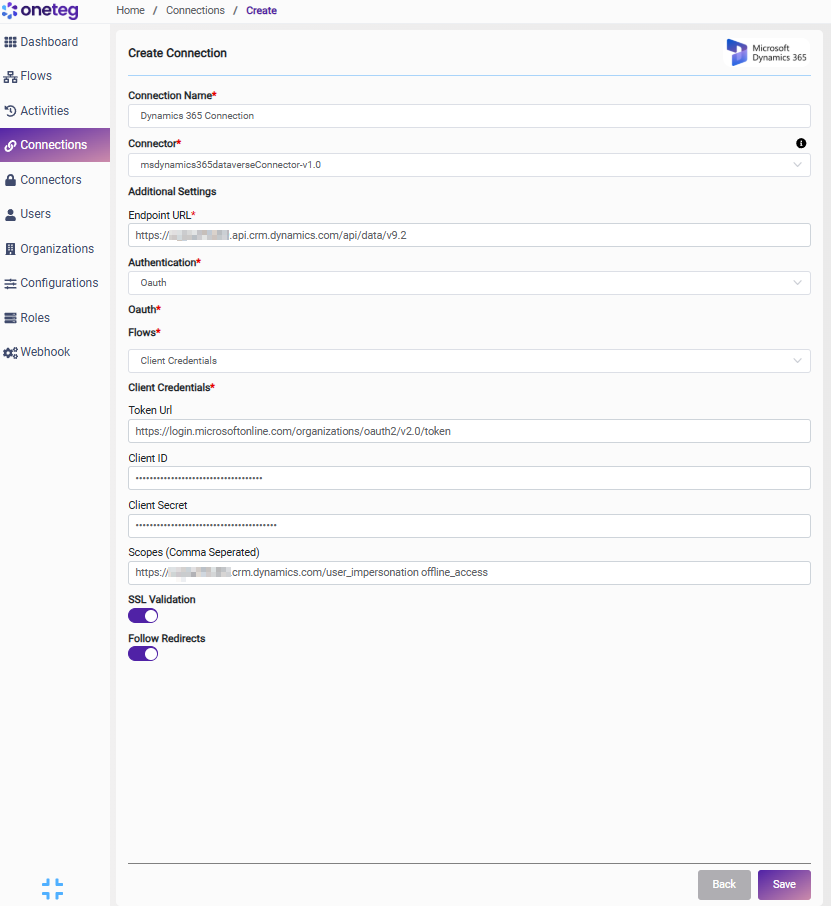
|
Settings Parameters |
Value / Sample Value |
Description |
Required (Y/N) |
|
Connection Name |
Dynamics 365 Connection |
Choose a name for your Connection |
Y |
|
Connector |
MS Dynamics 365 Connector |
Select the MS Dynamics 365 Connector from the dropdown |
Y |
|
Endpoint URL |
The base URL of your Dynamics 365 environment. Found in Power Platform Admin Center under Environments → your environment → Settings |
Y |
|
|
Authentication |
OAuth |
Authentication method used to connect to Dynamics 365 via Azure AD |
Y |
|
Flows
|
Client Credentials |
|
Y |
|
Token URL |
https://login.microsoftonline.com/{tenant-id}/oauth2/v2.0/token |
Constructed using your Tenant ID from Azure AD. In Azure Portal: Azure Active Directory → Overview → Directory (Tenant) ID. Replace {tenant-id} with that value |
Y |
|
Client ID |
Application (Client) ID |
Obtained from Azure Portal: Azure Active Directory → App Registrations → your app → Overview → Application (Client) ID |
Y |
|
Client Secret |
Secret Value |
Obtained from Azure Portal: Azure Active Directory → App Registrations → your app → Certificates & Secrets → Client Secrets → Value. Copy immediately after creation |
Y |
|
Scopes |
Constructed using your Dynamics 365 Environment URL (same value as Endpoint URL above). Append /.default to form the scope |
Y |
Option 2 — Bearer Token Authentication
|
Settings Parameters |
Value / Sample Value |
Description |
Required (Y/N) |
|
Connection Name |
Dynamics 365 Connection |
Choose a name for your Connection |
Y |
|
Connector |
MS Dynamics 365 Connector |
Select the MS Dynamics 365 Connector from the dropdown |
Y |
|
Endpoint URL |
The base URL of your Dynamics 365 environment. Found in Power Platform Admin Center under Environments → your environment → Settings |
Y |
|
|
Authentication |
Bearer |
Select Bearer from the dropdown |
Y |
|
token |
Azure AD Access Token |
A valid Azure AD access token scoped to your Dynamics 365 environment. Can be obtained by calling the Azure AD token endpoint manually or via an external process. Must be updated each time the token expires |
Y |
4. Supported MS Dynamics 365 Actions and Options
For the full list of supported endpoints, parameters, and options, see the page below:
MS Dynamics 365 Connector v1.0