
1. General Information
Slack is a cloud-based team communication and collaboration platform widely used by organizations to manage messaging, file sharing, and integrations across teams and projects. It organizes conversations into channels, supports direct messaging, and provides a rich API ecosystem that allows external applications to send messages, respond to events, manage channels, and automate workflows.
The OneTeg Slack Connector integrates with the Slack Web API and enables users to build automated workflows for sending messages, managing channels, retrieving conversation history, and interacting with Slack workspaces directly from the OneTeg flow builder.
2. Connect Slack to OneTeg
The Slack Connector authenticates using a Slack Bot Token. Bot Tokens are generated when you create and install a Slack App in your workspace. They grant the connector permission to interact with Slack on behalf of the app. Follow the steps below to create a Slack App and obtain a Bot Token.
Slack Bot Tokens begin with xoxb- and are tied to a specific Slack App installed in your workspace. The token inherits the permissions (OAuth scopes) configured for the app — ensure all required scopes are added before installing the app and generating the token.
Step 1 - Create a Slack App
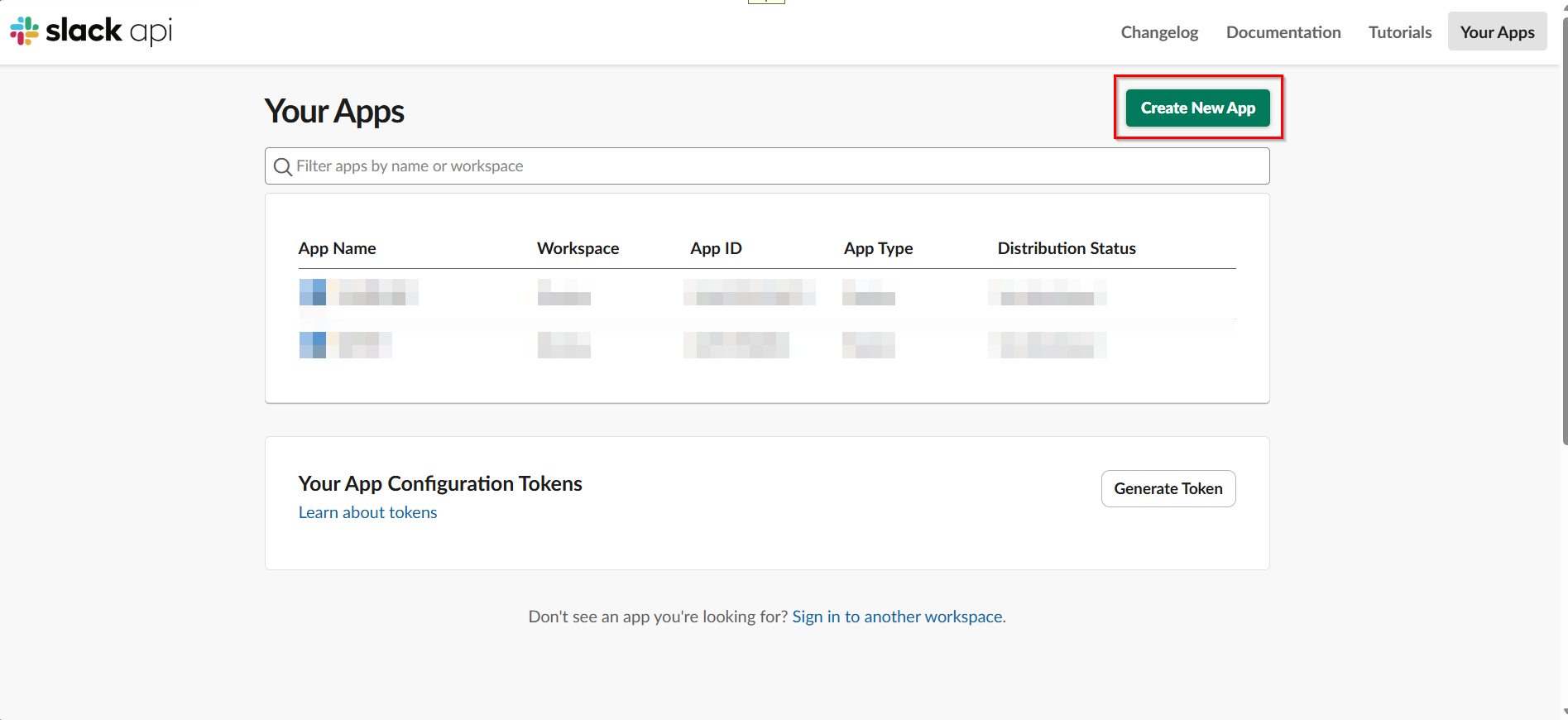
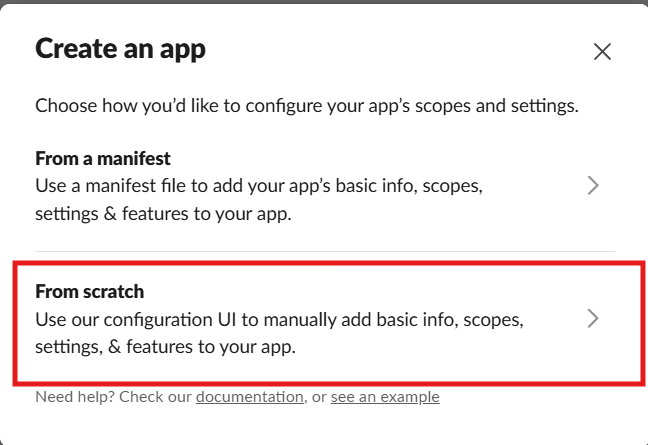
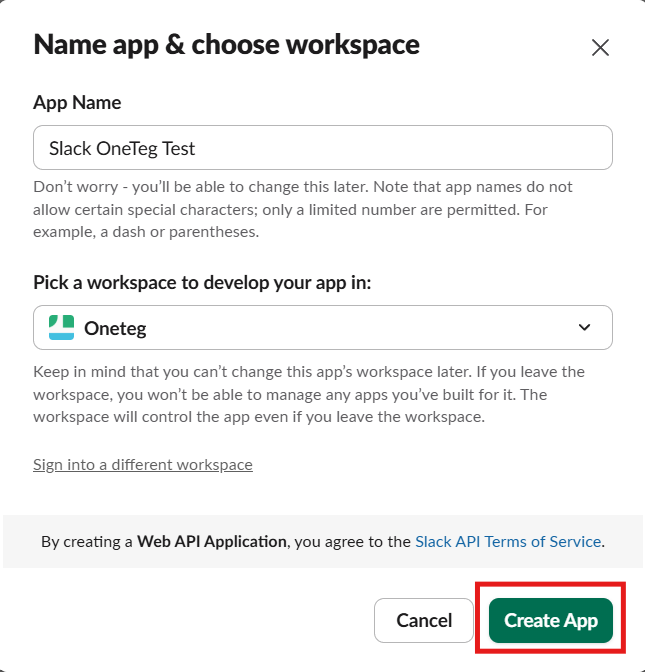
Go to api.slack.com/apps and click Create New App. Select From scratch. Enter an app name (e.g., "OneTeg Integration") and select the Slack workspace you want to connect to OneTeg. Click Create App.
Step 2 - Configure Bot Token Scopes
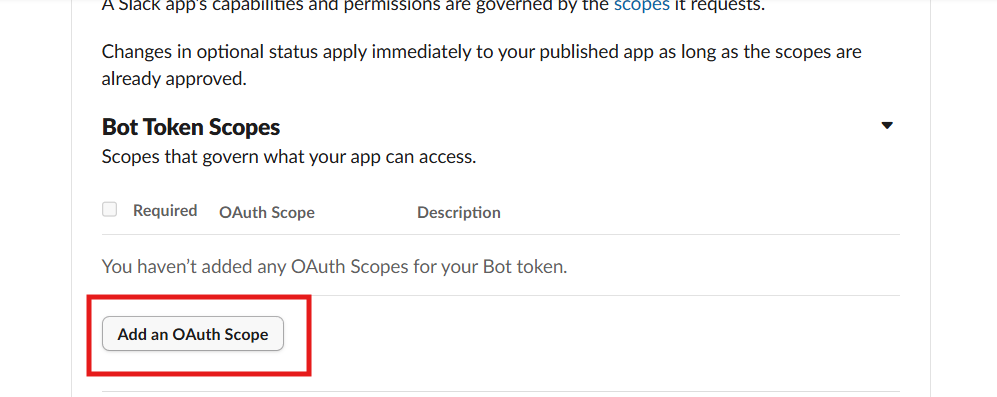
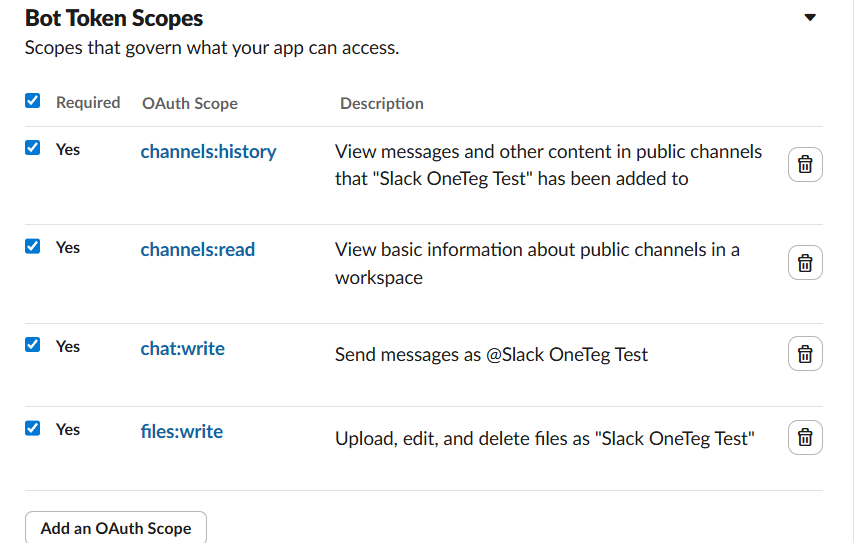
In the left sidebar, navigate to OAuth & Permissions. Scroll to the Bot Token Scopes section and click Add an OAuth Scope. Add the scopes your OneTeg flows require. Common scopes include: chat:write (send messages), channels:read (list channels), channels:history (read messages), and files:write (upload files).
Step 3 - Install the App and Obtain the Bot Token
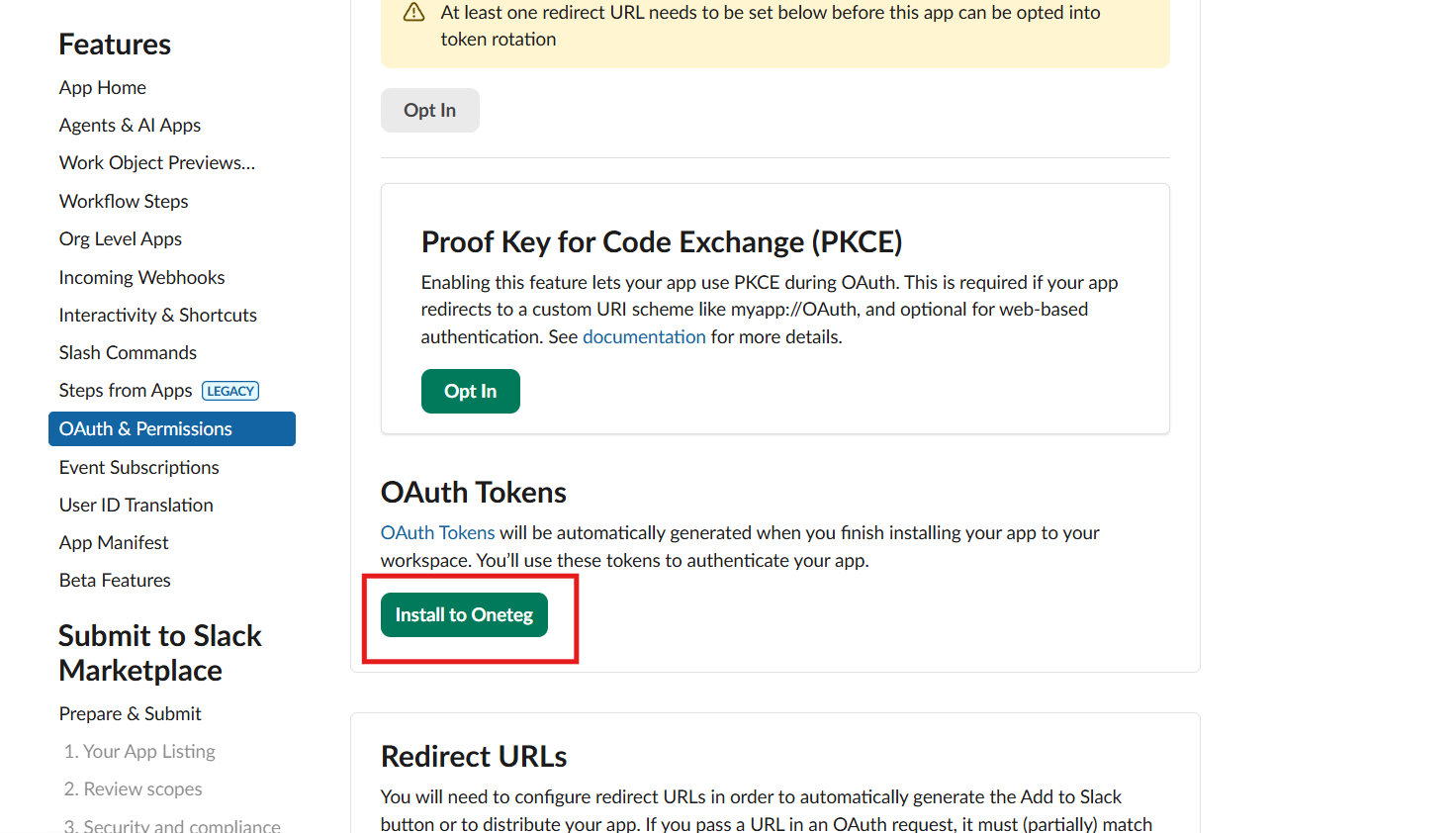
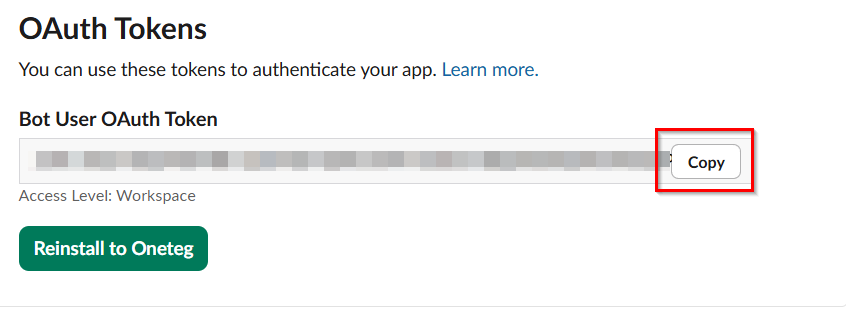
Scroll to the top of the OAuth & Permissions page and click Install to Workspace. Review the permissions and click Allow. After installation, the page will display your Bot User OAuth Token (beginning with xoxb-). Copy this token and store it securely — this is the value you will enter in the Token field in OneTeg.
3. Connection Settings and Configuration for OneTeg
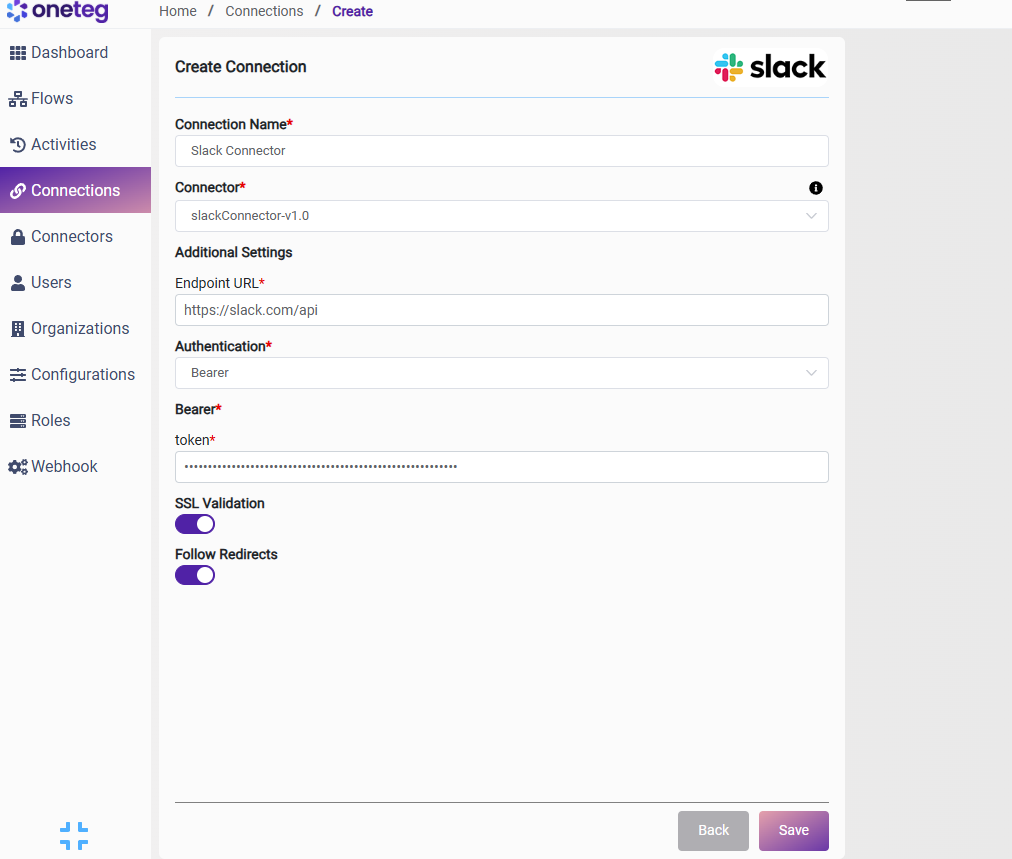
In OneTeg, navigate to Connections and create a new connection using the Slack Connector. Fill in the settings below using the Bot Token obtained from the Slack API portal.
|
Settings Parameters |
Value / Sample Value |
Description |
Required (Y/N) |
|
Connection Name |
Slack Connection |
Choose a name for your Connection |
Y |
|
Connector |
slackConnector-v1.0 |
Auto-populated once the Slack Connector is selected |
Y |
|
Endpoint URL |
Base URL of the Slack Web API. This value is fixed and does not change |
Y |
|
|
Authentication |
Bearer |
Select Bearer from the dropdown |
Y |
|
Token |
xoxb-your-bot-token |
The Bot User OAuth Token generated after installing your Slack App to your workspace. Obtained from api.slack.com/apps → your app → OAuth & Permissions → Bot User OAuth Token |
Y |
4. Supported Slack Actions and Options
For the full list of supported endpoints, parameters, and options, see the page below: