
1. General Information
Trello is a visual project management and collaboration tool that uses boards, lists, and cards to help teams organize and track work. It is widely used for task management, sprint planning, content calendars, and team coordination across organizations of all sizes. Trello is part of the Atlassian product suite and integrates with a wide range of third-party tools and services.
The OneTeg Trello Connector integrates with the Trello REST API and enables users to build automated workflows for managing boards, lists, cards, members, labels, and checklists directly from the OneTeg flow builder.
2. Connect Trello to OneTeg
The Trello Connector authenticates using a Trello API Token combined with an API Key. Both are generated from the Trello Developer Portal and used together as the Bearer token value in OneTeg. Follow the steps below to obtain your credentials.
Trello uses a combined API Key + Token authentication model. The API Key identifies your application, and the Token grants access on behalf of a specific Trello user account. Both values must be obtained from the Trello Developer Portal before configuring the connector in OneTeg.
Step 1 - Create a New App in the Trello Power-Up Admin Portal
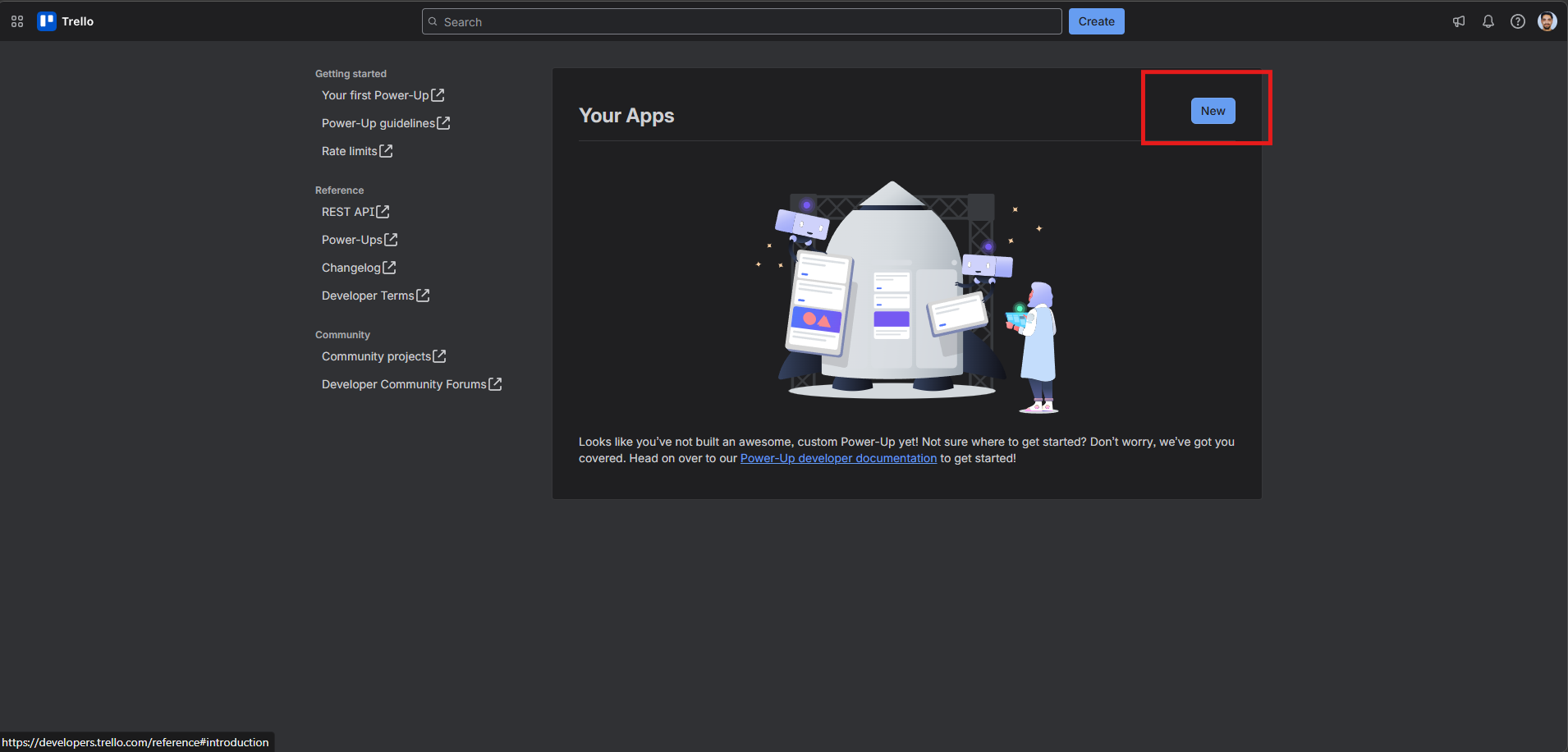
Log in to Trello and go to https://trello.com/power-ups/admin/. Click the New button.
Fill in the app creation from with the following details:
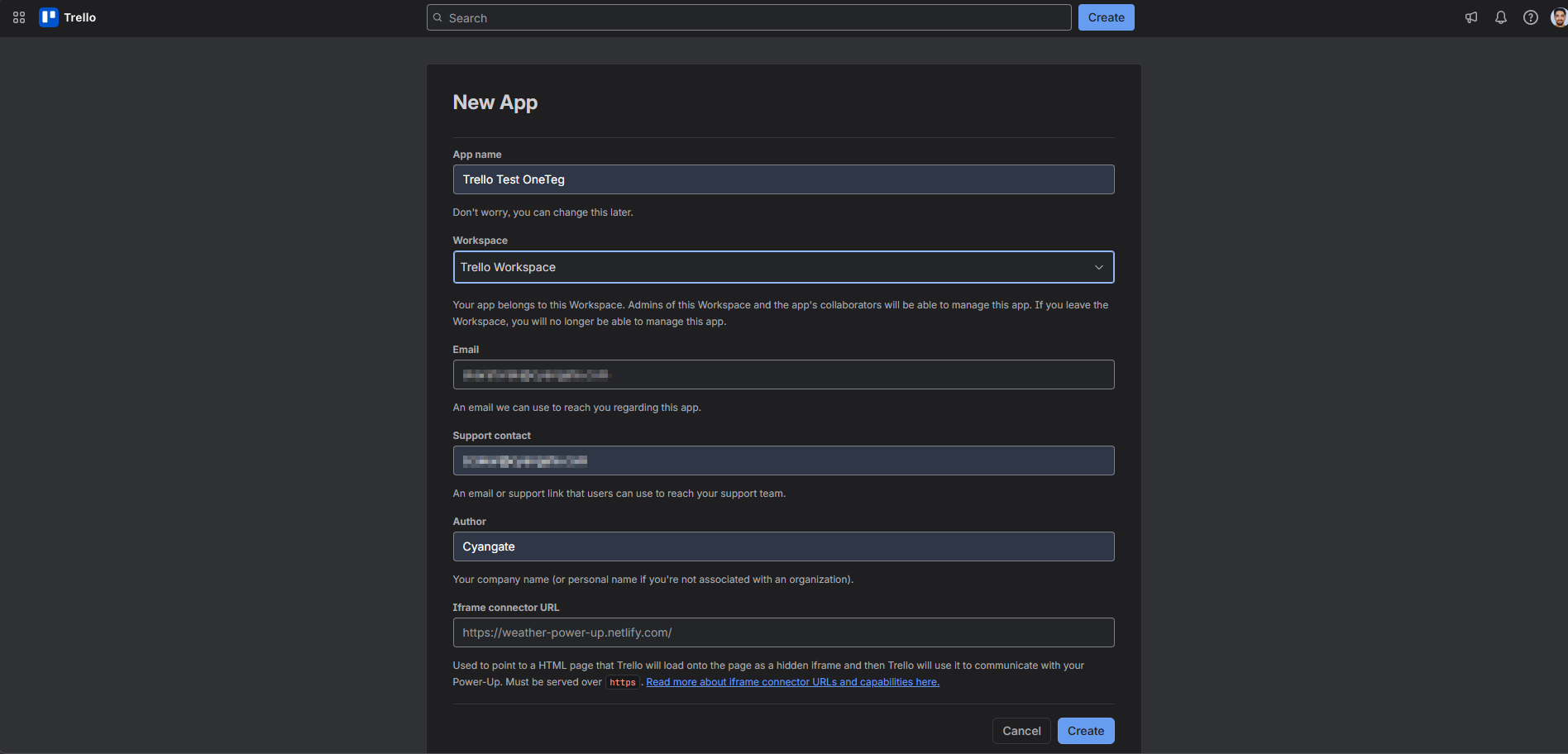
Click Create to complete the registration.
Step 2 - Generate Your API Key
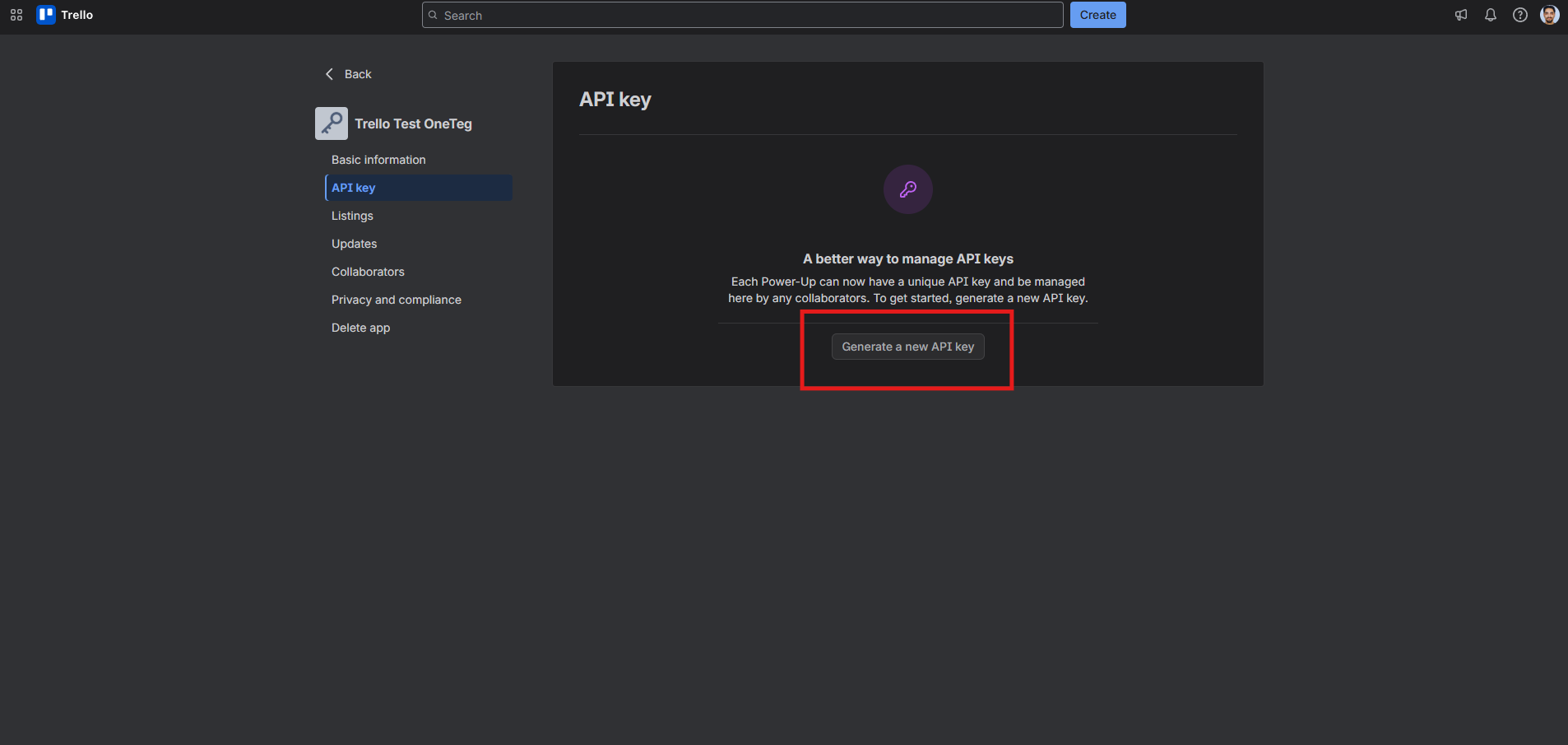
After creating the app, you will be taken to the app’s detail page. Click the API key tab in the left navigation. Click Generate a new API key.
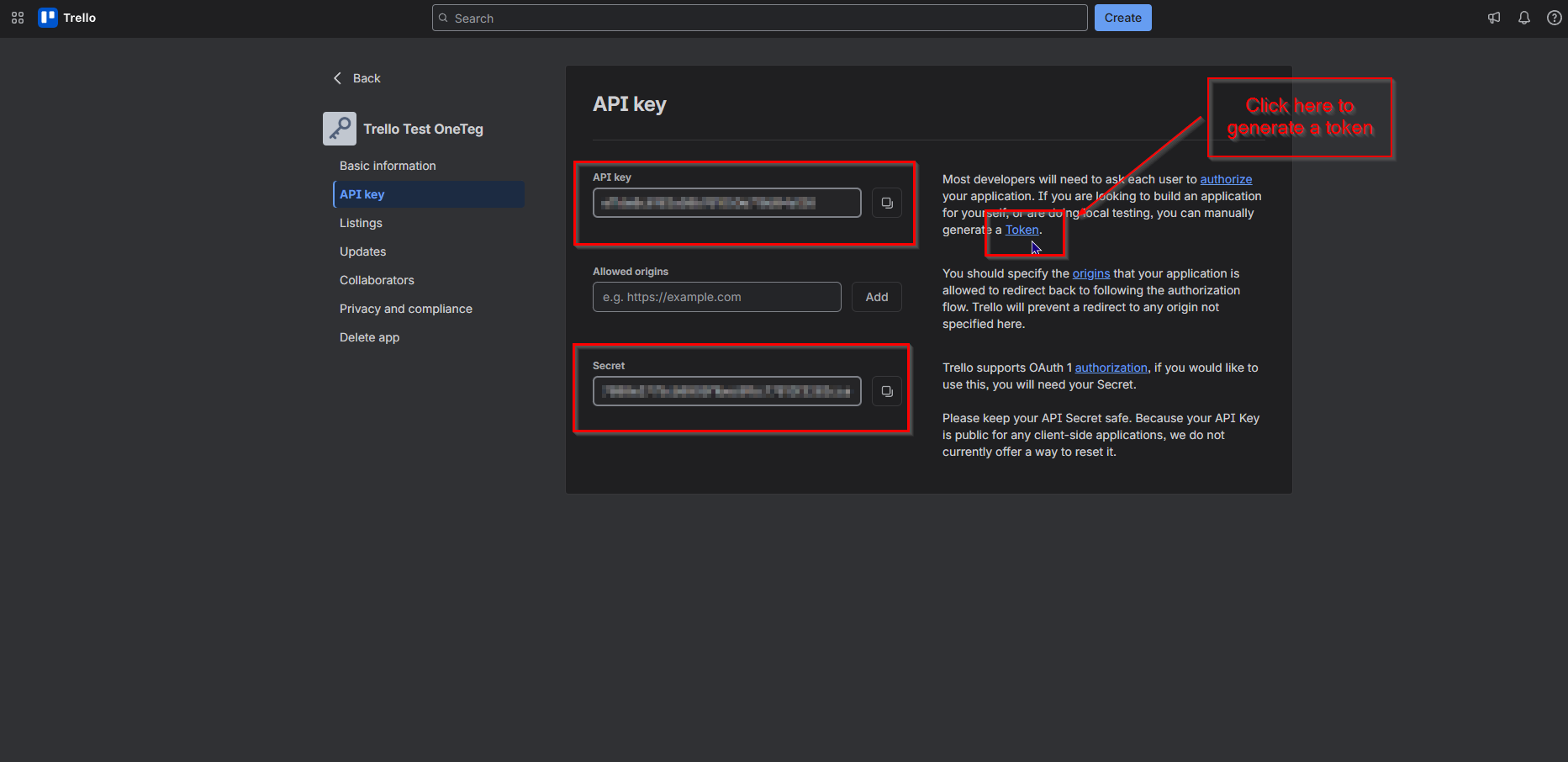
Your API Key and Secret will be displayed. Copy the API Key and store it securely. You will need it when making individual API requests as the key query parameter.
Step 3 - Generate Your API Token
On the same API key page, locate the Token link in the text on the right side of the page. Click it and Trello will prompt you to authorize the application and grant it access to your Trello account. Click Allow. Trello will then display your API Token. Copy it immediately and store it securely. This is the value you will enter in the Token field in OneTeg.
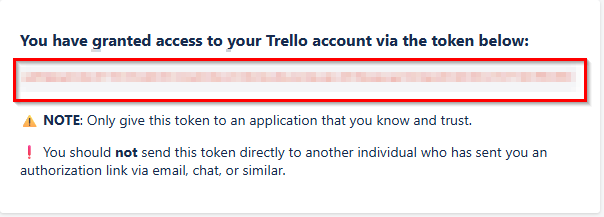
The API Secret shown on the API key page is used for OAuth 1.0 flows and is not required for the OneTeg Trello Connector. Only the API Key and API Toekn are needed. Keep both values secure and do not share them.
3. Connection Settings and Configuration for OneTeg
In OneTeg, navigate to Connections and create a new connection using the Trello Connector. Fill in the settings below using the credentials obtained from the Trello Developer Portal.
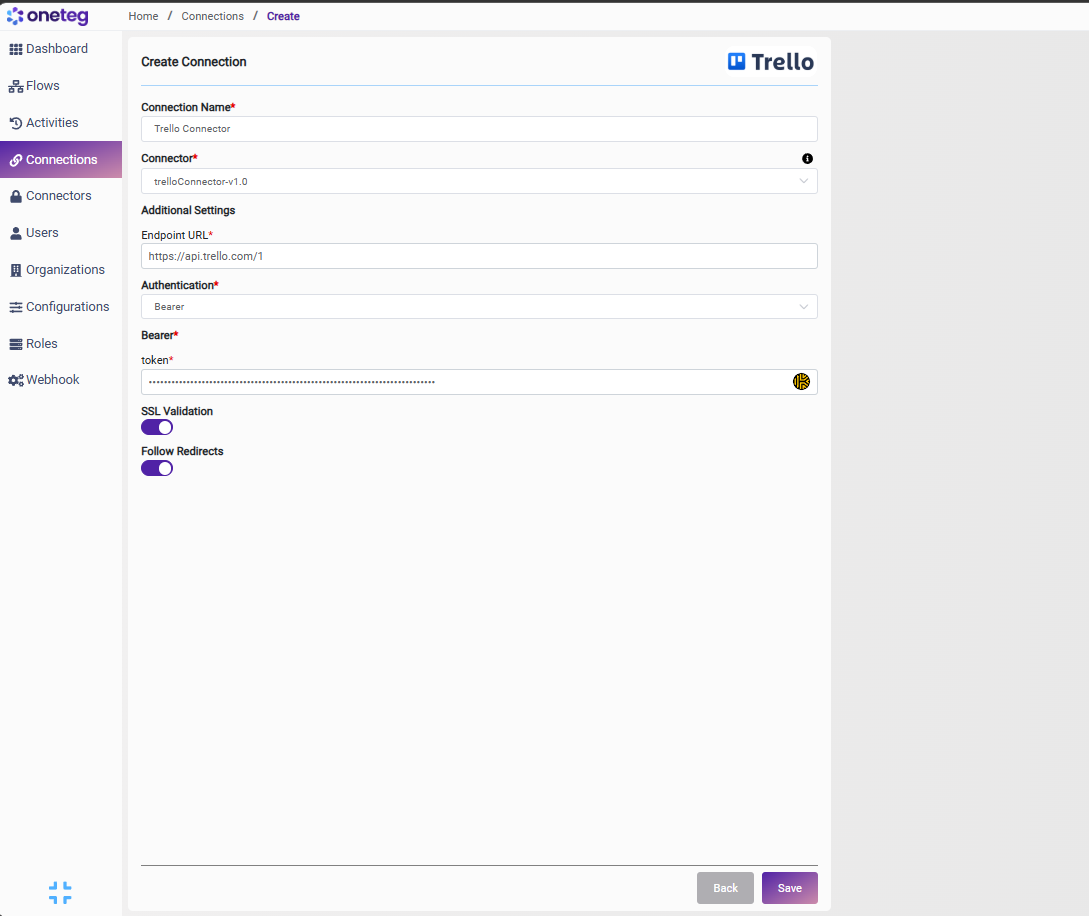
|
Settings Parameters |
Value / Sample Value |
Description |
Required (Y/N) |
|
Connection Name |
Trello Connection |
Choose a name for your Connection |
Y |
|
Connector |
trelloConnector-v1.0 |
Auto-populated once the Trello Connector is selected |
Y |
|
Endpoint URL |
Base URL of the Trello REST API including the version prefix. This value is fixed and does not change |
Y |
|
|
Authentication |
Bearer |
Select Bearer from the dropdown. Trello uses token-based authentication |
Y |
|
Token |
Trello API Token |
The API Token generated from trello.com/power-ups . Grants access to Trello on behalf of the authenticated user. The API Key must also be passed as the key query parameter in individual API requests. |
Y |
4. Supported Trello Actions and Options
For the full list of supported endpoints, parameters, and options, see the page below: