
1. General Information
WoodWing Studio is a multichannel publishing and editorial workflow platform designed for media companies, publishers, and content teams. It enables collaborative creation, editing, and publishing of print and digital content across channels, including magazines, newspapers, digital editions, and web publications. WoodWing Studio manages the full editorial workflow from content planning and assignment through to final output, integrating with Adobe InDesign and other creative tools.
The OneTeg WoodWing Studio Connector integrates with the WoodWing Studio Server API and enables users to build automated workflows that interact with Studio's publishing and content management capabilities directly from the OneTeg flow builder.
WoodWing Studio is typically deployed on-premise or on a private server. The Endpoint URL and WoodWing Studio Server URL will be specific to your organization's server environment. Replace the example placeholder values in this document with your actual server URLs.
2. Connect WoodWing Studio to OneTeg
The WoodWing Studio Connector uses a proprietary authentication method specific to WoodWing Studio's JSON-RPC API. Authentication requires your WoodWing Studio user credentials along with client application identifiers registered in the Studio Server. No external OAuth provider is involved — credentials are validated directly against the WoodWing Studio Server.
The Client Name, Client App Name, and JSON-RPC Request ID are application-level identifiers defined by your WoodWing Studio Server configuration. Contact your WoodWing Studio administrator to obtain the correct values for your integration client.
Step 1 - Identify Your WoodWing Studio Server URL
Locate the base URL of your WoodWing Studio server. This is typically an internal hostname or IP address for on-premise deployments. The Studio Server is accessed at this base URL with /StudioServer appended (e.g., https://your-studio-server.com/StudioServer). Both the base URL and the full StudioServer path are required when configuring the connector in OneTeg.
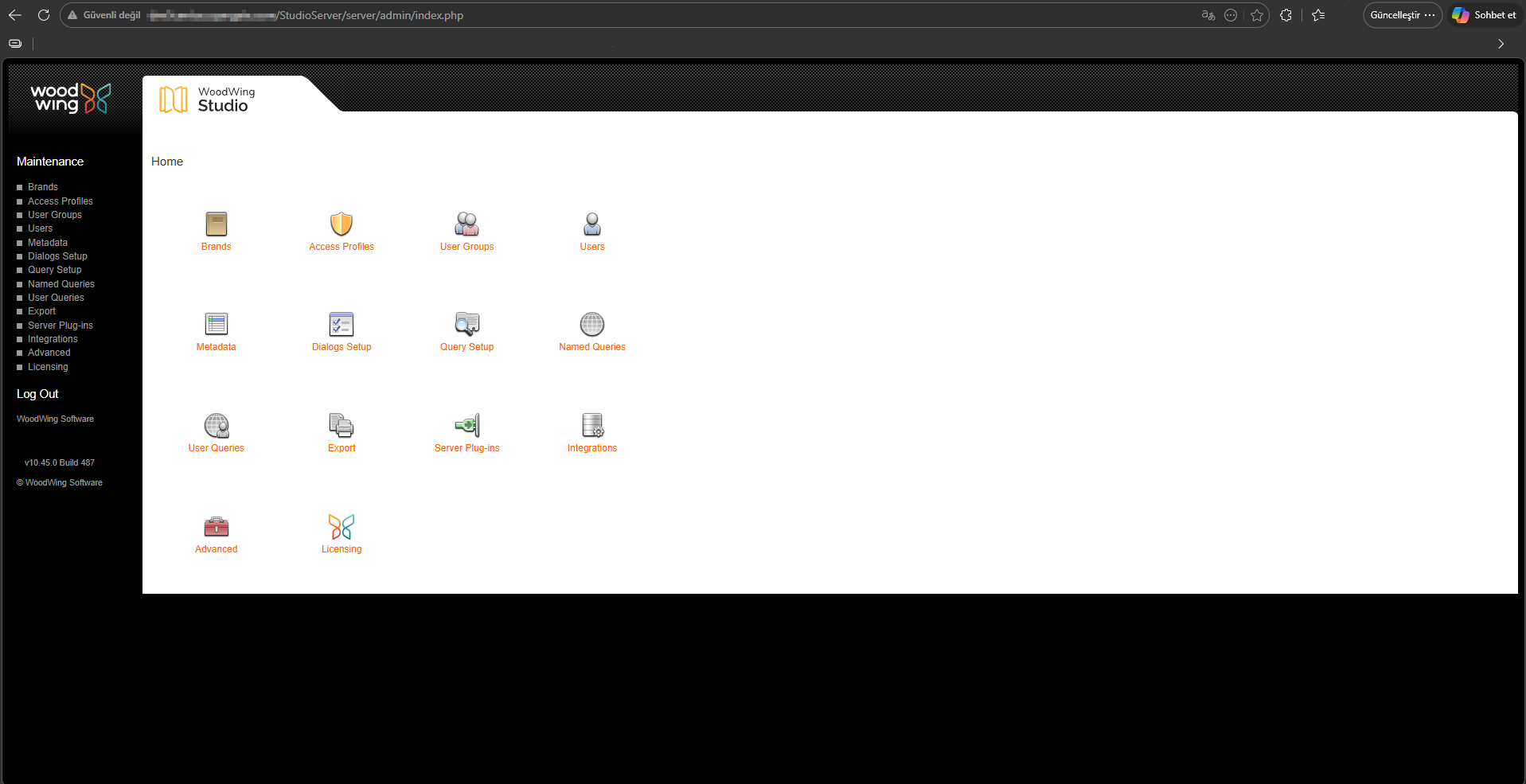
Step 2 - Create or Identify a Dedicated Integration User
Log in to WoodWing Studio as an administrator. Navigate to the Users section in the Management area and create a dedicated user account for the OneTeg integration. Assign the user a role with the minimum permissions required for your integration workflows. Note the username and password — these will be entered in the OneTeg connection form.
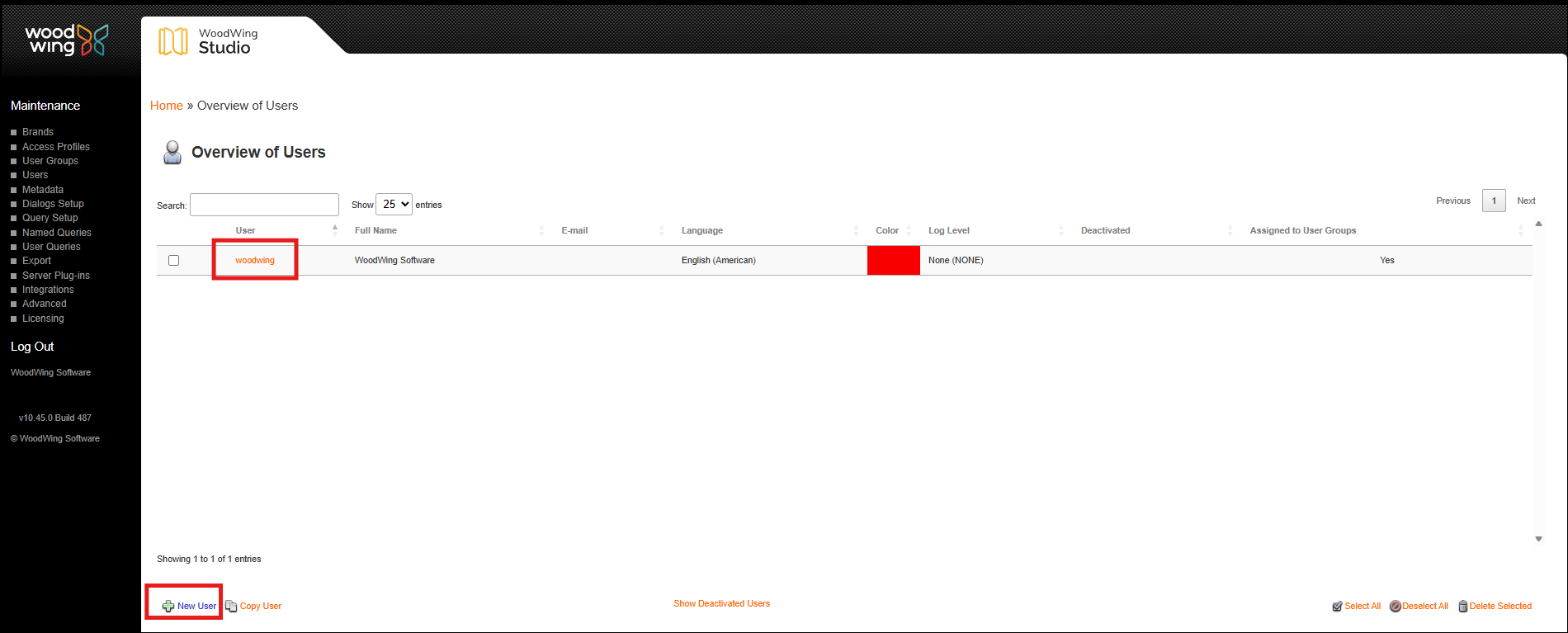
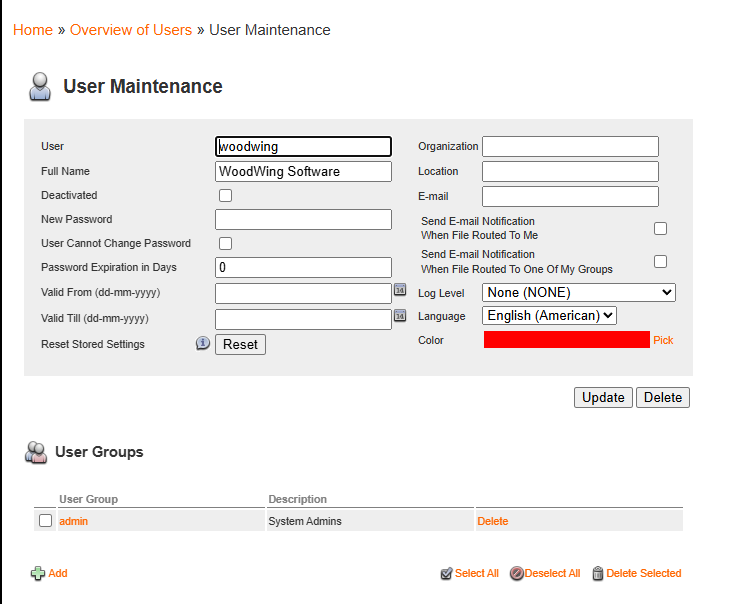
Step 3 - Obtain Client Application Identifiers
Contact your WoodWing Studio administrator to obtain the following application identifiers for the OneTeg integration client: Client Name (the name of the registered client application), Client App Name (the application name as registered in Studio Server), and JSON-RPC Request ID (a unique identifier for the JSON-RPC request context). These values are defined in the WoodWing Studio Server configuration and are required for all API interactions.
3. Connection Settings and Configuration for OneTeg
In OneTeg, navigate to Connections and create a new connection using the WoodWing Studio Connector. The connector supports two authentication methods: Woodwingstudio (the native Studio authentication) and Bearer Token. Choose the one that best fits your setup.
Option 1 - Woodwingstudio Authentication
This is the recommended method for most integrations. It authenticates directly against the WoodWing Studio Server using your user credentials and client application identifiers, providing full access to all Studio API capabilities available to the authenticated user.
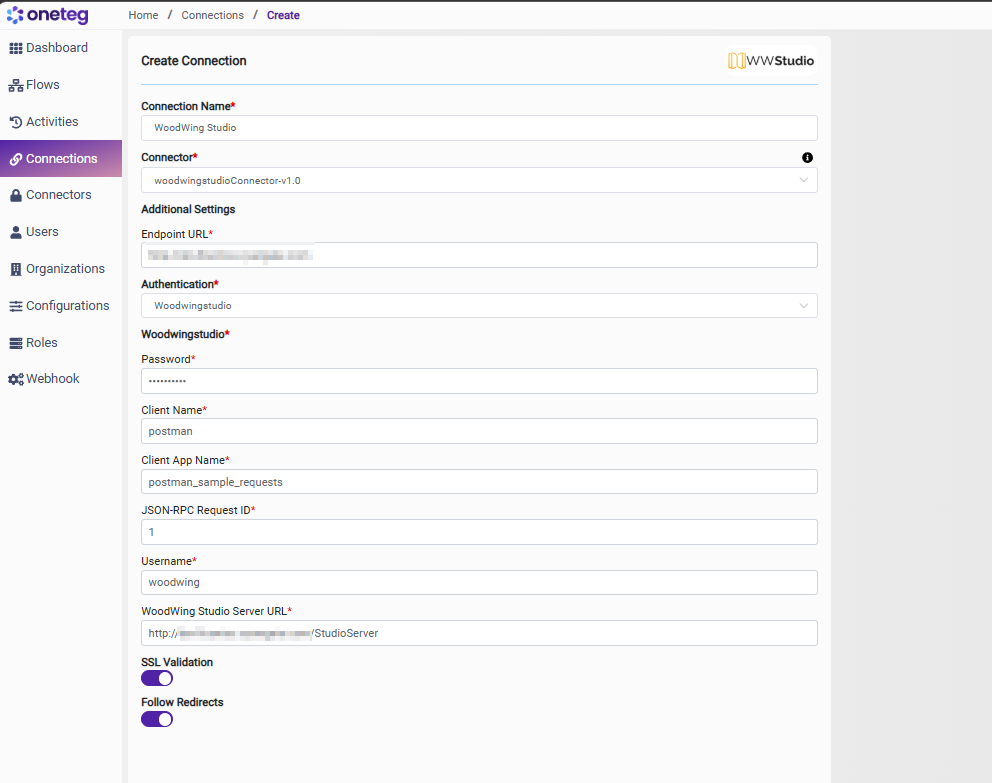
|
Settings Parameters |
Value / Sample Value |
Description |
Required (Y/N) |
|
Connection Name |
WoodWing Studio Connection |
Choose a name for your Connection |
Y |
|
Connector |
woodwingstudioConnector-v1.0 |
Auto-populated once the WoodWing Studio Connector is selected |
Y |
|
Endpoint URL |
Base URL of your WoodWing Studio server. This is the root URL of the server without any path. Replace with your actual server URL |
Y |
|
|
Authentication |
Woodwingstudio |
Select Woodwingstudio from the dropdown to use native Studio authentication |
Y |
|
Password |
Studio user password |
The password of the dedicated WoodWing Studio integration user |
Y |
|
Client Name |
OneTeg Integration Client |
The name of the registered client application in WoodWing Studio Server. Provided by your WoodWing Studio administrator |
Y |
|
Client App Name |
OneTeg |
The application name as registered in the WoodWing Studio Server configuration. Provided by your WoodWing Studio administrator |
Y |
|
JSON-RPC Request ID |
1 |
A unique identifier for the JSON-RPC request context. Typically a numeric value. Provided by or agreed upon with your WoodWing Studio administrator |
Y |
|
Username |
The username (email address) of the dedicated WoodWing Studio integration user |
Y |
|
|
WoodWing Studio Server URL |
The full URL of the WoodWing Studio Server endpoint. Constructed by appending /StudioServer to your base server URL |
Y |
Option 2 - Bearer Token Authentication
Use this method if you have a pre-existing WoodWing Studio access token obtained externally or through a custom authentication process. Note that Studio session tokens expire. You will need to manually update the token when it expires, making this method less suitable for long-running automations.
|
Settings Parameters |
Value / Sample Value |
Description |
Required (Y/N) |
|
Connection Name |
WoodWing Studio Connection |
Choose a name for your Connection |
Y |
|
Connector |
woodwingstudioConnector-v1.0 |
Auto-populated once the WoodWing Studio Connector is selected |
Y |
|
Endpoint URL |
Base URL of your WoodWing Studio server |
Y |
|
|
Authentication |
Bearer |
Select Bearer from the dropdown |
Y |
|
Token |
WoodWing Studio access token |
A valid WoodWing Studio access token obtained externally. Must be updated each time the token expires |
Y |
4. Supported WoodWing Studio Actions and Options
For the full list of supported endpoints, parameters, and options, see the page below: