
1. General Information
Microsoft OneDrive is a cloud-based file storage and synchronization service that is part of the Microsoft 365 ecosystem. It enables individuals and organizations to store, share, and collaborate on files and folders from any device. OneDrive integrates tightly with SharePoint, Teams, and other Microsoft 365 services, and exposes its functionality through the Microsoft Graph API.
The OneTeg OneDrive Connector integrates with the Microsoft Graph API and enables users to build automated workflows for managing files, folders, and drives — including uploading, downloading, searching, and organizing content in OneDrive — directly from the OneTeg flow builder.
The OneDrive Connector uses the Microsoft Graph API — the same unified endpoint used by the Microsoft Teams and SharePoint connectors. If you have already registered an Azure AD app for another Microsoft connector, you can reuse it by adding the appropriate OneDrive permissions or create a dedicated app registration for OneDrive.
2. Connect OneDrive to OneTeg
The OneDrive Connector authenticates via OAuth 2.0 Authorization Code flow using Azure Active Directory (Azure AD). The app registration process is identical to other Microsoft connectors.
For the full step-by-step Azure AD setup guide, refer to: Microsoft Teams Connector v1.0 → Section 2: Connect Microsoft Teams to OneTeg
When registering your app, use the name "OneTeg OneDrive Connector" to keep it distinct. The only difference from the Teams setup is in Step 4 — API Permissions, where you need to add the following Microsoft Graph permissions instead of the Teams-specific ones:
Files.Read — Read access to files in OneDrive
Files.ReadWrite — Read and write access to files in OneDrive
Files.Read.All — Read access to all files the signed-in user can access
Files.ReadWrite.All — Read and write access to all files the signed-in user can access
Sites.Read.All — Read access to items in all site collections (required for SharePoint-backed OneDrive)
offline_access — Maintain access to data without requiring repeated sign-in (required for token refresh)
3. Connection Settings and Configuration for OneTeg
In OneTeg, navigate to Connections and create a new connection using the OneDrive Connector. Fill in the settings below using the credentials obtained from your Azure AD app registration.
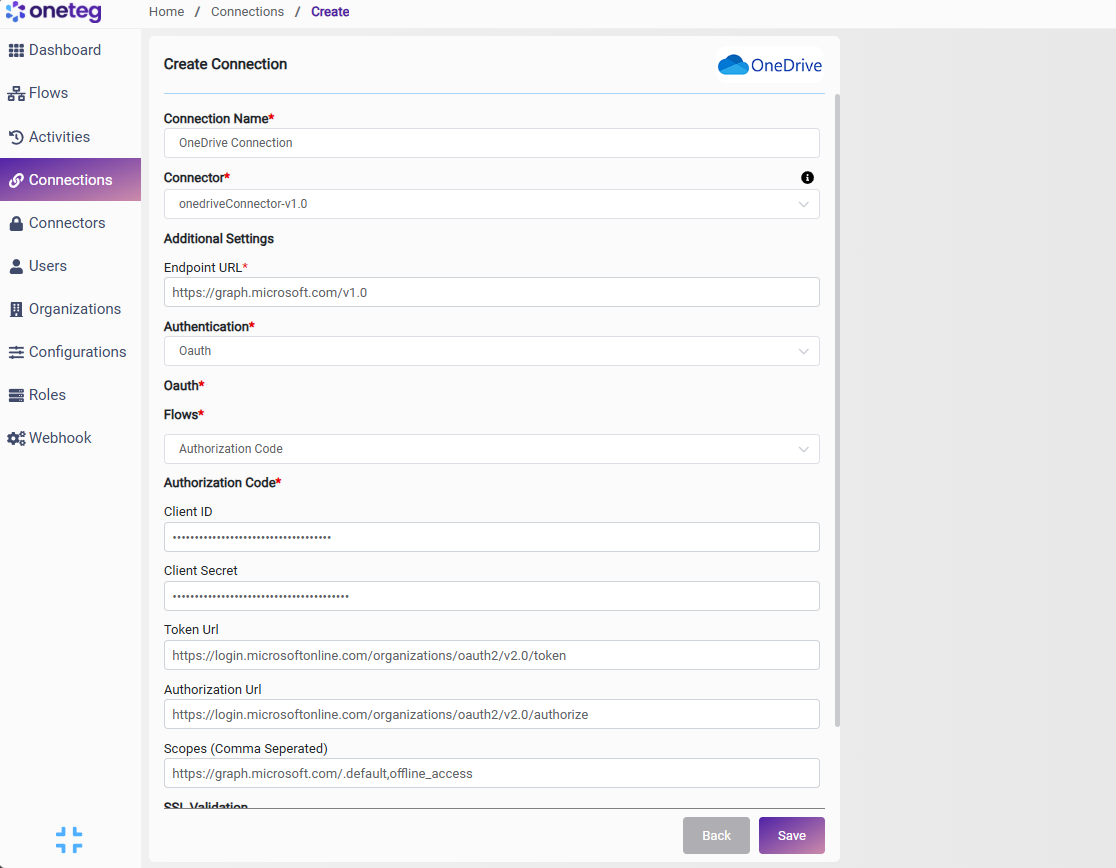
|
Settings Parameters |
Value / Sample Value |
Description |
Required (Y/N) |
|
Connection Name |
OneDrive Connection |
Choose a name for your Connection |
Y |
|
Connector |
onedriveConnector-v1.0 |
Auto-populated once the OneDrive Connector is selected |
Y |
|
Endpoint URL |
Base URL of the Microsoft Graph API. This value is fixed and does not change |
Y |
|
|
Authentication |
OAuth |
Select OAuth from the dropdown |
Y |
|
Flows |
Authorization Code |
Select Authorization Code as the OAuth grant type |
Y |
|
Client ID |
Application (Client) ID |
Obtained from Azure Portal: Azure Active Directory → App Registrations → your app → Overview → Application (Client) ID |
Y |
|
Client Secret |
Client Secret Value |
Obtained from Azure Portal: Azure Active Directory → App Registrations → your app → Certificates & Secrets → Value. Copy immediately after creation |
Y |
|
Token URL |
https://login.microsoftonline.com/organizations/oauth2/v2.0/token |
Constructed using your Tenant ID from Azure AD. Replace {tenant-id} with your Directory (Tenant) ID from Azure Active Directory → Overview |
Y |
|
Authorization URL |
https://login.microsoftonline.com/organizations/oauth2/v2.0/authorize |
Constructed using your Tenant ID from Azure AD. Replace {tenant-id} with your Directory (Tenant) ID |
Y |
|
Scopes |
Files.ReadWrite.All Sites.Read.All offline_access |
Space-separated Microsoft Graph scopes for OneDrive access. Adjust based on whether your flows require read-only or read/write access |
Y |
4. Supported OneDrive Actions and Options
For the full list of supported endpoints, parameters, and options, see the page below: