
1. General Information
Google Document AI is a cloud-based document understanding platform from Google Cloud that uses machine learning to extract structured data from unstructured documents. It supports a wide range of document types including invoices, contracts, identity documents, tax forms, and custom documents — enabling organizations to automate data extraction, classification, and processing at scale without manual effort.
The OneTeg Google Document AI Connector integrates with the Google Cloud Document AI API, enabling users to submit documents for processing and retrieve extracted data directly from OneTeg automation workflows. This connector supports two authentication methods: OAuth Authorization Code for user-delegated access, and Bearer token for direct API access.
OAuth Authorization Code is the recommended authentication method for production integrations. The Bearer token method uses a short-lived Google OAuth 2.0 access token that expires after approximately 1 hour and must be refreshed manually, making it less suitable for long-running automations.
2. Connect Google Document AI to OneTeg
The Google Document AI Connector uses the same Google Cloud Console setup process as the Google Sheets Connector. Follow the full credential setup guide in:
When following that guide, enable the Cloud Document AI API instead of the Google Sheets API in Step 3, and use the Document AI-specific scope listed in Section 3 of this document. All other steps — creating a project, configuring the OAuth consent screen, creating OAuth 2.0 credentials, adding the OneTeg redirect URI, and optionally obtaining a Bearer access token — are identical.
When enabling APIs in Step 3, search for "Cloud Document AI API" and click Enable. The redirect URI to add in Step 5 is: https://app.oneteg.com/rest/v1/oauth2/callback
3. Connection Settings and Configuration for OneTeg
In OneTeg, navigate to Connections and create a new connection using the Google Document AI Connector. Choose your preferred authentication method below.
Option 1 - OAuth Authorization Code
Use this option for production integrations. Requires OAuth 2.0 credentials from Google Cloud Console — see the Google Sheets Connector setup guide for full instructions.
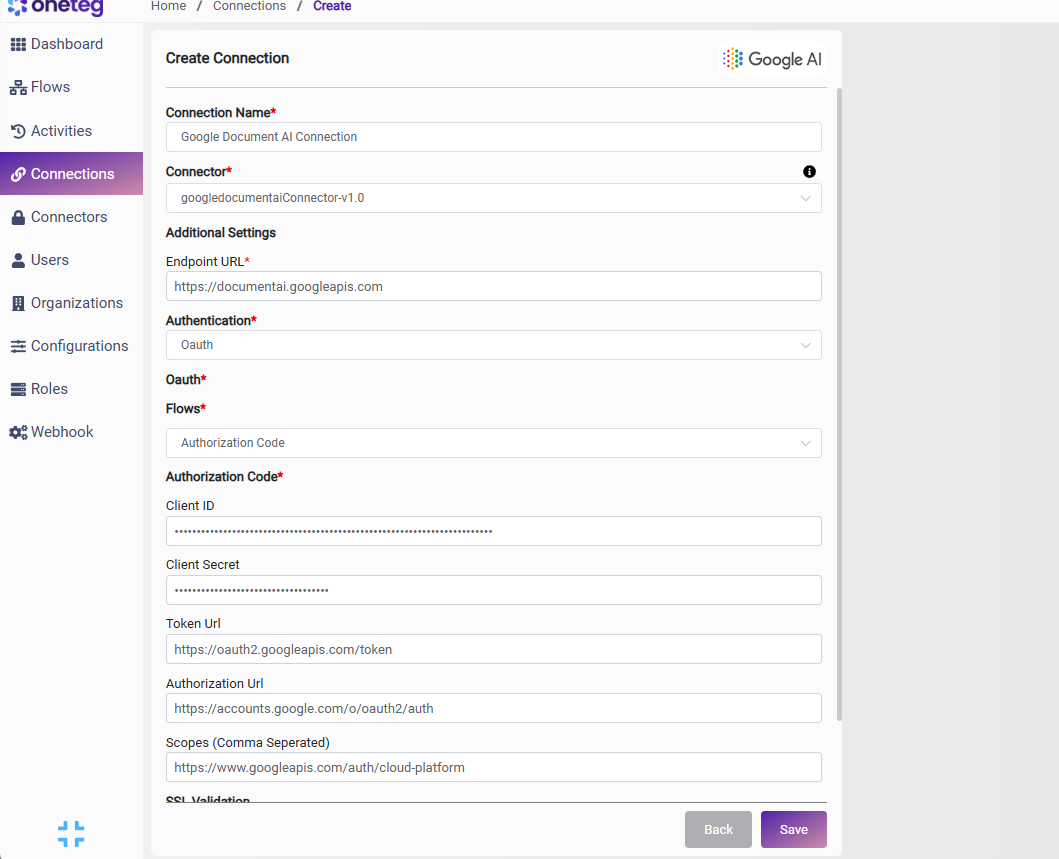
|
Settings Parameters |
Value / Sample Value |
Description |
Required (Y/N) |
|
Connection Name |
Google Document AI Connection |
Choose a name for your Connection |
Y |
|
Connector |
googledocumentaiConnector-v1.0 |
Auto-populated once the Google Document AI Connector is selected |
Y |
|
Endpoint URL |
The base URL of the Google Cloud Document AI API |
Y |
|
|
Authentication |
Oauth |
Select Oauth as the authentication method |
Y |
|
Flows |
Authorization Code |
Select Authorization Code as the OAuth flow |
Y |
|
Client ID |
Your Google OAuth Client ID |
The Client ID from your OAuth 2.0 credentials in the Google Cloud Console |
Y |
|
Client Secret |
Your Google OAuth Client Secret |
The Client Secret from your OAuth 2.0 credentials in the Google Cloud Console |
Y |
|
Token URL |
The Google OAuth 2.0 token endpoint used to exchange authorization codes for access tokens |
Y |
|
|
Authorization URL |
The Google OAuth 2.0 authorization endpoint where users grant access |
Y |
|
|
Scopes |
The Google Cloud Platform scope required for Document AI API access |
Y |
Option 2 - Bearer Token
Use this option for quick testing. Requires a short-lived Google OAuth 2.0 access token obtained via the Google OAuth 2.0 Playground.
|
Settings Parameters |
Value / Sample Value |
Description |
Required (Y/N) |
|
Connection Name |
Google Document AI Connection |
Choose a name for your Connection |
Y |
|
Connector |
googledocumentaiConnector-v1.0 |
Auto-populated once the Google Document AI Connector is selected |
Y |
|
Endpoint URL |
The base URL of the Google Cloud Document AI API |
Y |
|
|
Authentication |
Bearer |
Select Bearer as the authentication method |
Y |
|
Token |
Your Google OAuth 2.0 access token |
A valid Google OAuth 2.0 access token with the cloud-platform scope. Obtain this via the Google OAuth 2.0 Playground at https://developers.google.com/oauthplayground . Note that tokens expire after approximately 1 hour — you will need to manually update the token when it expires, making this method less suitable for long-running automations. |
Y |
4. Supported Google Document AI Actions and Options
For the full list of supported endpoints, parameters, and options, see the page below: