
1. General Information
InRiver is a Product Information Management (PIM) platform, also known as the Product Marketing Cloud, that enables organizations to centralize, enrich, and distribute product data across sales channels, e-commerce platforms, and marketing tools. It provides comprehensive tools for managing product hierarchies, relationships, digital assets, and channel-specific content, with a REST API for programmatic access to all product data and operations.
The OneTeg InRiver Connector integrates with the inriver REST API and enables users to build automated workflows for managing entities, field sets, categories, media, and product data directly from the OneTeg flow builder.
The inriver API Key inherits the permissions of the user it is generated for. For production integrations, it is recommended to generate the API Key from a dedicated integration user account with the minimum permissions required for your OneTeg workflows.
2. Connect InRiver to OneTeg
The InRiver Connector authenticates using an inriver API Key. API Keys are generated from the inriver Control Center and are tied to a specific user account. Follow the steps below to generate your API Key.
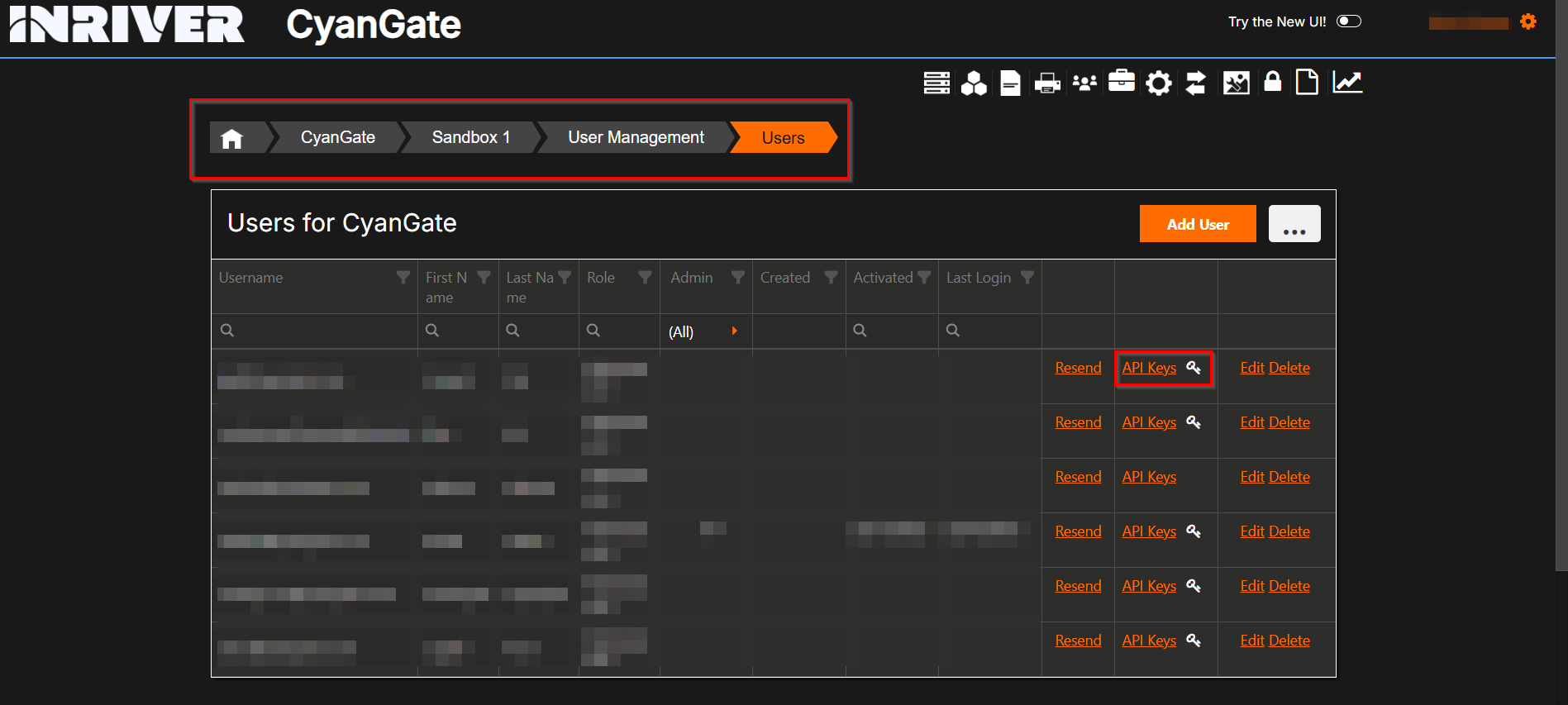
Step 1 - Generate an API Key in the inriver Control Center
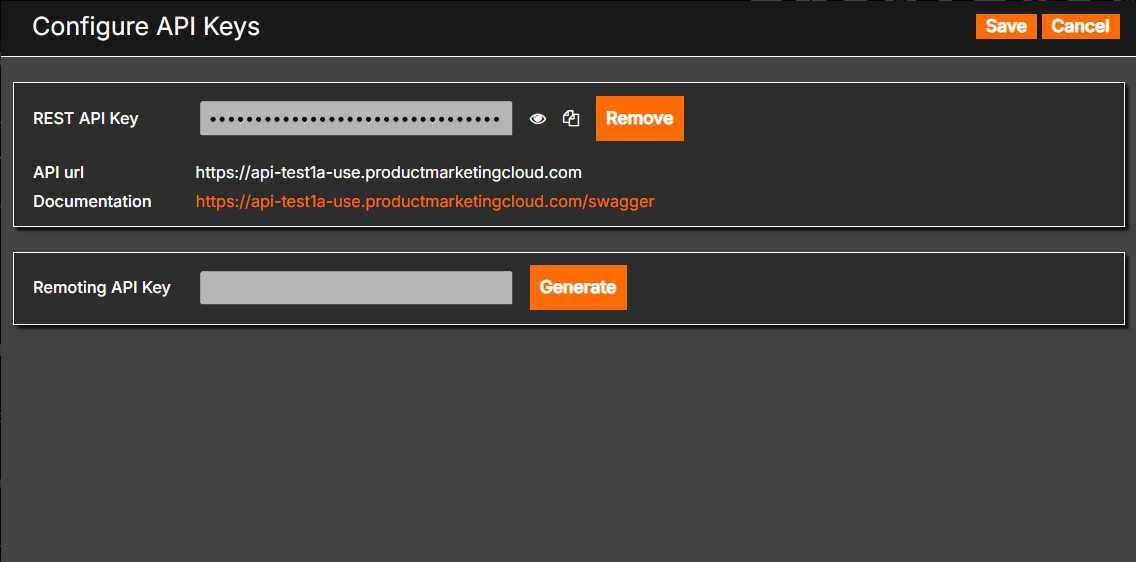
Log in to your inriver account. Navigate to the Control Center. Go to User Management → Users. Find the user for whom you want to create an API Key. The key will inherit that user's permissions — if the user has administrator rights, the key will also have access to the Control Center. Click API Keys for that user and select Generate API key. Copy and save the generated key immediately. This is the value you will enter in the API Key field in OneTeg.
3. Connection Settings and Configuration for OneTeg
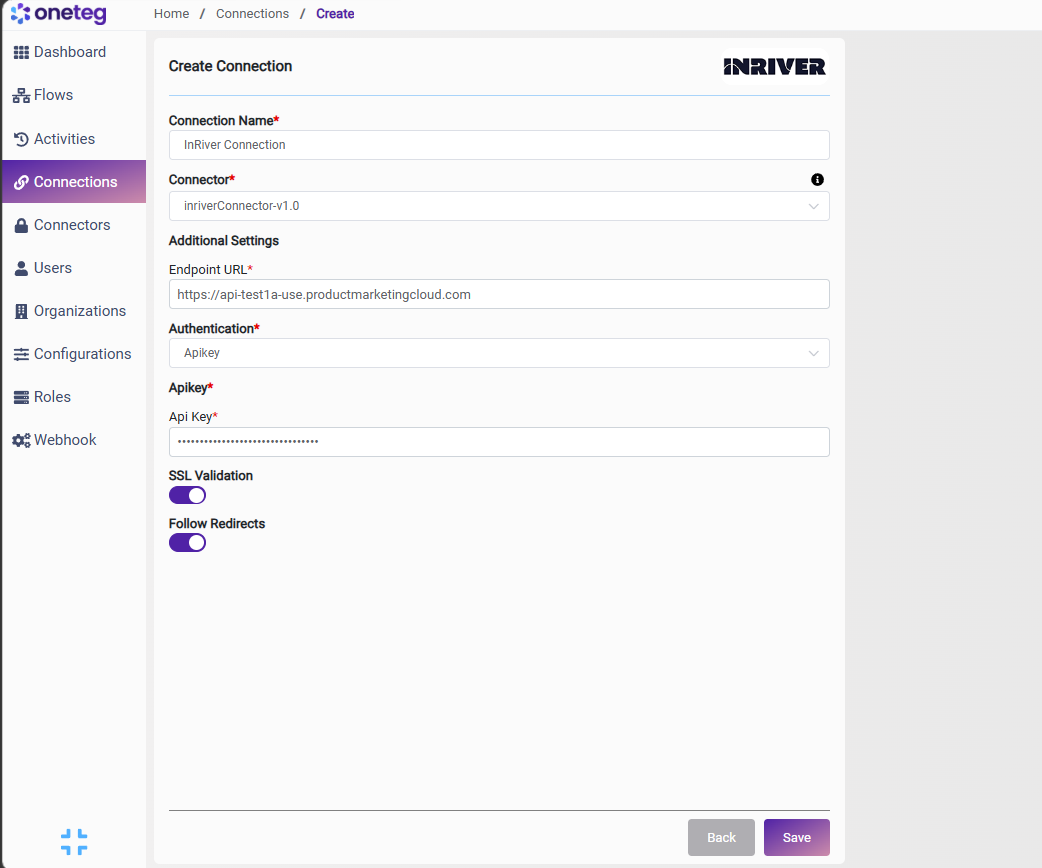
In OneTeg, navigate to Connections and create a new connection using the InRiver Connector. Fill in the settings below using the API Key generated from the inriver Control Center.
|
Settings Parameters |
Value / Sample Value |
Description |
Required (Y/N) |
|
Connection Name |
InRiver Connection |
Choose a name for your Connection |
Y |
|
Connector |
inriverConnector-v1.0 |
Auto-populated once the InRiver Connector is selected |
Y |
|
Endpoint URL |
Base URL of the inriver REST API. The URL shown here is the test environment. For production, replace with your organization's production inriver API URL provided by your inriver administrator |
Y |
|
|
Authentication |
Apikey |
Select Apikey from the dropdown |
Y |
|
Api Key |
inriver API Key |
Generated from inriver Control Center: User Management → Users → your user → API Keys → Generate API key. The key inherits the permissions of the selected user |
Y |
4. Supported InRiver Actions and Options
For the full list of supported endpoints, parameters, and options, see the page below: