
1. General Information
WoodWing Assets (formerly known as Elvis DAM) is a Digital Asset Management (DAM) platform designed for media-intensive organizations. It provides a centralized repository for storing, organizing, searching, and distributing digital assets such as images, videos, documents, and other media files. WoodWing Assets integrates tightly with creative tools and publishing workflows, enabling teams to manage the full lifecycle of digital content from creation through distribution.
The OneTeg WoodWing Assets Connector integrates with the WoodWing Assets (Elvis) REST API v1.1 and enables users to build automated workflows for searching, uploading, updating, and managing assets directly from the OneTeg flow builder.
|
ℹ️ WoodWing Assets may be deployed on-premise (self-hosted) or in the cloud. The Endpoint URL will differ depending on your deployment type. The example values in this document use a local on-premise IP address. Replace these with your actual WoodWing Assets server URL for your environment. |
2. Connect WoodWing Assets to OneTeg
The WoodWing Assets Connector uses a custom username/password authentication flow. The connector submits credentials to the WoodWing Assets login endpoint and receives a session token in return, which is then used to authorize subsequent API calls. No OAuth app registration is required. You authenticate directly with your WoodWing Assets user credentials.
|
ℹ️ The user account used for the connector should be a dedicated integration/service user in WoodWing Assets with the minimum required permissions for the actions your flows will perform. Avoid using personal admin accounts to reduce risk and maintain a clean audit trail. |
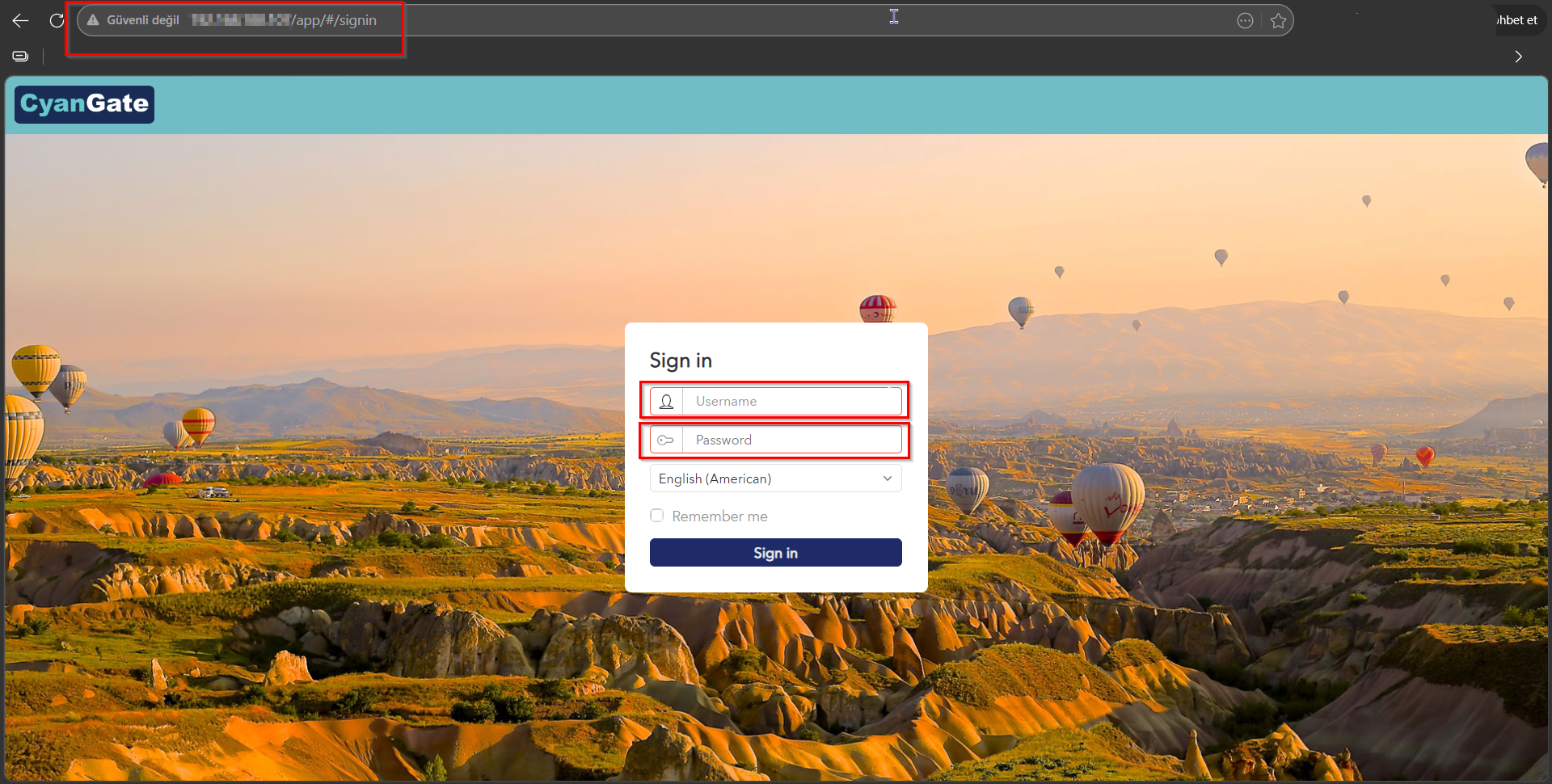
Step 1 — Identify Your WoodWing Assets Server URL
Locate the base URL of your WoodWing Assets server. For on-premise deployments this is typically an IP address or internal hostname. For cloud-hosted instances it will be a domain name (e.g., https://your-instance.woodwing.cloud). This URL is used as the Endpoint URL in OneTeg and is also used to construct the authentication Endpoint and Session Validity URL.
Step 2 — Create or Identify a Dedicated Integration User
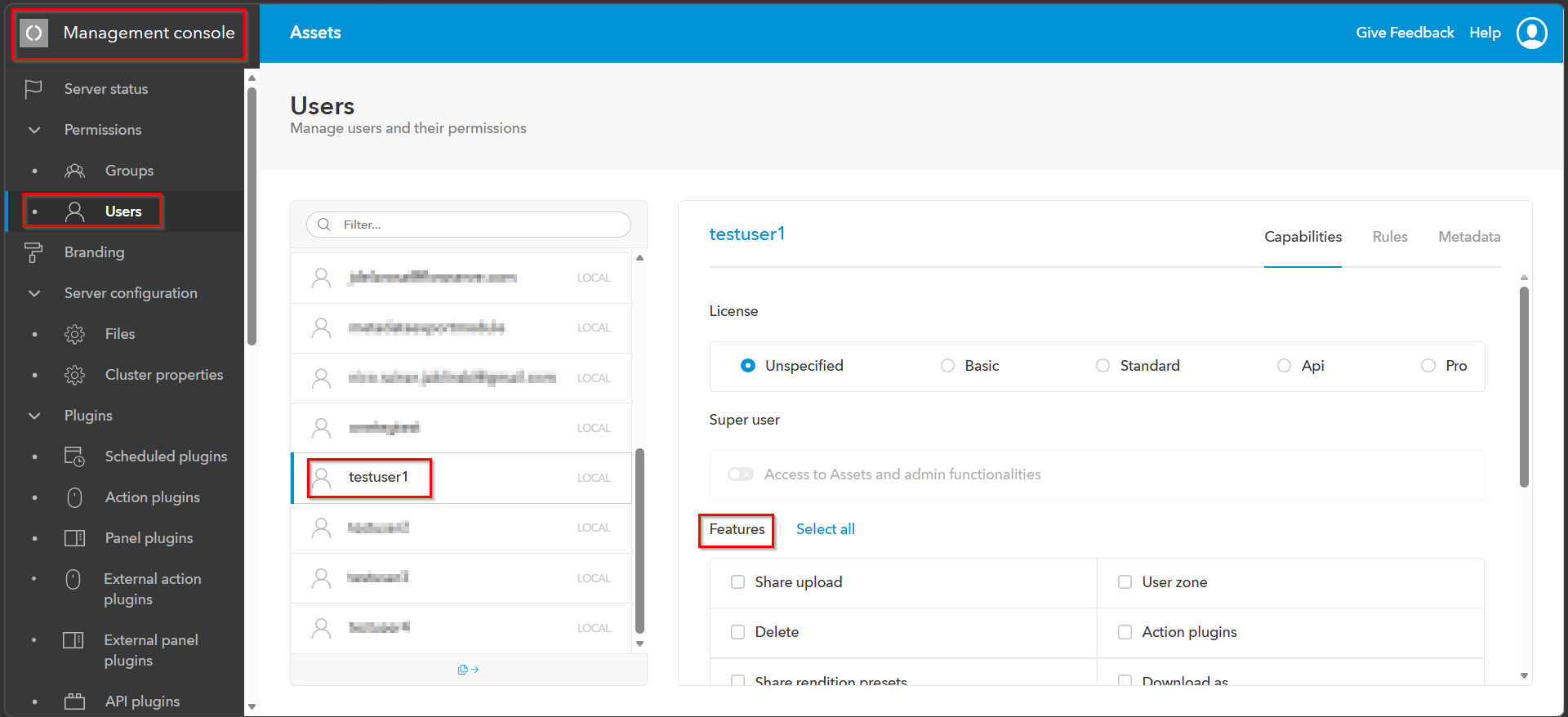
Log in to WoodWing Assets as an administrator. Navigate to Management → Users and create a dedicated user account for the OneTeg integration (e.g., oneteg-integration@yourcompany.com). Assign the user a role with the minimum permissions required for your integration workflows. Note the username and password. These will be entered in the OneTeg connection form.
Step 3 — Verify API Access is Enabled
Ensure that the WoodWing Assets REST API is enabled on your server. For on-premise installations, this is typically enabled by default. You can verify by navigating to your server URL and appending /services/apilogin — a valid response indicates the API is accessible. If the endpoint is not reachable, contact your WoodWing Assets administrator to enable API access.
3. Connection Settings and Configuration for OneTeg
In OneTeg, navigate to Connections and create a new connection using the WoodWing Assets Connector. The connector supports two authentication methods: Custom (username/password) and Bearer Token. Choose the one that best fits your setup.
Option 1 - Custom Authentication (Username/Password)
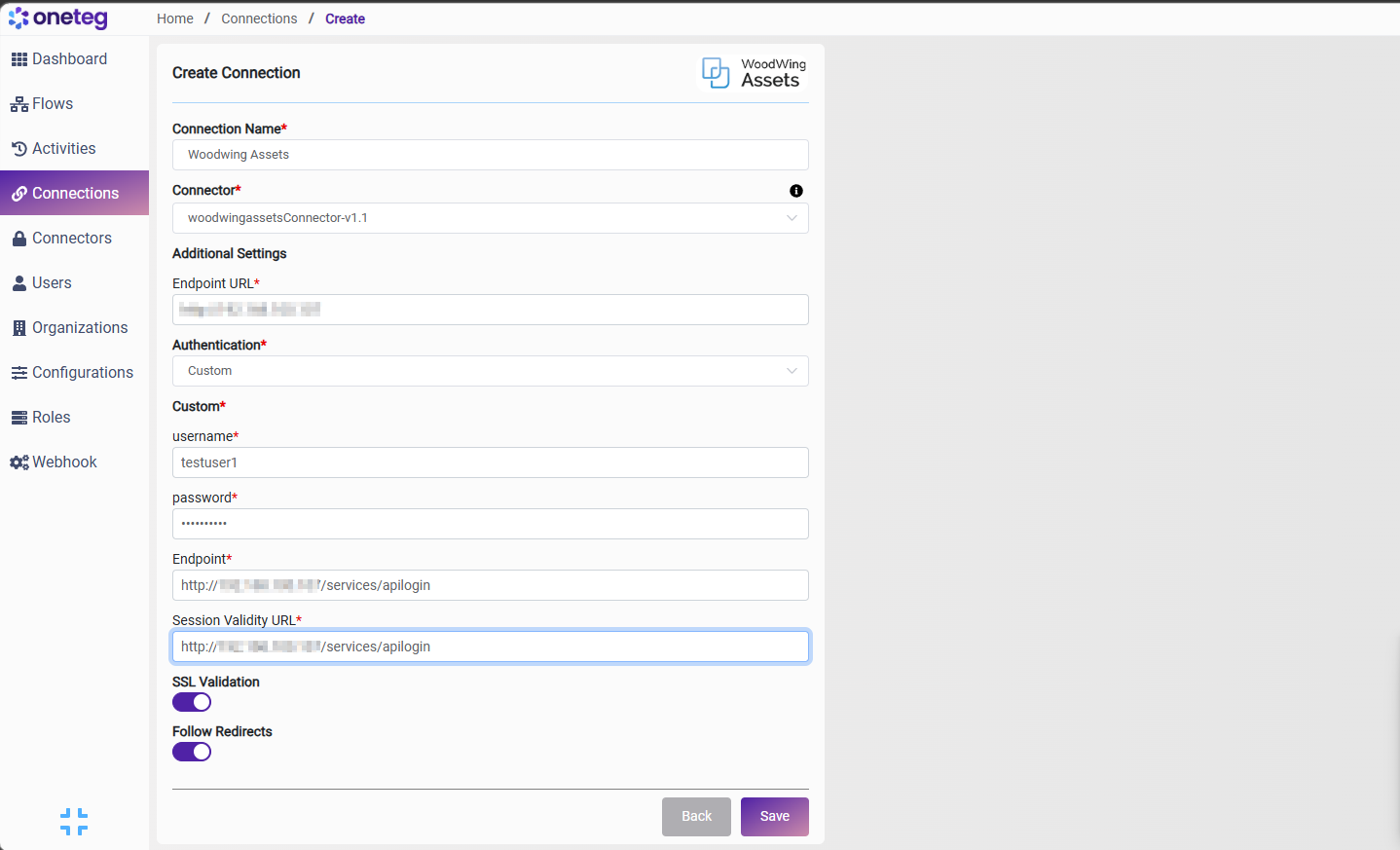
This is the recommended method for most integrations. OneTeg authenticates against your WoodWing Assets server using the integration user's credentials and automatically manages the session lifecycle using the Endpoint and Session Validity URL.
|
Settings Parameters |
Value / Sample Value |
Description |
Required (Y/N) |
|
Connection Name |
Woodwing Assets Connection |
Choose a name for your Connection |
Y |
|
Connector |
woodwingassetsConnector-v1.1 |
Auto-populated once the WoodWing Assets Connector is selected |
Y |
|
Endpoint URL |
{your-endpoint} |
Base URL of your WoodWing Assets server. For on-premise deployments this is typically an IP address or internal hostname. For cloud instances use your assigned domain URL |
Y |
|
Authentication |
Custom |
Select Custom from the dropdown |
Y |
|
Username |
Woodwing Assets user name |
The username of the dedicated WoodWing Assets integration user created in Management → Users |
Y |
|
Password |
WoodWing Assets user password |
The password of the WoodWing Assets integration user. Ensure the password is kept up to date to avoid connection failures |
Y |
|
Endpoint |
http://{your-endpoint}/services/apilogin |
The WoodWing Assets authentication endpoint. OneTeg submits credentials to this URL to obtain a session token. Constructed by appending /services/apilogin to your Endpoint URL |
Y |
|
Session Validity URL |
http://{your-endpoint}/services/apilogin |
The WoodWing Assets session keepalive endpoint. OneTeg calls this URL periodically to validate and extend the active session. Constructed by appending /services/keepalive to your Endpoint URL |
Y |
Option 2 - Bearer Token Authentication
Use this method if you have a pre-existing WoodWing Assets session token obtained externally or through a custom authentication process. Note that WoodWing Assets session tokens expire — you will need to manually update the token when it expires, making this method less suitable for long-running automations.
|
Settings Parameters |
Value / Sample Value |
Description |
Required (Y/N) |
|
Connection Name |
Woodwing Assets Connection |
Choose a name for your Connection |
Y |
|
Connector |
woodwingassetsConnector-v1.1 |
Auto-populated once the WoodWing Assets Connector is selected |
Y |
|
Endpoint URL |
{your-endpoint} |
Base URL of your WoodWing Assets server |
Y |
|
Authentication |
Bearer |
Select Bearer from the dropdown |
Y |
|
Token |
WoodWing Assets session token |
A valid WoodWing Assets session token obtained by calling the /services/apilogin endpoint manually. Must be updated each time the session expires |
Y |
4. Supported WoodWing Assets Actions and Options
For the full list of supported endpoints, parameters, and options, see the page below: