
1. General Information
OpenAI is an AI research and deployment company that provides access to powerful large language models (LLMs) and AI capabilities through its API. Its models — including GPT-4, GPT-4o, and others — enable applications to perform tasks such as text generation, summarization, classification, translation, code generation, and image analysis. The OpenAI API is widely used to embed AI capabilities into business workflows and applications.
The OneTeg OpenAI Connector integrates with the OpenAI API and enables users to build automated workflows that leverage OpenAI's AI models — including text completions, chat interactions, embeddings, and image generation — directly from the OneTeg flow builder.
Using the OpenAI API requires an OpenAI account with active API access. API usage is billed based on the number of tokens processed. Ensure your OpenAI account has sufficient credits or a billing method configured before using the connector in production workflows.
2. Connect OpenAI to OneTeg
The OpenAI Connector authenticates using an OpenAI API Key. API Keys are generated from the OpenAI Platform dashboard and grant access to the OpenAI API on behalf of your account or organization. Follow the steps below to generate your API Key.
Step 1 - Generate an API Key from the OpenAI Platform
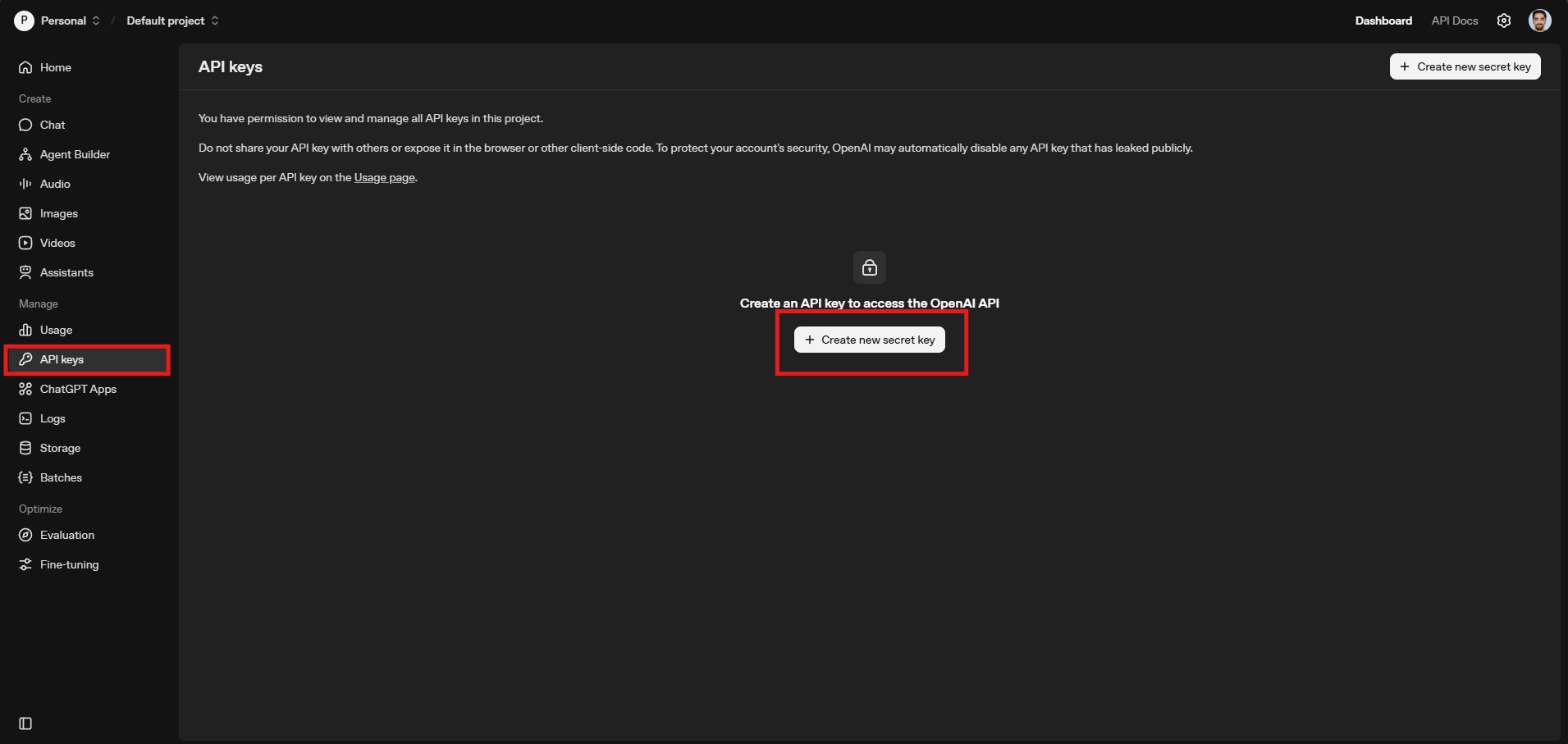
Log in to the OpenAI Platform at http://platform.openai.com . In the left sidebar, navigate to API Keys. Click Create new secret key. Optionally enter a name for the key (e.g., "OneTeg Integration") and select the appropriate permissions. Click Create secret key. Copy the generated key immediately — it begins with sk- and will not be shown again after you close this dialog.
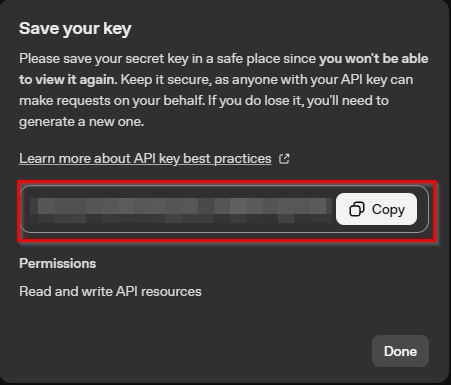
OpenAI API Keys are shown only once at creation time. If you lose your key you will need to delete it and create a new one. Store it securely in a password manager or secrets vault immediately after copying. Never share your API Key or expose it in client-side code.
3. Connection Settings and Configuration for OneTeg
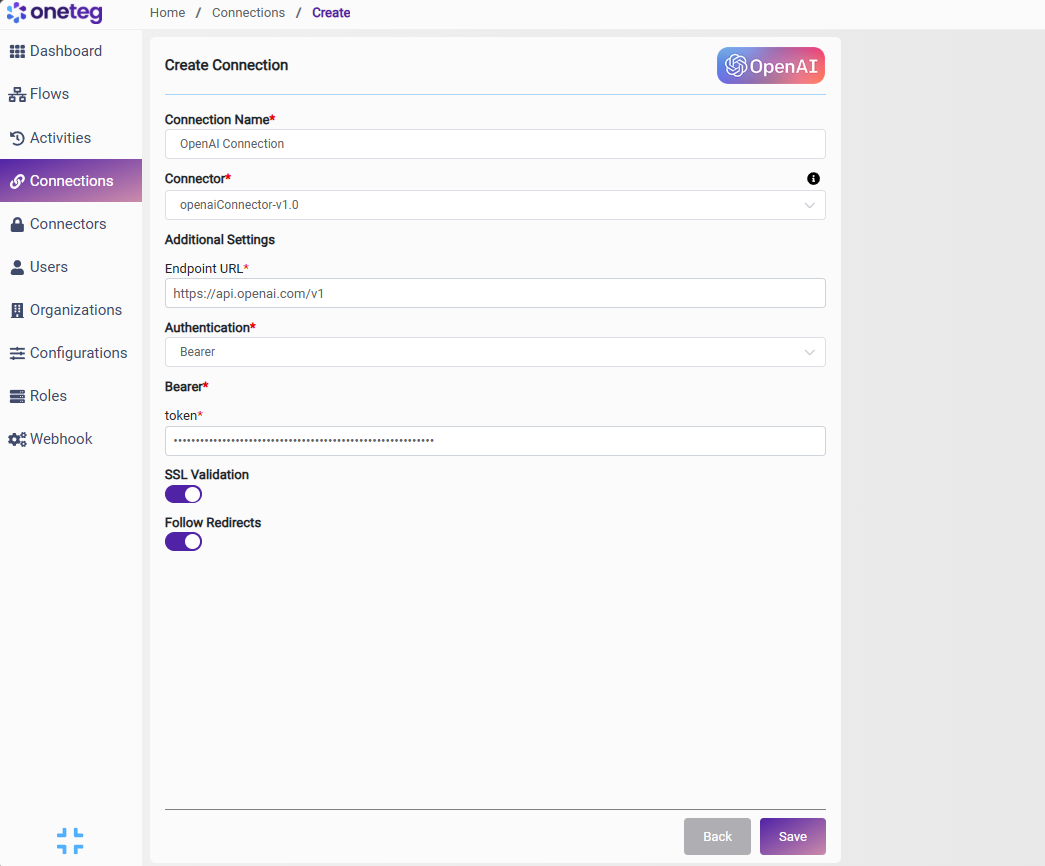
In OneTeg, navigate to Connections and create a new connection using the OpenAI Connector. Fill in the settings below using the API Key generated from the OpenAI Platform.
|
Settings Parameters |
Value / Sample Value |
Description |
Required (Y/N) |
|
Connection Name |
OpenAI Connection |
Choose a name for your Connection |
Y |
|
Connector |
openaiConnector-v1.0 |
Auto-populated once the OpenAI Connector is selected |
Y |
|
Endpoint URL |
Base URL of the OpenAI API. This value is fixed and does not change |
Y |
|
|
Authentication |
Bearer |
Select Bearer from the dropdown |
Y |
|
token |
sk-... |
Your OpenAI API Key generated from http://platform.openai.com → API Keys → Create new secret key. Begins with sk- and is shown only once at creation — store securely |
Y |
4. Supported OpenAI Actions and Options
For the full list of supported endpoints, parameters, and options, see the page below: