
1. General Information
Microsoft Teams is a cloud-based collaboration and communication platform that brings together chat, video meetings, file sharing, and app integrations into a single workspace. It is widely used by organizations of all sizes to facilitate internal communication, team collaboration, and project coordination. Microsoft Teams is part of the Microsoft 365 ecosystem and integrates deeply with other Microsoft services including SharePoint, OneDrive, Outlook, and Azure Active Directory.
The OneTeg Microsoft Teams Connector integrates with the Microsoft Graph API and enables users to build automated workflows for managing teams, channels, messages, meetings, and members directly from the OneTeg flow builder.
The Microsoft Teams Connector uses the Microsoft Graph API, which is the unified API endpoint for all Microsoft 365 services. The same Azure AD app registration used for other Microsoft connectors (such as MS Dynamics 365) can be reused here with appropriate Teams permissions added, or a dedicated app registration can be created for Teams.
2. Connect Microsoft Teams to OneTeg
The Microsoft Teams Connector authenticates via OAuth 2.0 Authorization Code flow using Azure Active Directory (Azure AD). To configure the connector, you need to register an application in Azure AD and grant it the appropriate Microsoft Graph permissions for Teams. Follow the steps below.
Step 1 - Register an App in Azure Active Directory
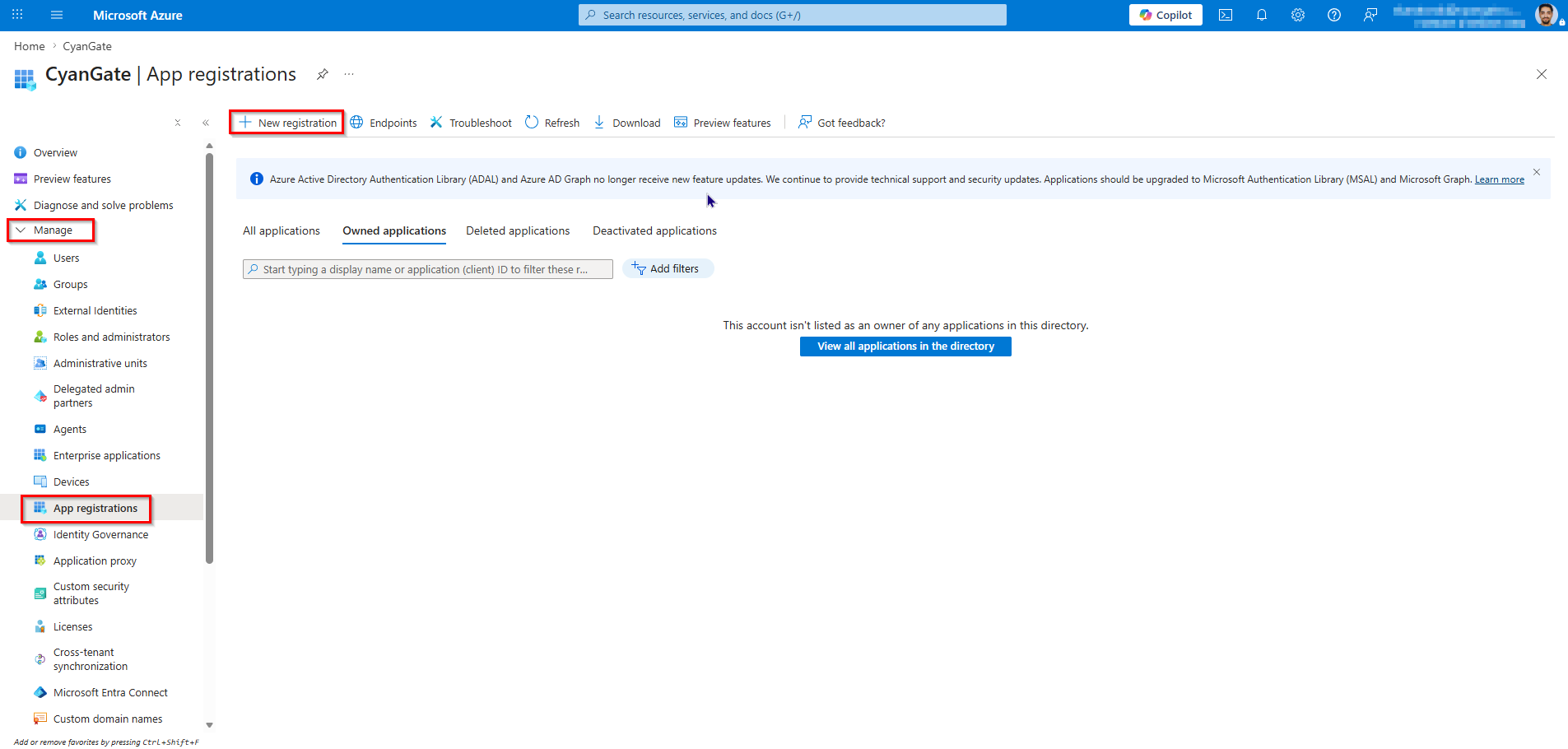
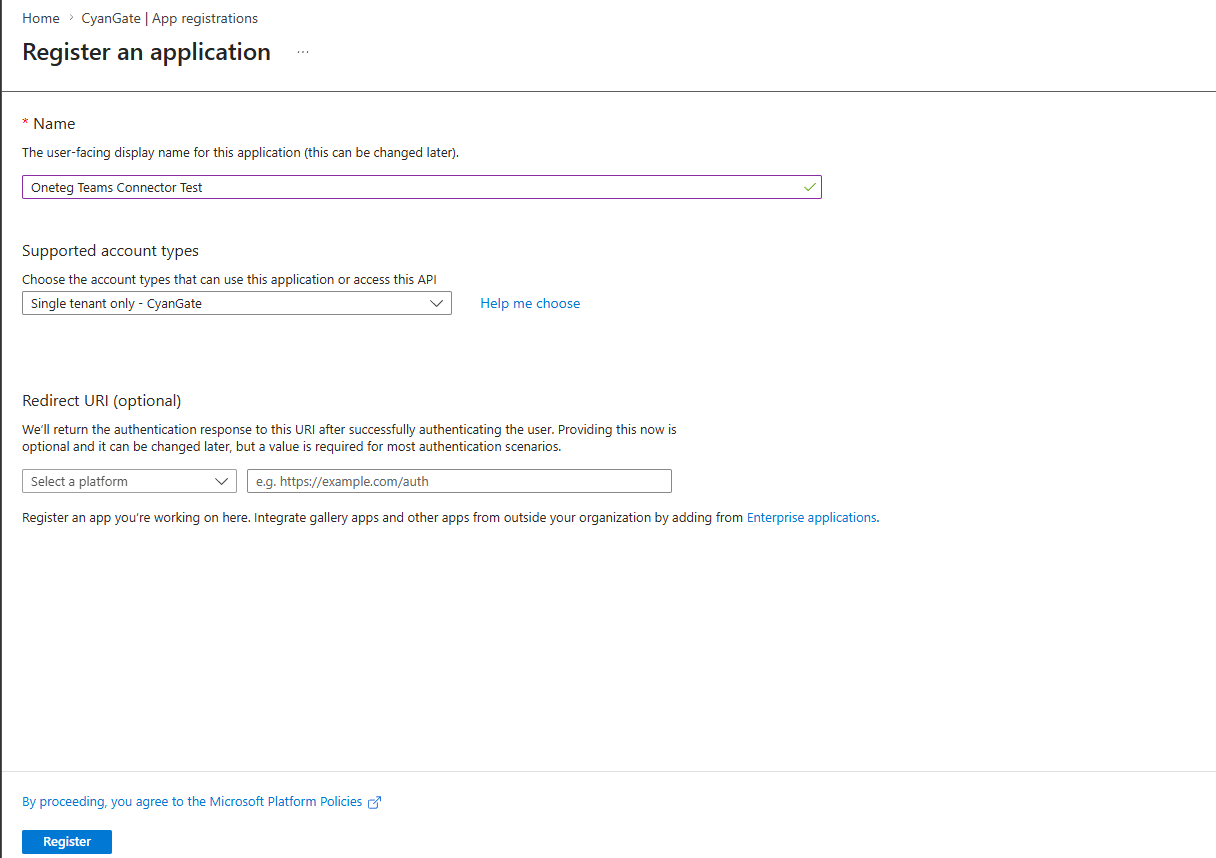
Log in to the Azure Portal (http://portal.azure.com ) with your administrator credentials. Navigate to Microsoft Entra ID → Manage →App Registrations and click New Registration. Provide a name for your application (e.g., "OneTeg Teams Connector"), select the appropriate supported account type, and click Register.
Step 2 - Note Your Application (Client) ID and Tenant ID
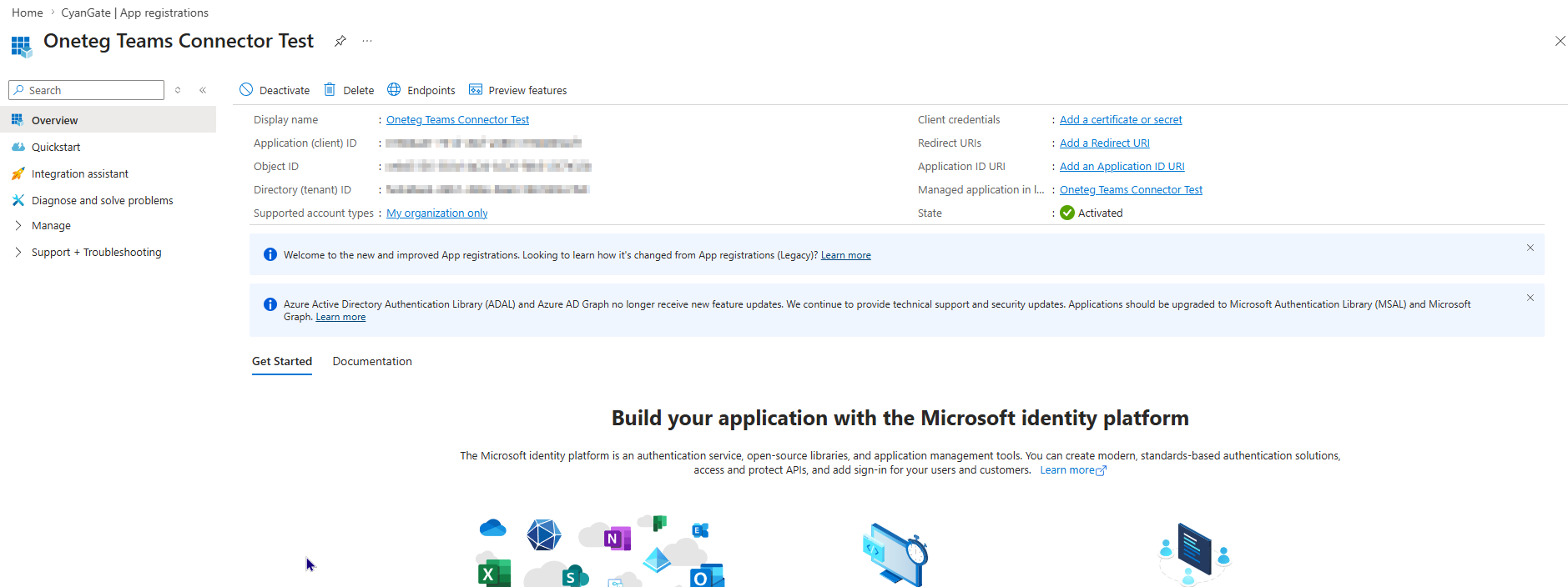
Once the app is registered, you will be redirected to the app's Overview page. Note the Application (Client) ID and the Directory (Tenant) ID, both are required when configuring the connector in OneTeg. The Tenant ID is used to construct the Token URL and Authorization URL.
Step 3 - Create a Client Secret
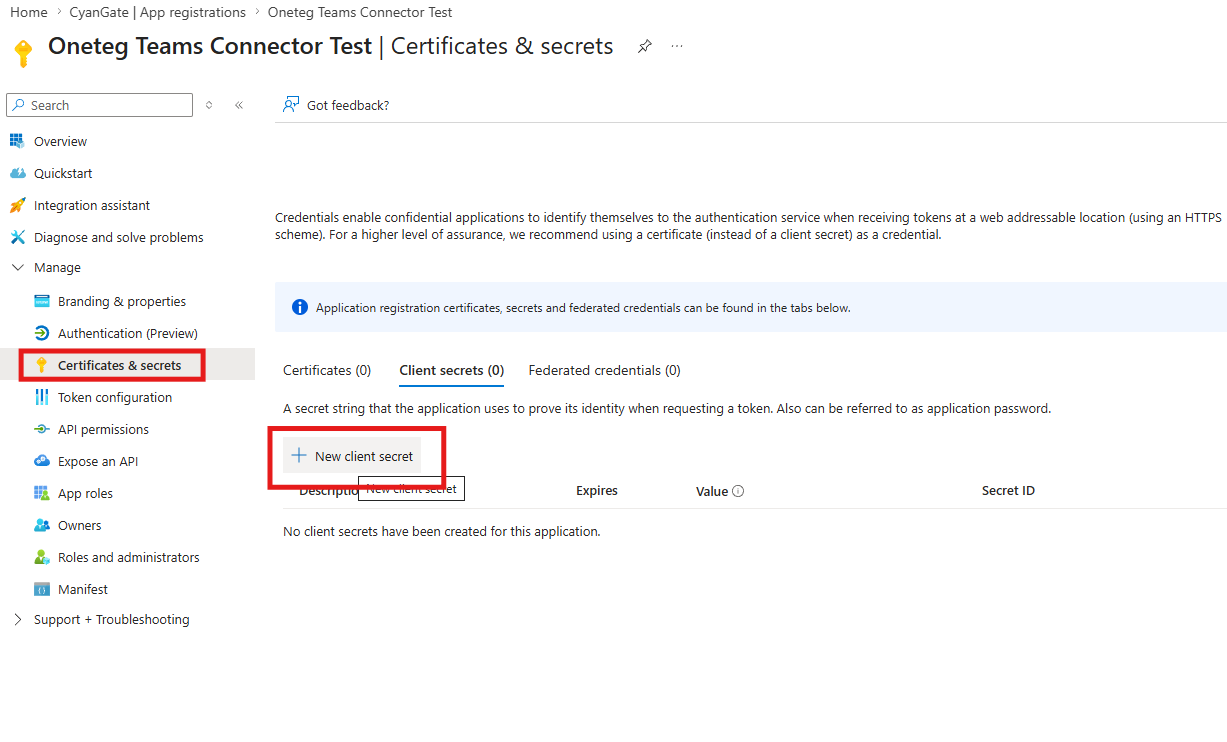
In the left navigation pane, go to Certificates & Secrets → Client Secrets and click New Client Secret. Enter a description and set an expiry period, then click Add. Copy the secret Value immediately to use it as Client Secret. It will not be displayed again after you navigate away from this screen.
Step 4 - Grant Microsoft Graph Permissions for Teams
Navigate to API Permissions → Add a Permission → Microsoft Graph → Delegated Permissions. Search for and select the following permissions based on the Teams actions your flows require: Team.ReadBasic.All, Channel.ReadBasic.All, ChannelMessage.Send, Chat.ReadWrite, OnlineMeetings.ReadWrite, TeamMember.ReadWrite.All. Click Add Permissions, then click Grant Admin Consent for your tenant to authorize the app.
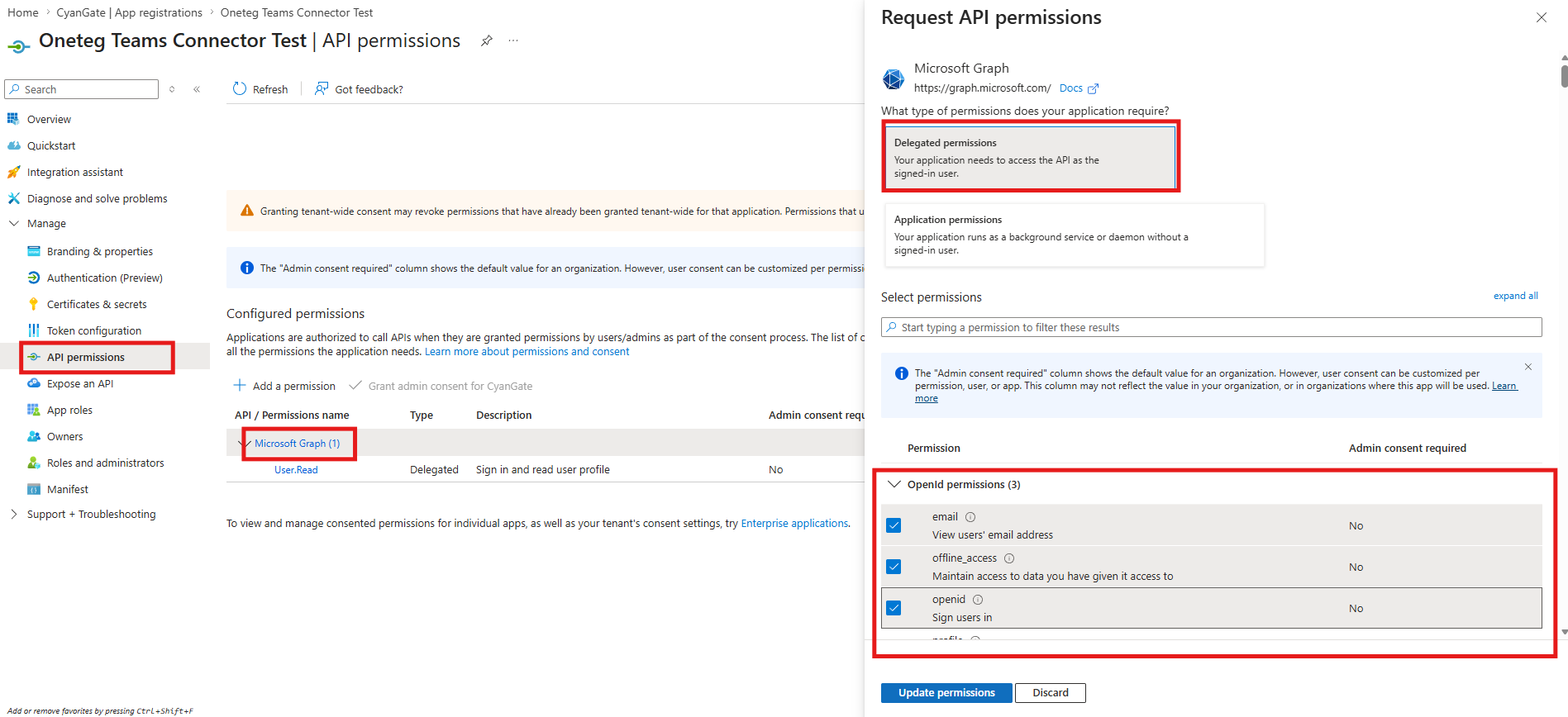
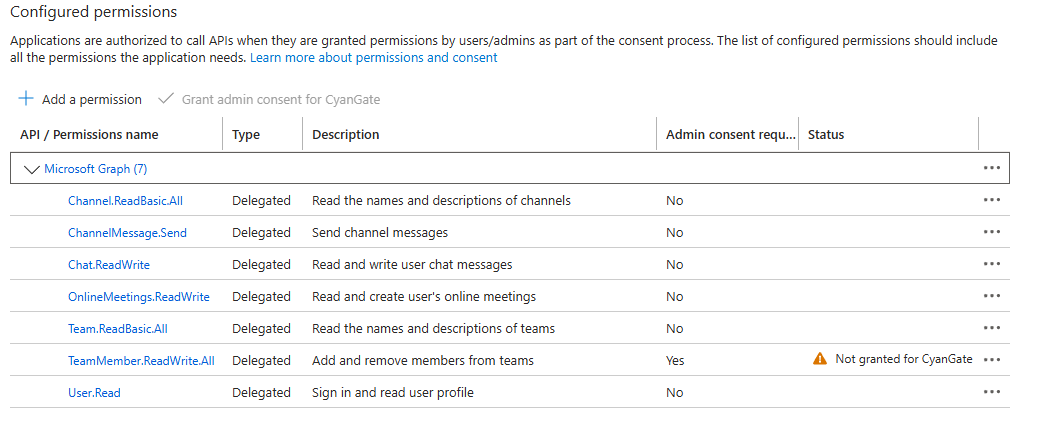
The exact permissions required depend on which Teams actions your OneTeg flows will perform. Add only the permissions your integration needs. Avoid granting excessive permissions. Refer to the Microsoft Graph permissions reference for a full list of available Teams scopes.
Step 5 - Configure a Redirect URI
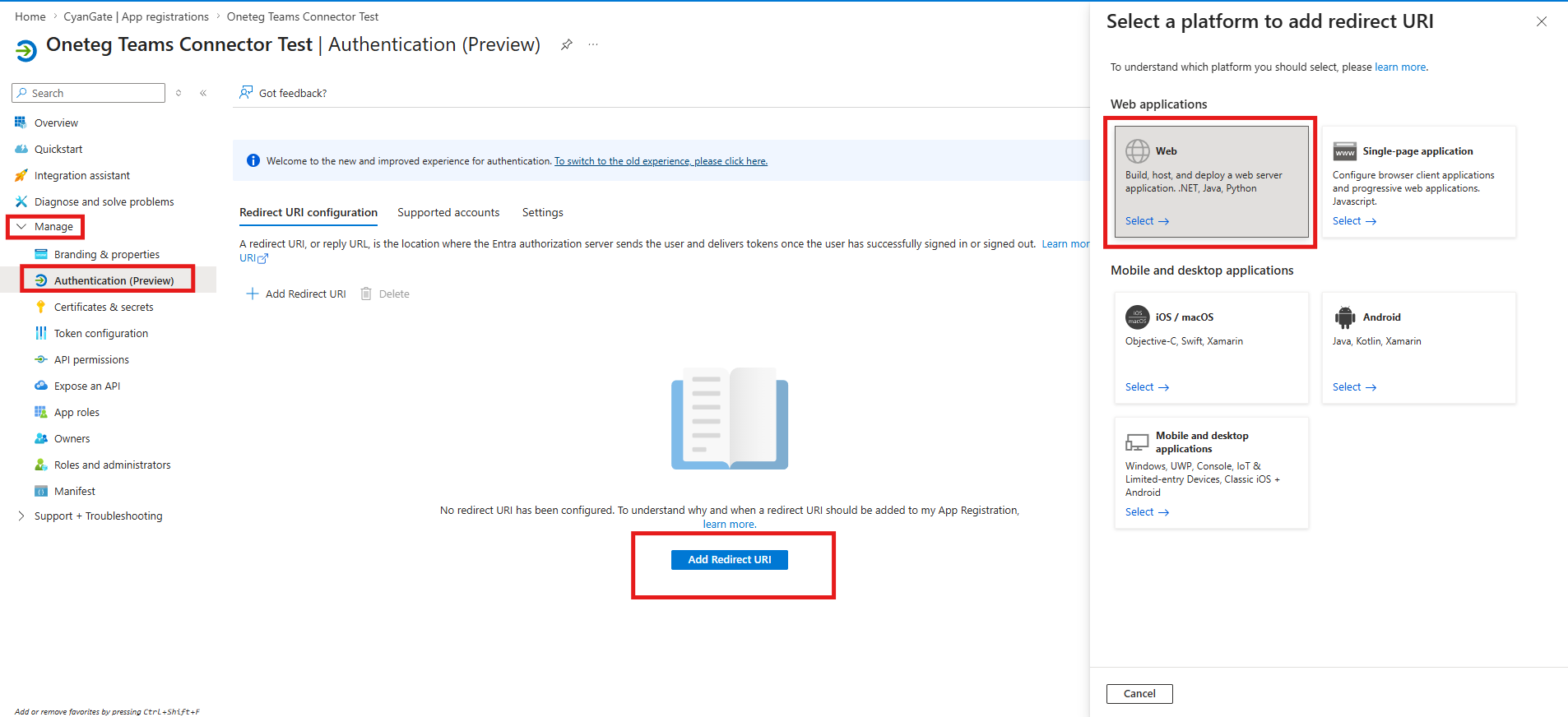
Navigate to Authentication → Add a Platform → Web. Enter the OneTeg OAuth callback URL as the Redirect URI. This is required for the Authorization Code flow. Azure AD will redirect users back to this URL after they authorize the app. Contact your OneTeg administrator if you are unsure of the correct callback URL. Click Configure to save.
3. Connection Settings and Configuration for OneTeg
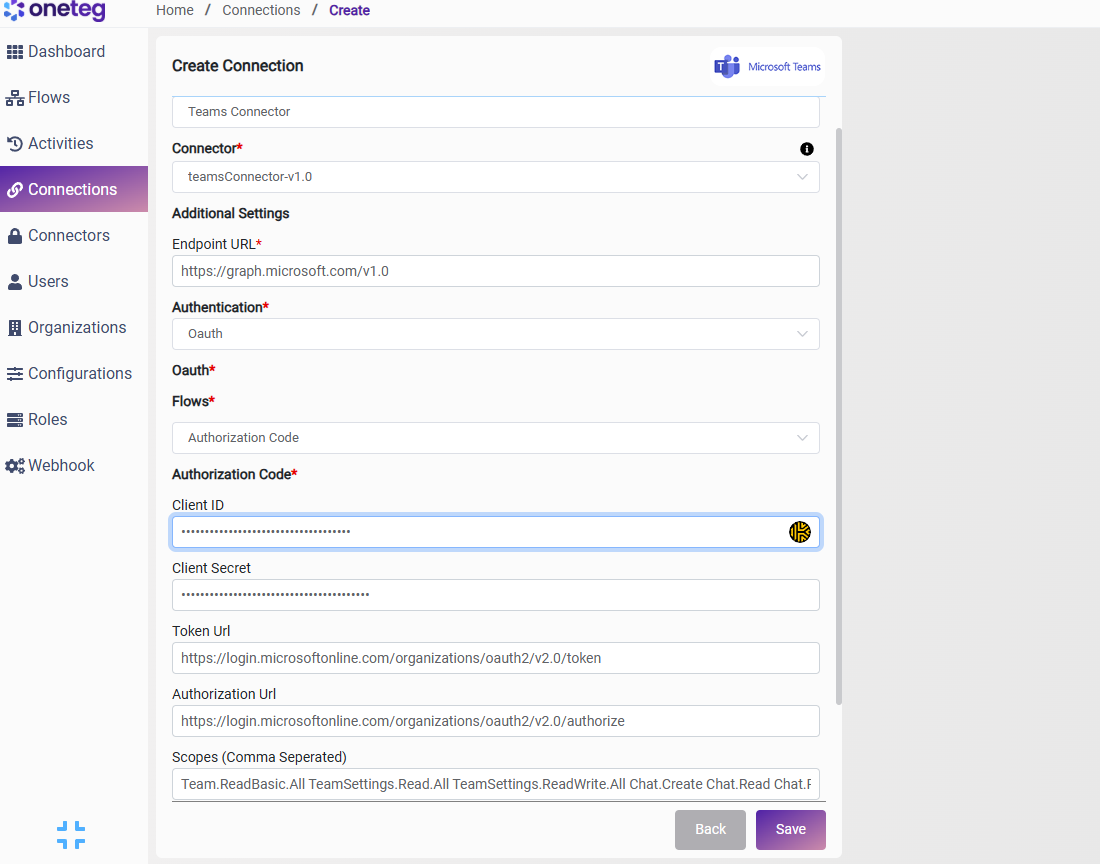
In OneTeg, navigate to Connections and create a new connection using the Microsoft Teams Connector. The connector supports two authentication methods: OAuth (Authorization Code) and Bearer Token. Choose the one that best fits your setup.
Option 1 - OAuth Authentication (Authorization Code)
This is the recommended method for most integrations. It authenticates on behalf of a specific Microsoft 365 user, allowing the connector to perform user-level actions such as sending messages, creating meetings, and managing team members. Access tokens are refreshed automatically by OneTeg.
|
Settings Parameters |
Value / Sample Value |
Description |
Required (Y/N) |
|
Connection Name |
Teams Connection |
Choose a name for your Connection |
Y |
|
Connector |
teamsConnector-v1.0 |
Auto-populated once the Microsoft Teams Connector is selected |
Y |
|
Endpoint URL |
Base URL of the Microsoft Graph API. This value is fixed and does not change |
Y |
|
|
Authentication |
OAuth |
Select OAuth from the dropdown |
Y |
|
Flows |
Authorization Code |
Select Authorization Code as the OAuth grant type |
Y |
|
Client ID |
Application (Client) ID |
Obtained from Azure Portal: Azure Active Directory → App Registrations → your app → Overview → Application (Client) ID |
Y |
|
Client Secret |
Client Secret Value |
Obtained from Azure Portal: Azure Active Directory → App Registrations → your app → Certificates & Secrets → Client Secrets → Value. Copy immediately after creation |
Y |
|
Token URL |
https://login.microsoftonline.com/organizations/oauth2/v2.0/token |
Constructed using your Tenant ID from Azure AD. Navigate to Azure Active Directory → Overview → Directory (Tenant) ID and replace {tenant-id} with that value |
Y |
|
Authorization URL |
https://login.microsoftonline.com/organizations/oauth2/v2.0/authorize |
Constructed using your Tenant ID from Azure AD. Replace {tenant-id} with your Directory (Tenant) ID |
Y |
|
Scopes |
The Microsoft Graph default scope. Grants access to all permissions configured in the Azure AD app registration. Adjust based on the actions your flows require |
Y |
Option 2 - Bearer Token Authentication
Use this method if you have a pre-existing Microsoft Graph access token obtained externally or through a custom Azure AD authentication flow. Note that Azure AD access tokens expire after approximately 1 hour. You will need to manually update the token when it expires, making this method less suitable for long-running automations.
|
Settings Parameters |
Value / Sample Value |
Description |
Required (Y/N) |
|
Connection Name |
Teams Connector |
Choose a name for your Connection |
Y |
|
Connector |
teamsConnector-v1.0 |
Auto-populated once the Microsoft Teams Connector is selected |
Y |
|
Endpoint URL |
Base URL of the Microsoft Graph API. This value is fixed and does not change |
Y |
|
|
Authentication |
Bearer |
Select Bearer from the dropdown |
Y |
|
Token |
Azure AD Access Token |
A valid Microsoft Graph access token scoped to your Teams permissions. Obtained by calling the Azure AD token endpoint manually. Expires in ~1 hour |
Y |
4. Supported Microsoft Teams Actions and Options
For the full list of supported endpoints, parameters, and options, see the page below: