
1. General Information
S-Drive is a Salesforce-native document management and file storage solution built on Amazon S3. It enables Salesforce users to store, manage, share, and collaborate on files directly within Salesforce, leveraging the security model, sharing rules, and user management of the Salesforce platform. S-Drive supports unlimited file storage, folder structures, file versioning, and advanced access controls — all accessible through the Salesforce interface and API.
The OneTeg S-Drive Connector integrates with the S-Drive API via Salesforce OAuth 2.0 and enables users to build automated workflows for managing files, folders, and document operations within S-Drive directly from the OneTeg flow builder.
The S-Drive Connector authenticates through Salesforce's OAuth 2.0 framework. You will need to create a Connected App in your Salesforce org to obtain the Client ID and Client Secret required for the connection.
2. Connect S-Drive to OneTeg
The S-Drive Connector authenticates via OAuth 2.0 Authorization Code flow using Salesforce's identity platform. To configure the connector, you need to create an External Client App in your Salesforce org and obtain the Consumer Key (Client ID) and Consumer Secret (Client Secret). Follow the steps below.
Step 1 - Create an External Client App in Salesforce
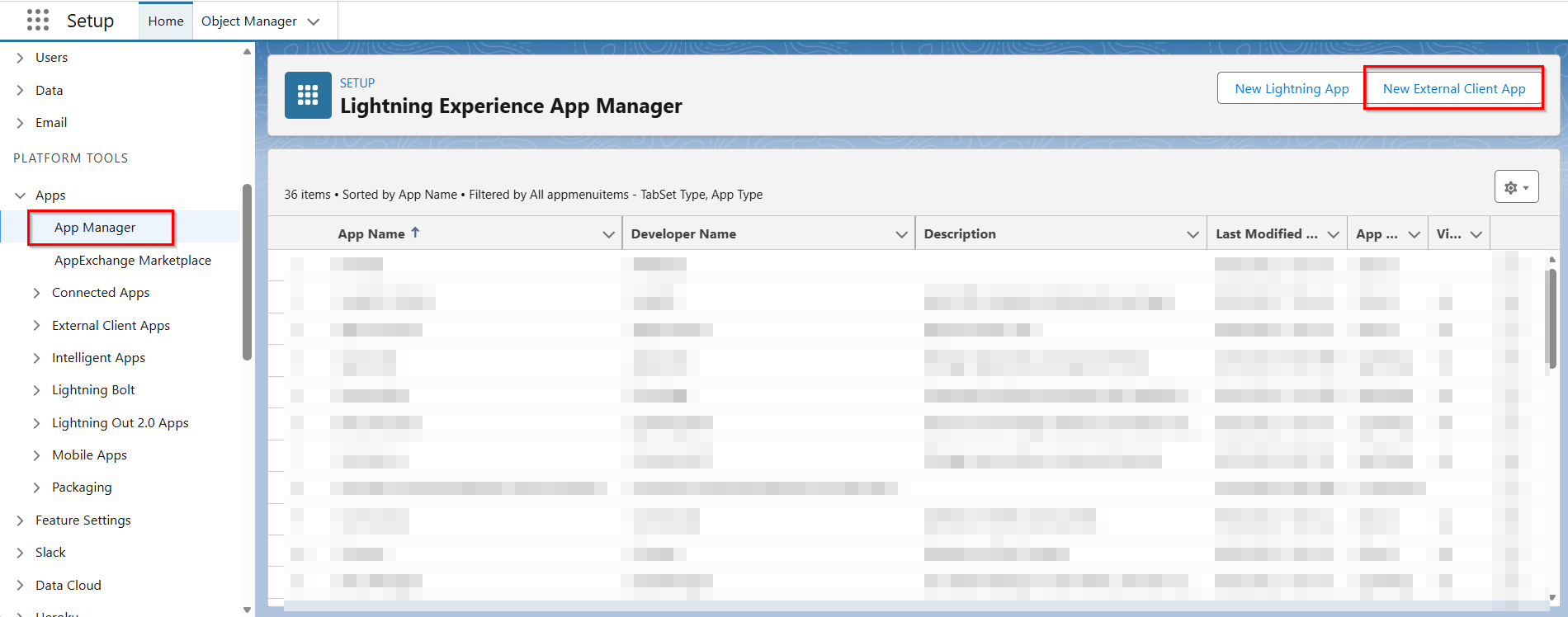
Log in to your Salesforce org and navigate to Setup → App Manager → New External Client App. Fill in the Connected App Name (e.g., "OneTeg S-Drive Connector"), API Name, and Contact Email. Under API (Enable OAuth Settings), check Enable OAuth Settings. Enter the OneTeg OAuth callback URL (https://app.oneteg.com/rest/v1/oauth2/callback) in the Callback URL field.
Step 2 - Configure OAuth Scopes, Flow Enablement, and Security
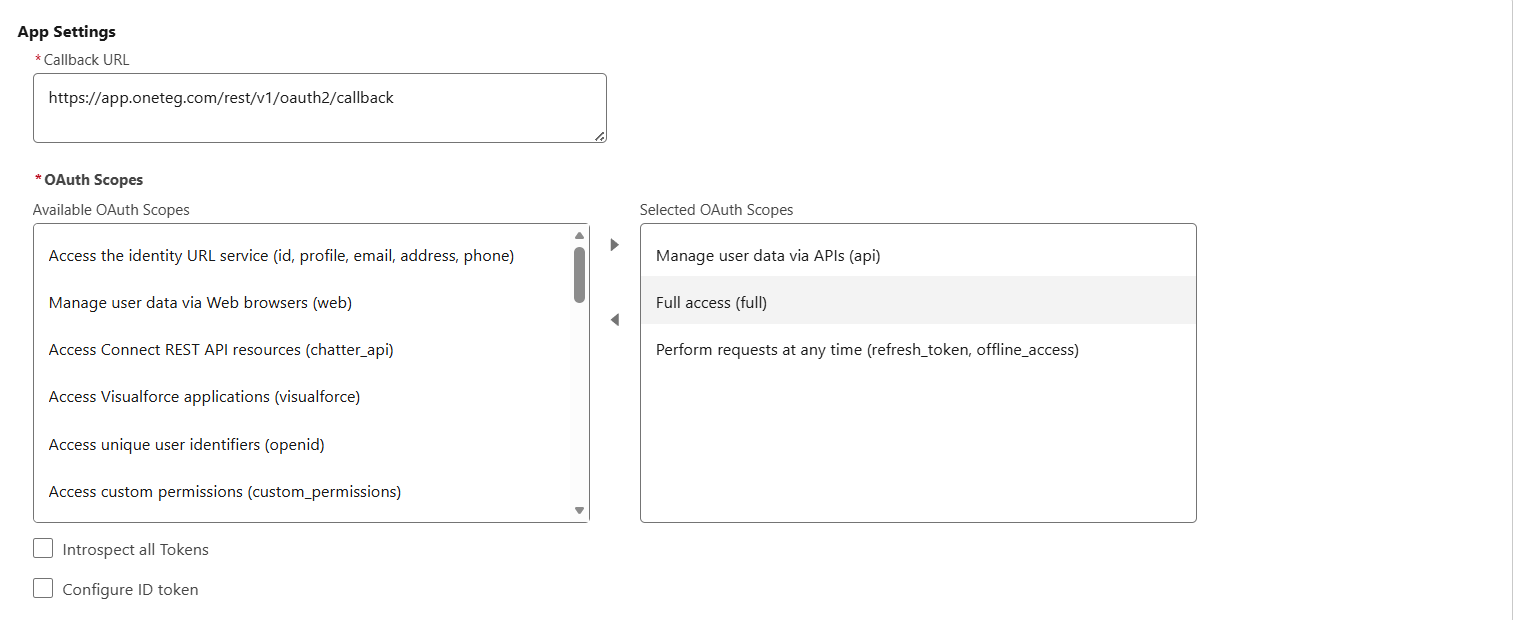
Still on the an External Client App form, scroll to the Selected OAuth Scopes section. Add the following scopes: Full access (full) or more granular scopes such as Access and manage your data (api) and Perform requests on your behalf at any time (refresh_token, offline_access). Click Save.
Under Flow Enablement set Enable Client Credentials Flow and Enable Authorization Code and Credentials Flow to true.
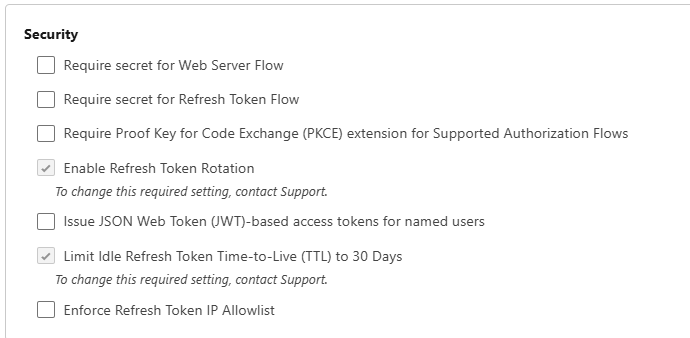
Under Security uncheck everything that can be unchecked.
Click Create.
Step 3 - Create and add OAuth Custom Scopes
-
Go to Setup-Oauth Custom Scopes
-
Click New Custom Scope
-
Give a name (such as OneTeg) and description (OneTeg scopes)
-
Save
-
Go back to your External Client App and refresh the page
-
Click Edit on the Policies tab
-
Under Select OAuth Custom Scopes add the scop you just created.
-
Check the box for “Enable Client Credentials Flow” and add a Run As username
-
Click Save
Step 4 - Obtain Consumer Key and Consumer Secret
Go to the Settings tab your External Client App, expand the Oauth Settings section and click Consumer and Secret Key. Your Consumer Key (Client ID) and Consumer Secret (Client Secret) will be displayed. Copy both values and store them securely.
3. Connection Settings and Configuration for OneTeg
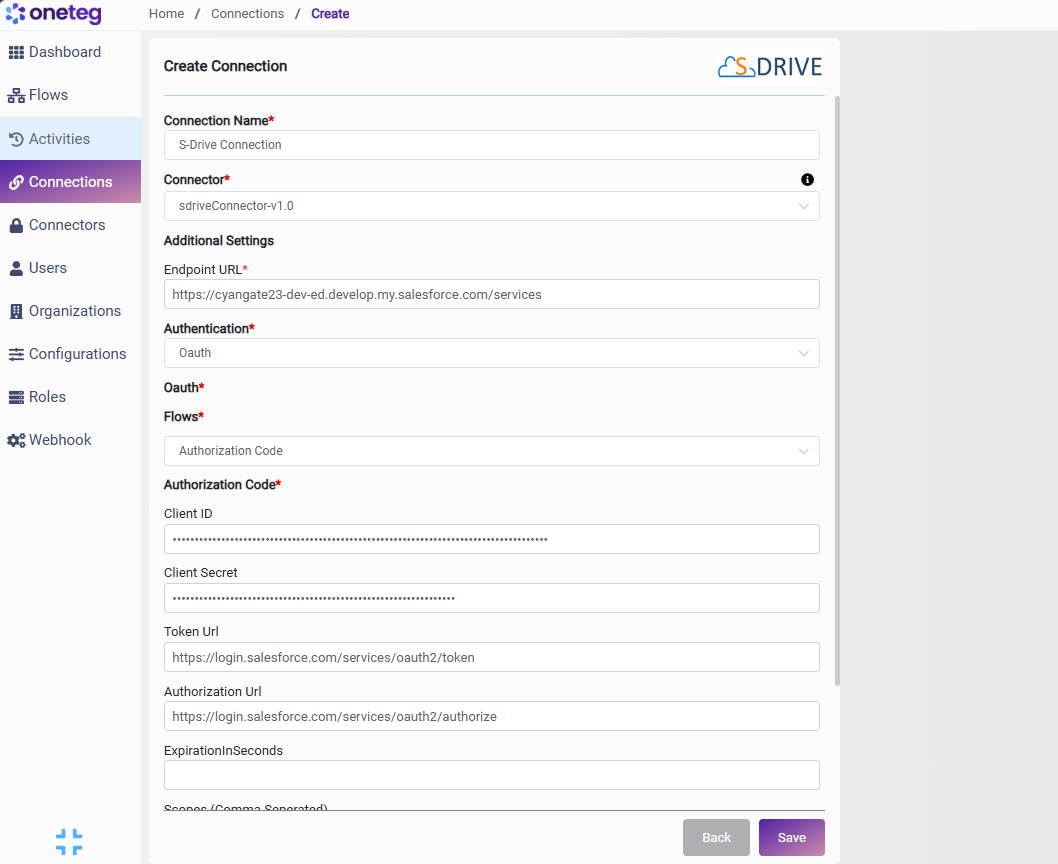
In OneTeg, navigate to Connections and create a new connection using the S-Drive Connector. Fill in the settings below using the credentials obtained from your Salesforce Connected App.
|
Settings Parameters |
Value / Sample Value |
Description |
Required (Y/N) |
|
Connection Name |
S-Drive Connection |
Choose a name for your Connection |
Y |
|
Connector |
sdriveConnector-v1.0 |
Auto-populated once the S-Drive Connector is selected |
Y |
|
Endpoint URL |
Your Salesforce org URL. Replace your-instance with your actual Salesforce instance subdomain. Found in your browser address bar when logged in to Salesforce |
Y |
|
|
Authentication |
OAuth |
Select OAuth from the dropdown |
Y |
|
Flows |
Authorization Code |
Select Authorization Code as the OAuth grant type |
Y |
|
Client ID |
Salesforce Consumer Key |
Obtained from Salesforce Setup: App Manager → your Connected App → View → Manage Consumer Details → Consumer Key |
Y |
|
Client Secret |
Salesforce Consumer Secret |
Obtained from Salesforce Setup: App Manager → your Connected App → View → Manage Consumer Details → Consumer Secret. Store securely and do not share |
Y |
|
Token URL |
Standard Salesforce OAuth token endpoint. This value is fixed for standard Salesforce orgs. Use https://test.salesforce.com/services/oauth2/token for sandbox environments |
Y |
|
|
Authorization URL |
Standard Salesforce OAuth authorization endpoint. This value is fixed for standard Salesforce orgs. Use https://test.salesforce.com/services/oauth2/authorize for sandbox environments |
Y |
|
|
ExpirationInSeconds |
|
Optional token expiration duration in seconds. Leave blank to use Salesforce's default token expiry |
|
|
Scopes |
|
Optional space-separated list of Salesforce OAuth scopes. Leave blank to use the scopes configured in your Connected App. Common values: api refresh_token full |
|
4. Supported S-Drive Actions and Options
For the full list of supported endpoints, parameters, and options, see the page below: