
1. General Information
Spotify is a global audio streaming platform providing access to millions of songs, podcasts, and audiobooks. It serves both individual users and businesses through its API, enabling developers and organizations to integrate music discovery, playlist management, playback control, and user data into their applications and workflows. Spotify's Web API provides programmatic access to the full Spotify catalog and user account data.
OneTeg Spotify Connector integrates with the Spotify Web API and enables users to build automated workflows for managing playlists, retrieving track and album information, accessing user listening data, and interacting with the Spotify catalog directly from OneTeg flow builder.
2. Connect Spotify to OneTeg
The Spotify Connector authenticates via OAuth 2.0 Authorization Code flow. To configure the connector, you need to create an app in the Spotify Developer Dashboard and obtain a Client ID and Client Secret. Follow the steps below.
Step 1 — Create an App in the Spotify Developer Dashboard
Go to http://developer.spotify.com/dashboard and log in with your Spotify account. Click Create App. Fill in the app name, description, and website URL. Under Redirect URIs, add the OneTeg OAuth callback URL. Select Web API under which APIs you plan to use. Agree to the terms and click Save.
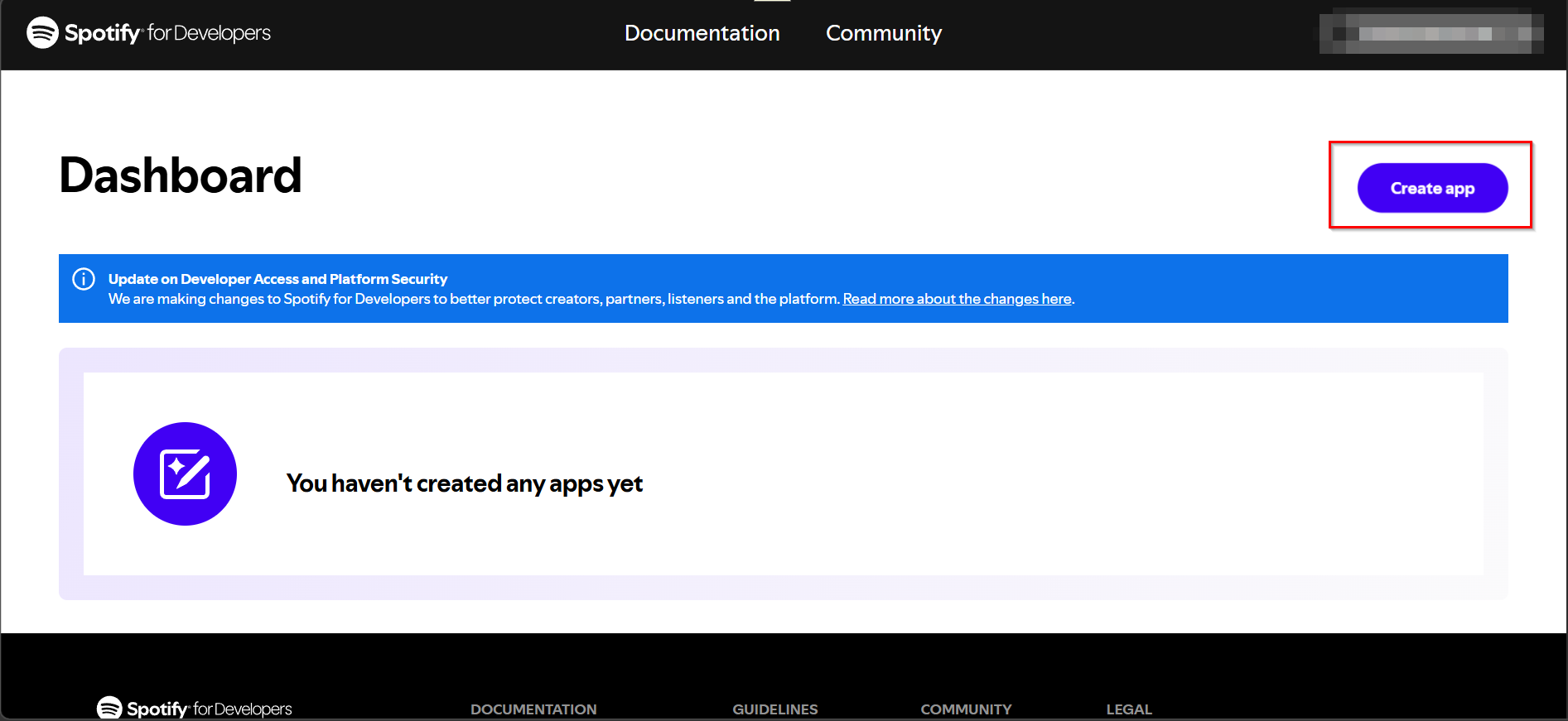
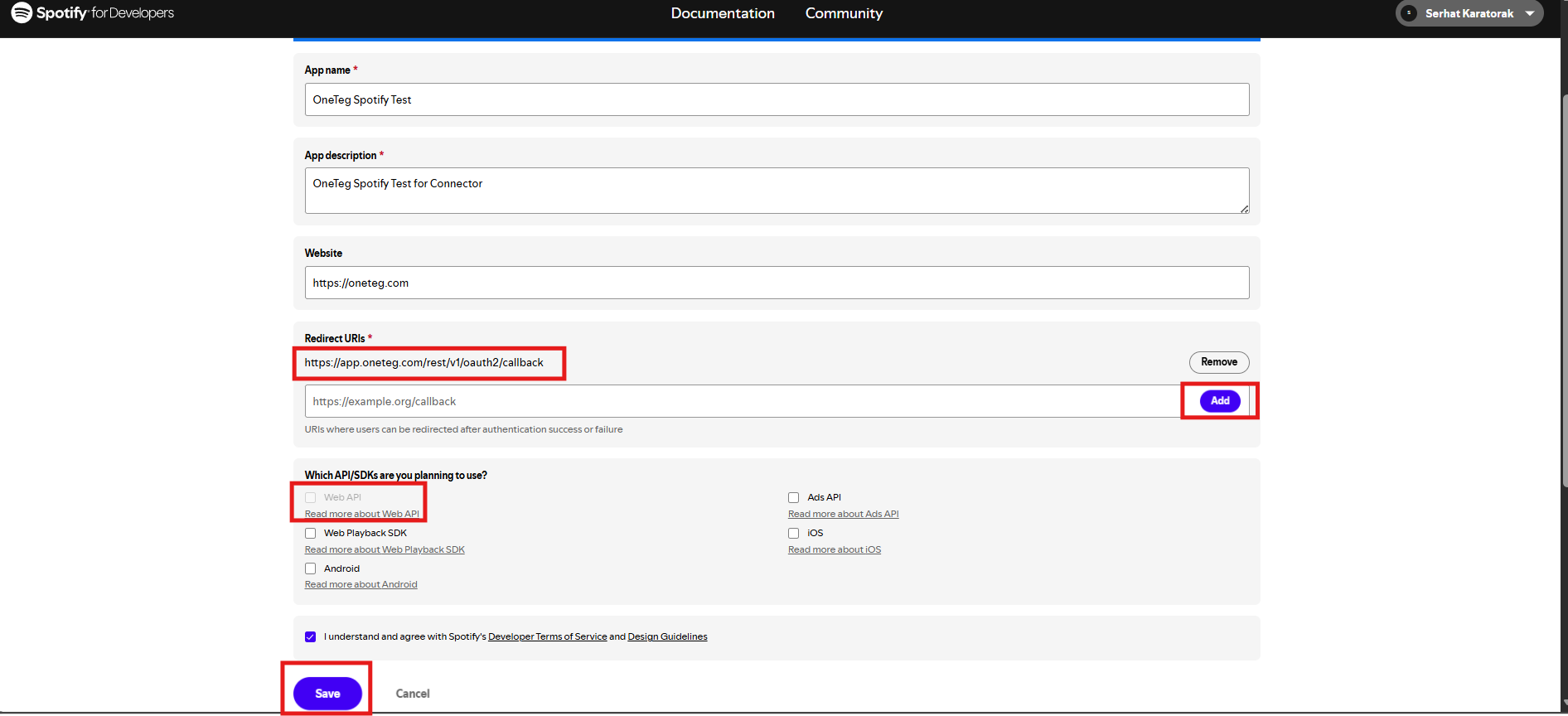
Step 2 — Obtain Client ID and Client Secret
Once the app is created, you will be taken to the app's dashboard. Click Settings in the top right corner of the app page. Your Client ID is displayed directly on this page. Click View Client Secret to reveal and copy your Client Secret. Store both values securely.
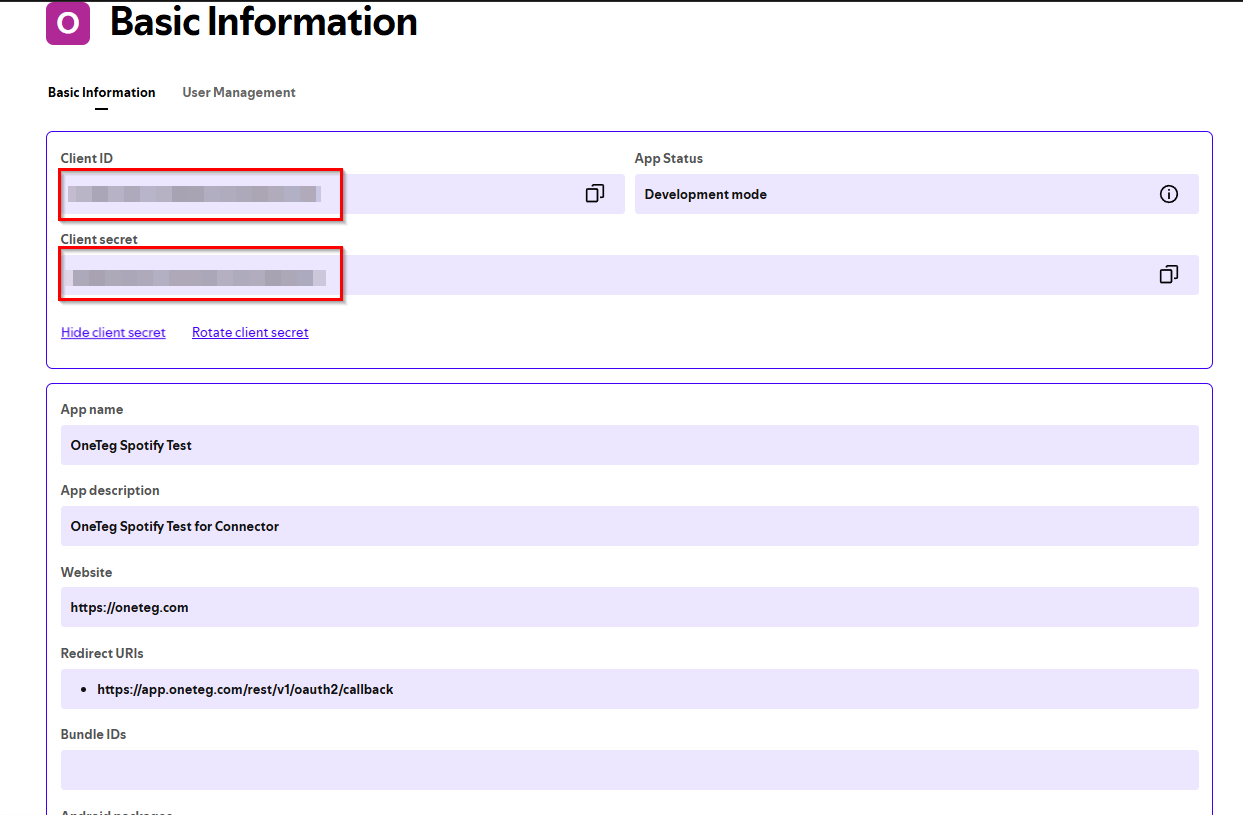
Step 3 — Configure Scopes
Spotify uses scopes to control what your app can access on behalf of a user. Scopes are not configured in the Developer Dashboard. They are requested at the time of authorization and entered in the Scopes field in OneTeg. Select only the scopes your integration requires. Common scopes for OneTeg workflows are listed in the settings table in Section 3 below.
The Token URL and Authorization URL for Spotify are fixed standard endpoints handled internally by the OneTeg Spotify Connector. You do not need to enter these values manually in the connection form.
3. Connection Settings and Configuration for OneTeg
In OneTeg, navigate to Connections and create a new connection using the Spotify Connector. Fill in the settings below using the credentials obtained from the Spotify Developer Dashboard.
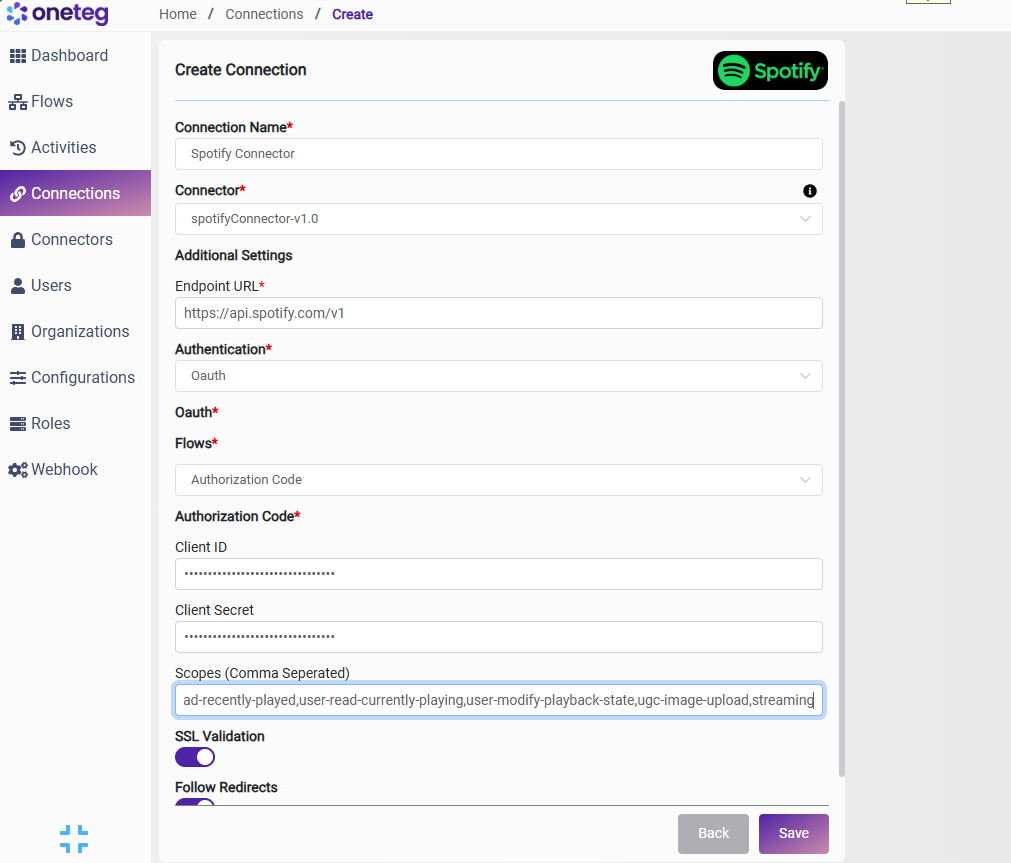
|
Settings Parameters |
Value / Sample Value |
Description |
Required (Y/N) |
|
Connection Name |
Spotify Connection |
Choose a name for your Connection |
Y |
|
Connector |
spotifyConnector-v1.0 |
Auto-populated once the Spotify Connector is selected |
Y |
|
Endpoint URL |
Base URL of the Spotify Web API. This value is fixed and does not change |
Y |
|
|
Authentication |
OAuth |
Select OAuth from the dropdown |
Y |
|
Flows |
Authorization Code |
Select Authorization Code as the OAuth grant type |
Y |
|
Client ID |
Spotify App Client ID |
Obtained from Spotify Developer Dashboard: your app → Settings → Client ID |
Y |
|
Client Secret |
Spotify App Client Secret |
Obtained from Spotify Developer Dashboard: your app → Settings → View Client Secret. Store securely and do not share |
Y |
|
Scopes |
user-read-private user-read-email playlist-read-private playlist-modify-public playlist-modify-private |
Space-separated list of Spotify permission scopes. Select only the scopes your integration requires. See the Scopes Reference below for details |
Y |
Scopes Reference
The following scopes are commonly used with the OneTeg Spotify Connector. Include only the scopes that correspond to the Spotify capabilities your workflows require.
|
Scope |
Description |
|
user-read-private |
Read access to the authenticated user's subscription details and country |
|
user-read-email |
Read access to the authenticated user's email address |
|
playlist-read-private |
Read access to the authenticated user's private playlists |
|
playlist-read-collaborative |
Read access to collaborative playlists the user follows |
|
playlist-modify-public |
Write access to create and modify the user's public playlists |
|
playlist-modify-private |
Write access to create and modify the user's private playlists |
|
user-library-read |
Read access to the authenticated user's saved tracks and albums |
|
user-library-modify |
Write access to save and remove tracks and albums from the user's library |
|
user-top-read |
Read access to the authenticated user's top tracks and artists |
|
user-read-recently-played |
Read access to the authenticated user's recently played tracks |
|
user-follow-read |
Read access to the list of artists and users the authenticated user follows |
|
user-follow-modify |
Write access to follow and unfollow artists and users |
|
streaming |
Control playback on Spotify Connect devices on behalf of the user |
|
ugc-image-upload |
Upload images to Spotify on behalf of the user (e.g., playlist cover images) |
4. Supported Spotify Actions and Options
For the full list of supported endpoints, parameters, and options, see the page below: