
1. General Information
TransPerfect is a global language services and technology company providing translation, localization, interpretation, and content management solutions across industries. Its technology platform, GlobalLink, enables organizations to manage multilingual content workflows, translation projects, and localization operations at scale. GlobalLink Connect is the API layer that allows external systems to integrate with TransPerfect's translation management capabilities.
The OneTeg TransPerfect Connector integrates with the GlobalLink Connect API and enables users to build automated workflows for submitting content for translation, retrieving translated content, and managing localization projects directly from the OneTeg flow builder.
2. Connect TransPerfect to OneTeg
The TransPerfect Connector supports three authentication methods: Custom (OAuth 2.0 password grant), Bearer Token, and Basic Authentication. The recommended method for most integrations is Custom, which uses your GlobalLink credentials to obtain a session token automatically. Follow the steps below to prepare your credentials.
Step 1 - Obtain Your GlobalLink Connect Credentials
Contact your TransPerfect account manager or GlobalLink administrator to obtain the following credentials for API access: your GlobalLink username, your GlobalLink password, and your instance-specific API base URL. These are the same credentials used to log in to the GlobalLink Connect portal and are required for all three authentication methods.
Step 2 - Identify Your Instance URL
Your GlobalLink Connect instance URL is specific to your organization and follows the pattern: https://your-instance.translations.com . You can find this URL in your browser's address bar when logged in to the GlobalLink Connect portal. This value is used as the Endpoint URL in OneTeg and is also used to construct the authentication Endpoint and Session Validity URL.
The authentication Endpoint and Session Validity URL both point to the same OAuth token endpoint: https://your-instance.translations.com/PD/oauth/token. Replace your-instance with your actual GlobalLink instance subdomain.
3. Connection Settings and Configuration for OneTeg
In OneTeg, navigate to Connections and create a new connection using the TransPerfect Connector. The connector supports three authentication methods: Custom, Bearer Token, and Basic. Choose the one that best fits your setup.
Option 1 - Custom Authentication (OAuth 2.0 Password Grant)
This is the recommended method for most integrations. OneTeg submits your GlobalLink credentials to the OAuth token endpoint using the password grant type and automatically manages the session token lifecycle. This method is best suited for server-to-server integrations where long-running automated workflows are required.
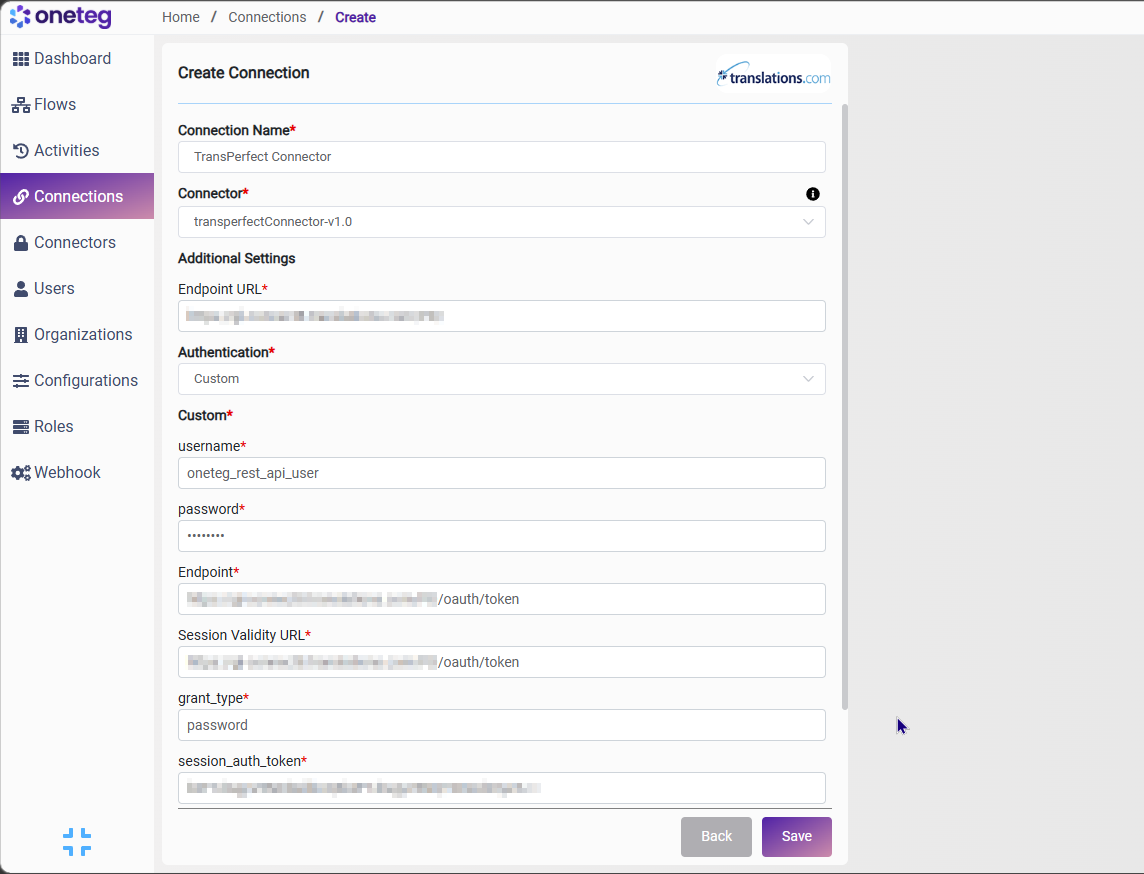
|
Settings Parameters |
Value / Sample Value |
Description |
Required (Y/N) |
|
Connection Name |
TransPerfect Connection |
Choose a name for your Connection |
Y |
|
Connector |
transperfectConnector-v1.0 |
Auto-populated once the TransPerfect Connector is selected |
Y |
|
Endpoint URL |
Base URL of your GlobalLink Connect instance. Replace your-instance with your actual instance subdomain. Found in your browser address bar when logged in to GlobalLink Connect |
Y |
|
|
Authentication |
Custom |
Select Custom from the dropdown |
Y |
|
Username |
your-globallink-username |
Your GlobalLink Connect username. Provided by your TransPerfect account manager or GlobalLink administrator |
Y |
|
Password |
your-globallink-password |
Your GlobalLink Connect password. Provided by your TransPerfect account manager or GlobalLink administrator |
Y |
|
Endpoint |
The OAuth token endpoint. OneTeg submits credentials here to obtain a session token. Constructed by appending /PD/oauth/token to your instance base URL |
Y |
|
|
Session Validity URL |
The session validation endpoint. OneTeg calls this URL to verify and refresh the active session token. Uses the same OAuth token endpoint as the authentication Endpoint |
Y |
|
|
grant_type |
password |
The OAuth 2.0 grant type used for authentication. This value is fixed and must be set to password for the Custom auth method |
Y |
|
session_auth_token |
(returned after authentication) |
The session token returned by GlobalLink Connect after successful authentication. This field is populated automatically by OneTeg during the authentication flow and does not need to be entered manually |
Y |
Option 2 — Bearer Token Authentication
Use this method if you have a pre-existing GlobalLink Connect session token obtained externally or through a custom authentication process. Note that GlobalLink session tokens expire — you will need to manually update the token when it expires, making this method less suitable for long-running automations.
|
Settings Parameters |
Value / Sample Value |
Description |
Required (Y/N) |
|
Connection Name |
TransPerfect Connection |
Choose a name for your Connection |
Y |
|
Connector |
transperfectConnector-v1.0 |
Auto-populated once the TransPerfect Connector is selected |
Y |
|
Endpoint URL |
Base URL of your GlobalLink Connect instance |
Y |
|
|
Authentication |
Bearer |
Select Bearer from the dropdown |
Y |
|
Token |
GlobalLink session token |
A valid GlobalLink Connect session token obtained by calling the OAuth token endpoint manually. Must be updated each time the token expires |
Y |
Option 3 — Basic Authentication
Basic Authentication sends your GlobalLink Connect username and password as a Base64-encoded header with every request. This is a simpler setup than the Custom method but is less secure since credentials are transmitted with each API call. It is suitable for testing or environments where OAuth token management is not available.
|
Settings Parameters |
Value / Sample Value |
Description |
Required (Y/N) |
|
Connection Name |
TransPerfect Connection |
Choose a name for your Connection |
Y |
|
Connector |
transperfectConnector-v1.0 |
Auto-populated once the TransPerfect Connector is selected |
Y |
|
Endpoint URL |
Base URL of your GlobalLink Connect instance |
Y |
|
|
Authentication |
Basic |
Select Basic from the dropdown |
Y |
|
Username |
your-globallink-username |
Your GlobalLink Connect username. Same credentials used to log in to the GlobalLink Connect portal |
Y |
|
Password |
your-globallink-password |
Your GlobalLink Connect password. Same credentials used to log in to the GlobalLink Connect portal |
Y |
4. Supported TransPerfect Actions and Options
For the full list of supported endpoints, parameters, and options, see the page below: