
1. General Information
Salsify is a Product Experience Management (PXM) platform that helps brands and retailers manage, enrich, and syndicate product content across digital commerce channels. It provides a centralized system for storing product data, digital assets, and channel-specific content — enabling teams to deliver accurate and consistent product experiences across e-commerce platforms, marketplaces, and retail partners.
The OneTeg Salsify Connector integrates with the Salsify API and enables users to build automated workflows for managing products, properties, digital assets, and channel data within their Salsify organization directly from the OneTeg flow builder.
The Salsify Connector Endpoint URL is organization-specific — it includes your unique Salsify Organization ID. You can find your Organization ID in the Salsify platform under your account settings or in the URL when browsing your Salsify organization.
2. Connect Salsify to OneTeg
The Salsify Connector authenticates using a Salsify API Key. API Keys are generated from the Salsify platform and grant access to your organization's product data and assets. Follow the steps below to locate your Organization ID and obtain your API Key.
Step 1 - Find Your Organization ID
Log in to your Salsify account at http://app.salsify.com . Your Organization ID is visible in the browser URL when you are logged in. It follows the pattern: https://app.salsify.com/app/orgs/{org-id}/ . Copy the {org-id} portion. You will need it to construct the Endpoint URL in OneTeg.

Step 2 - Generate an API Key
In Salsify, navigate to your profile icon → API Access (or Settings → API Access depending on your account type). Your API Key will be displayed on this page. Copy it and store it securely — this is the value you will enter in the Token field in OneTeg.
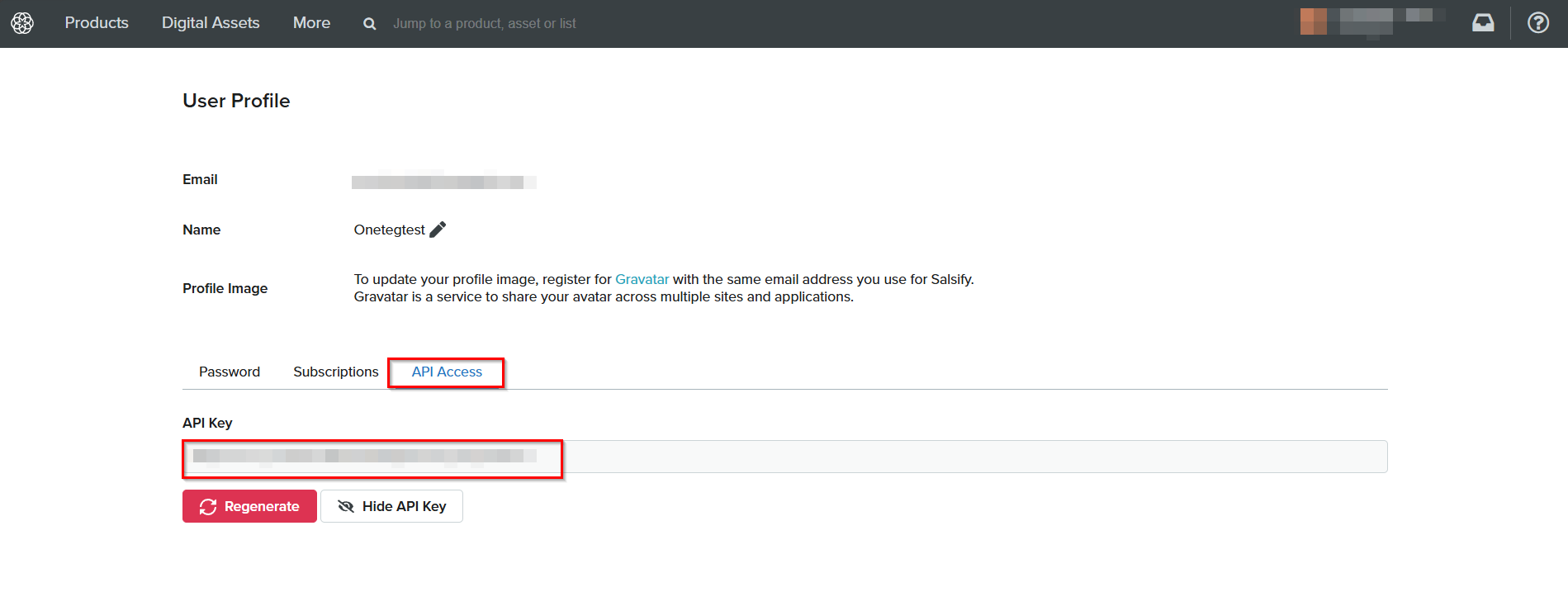
Salsify API Keys are tied to the individual user account that generated them. For production integrations, it is recommended to generate the API Key from a dedicated service or integration user account rather than a personal account, to avoid disruption if the user account is deactivated.
3. Connection Settings and Configuration for OneTeg
In OneTeg, navigate to Connections and create a new connection using the Salsify Connector. Fill in the settings below using your Organization ID and API Key obtained from the Salsify platform.
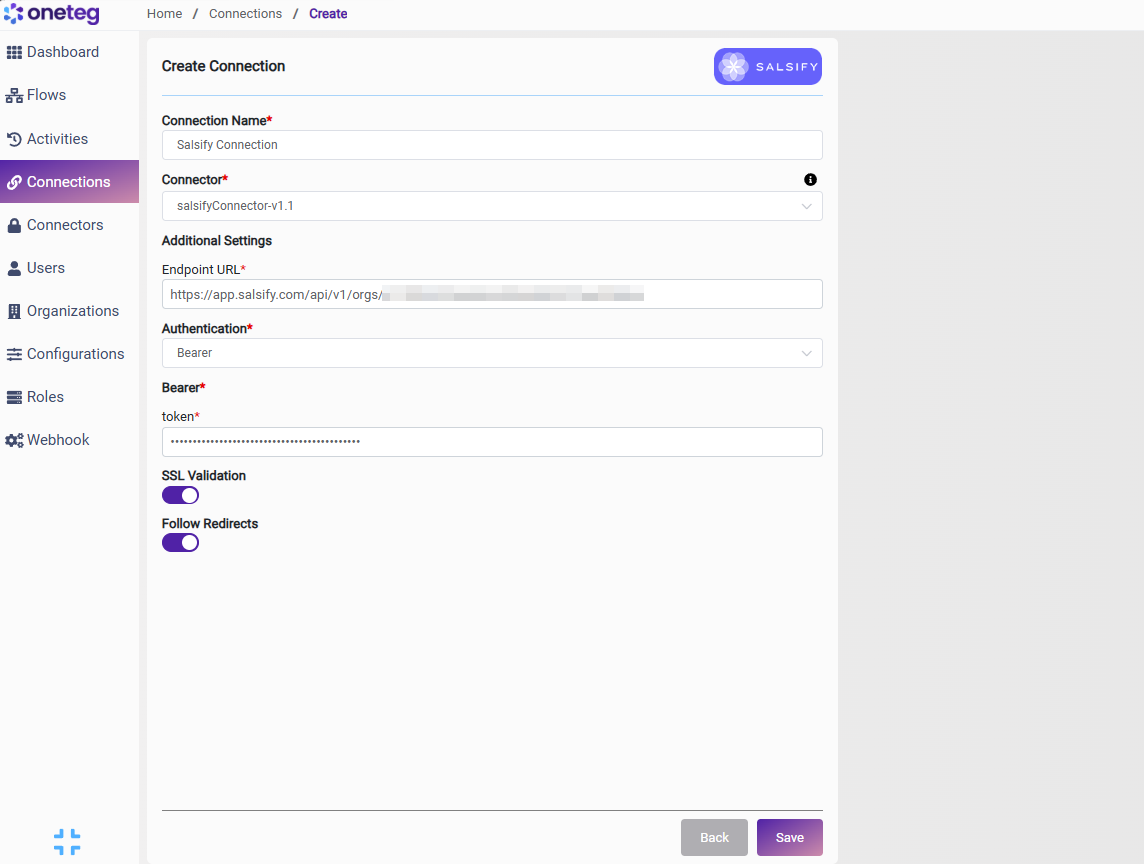
|
Settings Parameters |
Value / Sample Value |
Description |
Required (Y/N) |
|
Connection Name |
Salsify Connection |
Choose a name for your Connection |
Y |
|
Connector |
salsifyConnector-v1.1 |
Auto-populated once the Salsify Connector is selected |
Y |
|
Endpoint URL |
Your organization-specific Salsify API URL. Replace {org-id} with your Salsify Organization ID found in the browser URL when logged in to Salsify: http://app.salsify.com/app/orgs/{org-id}/ |
Y |
|
|
Authentication |
Bearer |
Select Bearer from the dropdown |
Y |
|
Token |
Salsify API Key |
Obtained from Salsify: profile icon → API Access. |
Y |
4. Supported Salsify Actions and Options
For the full list of supported endpoints, parameters, and options, see the page below: