
1. General Information
Hootsuite is a leading social media management platform that enables organizations to schedule, publish, monitor, and analyze content across multiple social media channels from a single dashboard. It supports major networks including Facebook, Instagram, Twitter/X, LinkedIn, YouTube, and Pinterest, and provides team collaboration tools, campaign management, and a rich API for programmatic access to social media workflows.
The OneTeg Hootsuite Connector integrates with the Hootsuite platform API and enables users to build automated workflows for managing social media content, scheduling posts, and coordinating publishing operations directly from the OneTeg flow builder.
The Hootsuite Connector authenticates using OAuth Authorization Code. You will need to register an application in the Hootsuite Developer Portal to obtain a Client ID and Client Secret before configuring the connection in OneTeg.
2. Connect Hootsuite to OneTeg
The Hootsuite Connector authenticates using OAuth Authorization Code. You will need to create an app in the Hootsuite Developer Portal to obtain your Client ID and Client Secret. Follow the steps below.
Step 1 - Log in to the Hootsuite Developer Portal
Navigate to https://developer.hootsuite.com and log in with your Hootsuite account credentials. If you do not have a developer account, sign up for free using your existing Hootsuite login.
Step 2 - Create a New App
Once logged in, navigate to My Apps and click Create App. Provide a name for your application — for example, "OneTeg Integration" — and fill in the required details. Click Create to confirm.
Step 3 - Configure the OAuth Redirect URL
Inside your app settings, locate the OAuth / Redirect URIs section. Add the following OneTeg OAuth callback URL as an allowed redirect URI:
https://app.oneteg.com/rest/v1/oauth2/callback
Save your changes before proceeding.
Step 4 - Copy the Client ID and Client Secret
From your app's settings or overview page, copy the Client ID and Client Secret. You will enter these values into OneTeg in the next step.
3. Connection Settings and Configuration for OneTeg
In OneTeg, navigate to Connections and create a new connection using the Hootsuite Connector. Fill in the fields below using the credentials obtained in Section 2.
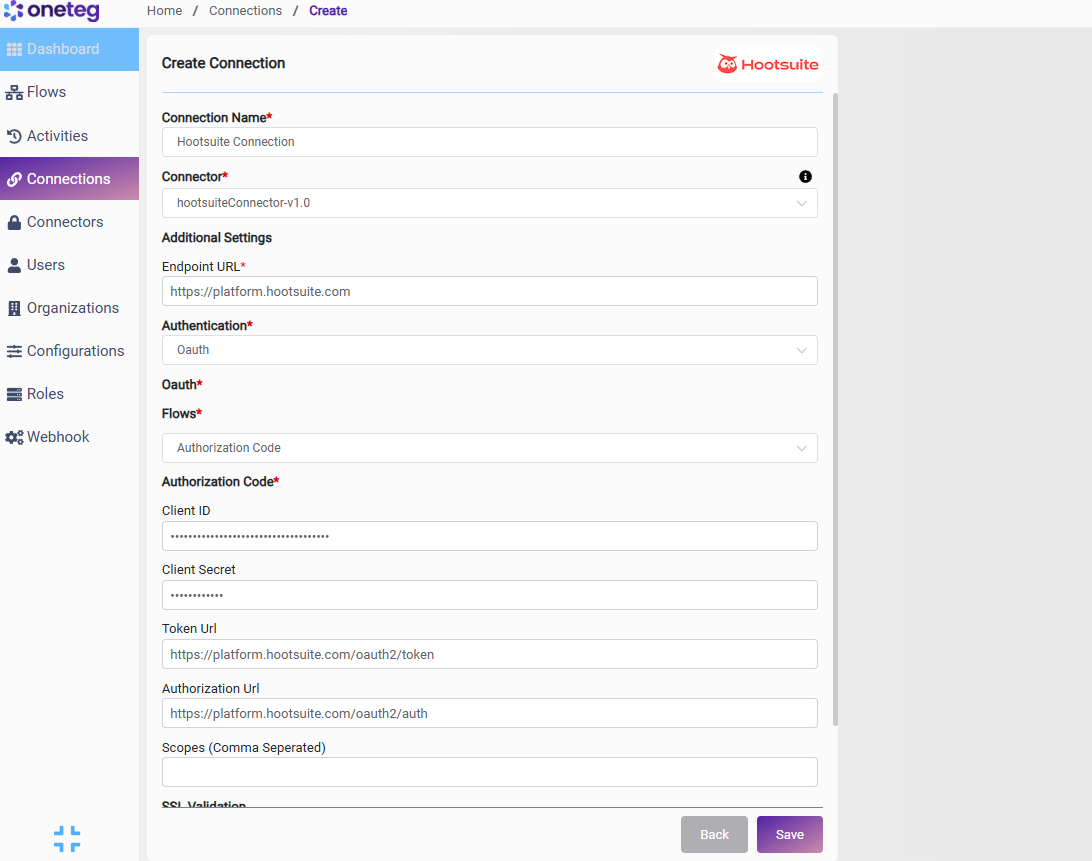
|
Settings Parameters |
Value / Sample Value |
Description |
Required (Y/N) |
|
Connection Name |
Hootsuite |
Choose a name for your Connection |
Y |
|
Connector |
hootsuiteConnector-v1.0 |
Auto-populated once the Hootsuite Connector is selected |
Y |
|
Endpoint URL |
The base URL of the Hootsuite platform API |
Y |
|
|
Authentication |
Oauth |
Select Oauth as the authentication method |
Y |
|
Flows |
Authorization Code |
Select Authorization Code as the OAuth flow |
Y |
|
Client ID |
Your Hootsuite App Client ID |
The Client ID from your app in the Hootsuite Developer Portal |
Y |
|
Client Secret |
Your Hootsuite App Client Secret |
The Client Secret from your app in the Hootsuite Developer Portal |
Y |
|
Token URL |
The Hootsuite OAuth token endpoint used to exchange authorization codes for access tokens |
Y |
|
|
Authorization URL |
The Hootsuite OAuth authorization endpoint where users grant access |
Y |
|
|
Scopes |
|
Optional. Comma-separated list of OAuth scopes to request. Leave blank to use the default scopes for your app |
|
4. Supported Hootsuite Actions and Options
For the full list of supported endpoints, parameters, and options, see the page below: