
1. General Information
Azure Document Intelligence (formerly Azure Form Recognizer) is a cloud-based Azure AI service that uses machine learning to extract text, key-value pairs, tables, and structured data from documents. It supports prebuilt models for common document types such as invoices, receipts, and identity documents, as well as custom models trained on your own document formats, enabling automated document processing at scale.
The OneTeg Azure Document Intelligence Connector integrates with the Azure Document Intelligence REST API, enabling users to submit documents for analysis and retrieve extracted data directly from OneTeg automation workflows. This connector supports two authentication methods: OAuth using a Microsoft Entra ID application, and Api Key using the resource's subscription key.
The endpoint URL is specific to your Azure Document Intelligence resource and includes your resource's custom subdomain. Api Key authentication is the simplest method, while OAuth via Microsoft Entra ID provides finer-grained, role-based access control.
2. Connect Azure Document Intelligence to OneTeg
Both authentication methods require an Azure Document Intelligence resource in the Azure portal. The Api Key method (Steps 1–2) uses the resource's subscription key and is the simplest to set up. The OAuth method (Steps 3–5) uses a Microsoft Entra ID application and provides role-based access control.
Step 1 - Locate Your Resource Endpoint and Keys
In the Azure portal, open your Azure Document Intelligence resource. In the left pane, select Keys and Endpoint. Here you will find your resource Endpoint URL and two subscription keys. The endpoint follows the custom subdomain format:
https://{your-resource-name}.cognitiveservices.azure.com/documentintelligence
Step 2 - Copy a Subscription Key (for Api Key Authentication)
Copy either KEY 1 or KEY 2 from the Keys and Endpoint page. This is the value you will enter into the Api Key field in OneTeg if you use the Api Key authentication method. If this is the only method you need, you can skip the remaining steps.
Keep your subscription keys confidential. You can regenerate them at any time from the Keys and Endpoint page. Regenerating a key requires updating it in your OneTeg connection.
Step 3 - Register a Microsoft Entra ID Application (for OAuth)
The OAuth method uses a Microsoft Entra ID (Azure AD) application registration, following the same app-registration process used by the Microsoft Teams Connector. For the full step-by-step guide to registering an app, adding a client secret, and configuring the OneTeg redirect URI, refer to:
Teams Connector | OneTeg Documentation
When registering the app, use the OneTeg OAuth callback URL as the redirect URI:
https://app.oneteg.com/rest/v1/oauth2/callback
After registration, note the Application (client) ID and create a Client Secret, as described in the Teams guide.
Step 4 - Assign the Cognitive Services User Role
Unlike Microsoft Graph connectors, Document Intelligence requires a role assignment on the resource. In the Azure portal, open your Document Intelligence resource, select Access control (IAM) → Add → Add role assignment, and assign the Cognitive Services User role to your registered application (service principal).
Step 5 - Confirm the OAuth Endpoints and Scope
The OAuth token and authorization endpoints use the Microsoft identity platform /organizations/ path. The token scope must target the Cognitive Services resource audience:
https://cognitiveservices.azure.com/.default
The Cognitive Services User role (not Contributor) is required for the application to actually call the API. The Contributor role only allows managing the resource and listing keys, not invoking the Document Intelligence operations.
3. Connection Settings and Configuration for OneTeg
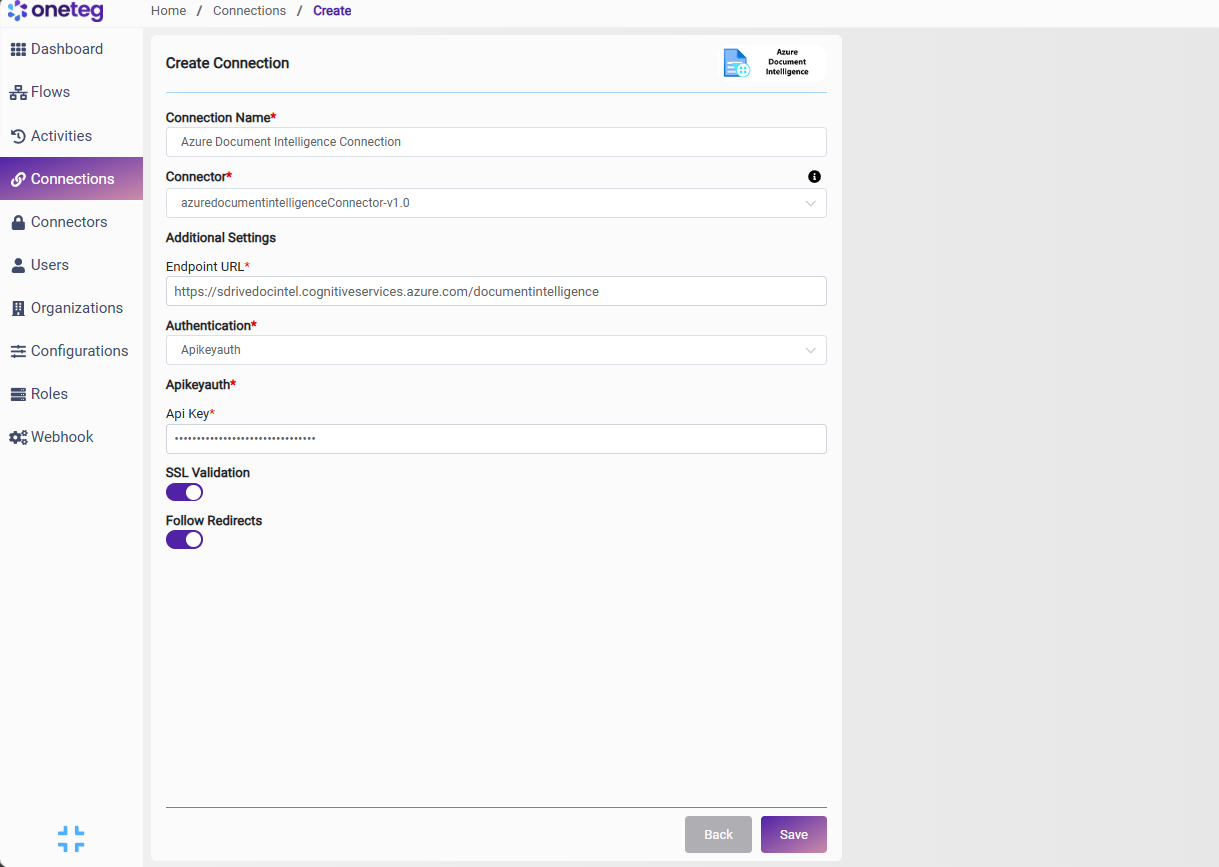
In OneTeg, navigate to Connections and create a new connection using the Azure Document Intelligence Connector. Choose your preferred authentication method below.
Option 1 — OAuth (Microsoft Entra ID)
Use this option for role-based access control via a Microsoft Entra ID application (Steps 3–5).
|
Settings Parameters |
Value / Sample Value |
Description |
Required (Y/N) |
|
Connection Name |
Azure Document Intelligence Connection |
Choose a name for your Connection |
Y |
|
Connector |
azuredocumentintelligenceConnector-v1.0 |
Auto-populated once the Azure Document Intelligence Connector is selected |
Y |
|
Endpoint URL |
https://{your-resource-name}.cognitiveservices.azure.com/documentintelligence |
The endpoint of your Azure Document Intelligence resource. Replace the subdomain with your own resource name |
Y |
|
Authentication |
Oauth |
Select Oauth as the authentication method |
Y |
|
Flows |
Authorization Code |
Select Authorization Code as the OAuth flow |
Y |
|
Client ID |
Your Entra ID Application (client) ID |
The Application (client) ID from your Microsoft Entra ID app registration |
Y |
|
Client Secret |
Your Entra ID Client Secret |
The Client Secret created for your Microsoft Entra ID app registration |
Y |
|
Token Url |
https://login.microsoftonline.com/organizations/oauth2/v2.0/token |
The Microsoft identity platform token endpoint (organizations path) |
Y |
|
Authorization Url |
https://login.microsoftonline.com/organizations/oauth2/v2.0/authorize |
The Microsoft identity platform authorization endpoint (organizations path) |
Y |
|
Scopes |
https://cognitiveservices.azure.com/.default |
The Cognitive Services resource scope. Required so the token audience targets the Document Intelligence API |
Y |
Option 2 — Apikey
Use this option for the simplest setup. Requires the resource subscription key from the Azure portal (Steps 1–2).
|
Settings Parameters |
Value / Sample Value |
Description |
Required (Y/N) |
|
Connection Name |
Azure Document Intelligence Connection |
Choose a name for your Connection |
Y |
|
Connector |
azuredocumentintelligenceConnector-v1.0 |
Auto-populated once the Azure Document Intelligence Connector is selected |
Y |
|
Endpoint URL |
https://{your-resource-name}.cognitiveservices.azure.com/documentintelligence |
The endpoint of your Azure Document Intelligence resource. Replace the subdomain with your own resource name |
Y |
|
Authentication |
Apikeyauth |
Select Apikeyauth as the authentication method |
Y |
|
Api Key |
Your resource subscription key |
KEY 1 or KEY 2 from the Keys and Endpoint page of your Azure Document Intelligence resource (see Step 2) |
Y |
4. Supported Azure Document Intelligence Actions and Options
For the full list of supported endpoints, parameters, and options, see the page below: