
1. General Information
Claude is Anthropic’s family of large language models, available to developers through the Claude API for tasks such as text generation, summarization, classification, data extraction, and building AI-powered assistants and agents. The Claude API is a RESTful API at https://api.anthropic.com that provides programmatic access to Claude models through endpoints such as Messages (POST /v1/messages).
The OneTeg Claude AI Connector integrates with the Claude API, enabling users to send prompts to Claude models and use the responses directly within OneTeg automation workflows. This connector authenticates using an API Key — an Anthropic API key.
The Claude API authenticates with an API key passed in the x-api-key header (not Authorization: Bearer) and requires an anthropic-version header (current value 2023-06-01) on every request. The Claude AI Connector supplies these headers for you.
Anthropic API keys begin with “sk-ant-” and are created in the Anthropic Console. The API Console is a separate product from a https://claude.ai chat subscription, with its own billing, and a payment method must be on file before requests will succeed.
2. Connect Claude to OneTeg
The connector authenticates with an Anthropic API key. Follow the steps below to create the key you will enter into OneTeg.
Step 1 - Sign in to the Anthropic Console
Go to https://console.anthropic.com and sign in, or create an account. Ensure a payment method is on file, as the Claude API requires one before requests will succeed.
Step 2 - Open the API Keys Page
In the Console, go to Settings → API keys (or go directly to https://console.anthropic.com/settings/keys ).
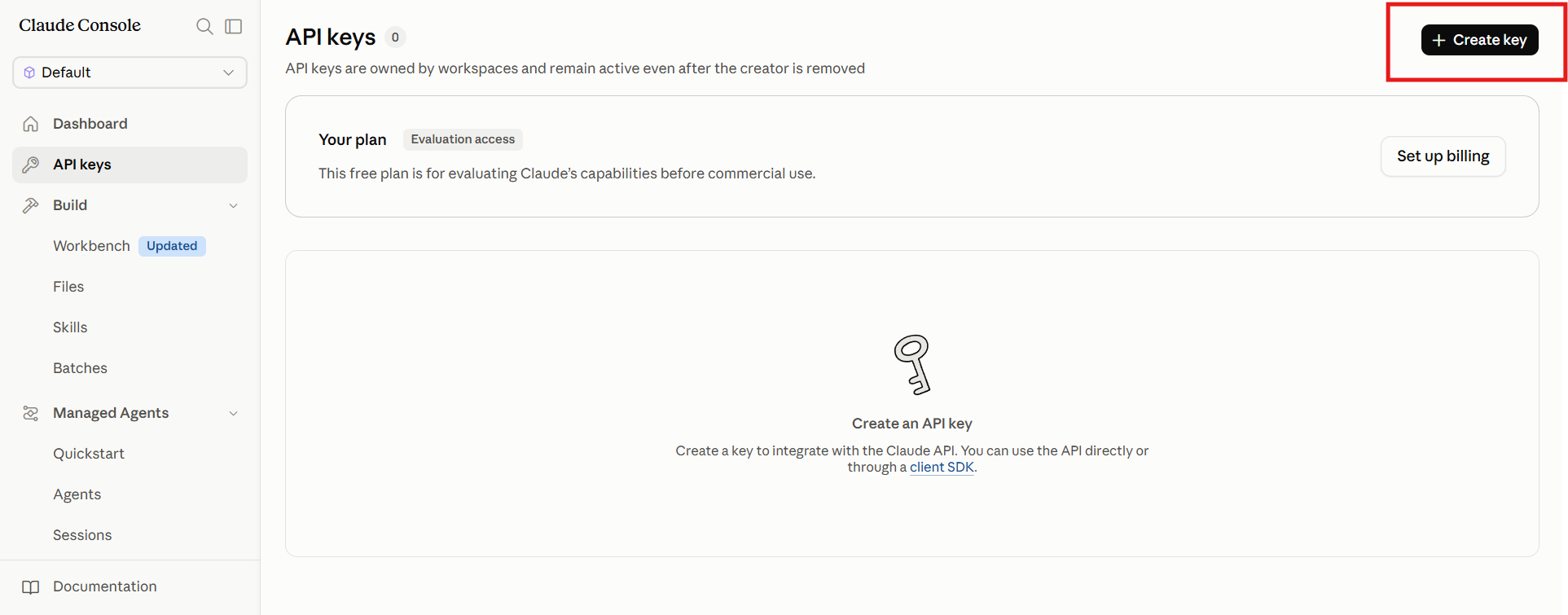
Step 3 - Create an API Key
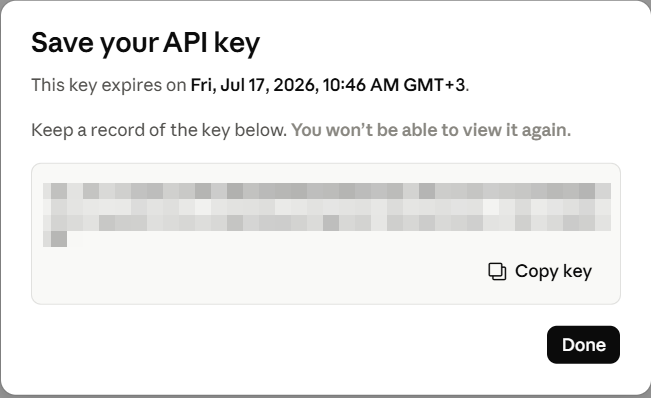
Click Create Key, give it a descriptive name, select the workspace, and choose an expiration. For an unattended OneTeg connection, choose Never (and rotate the key yourself following your own secret-hygiene practices) so the connection does not stop working when the key expires. Copy the key immediately. It begins with sk-ant- and is shown only once. Keep it secure; you will paste it into OneTeg in the next step.
3. Connection Settings and Configuration for OneTeg
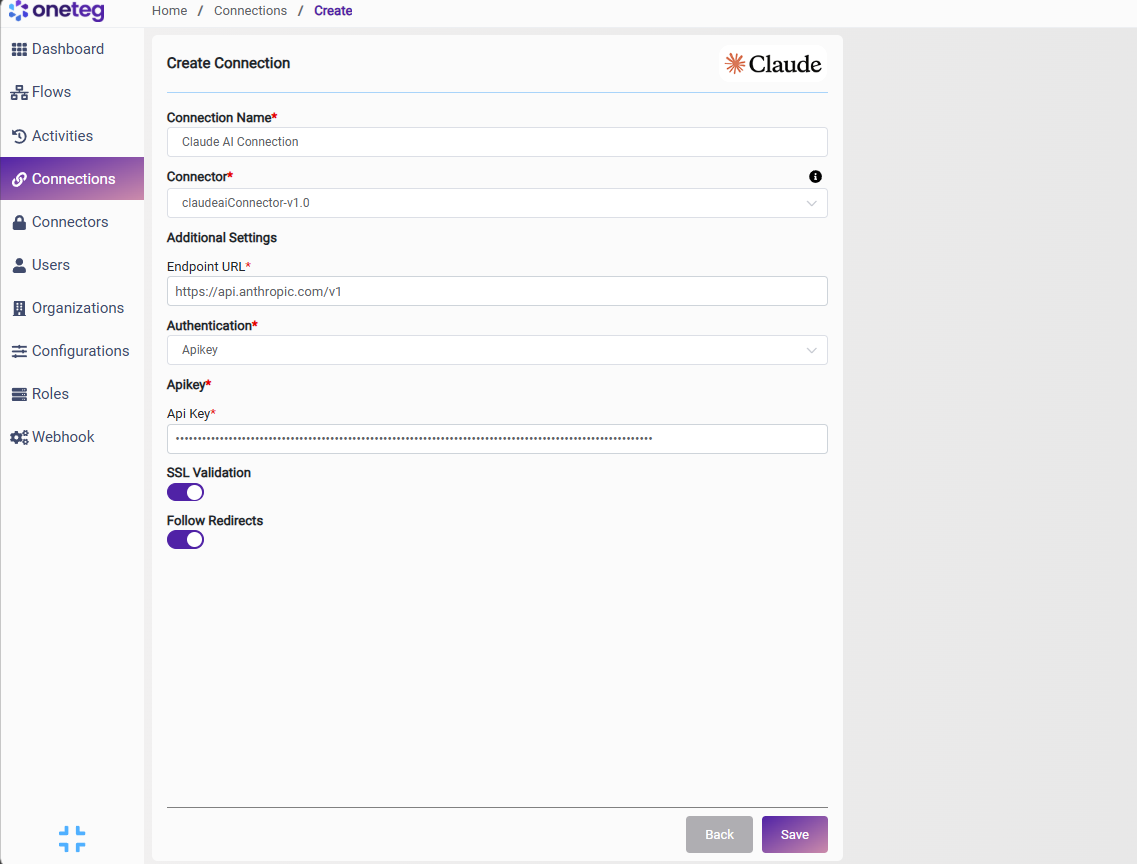
In OneTeg, navigate to Connections and create a new connection using the Claude AI Connector. Enter the settings below.
|
Settings Parameters |
Value / Sample Value |
Description |
Required (Y/N) |
|
Connection Name |
Claude AI Connection |
Choose a name for your Connection |
Y |
|
Connector |
claudeaiConnector-v1.0 |
Auto-populated once the Claude AI Connector is selected |
Y |
|
Endpoint URL |
https://api.anthropic.com/v1 |
The base URL of the Claude API |
Y |
|
Authentication |
Apikey |
Select Apikey as the authentication method |
Y |
|
Api Key |
Your Anthropic API key (sk-ant-…) |
The API key generated in the Anthropic Console (Settings → API keys), used to authenticate requests to the Claude API |
Y |
4. Supported Claude Actions and Options
For the full list of supported endpoints, parameters, and options, see the page below: