
1. General Information
FADEL is a provider of content licensing, rights, and royalty management software for enterprises and media organizations. Its Rights Cloud platform enables companies to track and manage usage rights, licenses, and obligations across digital assets, ensuring compliance and reducing the risk of unauthorized content usage. FADEL exposes a REST API that provides programmatic access to rights records, asset metadata, and licensing data.
The OneTeg FADEL Connector integrates with the FADEL Rights Cloud API, enabling users to query rights and licensing information for assets directly from OneTeg automation workflows. This connector supports two authentication methods: Custom authentication using a session token, and Basicauth using an API Key.
2. Connect FADEL to OneTeg
Both authentication methods require credentials from your FADEL Rights Cloud environment. Because FADEL is an enterprise platform, API credentials and endpoint details are typically provided by your FADEL administrator or account representative. Follow the steps below to obtain the values you need.
Step 1 - Obtain Your FADEL API Credentials
Contact your FADEL administrator or account representative to request API access for your Rights Cloud environment. Depending on the authentication method you intend to use, you will need:
Custom authentication: an authentication request token (authRequestToken), the authentication Endpoint, and the Session Validity URL for your environment.
Basicauth: an API Key issued for your FADEL account.
Step 2 - Confirm Your API Endpoint URL
Confirm the base URL of your FADEL Rights Cloud API environment. For the FADEL community Rights Cloud environment, the endpoint is:
https://community.rightscloud.fadel.com/rc-api/v2.0
If your organization uses a dedicated FADEL environment, your endpoint URL may differ — confirm the correct value with your FADEL administrator.
Store all FADEL credentials securely. If any credential is compromised, contact your FADEL administrator to have it rotated, and update the value in your OneTeg connection.
3. Connection Settings and Configuration for OneTeg
In OneTeg, navigate to Connections and create a new connection using the FADEL Connector. Choose your preferred authentication method below.
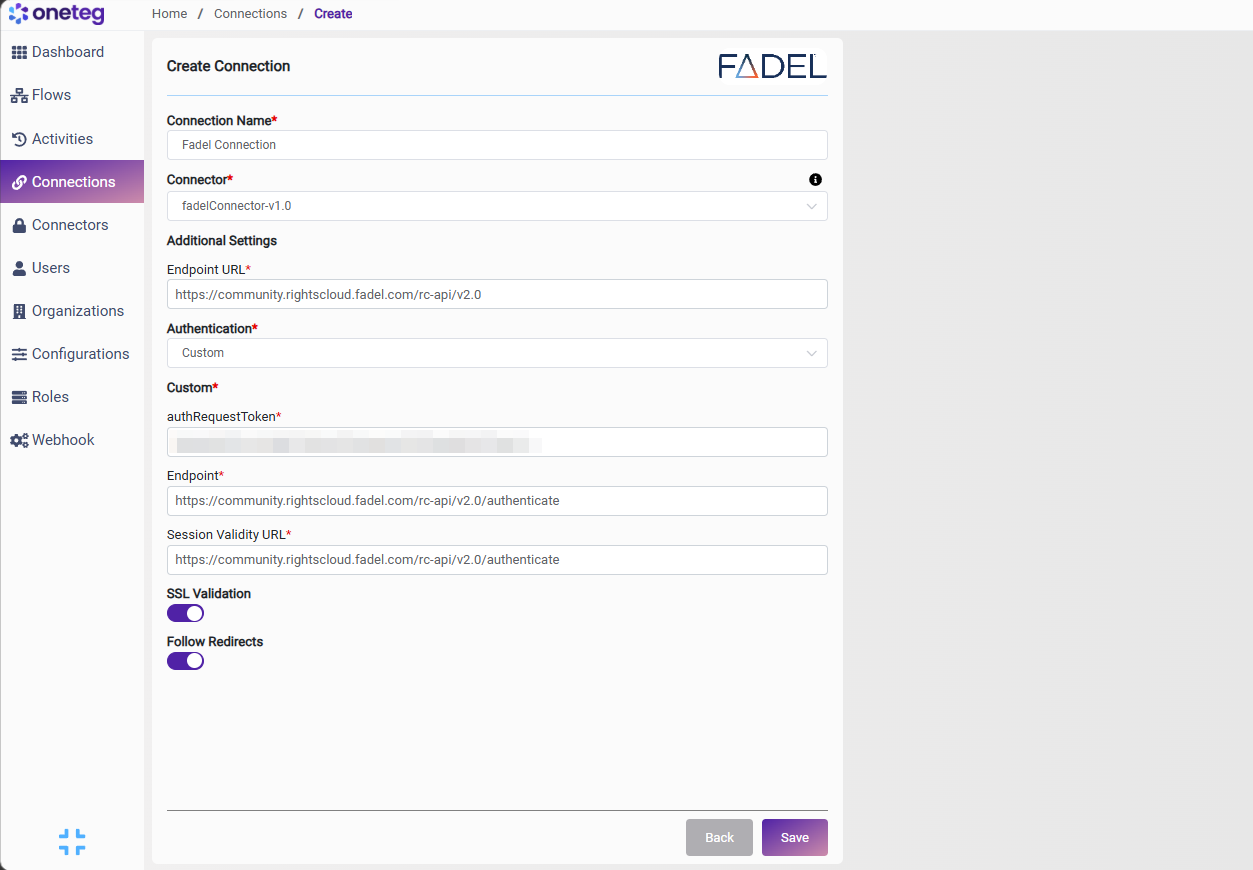
Option 1 — Custom
Use this option for production integrations. Uses a session-based token with a session validity check. Requires the authRequestToken, Endpoint, and Session Validity URL from your FADEL environment.
|
Settings Parameters |
Value / Sample Value |
Description |
Required (Y/N) |
|
Connection Name |
Fadel Connection |
Choose a name for your Connection |
Y |
|
Connector |
fadelConnector-v1.0 |
Auto-populated once the FADEL Connector is selected |
Y |
|
Endpoint URL |
https://community.rightscloud.fadel.com/rc-api/v2.0 |
The base URL of your FADEL Rights Cloud API environment |
Y |
|
Authentication |
Custom |
Select Custom as the authentication method |
Y |
|
authRequestToken |
Your FADEL authentication request token |
The authentication request token provided for your FADEL Rights Cloud environment |
Y |
|
Endpoint |
https://community.rightscloud.fadel.com/rc-api/v2.0/authenticate |
The FADEL authentication endpoint used to obtain a session token |
Y |
|
Session Validity URL |
https://community.rightscloud.fadel.com/rc-api/v2.0/authenticate |
The URL used to validate and maintain the active session |
Y |
Option 2 — Basicauth
Use this option for straightforward API access using an API Key.
|
Settings Parameters |
Value / Sample Value |
Description |
Required (Y/N) |
|
Connection Name |
Fadel Connection |
Choose a name for your Connection |
Y |
|
Connector |
fadelConnector-v1.0 |
Auto-populated once the FADEL Connector is selected |
Y |
|
Endpoint URL |
https://community.rightscloud.fadel.com/rc-api/v2.0 |
The base URL of your FADEL Rights Cloud API environment |
Y |
|
Authentication |
Basicauth |
Select Basicauth as the authentication method |
Y |
|
Api Key |
Your FADEL API Key |
The API Key issued for your FADEL Rights Cloud account |
Y |
4. Supported FADEL Actions and Options
For the full list of supported endpoints, parameters, and options, see the page below: