
1. General Information
Azure Blob Storage is Microsoft Azure's object storage solution for the cloud, optimized for storing massive amounts of unstructured data such as documents, images, video, and backups. Data is organized into containers within a storage account and accessed through a REST API. Azure Blob Storage is widely used for content repositories, data lakes, archival storage, and serving assets to applications.
The OneTeg Azure Blob Storage Connector integrates with the Azure Blob Storage REST API, enabling users to upload, download, list, and manage blobs and containers directly from OneTeg automation workflows. This connector supports two authentication methods: Custom authentication using the Microsoft Entra ID client credentials flow, and Bearer token using an Azure AD access token.
The endpoint URL is specific to your Azure Storage account. Both authentication methods use Microsoft Entra ID (Azure AD) credentials. Custom authentication is recommended, as it manages token acquisition automatically using your app's client ID and secret.
2. Connect Azure Blob Storage to OneTeg
Both authentication methods use a Microsoft Entra ID (Azure AD) app registration with access to your storage account. Steps 1–3 cover registering the app and granting it access. Step 4 covers the values needed for Custom authentication, and Step 5 is optional for the Bearer method.
Step 1 - Register a Microsoft Entra ID Application
The app registration process — registering the app, adding the OneTeg redirect URI, and creating a client secret — is identical to the process documented for the Microsoft Teams Connector. Please follow the Azure AD app setup guide in:
Microsoft Teams Connector v1.0
Use the OneTeg OAuth callback URL as the redirect URI when registering the app:
https://app.oneteg.com/rest/v1/oauth2/callback
Step 2 - Assign a Storage Role to the Application
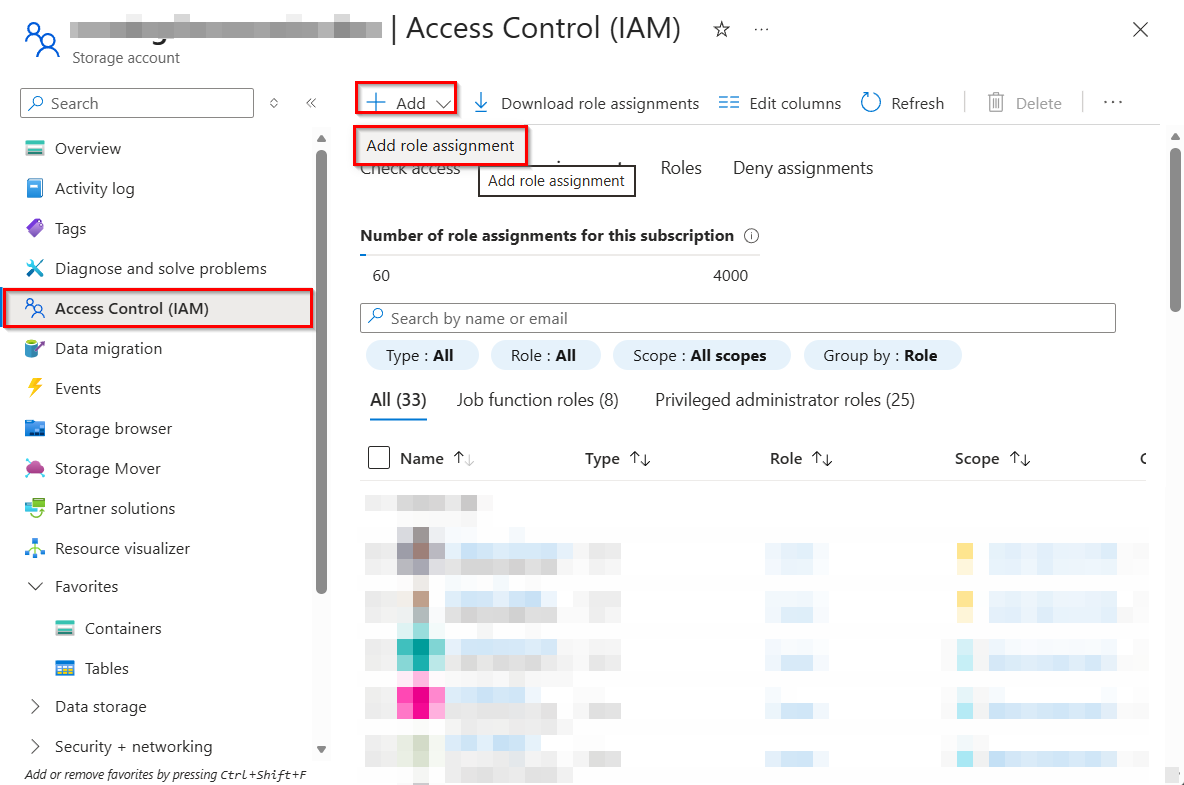
In the Azure portal, open your Storage account, go to Access control (IAM), click Add role assignment, and assign a storage data role to the app you registered in Step 1. For read and write access, assign the Storage Blob Data Contributor role; for read-only access, use Storage Blob Data Reader.
Step 3 - Note Your Tenant ID and Storage Endpoint
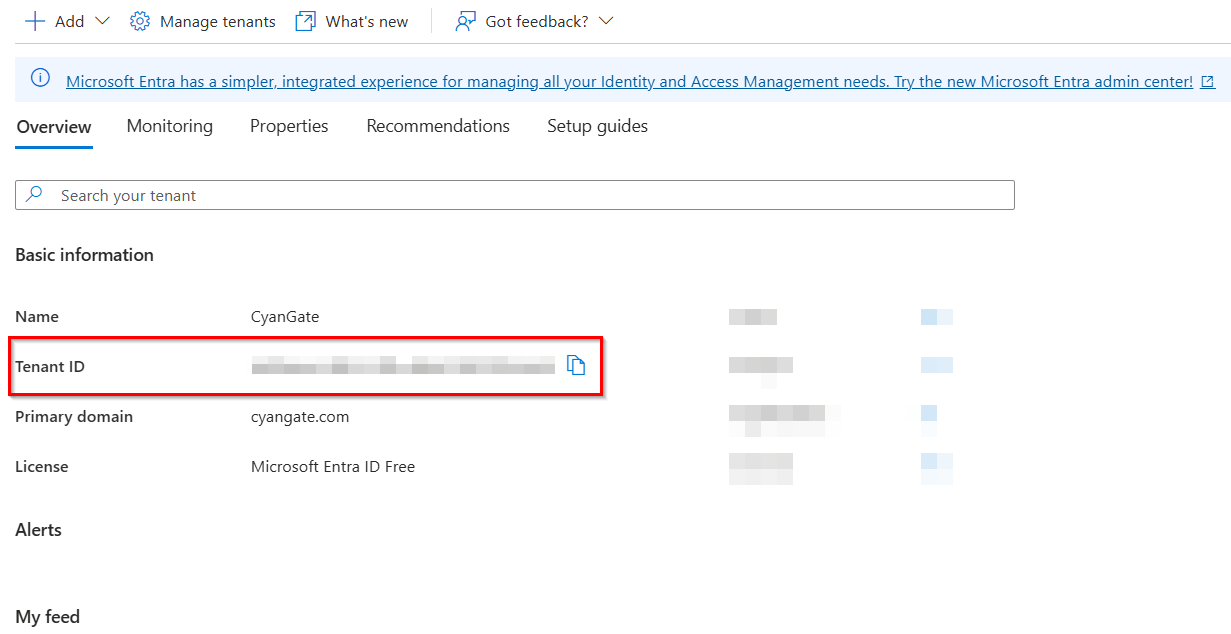
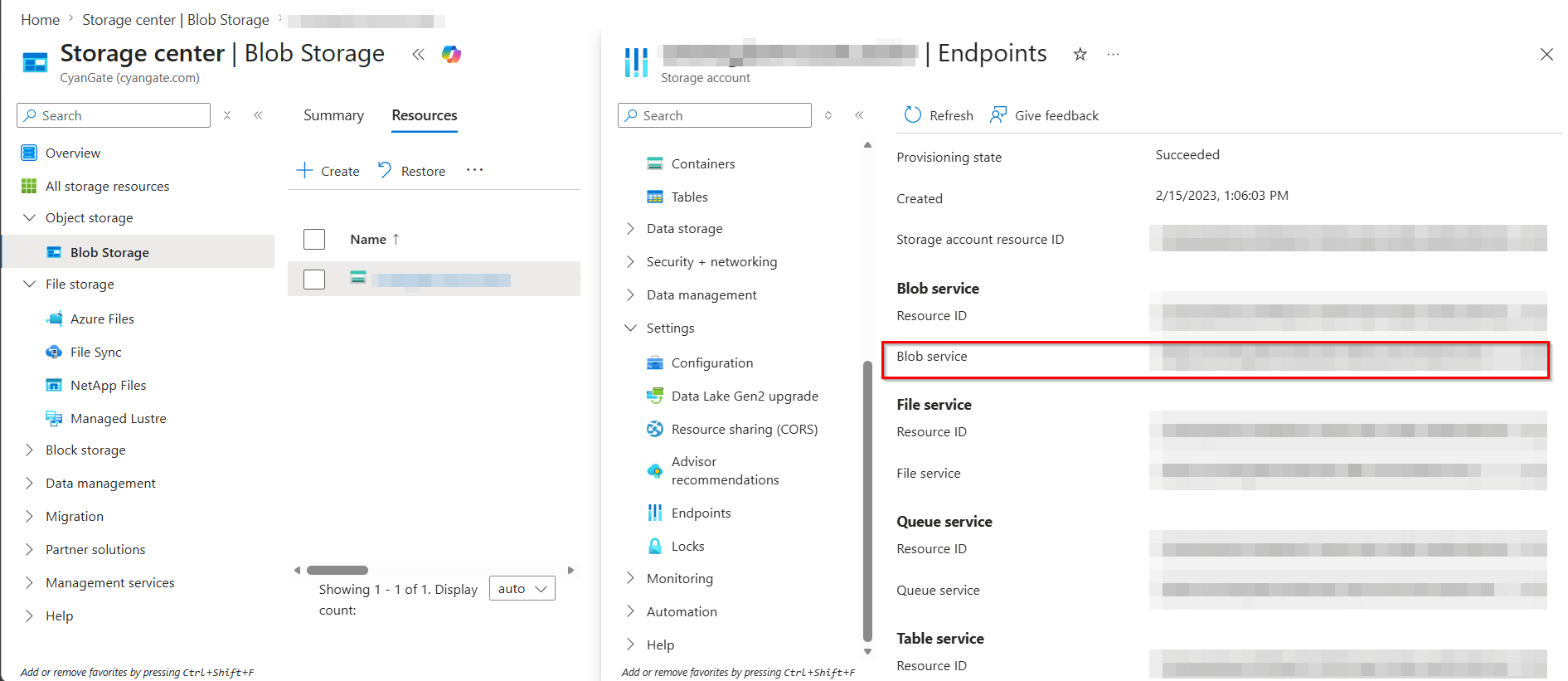
From your Microsoft Entra ID overview, note the Directory (tenant) ID — you will need it to build the token endpoint URL. From your Storage account's Endpoints page, note the Blob service endpoint, which looks like https://{account-name}.blob.core.windows.net.
Step 4 - Copy the Client ID and Client Secret
From your app registration's Overview page, copy the Application (client) ID and the client secret you created. These map to the client_id and client_secret fields in the Custom authentication form in OneTeg.
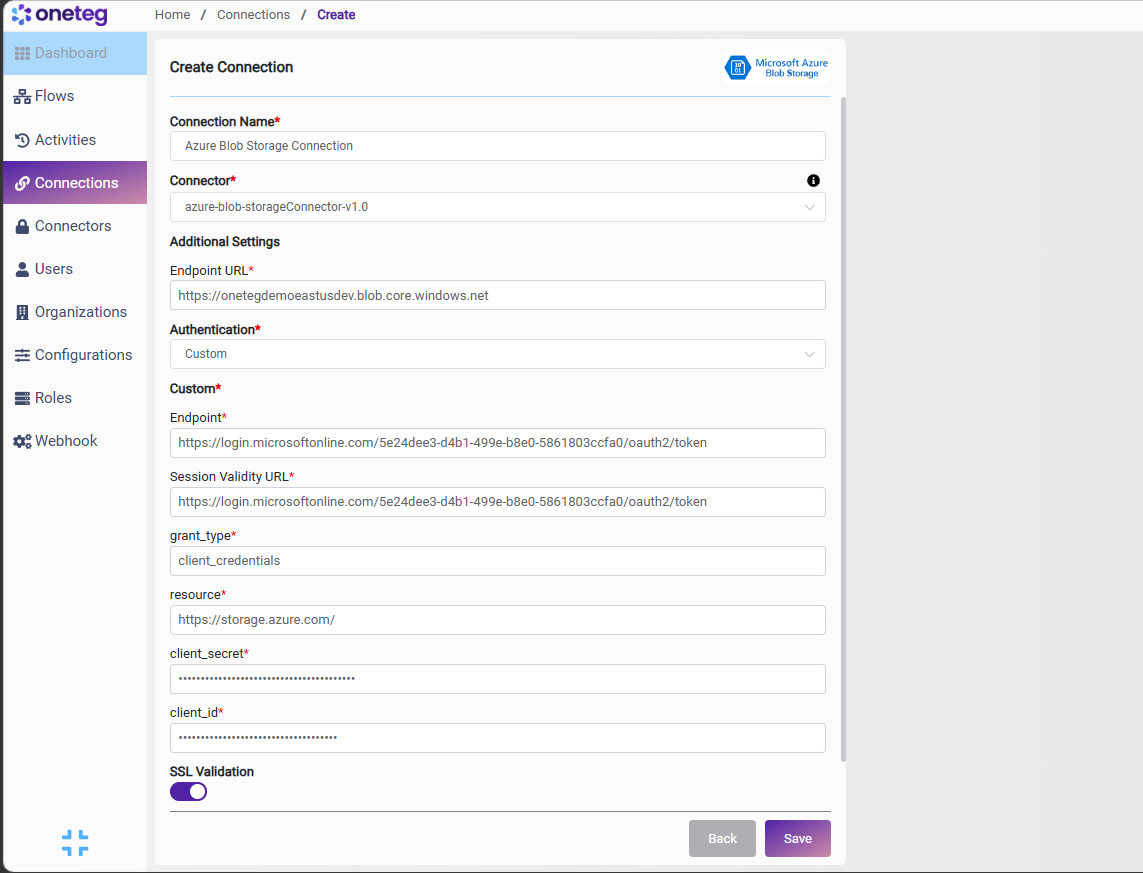
For Custom authentication, the Endpoint and Session Validity URL are both the tenant-specific token endpoint: https://login.microsoftonline.com/{tenant-id}/oauth2/token . The resource value is https://storage.azure.com/ and the grant_type is client_credentials.
Step 5 (Optional) - Obtain a Bearer Access Token
If you prefer the Bearer authentication method, you need an Azure AD access token scoped to Azure Storage. You can obtain one using the Azure CLI:
az account get-access-token --resource https://storage.azure.com/ --query accessToken -o tsv
Copy the returned access token — this is the value you will enter into the token field in OneTeg.
Azure AD access tokens expire after approximately 1 hour. With the Bearer method you will need to manually obtain a new token and update it in OneTeg when it expires, making this method less suitable for long-running automations. Custom authentication avoids this by acquiring tokens automatically.
3. Connection Settings and Configuration for OneTeg
In OneTeg, navigate to Connections and create a new connection using the Azure Blob Storage Connector. Choose your preferred authentication method below.
Option 1 — Custom
Use this option for production integrations. Uses the Microsoft Entra ID client credentials flow and acquires tokens automatically. Requires an Entra app with a storage data role (Steps 1–4).
|
Settings Parameters |
Value / Sample Value |
Description |
Required (Y/N) |
|
Connection Name |
Azure Blob Storage Connection |
Choose a name for your Connection |
Y |
|
Connector |
azure-blob-storageConnector-v1.0 |
Auto-populated once the Azure Blob Storage Connector is selected |
Y |
|
Endpoint URL |
https://{account-name}.blob.core.windows.net |
Your Azure Storage account Blob service endpoint. |
Y |
|
Authentication |
Custom |
Select Custom as the authentication method |
Y |
|
Endpoint |
https://login.microsoftonline.com/{tenant-id}/oauth2/token |
The Microsoft Entra ID token endpoint for your tenant, used to obtain an access token |
Y |
|
Session Validity URL |
https://login.microsoftonline.com/{tenant-id}/oauth2/token |
The same tenant token endpoint, used to validate and refresh the active session |
Y |
|
grant_type |
client_credentials |
The OAuth grant type. Use client_credentials for app-only access |
Y |
|
resource |
https://storage.azure.com/ |
The Azure resource the token grants access to. For Blob Storage this is https://storage.azure.com/ |
Y |
|
client_secret |
Your Entra app client secret |
The client secret from your Microsoft Entra ID app registration |
Y |
|
client_id |
Your Entra app Application (client) ID |
The Application (client) ID from your Microsoft Entra ID app registration |
Y |
Option 2 — Bearer Token
Use this option for quick testing. Requires a short-lived Azure AD access token (Step 5).
|
Settings Parameters |
Value / Sample Value |
Description |
Required (Y/N) |
|
Connection Name |
Azure Blob Storage Connection |
Choose a name for your Connection |
Y |
|
Connector |
azure-blob-storageConnector-v1.0 |
Auto-populated once the Azure Blob Storage Connector is selected |
Y |
|
Endpoint URL |
https://{account-name}.blob.core.windows.net |
Your Azure Storage account Blob service endpoint. |
Y |
|
Authentication |
Bearer |
Select Bearer as the authentication method |
Y |
|
token |
Your Azure AD access token |
An Azure AD access token scoped to https://storage.azure.com/ (see Step 5). Note that tokens expire after approximately 1 hour — you will need to manually update the token when it expires, making this method less suitable for long-running automations. |
Y |
4. Supported Azure Blob Storage Actions and Options
For the full list of supported endpoints, parameters, and options, see the page below: