
1. General Information
Gemini is Google's family of multimodal large language models, designed to understand and generate text, code, images, audio, and video. Built natively for Google products and available through the Gemini API, it enables developers and organizations to integrate advanced AI capabilities — including content generation, summarization, classification, and reasoning — directly into their applications and workflows.
The OneTeg Gemini Connector integrates with the Gemini API, enabling users to send prompts and receive AI-generated responses directly from OneTeg automation workflows. This connector authenticates using an API Key obtained from Google AI Studio.
Gemini API Keys are generated from Google AI Studio (https://aistudio.google.com ) and are separate from Google Cloud credentials. No Google Cloud project setup is required to obtain a Gemini API Key.
2. Connect Gemini to OneTeg
The Gemini Connector authenticates using an API Key generated from Google AI Studio. Follow the steps below to obtain your key.
Step 1 - Log in to Google AI Studio
Navigate to https://aistudio.google.com and sign in with your Google account.
Step 2 - Generate an API Key
In the left navigation panel, click Get API key. On the API keys page, click Create API key. Select an existing Google Cloud project to associate the key with, or create a new one. Click Create API key in existing project to confirm.
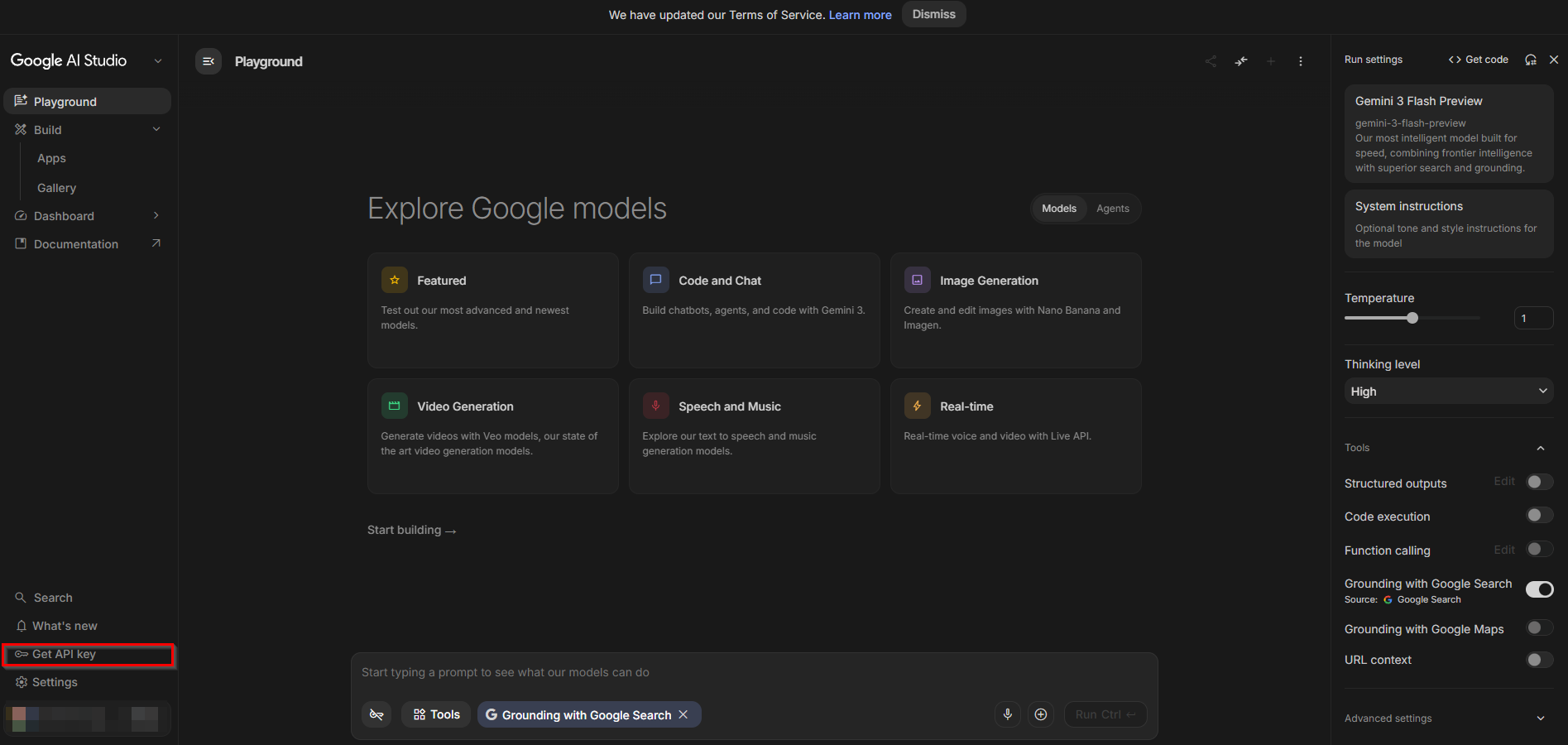
Step 3 - Copy the API Key
Once generated, your API Key is displayed on the API keys page. Copy it immediately and store it securely — this is the value you will enter into OneTeg in the next step.
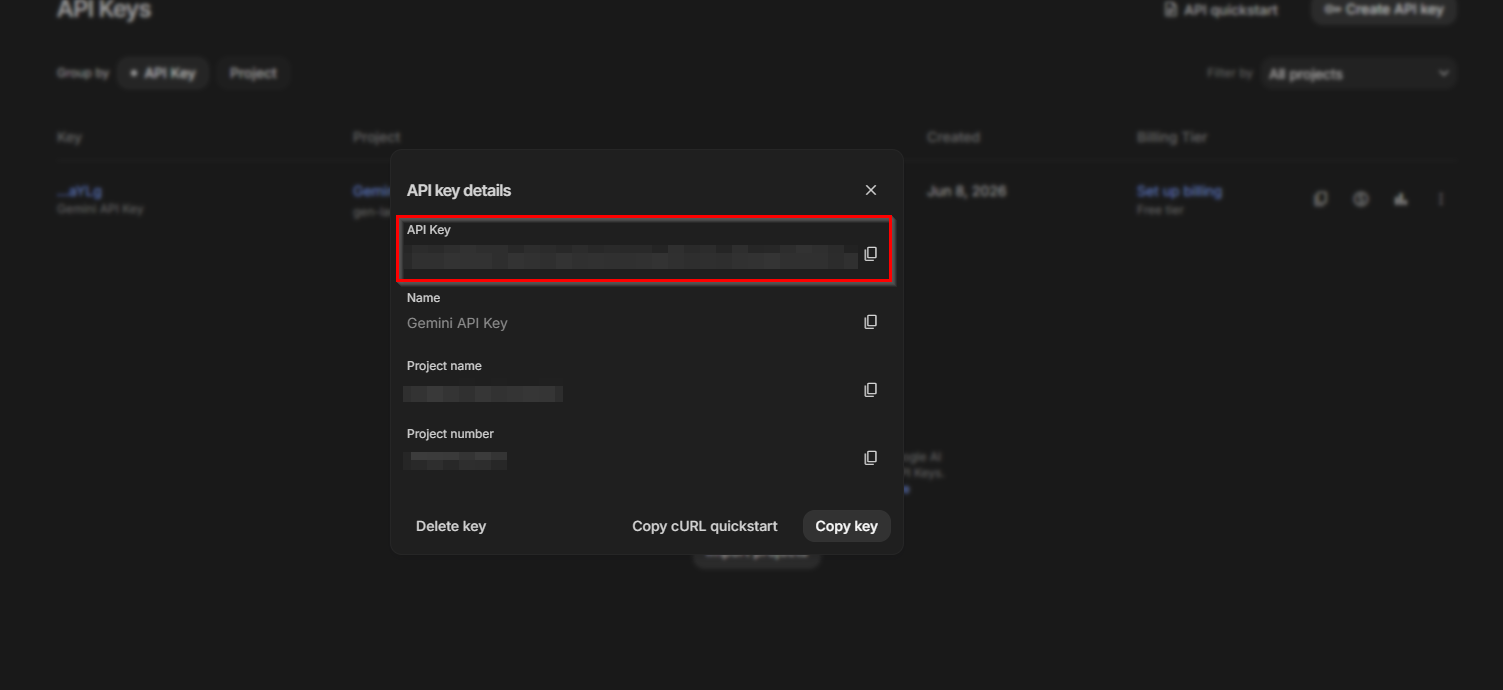
Keep your Gemini API Key confidential. If it is ever exposed, delete it from Google AI Studio immediately and generate a new one. You will need to update the key in your OneTeg connection after regeneration.
3. Connection Settings and Configuration for OneTeg
In OneTeg, navigate to Connections and create a new connection using the Gemini Connector. Fill in the fields below using the API Key obtained in Section 2.
|
Settings Parameters |
Value / Sample Value |
Description |
Required (Y/N) |
|
Connection Name |
Gemini Connection |
Choose a name for your Connection |
Y |
|
Connector |
geminiConnector-v1.0 |
Auto-populated once the Gemini Connector is selected |
Y |
|
Endpoint URL |
https://generativelanguage.googleapis.com |
The base URL of the Gemini API |
Y |
|
Authentication |
Api Key |
Select Api Key as the authentication method |
Y |
|
Api Key |
Your Gemini API Key |
The API Key generated from Google AI Studio (https://aistudio.google.com ) under Get API key |
Y |
4. Supported Gemini Actions and Options
For the full list of supported endpoints, parameters, and options, see the page below: