
1. General Information
Google Drive is Google's cloud storage and file synchronization service, allowing users and teams to store, share, and access files from any device. It supports a wide range of file types including documents, spreadsheets, presentations, images, and videos, and integrates deeply with Google Workspace applications. Google Drive's REST API provides programmatic access to file management, folder structures, permissions, and metadata — making it a common integration target for content and asset workflows.
The OneTeg Google Drive Connector integrates with the Google Drive API v3, enabling users to list, read, upload, and manage files and folders in Google Drive directly from OneTeg automation workflows. This connector supports two authentication methods: OAuth Authorization Code for user-delegated access, and Bearer token for direct API access.
OAuth Authorization Code is the recommended authentication method for production integrations. The Bearer token method uses a short-lived Google OAuth 2.0 access token that expires after approximately 1 hour and must be refreshed manually, making it less suitable for long-running automations.
2. Connect Google Drive to OneTeg
The Google Drive Connector uses the same Google Cloud Console setup process as the Google Sheets Connector. Follow the full credential setup guide in:
When following that guide, enable the Google Drive API instead of the Google Sheets API in Step 3, and use the Drive-specific scope listed in Section 3 of this document when configuring the OAuth consent screen and credentials. All other steps — creating a project, configuring the OAuth consent screen, creating OAuth 2.0 credentials, adding the OneTeg redirect URI, and optionally obtaining a Bearer access token — are identical.
When enabling APIs in Step 3, search for "Google Drive API" and click Enable. The redirect URI to add in Step 5 is: https://app.oneteg.com/rest/v1/oauth2/callback
3. Connection Settings and Configuration for OneTeg
In OneTeg, navigate to Connections and create a new connection using the Google Drive Connector. Choose your preferred authentication method below.
Option 1 - OAuth Authorization Code
Use this option for production integrations. Requires OAuth 2.0 credentials from Google Cloud Console — see the Google Sheets Connector setup guide for full instructions.
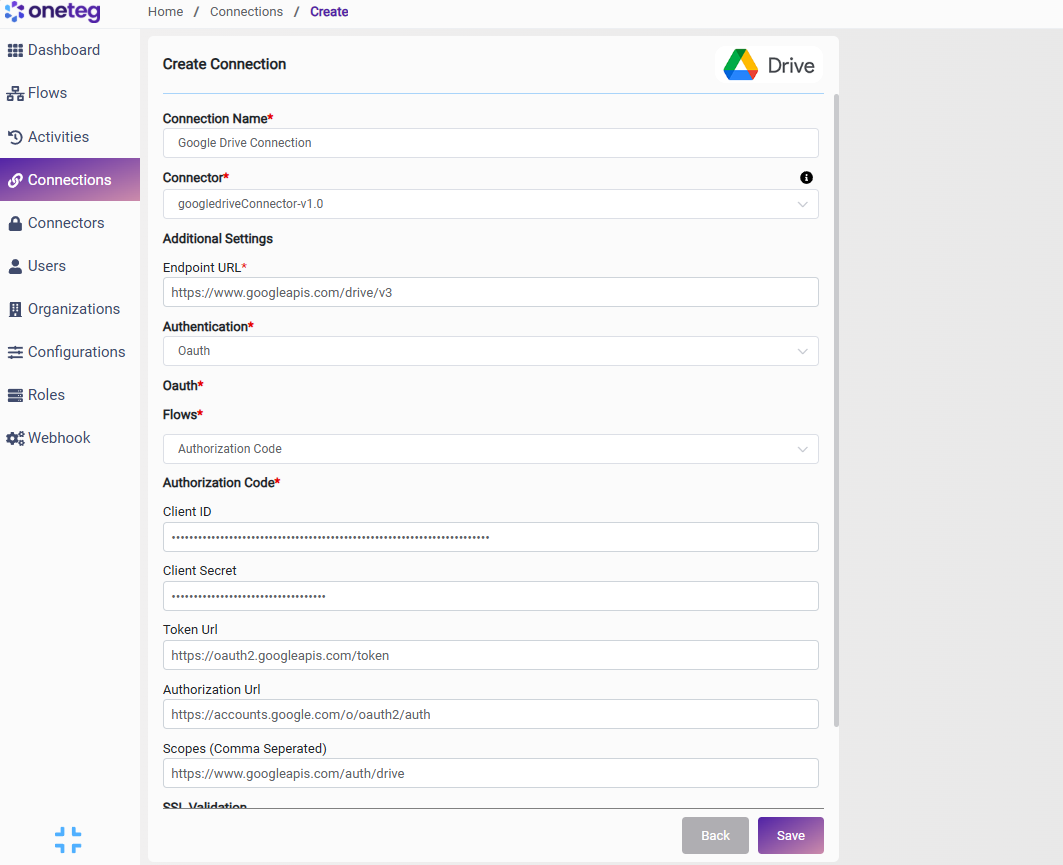
|
Settings Parameters |
Value / Sample Value |
Description |
Required (Y/N) |
|
Connection Name |
Google Drive Connection |
Choose a name for your Connection |
Y |
|
Connector |
googledriveConnector-v1.0 |
Auto-populated once the Google Drive Connector is selected |
Y |
|
Endpoint URL |
https://www.googleapis.com/drive/v3 |
The base URL of the Google Drive REST API v3 |
Y |
|
Authentication |
Oauth |
Select Oauth as the authentication method |
Y |
|
Flows |
Authorization Code |
Select Authorization Code as the OAuth flow |
Y |
|
Client ID |
Your Google OAuth Client ID |
The Client ID from your OAuth 2.0 credentials in the Google Cloud Console |
Y |
|
Client Secret |
Your Google OAuth Client Secret |
The Client Secret from your OAuth 2.0 credentials in the Google Cloud Console |
Y |
|
Token URL |
https://oauth2.googleapis.com/token |
The Google OAuth 2.0 token endpoint used to exchange authorization codes for access tokens |
Y |
|
Authorization URL |
https://accounts.google.com/o/oauth2/auth |
The Google OAuth 2.0 authorization endpoint where users grant access |
Y |
|
Scopes |
https://www.googleapis.com/auth/drive |
The Google Drive API scope granting full access to files. Use the read-only scope if write access is not required: https://www.googleapis.com/auth/drive.readonly |
Y |
Option 2 - Bearer Token
Use this option for quick testing. Requires a short-lived Google OAuth 2.0 access token obtained via the Google OAuth 2.0 Playground.
|
Settings Parameters |
Value / Sample Value |
Description |
Required (Y/N) |
|
Connection Name |
Google Drive Connection |
Choose a name for your Connection |
Y |
|
Connector |
googledriveConnector-v1.0 |
Auto-populated once the Google Drive Connector is selected |
Y |
|
Endpoint URL |
https://www.googleapis.com/drive/v3 |
The base URL of the Google Drive REST API v3 |
Y |
|
Authentication |
Bearer |
Select Bearer as the authentication method |
Y |
|
Token |
Your Google OAuth 2.0 access token |
A valid Google OAuth 2.0 access token with the Google Drive API scope. Obtain this via the Google OAuth 2.0 Playground at https://developers.google.com/oauthplayground . Note that tokens expire after approximately 1 hour — you will need to manually update the token when it expires, making this method less suitable for long-running automations. |
Y |
4. Supported Google Drive Actions and Options
For the full list of supported endpoints, parameters, and options, see the page below: