
1. General Information
Adobe Experience Manager (AEM) Assets is Adobe's enterprise digital asset management (DAM) solution, part of the Adobe Experience Manager platform. It enables organizations to store, organize, manage, and distribute digital assets — including images, videos, documents, and rich media — at scale, with powerful metadata, versioning, and workflow capabilities. AEM Assets exposes REST and Assets APIs for programmatic access to the asset repository.
The OneTeg Adobe Assets AEM Connector integrates with the AEM Assets API, enabling users to manage and retrieve digital assets directly from OneTeg automation workflows. This connector supports three authentication methods: Jwt (Adobe Service Account), Custom authentication, and Bearer token.
The endpoint URL is specific to your AEM environment. Jwt authentication (Adobe Service Account) is the recommended method for AEM as a Cloud Service integrations, as it manages token exchange automatically using your Adobe Developer Console credentials.
2. Connect Adobe Assets AEM to OneTeg
The recommended Jwt method uses Adobe Service Account credentials created in the Adobe Developer Console. Steps 1–3 cover obtaining these credentials. Step 4 is optional and covers obtaining a Bearer access token. The Custom method reuses the same credentials in a manual token exchange configuration.
Step 1 - Create a Project with AEM API Access in the Adobe Developer Console
Navigate to https://developer.adobe.com/console and sign in with your Adobe ID. Create a new project (or open an existing one) and add the AEM (Experience Manager) API. When prompted for the credential type, select Service Account (JWT) to generate JWT credentials.
Step 2 - Generate a Public/Private Key Pair
When configuring the Service Account (JWT) credential, generate a public/private key pair (the Developer Console can create one for you). Download the keypair and securely store the private key (a PEM file) — you will paste its contents into the Private Key (PEM) field in OneTeg.
Step 3 - Collect the JWT Credential Details
From the Service Account (JWT) credential page, collect the values you will need in OneTeg: Client ID (API Key), Client Secret, Technical Account ID, Organization ID, and the Private Key. The IMS-related URLs are standard Adobe values shown in the settings table in Section 3.
The IMS Endpoint (https://ims-na1.adobelogin.com/ims/exchange/jwt) and Meta Scope Claim URL (https://ims-na1.adobelogin.com/s/ent_aem_cloud_api) are standard Adobe values for AEM as a Cloud Service. Keep your Client Secret and Private Key confidential.
Step 4 (Optional) - Obtain a Bearer Access Token
If you prefer the Bearer authentication method, you can exchange your JWT credentials for an access token by calling the Adobe IMS exchange endpoint, or generate a token from the Developer Console. Copy the resulting access token — this is what you will enter into the token field in OneTeg.
Bearer access tokens for AEM expire after a limited period. With the Bearer method you will need to manually obtain a new token and update it in OneTeg when it expires, making this method less suitable for long-running automations. Jwt authentication avoids this by exchanging tokens automatically.
3. Connection Settings and Configuration for OneTeg
In OneTeg, navigate to Connections and create a new connection using the Adobe Assets AEM Connector. Choose your preferred authentication method below.
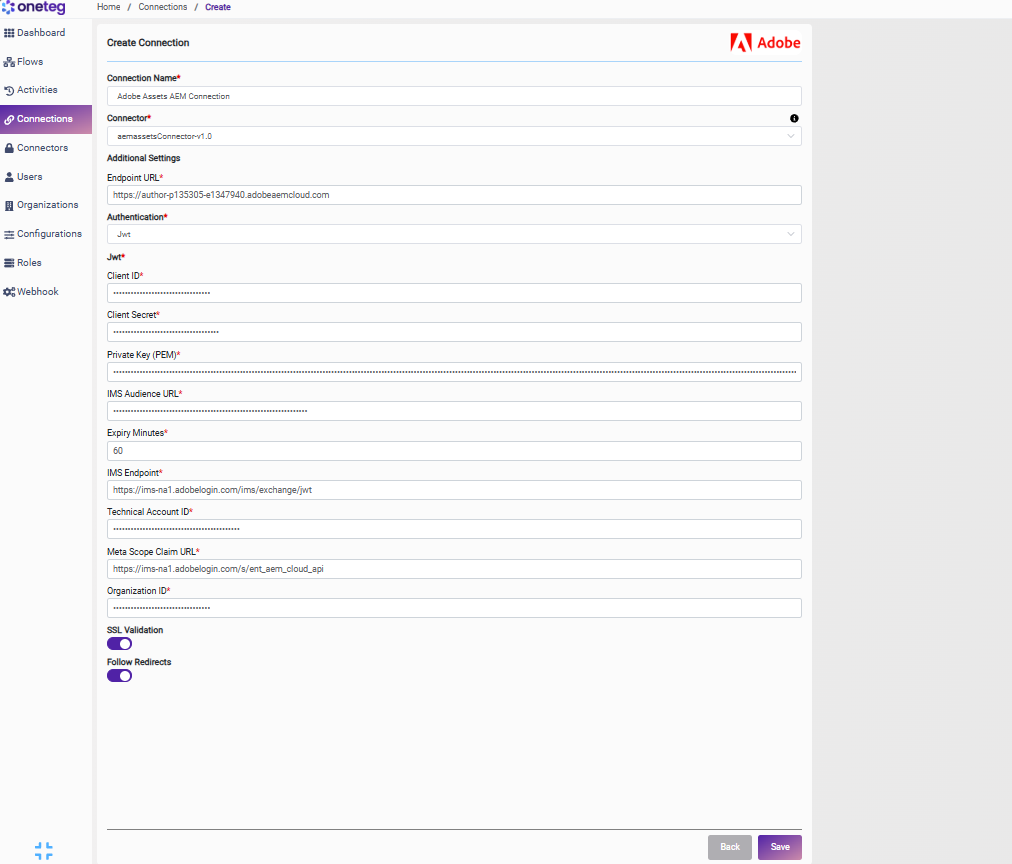
Option 1 — Jwt
Use this option for production AEM as a Cloud Service integrations. Uses Adobe Service Account credentials and exchanges tokens automatically (Steps 1–3).
|
Settings Parameters |
Value / Sample Value |
Description |
Required (Y/N) |
|
Connection Name |
Adobe Assets AEM Connection |
Choose a name for your Connection |
Y |
|
Connector |
aemassetsConnector-v1.0 |
Auto-populated once the Adobe Assets AEM Connector is selected |
Y |
|
Endpoint URL |
https://author-pXXXXXX-eXXXXXXX.adobeaemcloud.com) |
Your AEM author environment URL. Replace with your own AEM environment |
Y |
|
Authentication |
Jwt |
Select Jwt as the authentication method |
Y |
|
Client ID |
Your Adobe API Key (Client ID) |
The Client ID (API Key) from your Service Account (JWT) credential |
Y |
|
Client Secret |
Your Adobe Client Secret |
The Client Secret from your Service Account (JWT) credential |
Y |
|
Private Key (PEM) |
Contents of your private key PEM file |
The full contents of the private key (PEM) generated for the JWT credential |
Y |
|
IMS Audience URL |
https://ims-na1.adobelogin.com/c/{client-id} |
The IMS audience URL for your credential (the IMS host followed by /c/ and your Client ID) |
Y |
|
Expiry Minutes |
60 |
The JWT expiry time in minutes. |
Y |
|
IMS Endpoint |
https://ims-na1.adobelogin.com/ims/exchange/jwt |
The Adobe IMS endpoint used to exchange the JWT for an access token |
Y |
|
Technical Account ID |
Your Adobe Technical Account ID |
The Technical Account ID from your Service Account (JWT) credential |
Y |
|
Meta Scope Claim URL |
https://ims-na1.adobelogin.com/s/ent_aem_cloud_api |
The metascope claim URL. For AEM as a Cloud Service this is ent_aem_cloud_api |
Y |
|
Organization ID |
Your Adobe Organization ID |
The Adobe Organization (IMS Org) ID from your Service Account (JWT) credential |
Y |
Option 2 — Custom
Use this option to configure a manual token exchange with a session validity check.
|
Settings Parameters |
Value / Sample Value |
Description |
Required (Y/N) |
|
Connection Name |
Adobe Assets AEM Connection |
Choose a name for your Connection |
Y |
|
Connector |
aemassetsConnector-v1.0 |
Auto-populated once the Adobe Assets AEM Connector is selected |
Y |
|
Endpoint URL |
https://author-pXXXXXX-eXXXXXXX.adobeaemcloud.com) |
Your AEM author environment URL. Replace with your own AEM environment |
Y |
|
Authentication |
Custom |
Select Custom as the authentication method |
Y |
|
Endpoint |
Your AEM token exchange endpoint |
The endpoint used to obtain a session token for AEM |
Y |
|
Session Validity URL |
Your AEM session validity URL |
The URL used to validate and maintain the active session |
Y |
Option 3 — Bearer Token
Use this option for quick testing. Requires a short-lived AEM access token (Step 4).
|
Settings Parameters |
Value / Sample Value |
Description |
Required (Y/N) |
|
Connection Name |
Adobe Assets AEM Connection |
Choose a name for your Connection |
Y |
|
Connector |
aemassetsConnector-v1.0 |
Auto-populated once the Adobe Assets AEM Connector is selected |
Y |
|
Endpoint URL |
https://author-pXXXXXX-eXXXXXXX.adobeaemcloud.com) |
Your AEM author environment URL. Replace with your own AEM environment |
Y |
|
Authentication |
Bearer |
Select Bearer as the authentication method |
Y |
|
token |
Your AEM access token |
A valid AEM access token (see Step 4). Note that tokens expire after a limited period — you will need to manually update the token when it expires, making this method less suitable for long-running automations. |
Y |
4. Supported Adobe Assets AEM Actions and Options
For the full list of supported endpoints, parameters, and options, see the page below: