
1. General Information
AEM Dynamic Media (formerly Scene7) is Adobe Experience Manager’s solution for delivering rich media — images and video — dynamically over a global content delivery network (CDN). Assets are rendered on the fly through URL parameters such as image presets, sizing, cropping, and format, so a single master asset can serve many optimized renditions.
The OneTeg AEM Dynamic Media Connector integrates with the Dynamic Media delivery service, enabling users to retrieve rendered media directly from OneTeg automation workflows. Because Dynamic Media is delivered over a public CDN, this connector does not require authentication (NONE).
Dynamic Media delivers media over a public CDN, so no credentials are required. The Endpoint URL is your Dynamic Media (Scene7) delivery domain. A full image delivery URL follows the pattern https://{domain}/is/image/{company-alias}/{asset} (use /is/content/ for non-image files).
Your delivery domain may be a generic Scene7 server (for example s7d1.scene7.com or s7ap1.scene7.com) or a dedicated / vanity domain (for example yourcompany.scene7.com or http://assets.yourcompany.com ). A dedicated domain is required for features such as Smart Imaging.
2. Connect AEM Dynamic Media to OneTeg
No credentials are needed. You only need your Dynamic Media delivery domain and company alias. Follow the steps below to find them.
Step 1 - Find Your Delivery Domain
In Dynamic Media Classic, go to Setup → Application Setup → General Settings and note the Published Server Name — this is your delivery domain. In AEM, you can also find the Scene7domain value on a published asset under jcr:content/metadata in CRXDE.
Step 2 - Note Your Company Alias
Your company alias is the segment that appears in delivery URLs after /is/image/ — for example, in https://{domain}/is/image/{company-alias}/{asset}, the company alias is {company-alias}. You will use the delivery domain as the Endpoint URL.
3. Connection Settings and Configuration for OneTeg
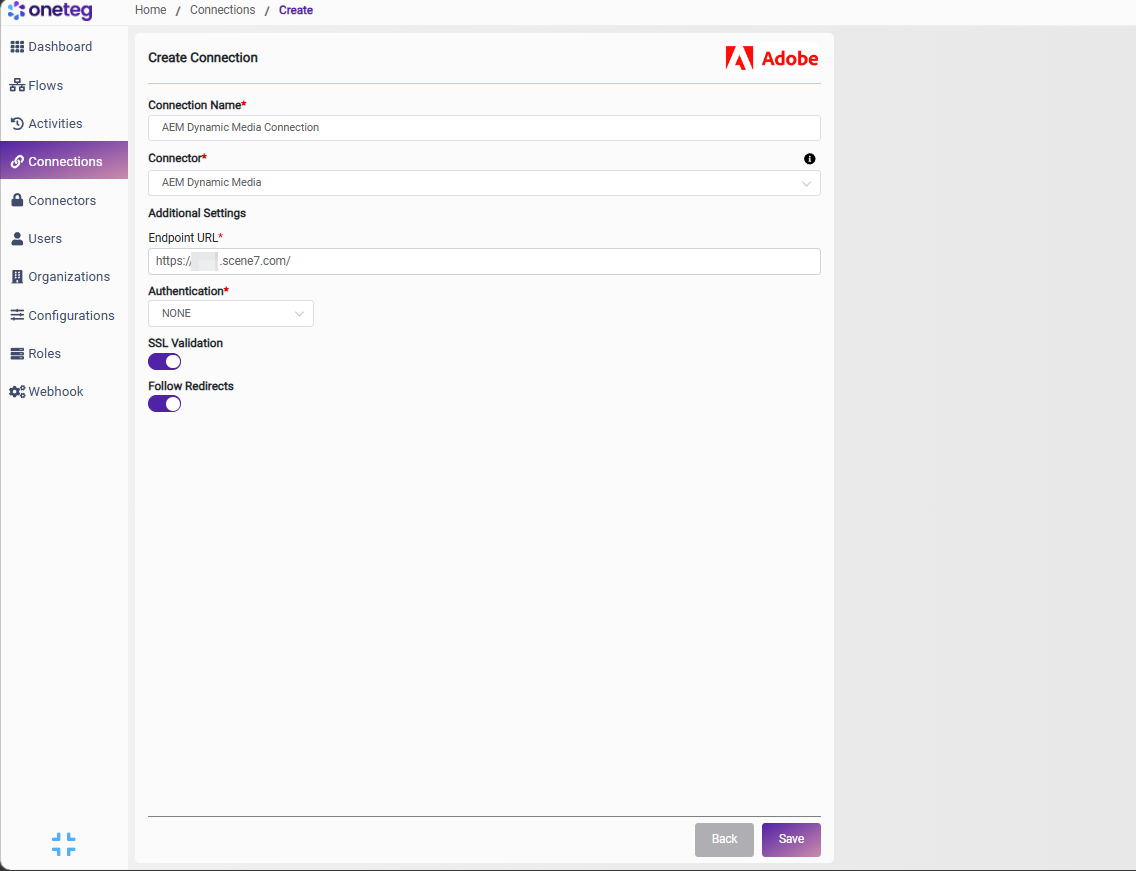
In OneTeg, navigate to Connections and create a new connection using the AEM Dynamic Media Connector. Enter the settings below.
|
Settings Parameters |
Value / Sample Value |
Description |
Required (Y/N) |
|
Connection Name |
AEM Dynamic Media Connection |
Choose a name for your Connection |
Y |
|
Connector |
aemDynamicMediaConnector-v1.0 |
Auto-populated once the AEM Dynamic Media Connector is selected |
Y |
|
Endpoint URL |
https://{your-company}.scene7.com |
Your Dynamic Media (Scene7) delivery domain. Full image URLs follow https://{domain}/is/image/{company-alias}/{asset} |
Y |
|
Authentication |
NONE |
This connector does not require authentication; Dynamic Media is delivered over a public CDN |
Y |
4. Supported AEM Dynamic Media Actions and Options
For the full list of supported endpoints, parameters, and options, see the page below: