
1. General Information
Dropbox is a cloud-based file storage and synchronization service that allows individuals and teams to store, share, and collaborate on files from any device. It provides secure file hosting, version history, sharing controls, and team collaboration features. Through the Dropbox API v2, organizations can programmatically manage files and folders, handle sharing, and integrate Dropbox storage into their applications and workflows.
The OneTeg Dropbox Connector integrates with the Dropbox API v2, enabling users to upload, download, list, and manage files and folders directly from OneTeg automation workflows. This connector supports two authentication methods: OAuth Authorization Code for user-delegated access, and Bearer token for direct API access.
OAuth Authorization Code is the recommended authentication method for production integrations, as it supports refresh tokens for long-running access. Dropbox access tokens are short-lived; the Bearer token method requires manual token updates when the token expires.
2. Connect Dropbox to OneTeg
Both authentication methods require a Dropbox app created in the Dropbox App Console. Steps 1–4 cover creating the app and obtaining OAuth credentials (App key and App secret) for the recommended OAuth method. Step 5 is optional and covers generating an access token for the Bearer method.
Step 1 - Log in to the Dropbox App Console
Navigate to https://www.dropbox.com/developers/apps and sign in with your Dropbox account.
Step 2 - Create a New App
Click Create app. Choose the Scoped access API, select the access level your integration requires (App folder or Full Dropbox), give your app a unique name, and click Create app.
Step 3 - Configure Permissions and Redirect URI
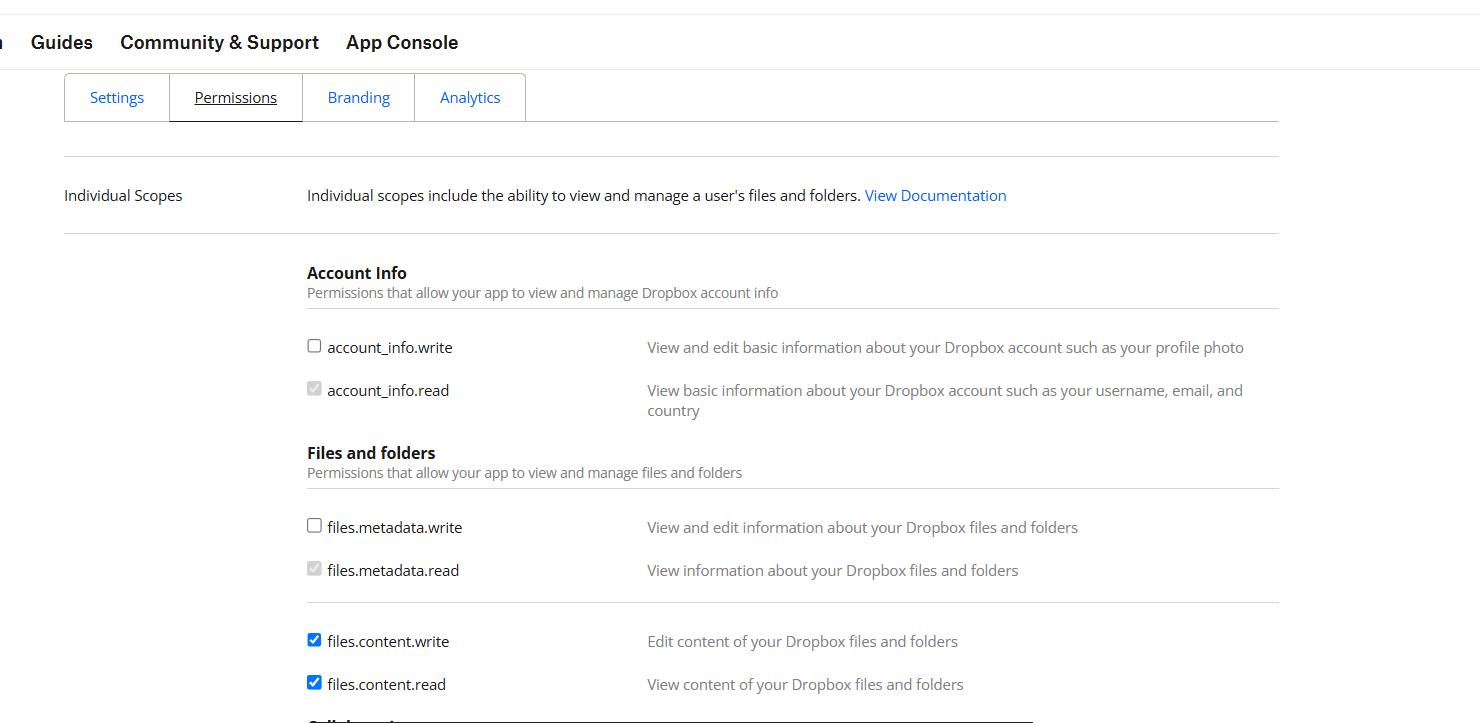
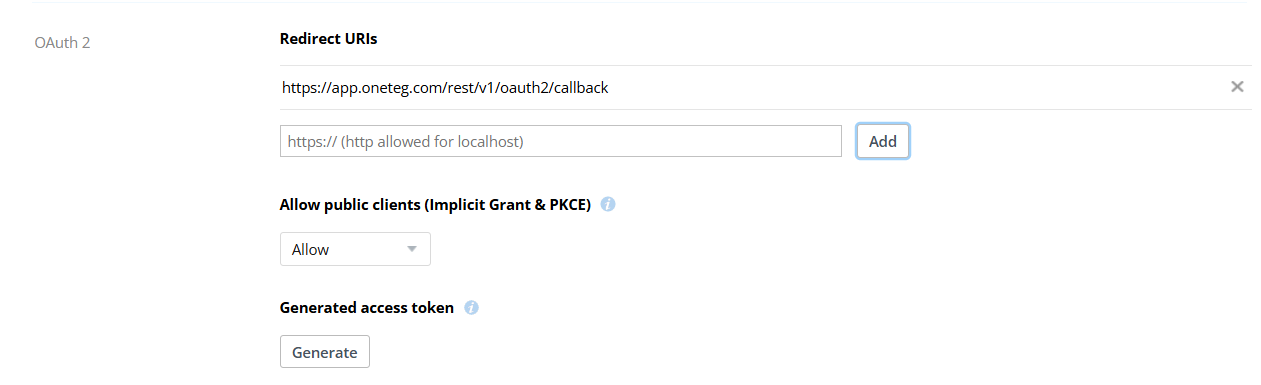
On your app's settings page, open the Permissions tab and enable the scopes your workflow needs (for example files.metadata.read, files.content.read, and files.content.write). Then, on the Settings tab, under OAuth 2 → Redirect URIs, add the OneTeg OAuth callback URL:
https://app.oneteg.com/rest/v1/oauth2/callback
Click Add to save the redirect URI.
Step 4 - Copy the App Key and App Secret
On the Settings tab, copy the App key and App secret. In OneTeg these map to the Client ID (App key) and Client Secret (App secret). You will enter them in the next step.
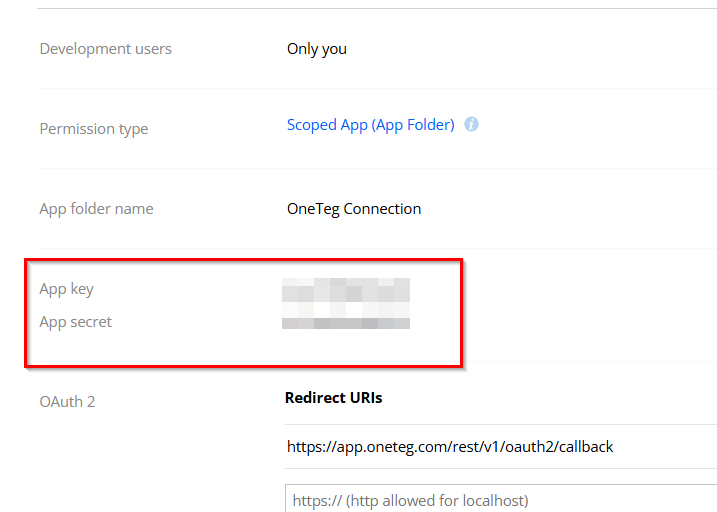
Keep your App secret confidential. If it is ever exposed, regenerate it from the app's Settings tab and update the value in your OneTeg connection.
Step 5 (Optional) - Generate an Access Token
If you prefer the Bearer authentication method, you can generate an access token directly from the App Console. On your app's Settings tab, under the OAuth 2 section, click Generate next to Generated access token. Copy the token value — this is what you will enter into the token field in OneTeg.
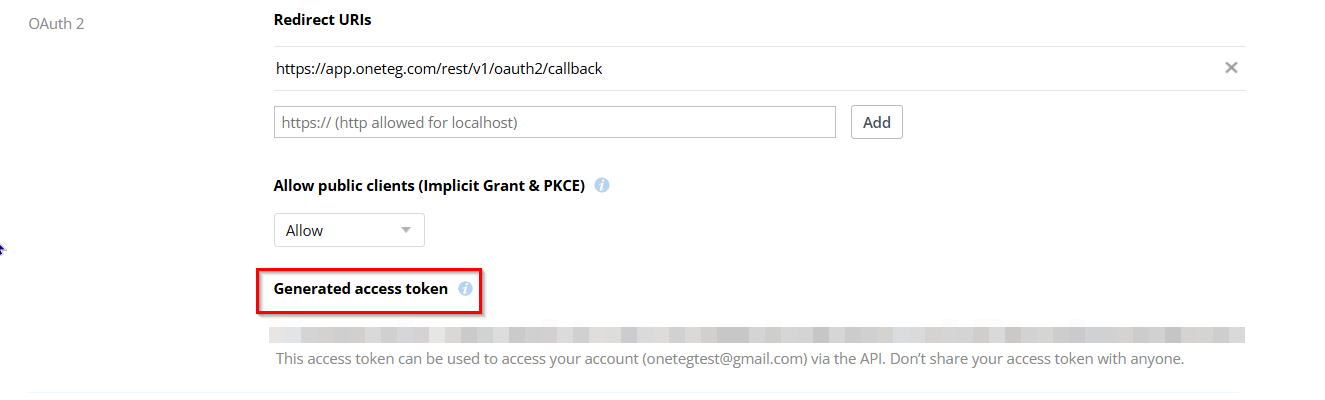
A generated access token only applies to your own Dropbox account. Dropbox access tokens are short-lived and expire after a short period — you will need to generate a new token and update it in OneTeg when it expires, making this method less suitable for long-running automations. Use OAuth Authorization Code for persistent access via refresh tokens.
3. Connection Settings and Configuration for OneTeg
In OneTeg, navigate to Connections and create a new connection using the Dropbox Connector. Choose your preferred authentication method below.
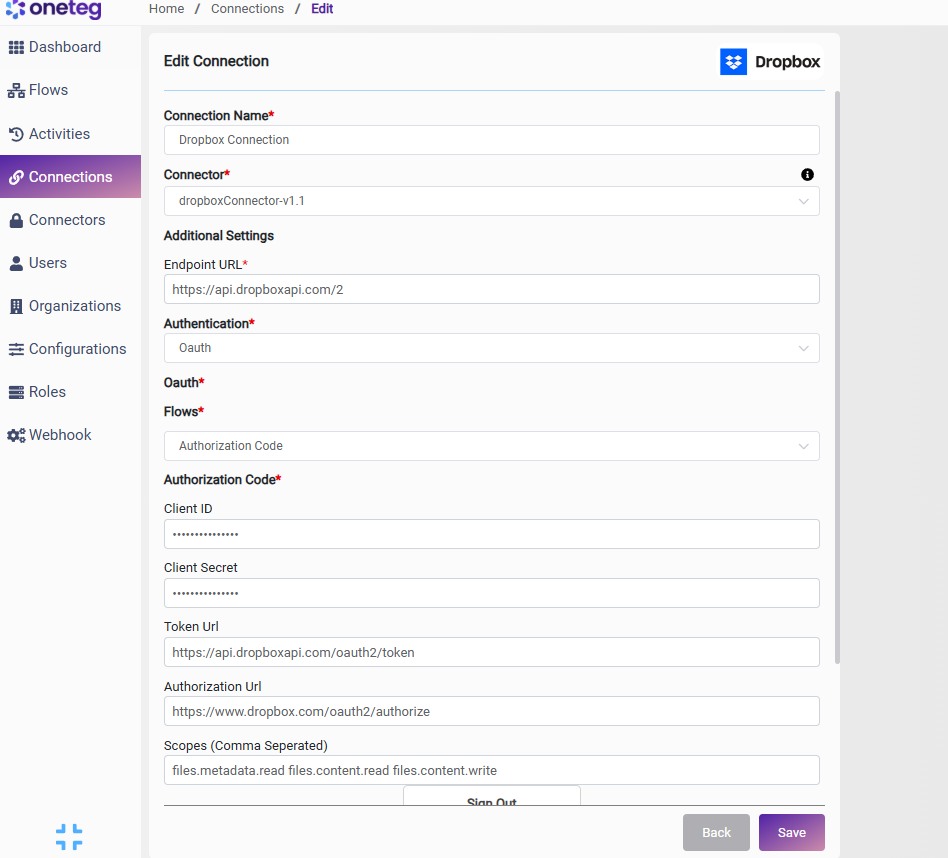
Option 1 - OAuth Authorization Code
Use this option for production integrations. Requires a Dropbox app with OAuth credentials (Steps 1–4).
|
Settings Parameters |
Value / Sample Value |
Description |
Required (Y/N) |
|
Connection Name |
Dropbox Connection |
Choose a name for your Connection |
Y |
|
Connector |
dropboxConnector-v1.1 |
Auto-populated once the Dropbox Connector is selected |
Y |
|
Endpoint URL |
https://api.dropboxapi.com/2 |
The base URL of the Dropbox API v2 |
Y |
|
Authentication |
Oauth |
Select Oauth as the authentication method |
Y |
|
Flows |
Authorization Code |
Select Authorization Code as the OAuth flow |
Y |
|
Client ID |
Your Dropbox App key |
The App key from your Dropbox app Settings tab |
Y |
|
Client Secret |
Your Dropbox App secret |
The App secret from your Dropbox app Settings tab |
Y |
|
Token Url |
https://api.dropboxapi.com/oauth2/token |
The Dropbox OAuth token endpoint used to exchange authorization codes for access tokens |
Y |
|
Authorization Url |
https://www.dropbox.com/oauth2/authorize |
The Dropbox OAuth authorization endpoint where users grant access |
Y |
|
Scopes |
files.metadata.read files.content.read files.content.write |
Space-delimited list of Dropbox scopes. Must match the scopes enabled on your app's Permissions tab |
Y |
Option 2 - Bearer Token
Use this option for quick testing on your own account. Requires a short-lived access token from the Dropbox App Console (Step 5).
|
Settings Parameters |
Value / Sample Value |
Description |
Required (Y/N) |
|
Connection Name |
Dropbox Connection |
Choose a name for your Connection |
Y |
|
Connector |
dropboxConnector-v1.1 |
Auto-populated once the Dropbox Connector is selected |
Y |
|
Endpoint URL |
https://api.dropboxapi.com/2 |
The base URL of the Dropbox API v2 |
Y |
|
Authentication |
Bearer |
Select Bearer as the authentication method |
Y |
|
token |
Your Dropbox access token |
An access token generated from your Dropbox app Settings tab (see Step 5). Note that tokens expire after a short period — you will need to manually update the token when it expires, making this method less suitable for long-running automations. |
Y |
4. Supported Dropbox Actions and Options
For the full list of supported endpoints, parameters, and options, see the page below: