
1. General Information
Salesforce B2B & B2C Commerce is a cloud-based commerce platform built on Salesforce that enables organizations to create and manage online storefronts for both business-to-business (B2B) and business-to-consumer (B2C) selling. It provides tools for managing product catalogs, categories, pricing, assets, and storefront content — all natively integrated with the Salesforce ecosystem.
The OneTeg Salesforce B2B & B2C Commerce Connector integrates with the Salesforce Commerce API and enables users to build automated workflows for synchronizing product descriptions, product categories, and digital assets, as well as managing product catalog records and webstore data directly from the OneTeg flow builder.
The Salesforce B2B & B2C Commerce Connector requires several organization-specific identifiers — CMS Workspace ID, Product Catalog ID, and Webstore ID — in addition to standard authentication credentials. These IDs are specific to your Salesforce org and commerce setup. Refer to Steps 2–4 in Section 2 for guidance on locating each value.
2. Connect Salesforce B2B & B2C Commerce to OneTeg
The connector authenticates via OAuth 2.0 Password Grant using Salesforce's identity platform. The Connected App setup process is identical to the S-Drive Connector.
For the full step-by-step Salesforce Connected App setup guide, refer to: S-Drive Connector v1.0 → Section 2: Connect S-Drive to OneTeg
When registering your Connected App, use the name "OneTeg Salesforce Commerce Connector" to keep it distinct. In addition to the Connected App credentials, you will need three Salesforce org-specific identifiers. Follow the steps below to locate them.
Step 1 - Find Your CMS Workspace ID
In Salesforce, navigate to Digital Experiences → CMS Home. Open your CMS Workspace and locate the Workspace ID in the URL or in the workspace settings. Copy this value.
Step 2 - Find Your Product Catalog ID
In Salesforce, navigate to Commerce → Product Catalogs. Open your Product Catalog and locate the Catalog ID in the URL or in the catalog record details. Copy this value.
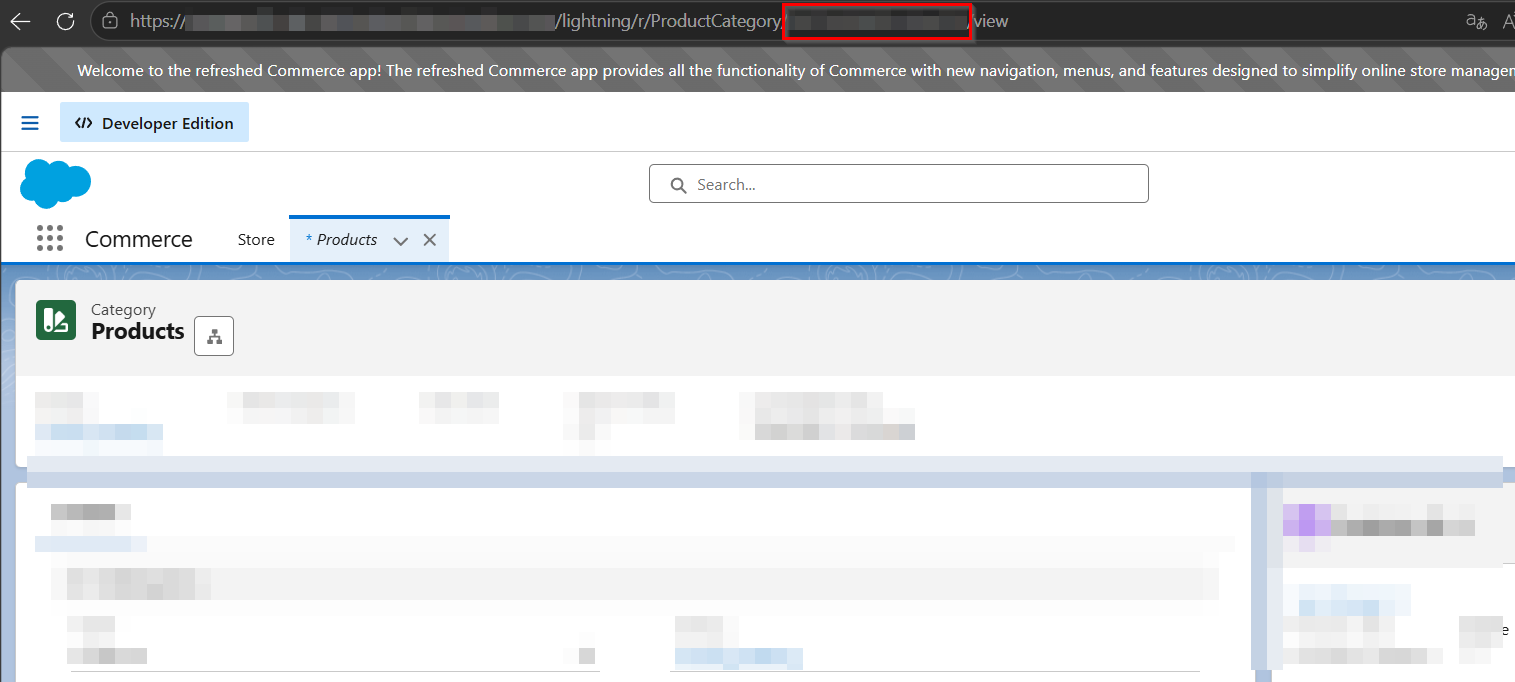
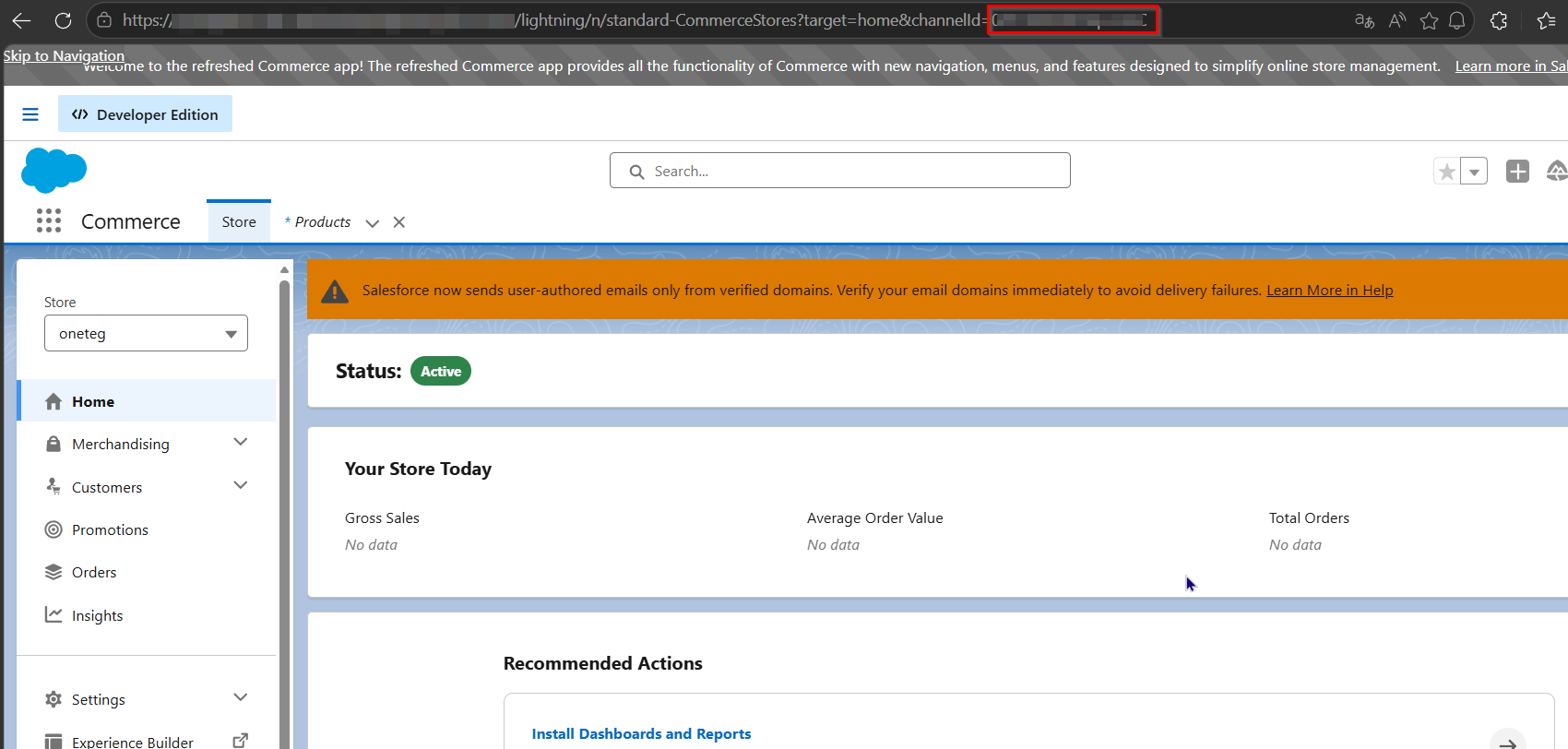
Step 3 - Find Your Webstore ID
In Salesforce, navigate to Commerce → Stores. Open your Webstore and locate the Webstore ID in the URL or in the store settings. Copy this value.
For sandbox environments, replace http://login.salesforce.com with http://test.salesforce.com in the Token URL field.
3. Connection Settings and Configuration for OneTeg
In OneTeg, navigate to Connections and create a new connection using the Salesforce B2B & B2C Commerce Connector. Fill in the settings below using your Salesforce org identifiers and Connected App credentials.
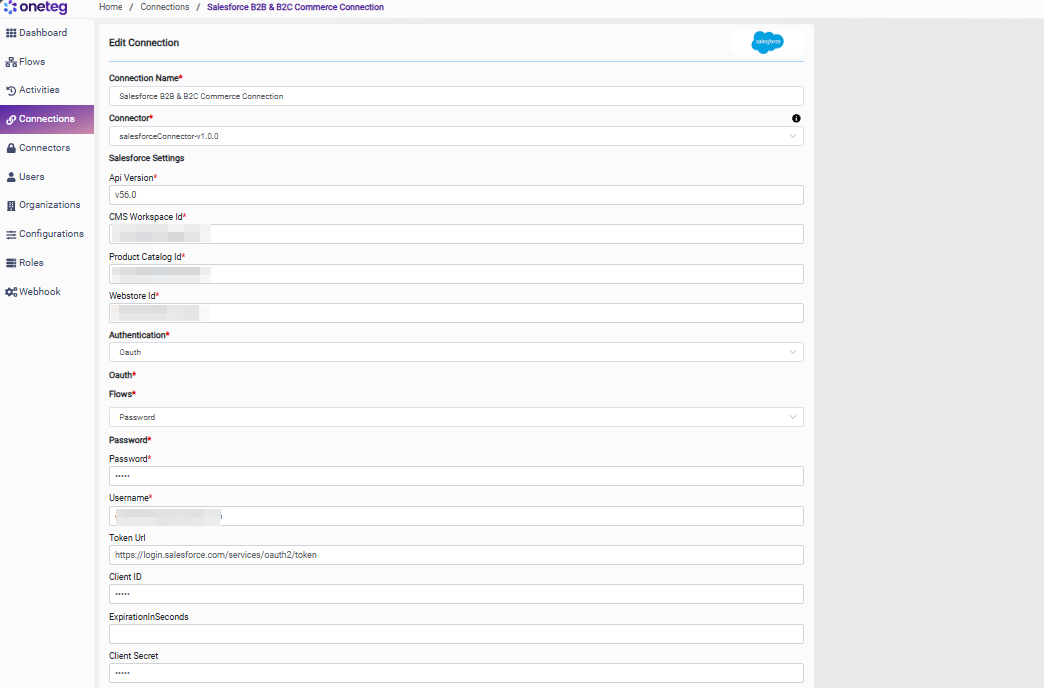
|
Settings Parameters |
Value / Sample Value |
Description |
Required (Y/N) |
|
Connection Name |
Salesforce B2B & B2C Commerce Connection |
Choose a name for your Connection |
Y |
|
Connector |
salesforceConnector-v1.0.0 |
Auto-populated once the Salesforce B2B & B2C Commerce Connector is selected |
Y |
|
Api Version |
v56.0 |
The Salesforce API version to use. Defaults to v56.0. Update this value when upgrading to a newer Salesforce API version |
Y |
|
CMS Workspace ID |
Your CMS Workspace ID |
The ID of your Salesforce CMS Workspace. Found in Salesforce: Digital Experiences → CMS Home → your workspace → URL or settings |
Y |
|
Product Catalog ID |
Your Product Catalog ID |
The ID of your Salesforce Product Catalog. Found in Salesforce: Commerce → Product Catalogs → your catalog → URL or record details |
Y |
|
Webstore ID |
Your Webstore ID |
The ID of your Salesforce Webstore. Found in Salesforce: Commerce → Stores → your store → URL or settings |
Y |
|
Authentication |
OAuth |
Select OAuth from the dropdown |
Y |
|
Flows |
Password |
Select Password as the OAuth grant type |
Y |
|
Password |
Salesforce password + security token |
The Salesforce user's password concatenated with their security token (e.g., MyPassword + MyToken = MyPasswordMyToken) |
Y |
|
Username |
Salesforce username |
The username (email) of the Salesforce user on whose behalf the connector will authenticate |
Y |
|
Token URL |
https://login.salesforce.com/services/oauth2/token |
Standard Salesforce OAuth token endpoint. Use https://test.salesforce.com/services/oauth2/token for sandbox environments |
Y |
|
Client ID |
Salesforce Consumer Key |
Obtained from Salesforce Setup: App Manager → your Connected App → Manage Consumer Details → Consumer Key |
Y |
|
ExpirationInSeconds |
|
Optional token expiration duration in seconds. Leave blank to use Salesforce's default token expiry |
|
|
Client Secret |
Salesforce Consumer Secret |
Obtained from Salesforce Setup: App Manager → your Connected App → Manage Consumer Details → Consumer Secret |
Y |
4. Supported Salesforce B2B & B2C Commerce Actions and Options
For the full list of supported endpoints, parameters, and options, see the page below: