
1. General Information
Getty Images is one of the world's leading visual content providers, offering a vast library of licensed photography, illustrations, video footage, and editorial imagery used by creative professionals, media companies, and enterprises globally. Through the Getty Images API, organizations can programmatically search, browse, and download assets, manage licenses, and integrate visual content into their products and workflows.
The OneTeg Getty Images Connector integrates with the Getty Images API, enabling users to search and retrieve licensed visual assets directly from OneTeg automation workflows. This connector supports two authentication methods: OAuth Authorization Code for full user-delegated access, and Api Key for straightforward API access.
Both authentication methods require a registered application in the Getty Images Developer Portal. OAuth Authorization Code is recommended for production integrations requiring user-level access and licensing capabilities.
2. Connect Getty Images to OneTeg
Getty Images API access is not self-service — credentials are issued directly by Getty Images upon request and approval. The Getty Images API documentation is available at https://developers.gettyimages.com , but there is no public self-registration portal for creating applications or generating credentials. Follow the steps below to request access and obtain your credentials.
Step 1 - Request API Access from Getty Images
Contact Getty Images to request API access. You can reach their partnerships and integrations team via the API Solutions page at https://developers.gettyimages.com or through your existing Getty Images account representative. Provide details about your intended use case and integration.
Step 2 - Receive Your Credentials
Once your request is approved, Getty Images will provide your application credentials. Depending on the access level granted, you will receive one or both of the following:
OAuth Authorization Code: Client ID and Client Secret for user-delegated access.
Api Key: A direct API Key for straightforward API access.
For OAuth Authorization Code access, request that Getty Images register the following redirect URI for your application: https://app.oneteg.com/rest/v1/oauth2/callback
Step 3 - Store Your Credentials Securely
Once received, store your Client ID, Client Secret, and/or Api Key securely. You will enter these values into OneTeg in the next step. If your credentials are ever compromised, contact Getty Images immediately to have them rotated.
3. Connection Settings and Configuration for OneTeg
In OneTeg, navigate to Connections and create a new connection using the Getty Images Connector. Choose your preferred authentication method below.
Option 1 - OAuth Authorization Code
Use this option for production integrations requiring full user-delegated access. Requires OAuth credentials from the Getty Images Developer Portal.
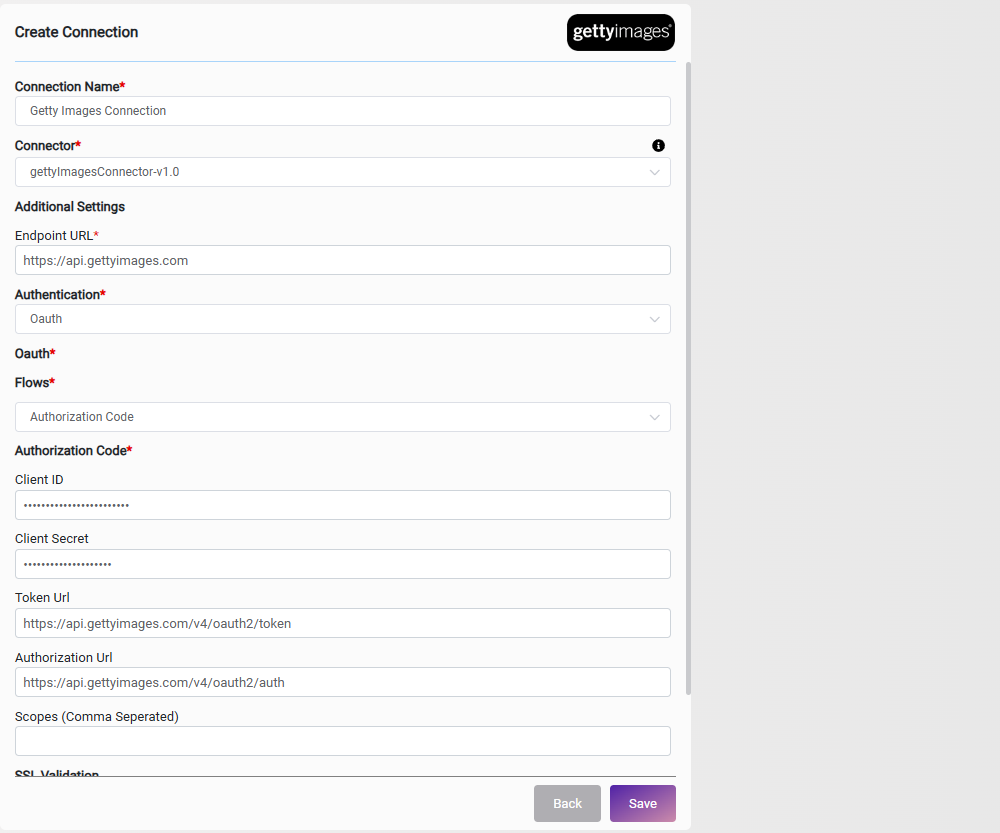
|
Settings Parameters |
Value / Sample Value |
Description |
Required (Y/N) |
|
Connection Name |
Getty Images Connection |
Choose a name for your Connection |
Y |
|
Connector |
gettyImagesConnector-v1.0 |
Auto-populated once the Getty Images Connector is selected |
Y |
|
Endpoint URL |
https://api.gettyimages.com |
The base URL of the Getty Images API |
Y |
|
Authentication |
Oauth |
Select Oauth as the authentication method |
Y |
|
Flows |
Authorization Code |
Select Authorization Code as the OAuth flow |
Y |
|
Client ID |
Your Getty Images Client ID |
The Client ID from your registered application in the Getty Images Developer Portal |
Y |
|
Client Secret |
Your Getty Images Client Secret |
The Client Secret from your registered application in the Getty Images Developer Portal |
Y |
|
Token URL |
https://api.gettyimages.com/v4/oauth2/token |
The Getty Images OAuth token endpoint. Access tokens expire after 30 minutes; use the refresh token to obtain a new one without re-prompting the user |
Y |
|
Authorization URL |
https://api.gettyimages.com/v4/oauth2/auth |
The Getty Images OAuth authorization endpoint where users grant access |
Y |
|
Scopes |
|
Optional. Comma-separated OAuth scopes to request. Leave blank to use the default scopes for your application |
|
Option 2 — Api Key
Use this option for straightforward API access. Requires an Api Key from the Getty Images Developer Portal.
|
Settings Parameters |
Value / Sample Value |
Description |
Required (Y/N) |
|
Connection Name |
Getty Images Connection |
Choose a name for your Connection |
Y |
|
Connector |
gettyImagesConnector-v1.0 |
Auto-populated once the Getty Images Connector is selected |
Y |
|
Endpoint URL |
https://api.gettyimages.com |
The base URL of the Getty Images API |
Y |
|
Authentication |
Api-key |
Select Api-key as the authentication method |
Y |
|
Api Key |
Your Getty Images Api Key |
The API Key (client_id) provided by Getty Images for your application. Used directly for API access without a full OAuth flow |
Y |
4. Supported Getty Images Actions and Options
For the full list of supported endpoints, parameters, and options, see the page below: