
1. General Information
Amazon DynamoDB is AWS’s fully managed, serverless NoSQL database service. It stores data as items within tables, offers single-digit-millisecond performance at any scale, and uses AWS Identity and Access Management (IAM) to control who can read and write each table.
The OneTeg Amazon DynamoDB Connector integrates with the Amazon DynamoDB API, enabling users to read, write, query, and manage table items directly from OneTeg automation workflows. The connector authenticates with an AWS Access Key ID and Secret Access Key belonging to an IAM user.
The Amazon DynamoDB Connector has no Authentication dropdown and no Endpoint URL field. You only enter your AWS Access Key, Secret Key, and Region — the connector signs every request with these credentials (AWS Signature Version 4) and connects to the regional DynamoDB endpoint (https://dynamodb.{region}.amazonaws.com) for the Region you select.
DynamoDB tables are regional. The connector can only see tables that exist in the Region selected on the connection, so choose the Region where your tables are hosted. To work with tables in another Region, create a separate connection.
Treat the Secret Access Key like a password. Use an IAM user scoped with least-privilege permissions to only the required tables — avoid using AWS root account access keys.
2. Connect Amazon DynamoDB to OneTeg
The connector authenticates with an AWS Access Key ID and Secret Access Key. Follow the steps below to obtain the credentials and details you will enter into OneTeg.
Step 1 - Create an IAM User with DynamoDB Access
In the AWS IAM Console, go to Users and create (or select) an IAM user for the integration. Attach a policy granting the DynamoDB permissions your workflows need on the target tables — for example dynamodb:ListTables, dynamodb:DescribeTable, dynamodb:GetItem, dynamodb:Query, dynamodb:Scan, dynamodb:PutItem, dynamodb:UpdateItem, and dynamodb:DeleteItem.
For a quick test you can attach the AWS managed policy AmazonDynamoDBReadOnlyAccess (read only) or AmazonDynamoDBFullAccess (read and write). For production, prefer a custom policy limited to the specific table ARNs your workflows use.
Step 2 - Create an Access Key
Open the IAM user, select the Security credentials tab, and in the Access keys section choose Create access key. Select Application running outside AWS as the use case, complete the wizard, and copy the Access key (Access Key ID) and Secret access key.
The Secret Access Key is shown only once, at creation. Copy it immediately or download the .csv file and store it securely; if it is lost you must create a new access key.
Step 3 - Note Your Region
Open the DynamoDB console and select Tables. The Region shown in the top-right corner of the console is where those tables are hosted — note its code (for example us-east-1 for US East (N. Virginia) or eu-west-1 for Europe (Ireland)). If your tables are not listed, switch Regions until you find them.
3. Connection Settings and Configuration for OneTeg
In OneTeg, navigate to Connections and create a new connection using the Amazon DynamoDB Connector. Enter the settings below.
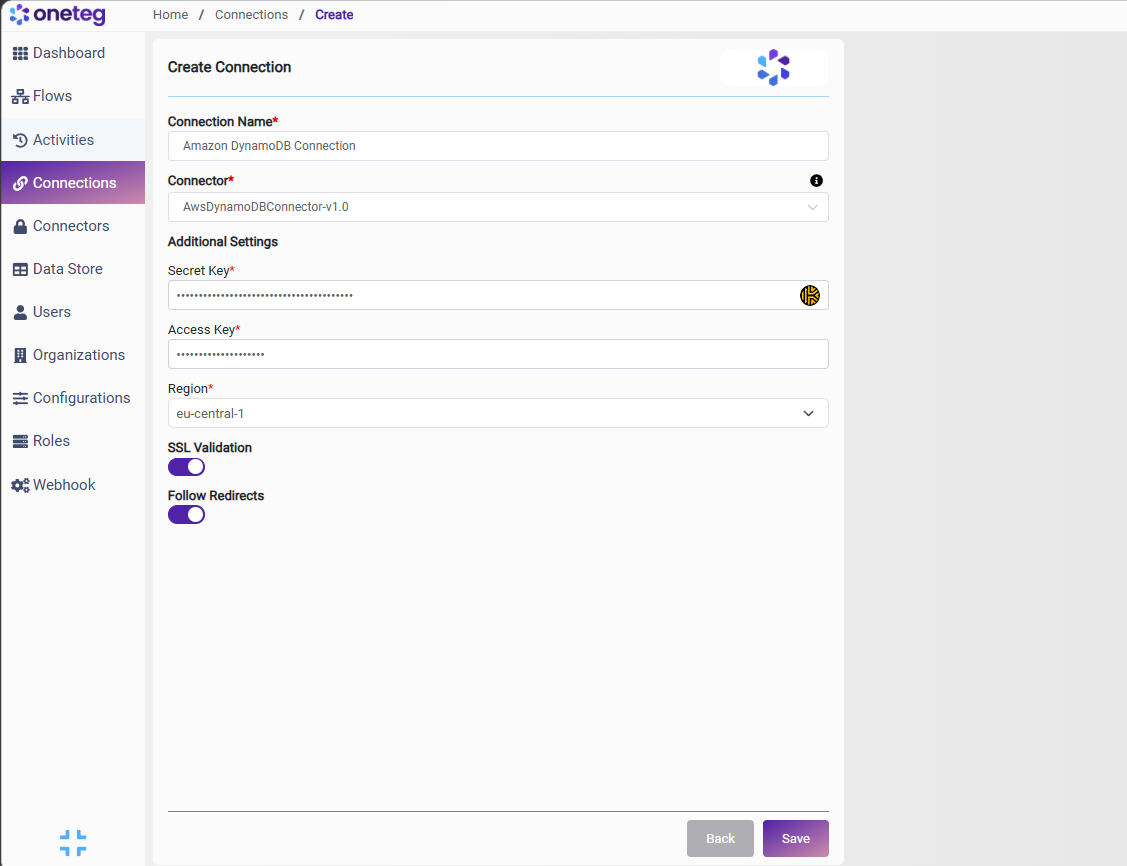
|
Settings Parameters |
Value / Sample Value |
Description |
Required (Y/N) |
|
Connection Name |
Amazon DynamoDB Connection |
Choose a name for your Connection |
Y |
|
Connector |
AwsDynamoDBConnector-v1.0 |
Auto-populated once the Amazon DynamoDB Connector is selected |
Y |
|
Secret Key |
Your AWS Secret Access Key |
The AWS Secret Access Key paired with the Access Key below |
Y |
|
Access Key |
Your AWS Access Key ID |
The AWS Access Key ID of an IAM user with access to your DynamoDB tables (starts with AKIA) |
Y |
|
Region |
us-east-1 |
Select the AWS Region where your DynamoDB tables are hosted from the list |
Y |
In the OneTeg form, Secret Key appears above Access Key. Make sure each value goes into the right field — the Access Key ID is the shorter value that starts with AKIA, while the Secret Access Key is the longer 40-character value.
4. Supported Amazon DynamoDB Actions and Options
For the full list of supported endpoints, parameters, and options, see the page below:
Amazon DynamoDB Connector v1.0