
1. General Information
Impartner is a SaaS Partner Relationship Management (PRM) and partner revenue orchestration platform that helps enterprises recruit, onboard, and manage indirect sales channels such as distributors, resellers, and channel partners. The Impartner Objects API (v1) provides programmatic access to platform records — including accounts, users, deals, and tenant-defined custom objects.
The OneTeg Impartner Connector integrates with the Impartner Objects API, enabling users to read and write partner data directly from OneTeg automation workflows. This connector supports three authentication options: Basic, Prm-key, and Bearer.
The production Impartner API host is https://prod.impartner.live. Credentials are specific to the environment they were issued for, so the Endpoint URL must match it.
2. Connect Impartner to OneTeg
Each authentication option uses a different credential. Identify your host first, then complete the step that matches the option you plan to use.
Step 1 - Identify Your Impartner Host
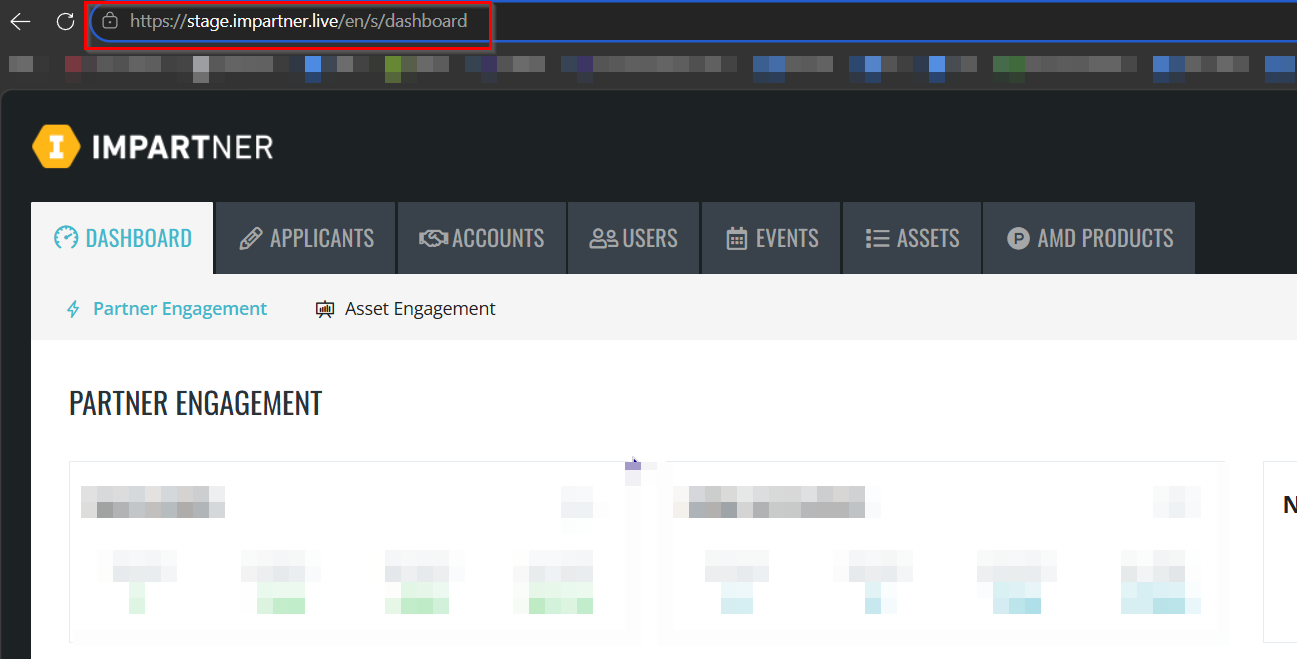
Log in to your Impartner portal and look at your browser’s address bar: the portal and the API share the same host (for production, prod.impartner.live). Use https:// followed by that host as your Endpoint URL, without any path. To confirm, open https://{your-host}/swagger/ui/index — if the Impartner API reference loads, the host is correct.
Step 2 - Gather Account Credentials (Basic)
For the Basic option, use the email address and password of your Impartner account — the same credentials you use to log in to the Impartner portal. Use an account that has access to the records your integration needs.
Step 3 - Request a Tenant API Key (Prm-key)
For the Prm-key option, you need a tenant API key. Impartner API keys are not generated self-service — request one from your Impartner representative or account contact.
The tenant API key grants programmatic access to your Impartner data. Treat it like a password and store it securely.
Step 4 - Obtain an Access Token (Bearer)
For the Bearer option, you need an OAuth 2.0 access token issued by Impartner’s identity service (https://login.impartner.com ). Contact your Impartner representative for the client details required to request a token for your tenant.
3. Connection Settings and Configuration for OneTeg
In OneTeg, navigate to Connections and create a new connection using the Impartner Connector. Choose one of the authentication options below.
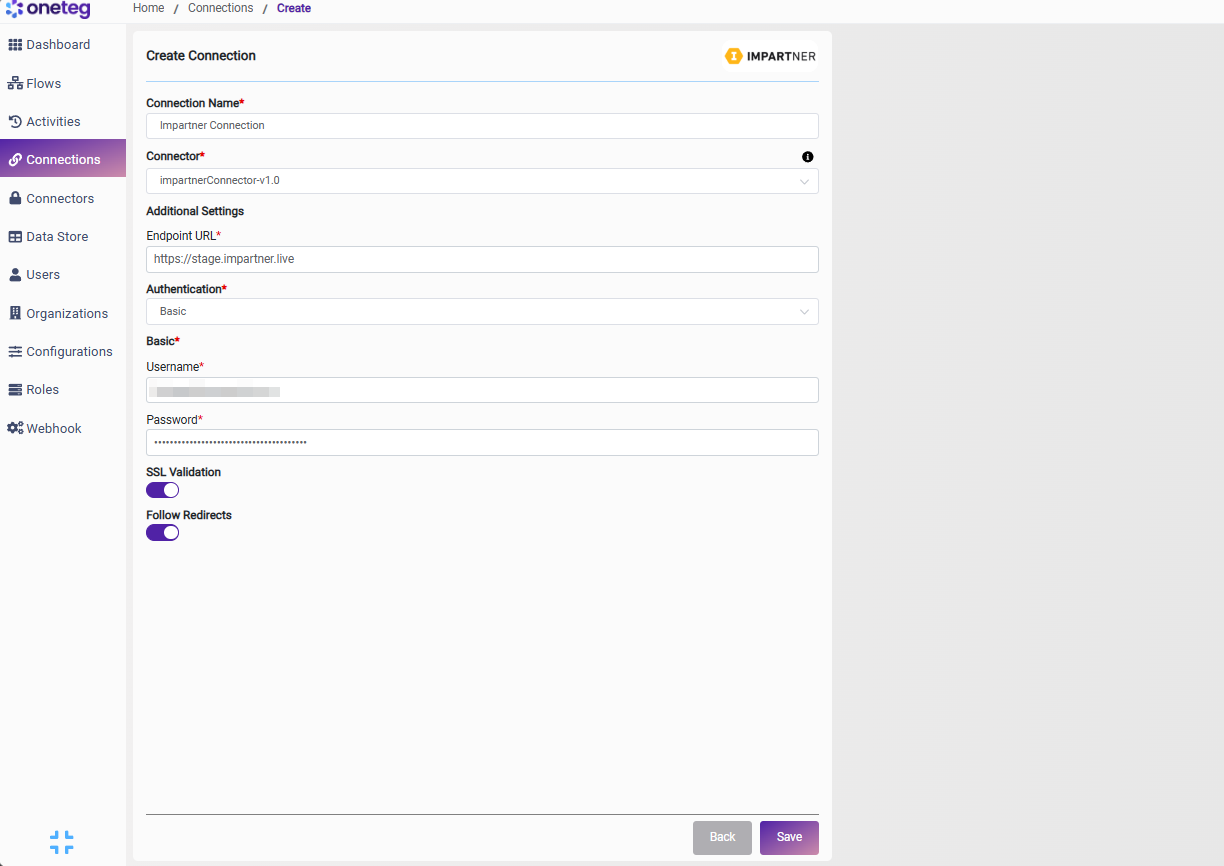
Option 1 — Basic
|
Settings Parameters |
Value / Sample Value |
Description |
Required (Y/N) |
|
Connection Name |
Impartner Connection |
Choose a name for your Connection |
Y |
|
Connector |
impartnerConnector-v1.0 |
Auto-populated once the Impartner Connector is selected |
Y |
|
Endpoint URL |
The base URL of the Impartner Objects API (production). Must match the environment your credentials belong to |
Y |
|
|
Authentication |
Basic |
Select Basic as the authentication method |
Y |
|
Username |
The email address of your Impartner account |
Y |
|
|
Password |
Your Impartner account password |
The password of your Impartner account |
Y |
Option 2 — Prm-key
|
Settings Parameters |
Value / Sample Value |
Description |
Required (Y/N) |
|
Connection Name |
Impartner Connection |
Choose a name for your Connection |
Y |
|
Connector |
impartnerConnector-v1.0 |
Auto-populated once the Impartner Connector is selected |
Y |
|
Endpoint URL |
The base URL of the Impartner Objects API (production). Must match the environment your credentials belong to |
Y |
|
|
Authentication |
Prm-key |
Select Prm-key as the authentication method |
Y |
|
Api Key |
Your Impartner tenant API key |
The tenant API key provided by Impartner, sent as prm-key {api_key} in the Authorization header |
Y |
Option 3 — Bearer
|
Settings Parameters |
Value / Sample Value |
Description |
Required (Y/N) |
|
Connection Name |
Impartner Connection |
Choose a name for your Connection |
Y |
|
Connector |
impartnerConnector-v1.0 |
Auto-populated once the Impartner Connector is selected |
Y |
|
Endpoint URL |
The base URL of the Impartner Objects API (production). Must match the environment your credentials belong to |
Y |
|
|
Authentication |
Bearer |
Select Bearer as the authentication method |
Y |
|
token |
Your Impartner access token |
An OAuth 2.0 access token from Impartner’s identity service, sent as a Bearer token in the Authorization header |
Y |
OAuth access tokens expire — you will need to manually update the token when it expires, making this method less suitable for long-running automations.
4. Supported Impartner Actions and Options
For the full list of supported endpoints, parameters, and options, see the page below:
Impartner Connector v1.0 – Part 1
Impartner Connector v1.0 – Part 2