
1. General Information
Phrase Strings is a software localization platform, part of the Phrase Localization Platform. Development and product teams use it to manage translation keys and locale files for apps, websites, and games — importing source strings, coordinating translation, and downloading localized files. The Phrase Strings API (v2) provides programmatic access to projects, locales, keys, translations, uploads, and downloads.
The OneTeg Phrase Strings Connector integrates with the Phrase Strings API, enabling users to manage localization data directly from OneTeg automation workflows. This connector supports two authentication options: Basic and Token.
Phrase Strings is a separate product from Phrase TMS, with its own API and its own connector. Phrase Strings hosts are also specific to your data center: EU accounts use api.phrase.com and app.phrase.com, while US accounts use api.us.app.phrase.com and us.app.phrase.com.
2. Connect Phrase Strings to OneTeg
The Basic option uses your Phrase account email and password. The Token option uses an access token generated in Phrase Strings. Follow the steps below to generate a token.
Step 1 - Open Access Tokens
Sign in to Phrase Strings, open your profile settings, and go to the Access Tokens page (EU: https://app.phrase.com/settings/oauth_access_tokens).
Step 2 - Generate an Access Token
Click Generate Token, enter a note describing its purpose (for example OneTeg), and select the scopes your integration needs — read to retrieve data and write to create or update it. Save the token.
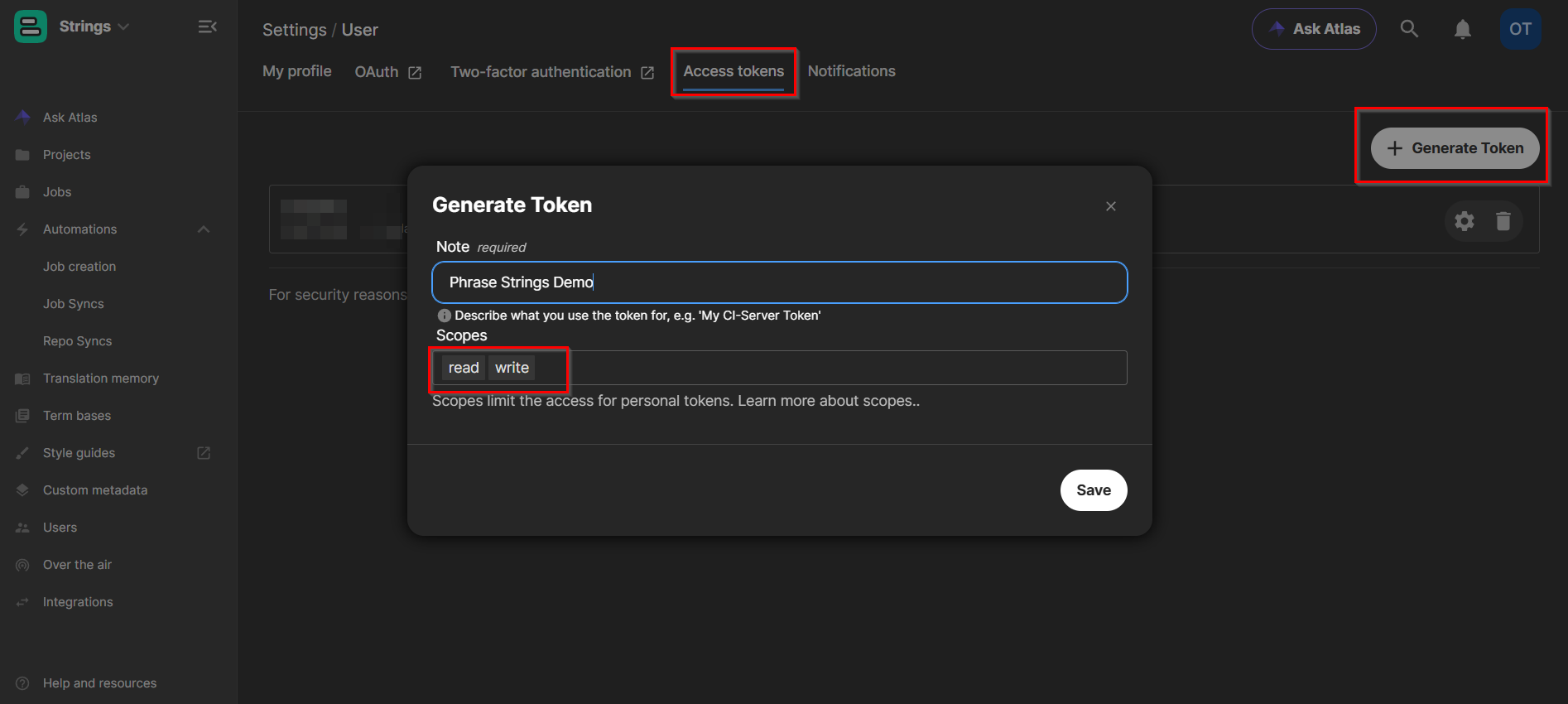
Step 3 - Copy the Token
Copy the access token and store it securely — you will paste it into OneTeg in the next step.
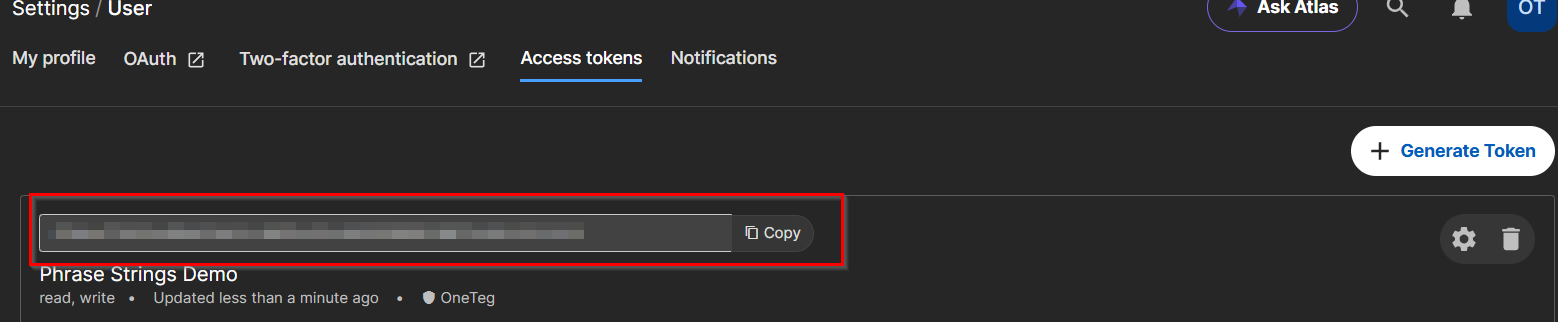
Copy the access token immediately after generating it, as it may not be shown again. Treat it like a password; if it is lost or exposed, revoke it and generate a new one.
3. Connection Settings and Configuration for OneTeg
In OneTeg, navigate to Connections and create a new connection using the Phrase Strings Connector. Choose one of the authentication options below.
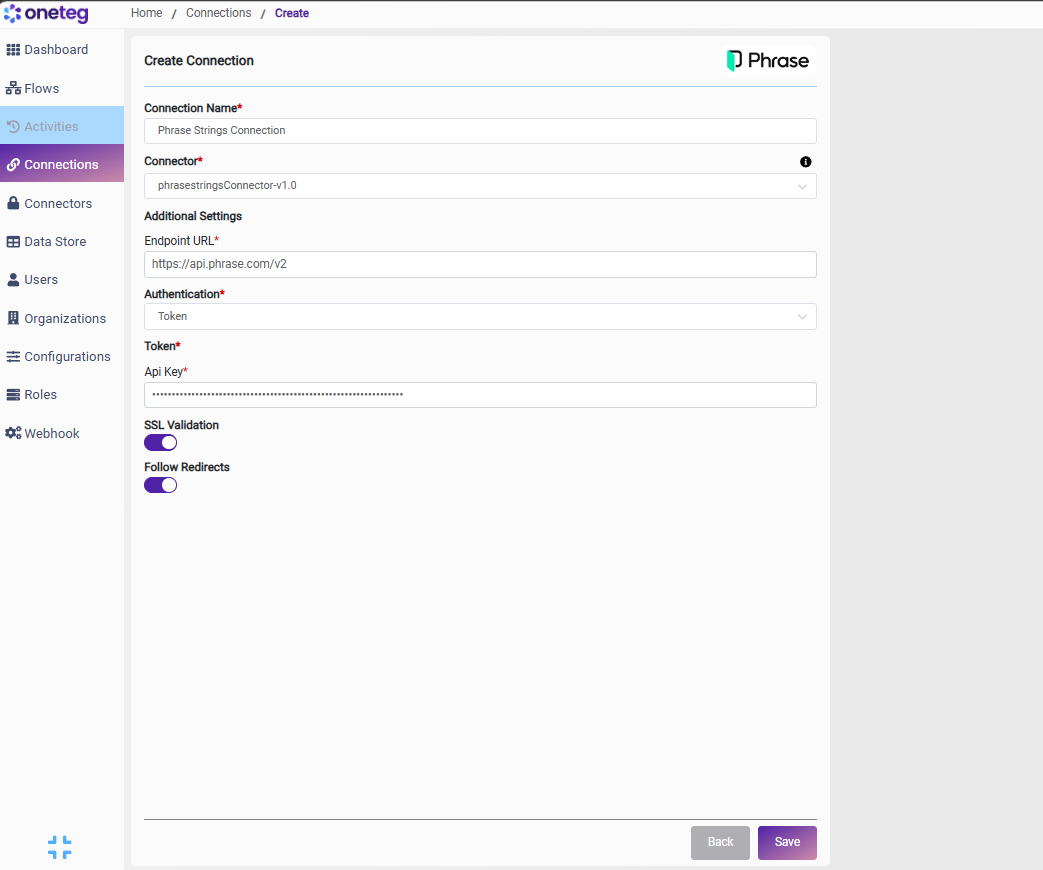
Option 1 — Basic
|
Settings Parameters |
Value / Sample Value |
Description |
Required (Y/N) |
|
Connection Name |
Phrase Strings Connection |
Choose a name for your Connection |
Y |
|
Connector |
phrasestringsConnector-v1.0 |
Auto-populated once the Phrase Strings Connector is selected |
Y |
|
Endpoint URL |
The base URL of the Phrase Strings API (EU data center). For the US data center, use https://api.us.app.phrase.com/v2 |
Y |
|
|
Authentication |
Basic |
Select Basic as the authentication method |
Y |
|
Username |
The email address of your Phrase account |
Y |
|
|
Password |
Your Phrase account password |
The password of your Phrase account |
Y |
Phrase accounts with two-factor authentication enabled must send a one-time code (X-PhraseApp-OTP header) with Basic authentication requests. Because these codes expire quickly and the connection has no field for them, Basic authentication will not work for accounts with two-factor authentication — use the Token option for such accounts.
Option 2 — Token
|
Settings Parameters |
Value / Sample Value |
Description |
Required (Y/N) |
|
Connection Name |
Phrase Strings Connection |
Choose a name for your Connection |
Y |
|
Connector |
phrasestringsConnector-v1.0 |
Auto-populated once the Phrase Strings Connector is selected |
Y |
|
Endpoint URL |
The base URL of the Phrase Strings API (EU data center). For the US data center, use https://api.us.app.phrase.com/v2 |
Y |
|
|
Authentication |
Token |
Select Token as the authentication method |
Y |
|
Api Key |
Your Phrase Strings access token |
The access token generated under Profile Settings → Access Tokens, sent as token {access_token} in the Authorization header |
Y |
4. Supported Phrase Strings Actions and Options
For the full list of supported endpoints, parameters, and options, see the page below: