
1. General Information
3Play Media is a provider of video accessibility services, including closed captioning, transcription, audio description, subtitling, and live captioning. Organizations use 3Play Media to make video and audio content accessible and compliant with accessibility standards such as ADA and WCAG. The 3Play Media API v3 exposes REST endpoints for managing media files, ordering transcription and captioning jobs, and retrieving completed transcripts and captions.
The OneTeg 3Play Media Connector integrates with the 3Play Media API v3, enabling users to upload media, order transcription and captioning jobs, and retrieve results directly from OneTeg automation workflows. This connector authenticates using an Api Key.
3Play Media API keys have one of three access levels: Admin (manage keys, users, and projects), Project (manage files, transcripts, and orders), or Observer (read-only access). Choose the access level appropriate for your OneTeg integration.
2. Connect 3Play Media to OneTeg
The 3Play Media Connector authenticates using an API key generated from your 3Play Media account settings. Follow the steps below to generate your key.
Step 1 - Log in to 3Play Media
Navigate to your 3Play Media account and log in with your credentials.
Step 2 - Open APIv3 Access Management
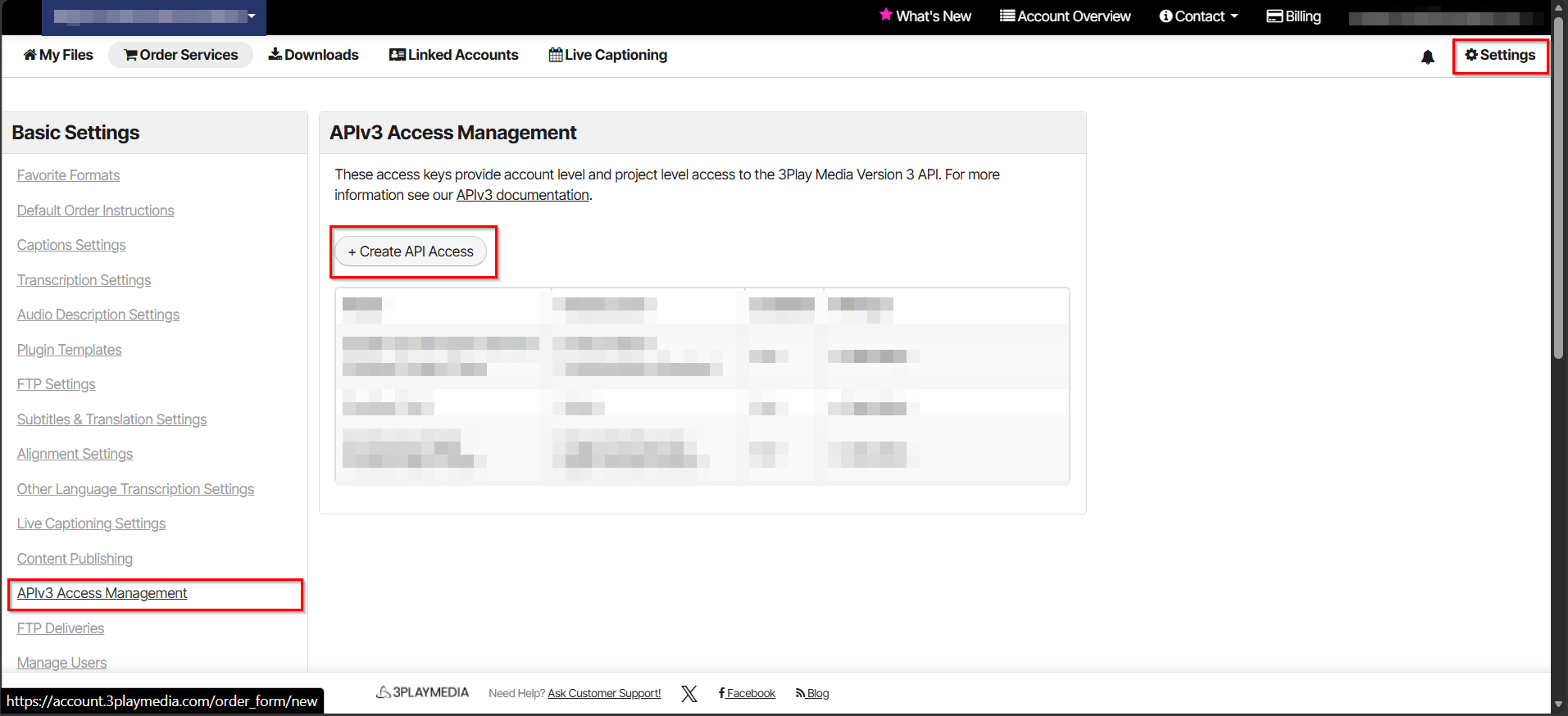
Click Settings in the upper-right corner of the page. Under Basic Settings, click APIv3 Access Management. If this module has not been added to your account, click Request Access to enable it.
Step 3 - Create an API Key
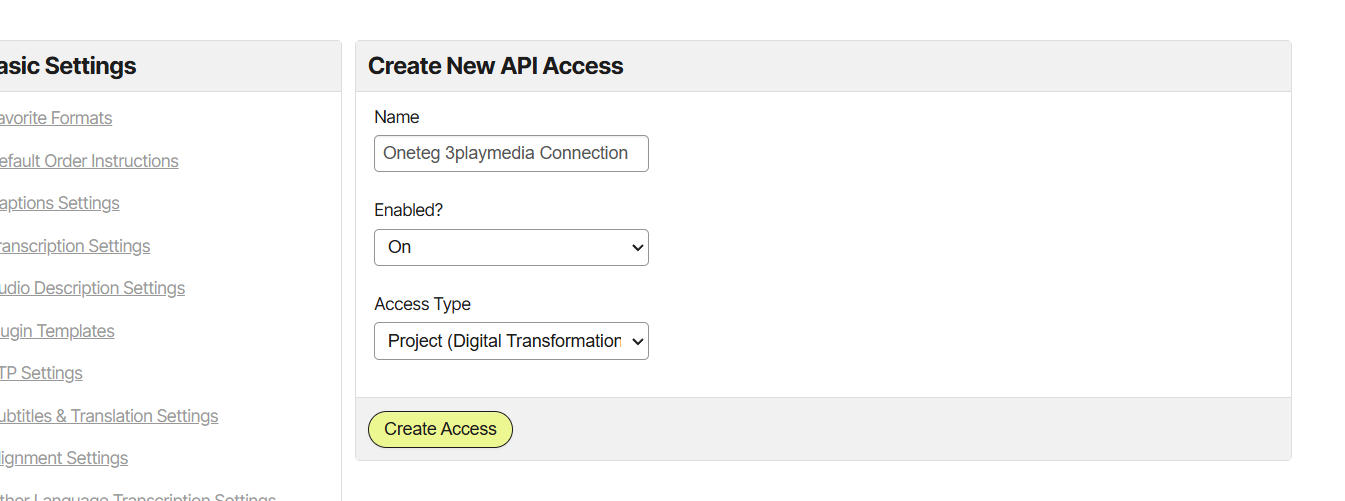
On the APIv3 Access Management screen, create a new API key either for all projects on your account or for a specific project. Select the access level required — Admin, Project, or Observer — based on the operations your OneTeg workflows will perform.
Step 4 - Copy the API Key
Once generated, copy the API key value. This is the value you will enter into the Api Key field in OneTeg.
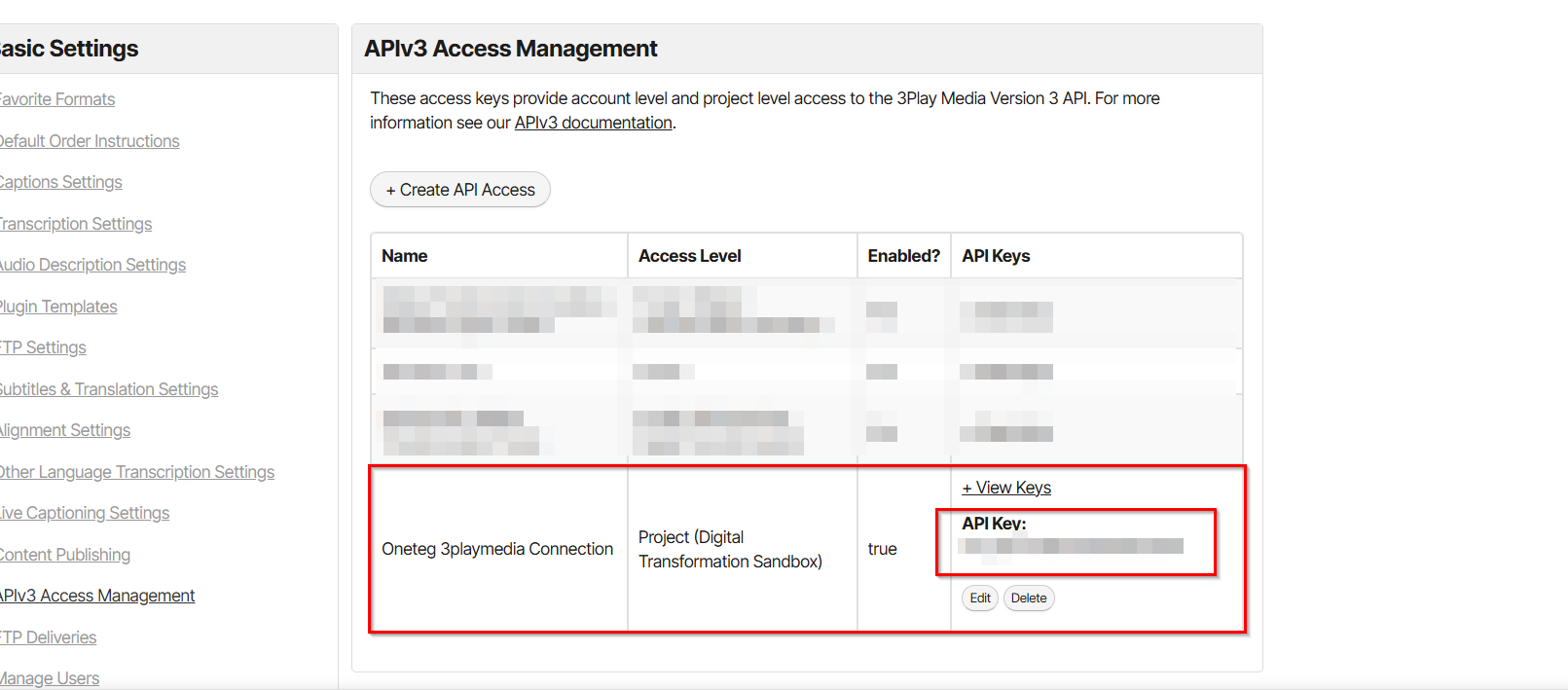
Keep your API key confidential. You can test that a key is working by issuing a GET request to the /v3/authenticate endpoint. If a key is ever compromised, revoke it from the APIv3 Access Management page and generate a new one.
3. Connection Settings and Configuration for OneTeg
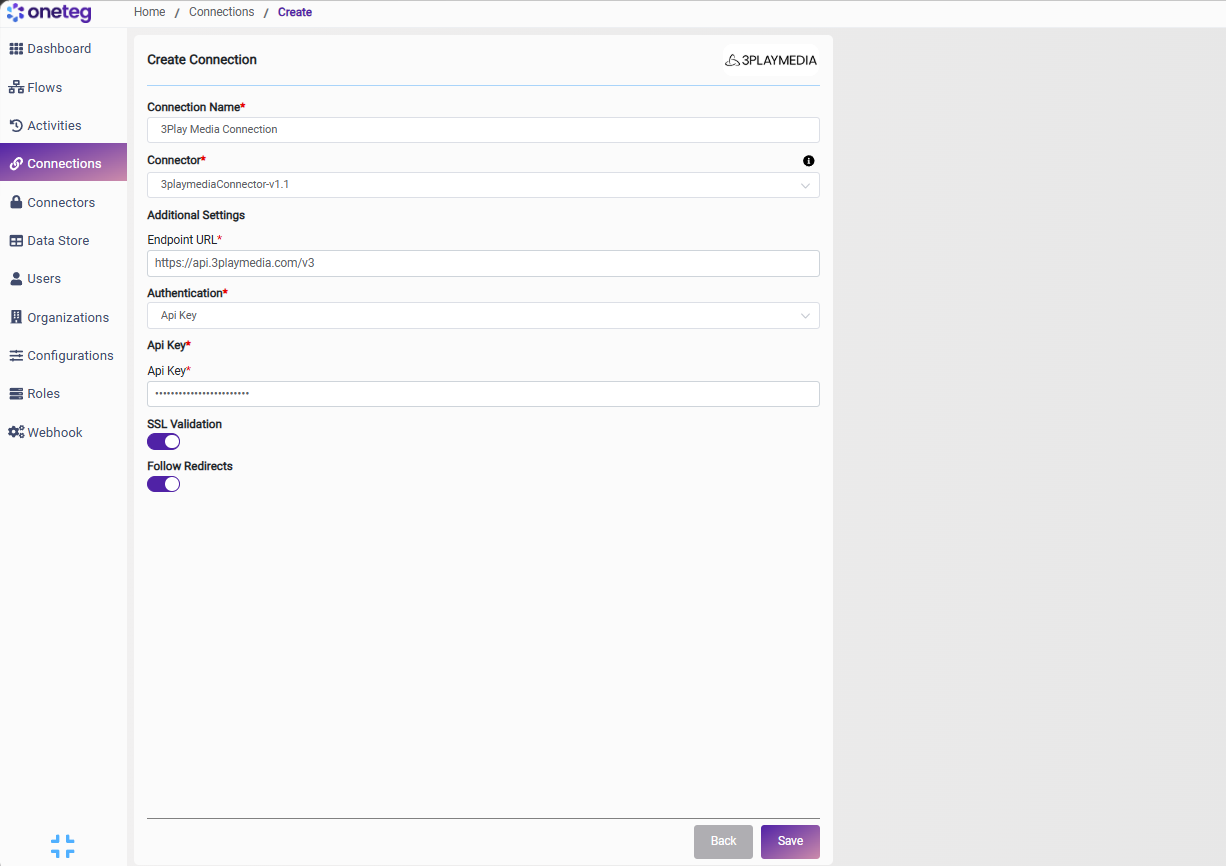
In OneTeg, navigate to Connections and create a new connection using the 3Play Media Connector. Fill in the fields below using the API key.
|
Settings Parameters |
Value / Sample Value |
Description |
Required (Y/N) |
|
Connection Name |
3Play Media Connection |
Choose a name for your Connection |
Y |
|
Connector |
3playmediaConnector-v1.1 |
Auto-populated once the 3Play Media Connector is selected |
Y |
|
Endpoint URL |
The base URL of the 3Play Media API v3 |
Y |
|
|
Authentication |
Api Key |
Select Api Key as the authentication method |
Y |
|
Api Key |
Your 3Play Media API key |
The API key generated from Settings → APIv3 Access Management |
Y |
4. Supported 3Play Media Actions and Options
For the full list of supported endpoints, parameters, and options, see the page below: